
Claverie J-M., Notredame C. Bioinformatics for Dummies
Подождите немного. Документ загружается.

Finding out about a protein by its name
The good news is, your gene actually resembles something, and you may have
the beginning of a
story. The bad news is that you’ve never heard the term
“dUTPase” in your entire life. Where do you go from here? How do you find
out more about this seemingly obscure term with the strange spelling? How
do you quickly decide whether this story makes any sense in the context of
what you already know about your gene?
Searching PubMed
The answer is to stay in your chair and go to PubMed! To do so, follow
these steps:
1. Using your favorite Internet browser, navigate to
www.ncbi.nlm.nih.gov/entrez/ on the World Wide Web.
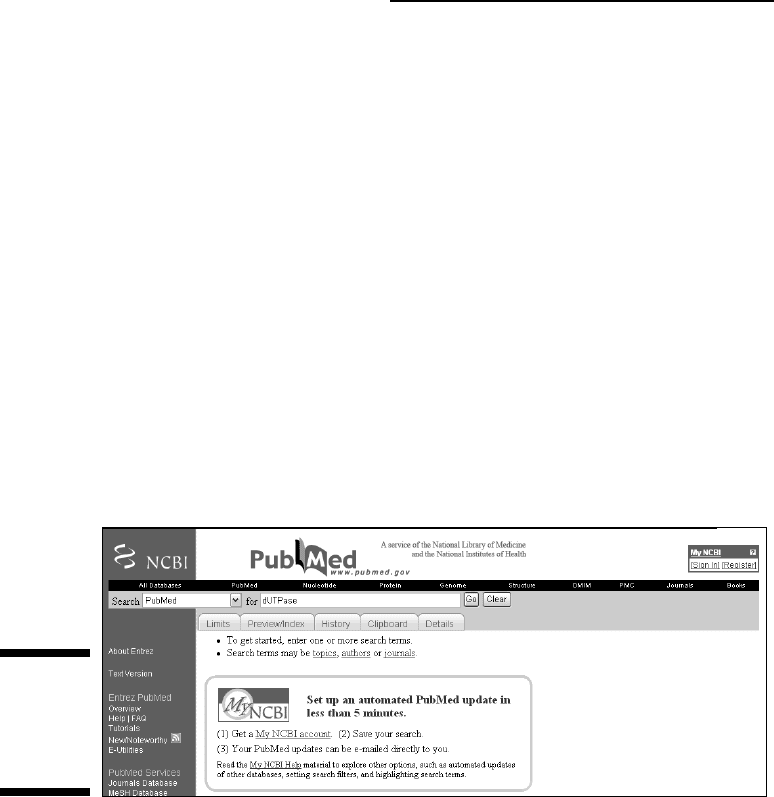
Your screen now looks like Figure 2-1, with a Search window already
preset to PubMed and a For text box next to it, ready for you to type
in a few words relevant to your question.
2. Type in dUTPase in the For window, and click the Go button.
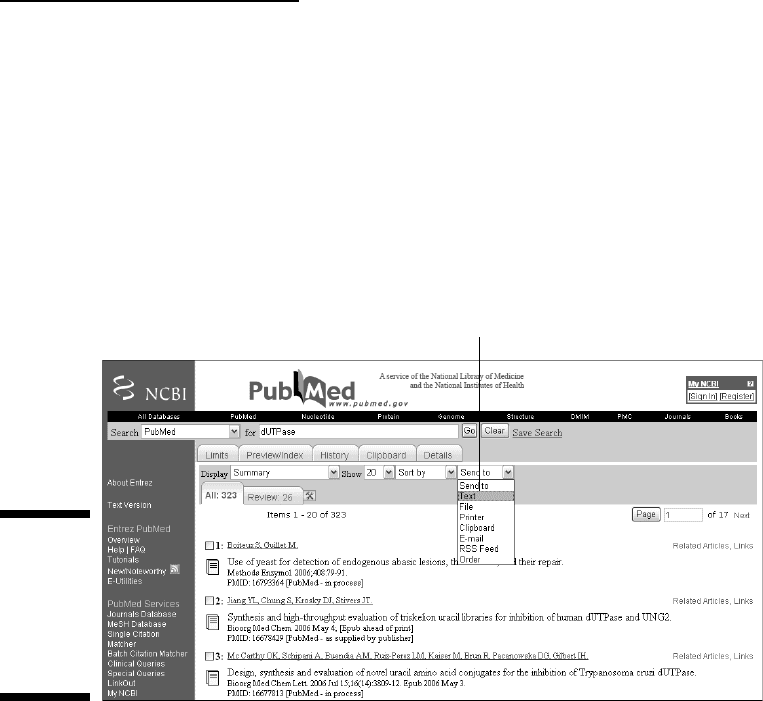
Soon after, a Results list like the one in Figure 2-2 appears on-screen.
For our dUTPase example, we now have more than 200 references at
our fingertips, more than enough to start unraveling the mysteries of
dUTPase — including its relevance to your gene. But don’t feel you have
to rush to the library with your printed list of references before it closes:
You may not even have to go.
3. For any entry in the Results list, click the associated author names.
Author names stand out because they appear in a blue font, underlined —
two signs of a clickable hyperlink.
Figure 2-1:
The initial
PubMed
search
window.
30
Part I: Getting Started in Bioinformatics
06_089857 ch02.qxp 11/6/06 3:52 PM Page 30
Clicking the link calls up a page containing a rather detailed summary
of the paper you chose. If you have a reasonable background in biology
and a little academic flair, reading a few of these abstracts should be
enough for you to get an idea of what dUTPase is all about.
4. Save what you like to your hard drive by choosing your browser’s
File
➪Save As option.
Alternatively, you can transform the display into a simpler (more printer-
friendly) format by selecting Text from the Send To drop-down menu
and then choosing File
➪Save As.
Saving multiple summaries
When your search yields many references, the best move is to start scanning
a few pages — and select the most promising papers for future use by check-
ing the corresponding boxes. To move through the Results pages, just use the
Next link (top right).
When you think you have selected enough references, just do the following:
1. Choose Abstract from the Display drop-down menu.
The abstracts of all the papers you selected in the various pages appear
for you to read.
2. If you want to print this display as is, choose File➪Print from your
browser menu.
Click here for printer-friendly format.
Figure 2-2:
The initial
result of a
standard
PubMed
search for
dUTPase.
31
Chapter 2: How Most People Use Bioinformatics
06_089857 ch02.qxp 11/6/06 3:52 PM Page 31

3. If you want to print this display in a more printer-friendly format, first
select Text from the scroll-down menu on the far right of the menu bar
(refer to Figure 2-2) to display this information in a non-HTML format,
and then choose File
➪Print from your browser menu.
4. If you’d like to save the file in the format of your choice, choose
File
➪Save As from your browser menu, enter a new filename for the
file, and then choose the file format you want to save to.
Although this particular drop-down menu — the one you see fully extended
back in Figure 2-2 — provides a File option, it sometimes conflicts with secu-
rity settings. We advise you to stay away from it and use the standard
File
➪Save As command on your browser menu.
Searching PubMed using author’s names
Although you can certainly search PubMed by using topic keywords (such as
protein names), you do have other search options available to you. For exam-
ple, we’re sure you’ve found yourself in the situation where one of your col-
leagues (or perhaps your advisor) has told you something like the following:
“I read a paper by so and so, published not too long ago, and I think it was on
dUTPase; you should check it out.” In the old-style academic world of card
catalogs and stacks of periodicals, this isn’t much of a lead. But on the World
Wide Web, with PubMed at your side, you’re almost home free. Suppose you
only remember one of these author’s names, such as Abergel. Using PubMed,
take the following steps to track down the elusive reference:
1. Point your browser to www.ncbi.nlm.nih.gov/entrez/.
2. Type
Abergel — the name of your prospective author — in the For
window, and then click the Go button.
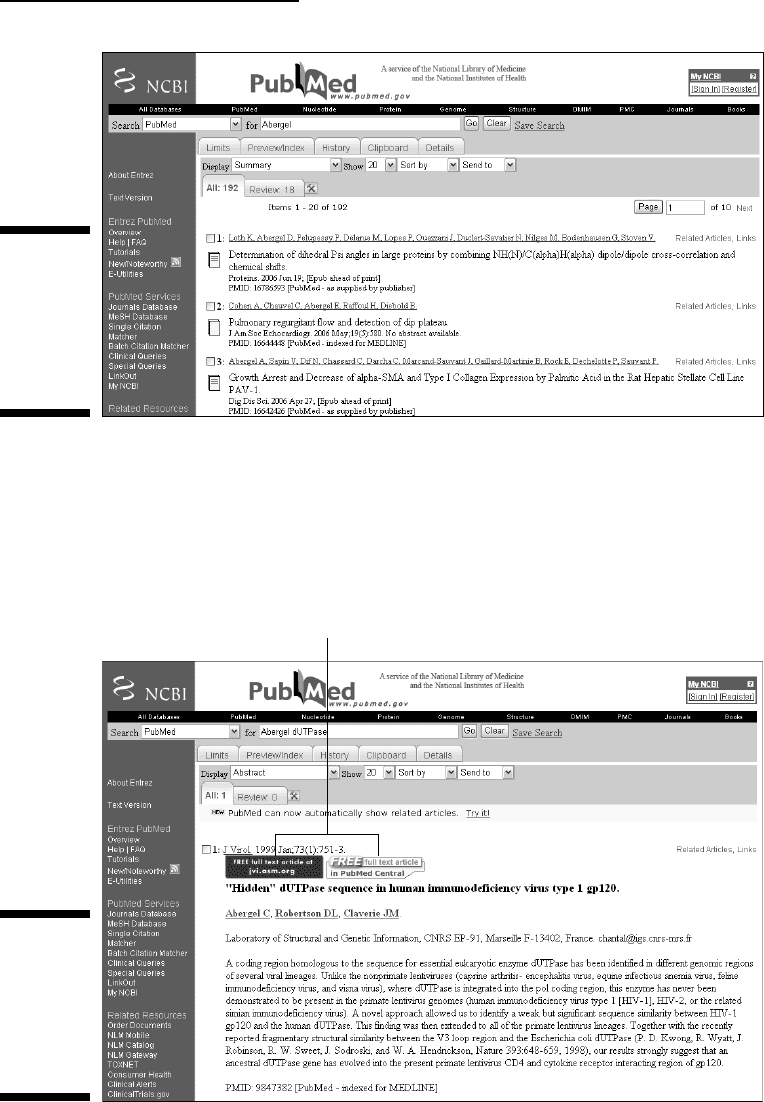
The Results list appears, as shown in Figure 2-3.
We now have a list of many papers, all of them with “Abergel” as an author.
Again, you can browse through this list, select some of them, and bring out
their abstracts. However, the bad news is that none of them appear to have
anything to do with dUTPase. To solve this problem, you simply combine
the protein name and the author information in your query — and you
don’t even need to memorize a complicated syntax or Boolean symbols.
3. Type dUTPase next to Abergel in the For window — don’t forget to put
a single space between the search terms — and click Go.
By default, PubMed assumes that you want to use both search terms —
Abergel AND dUTPase — when looking for the appropriate research
papers. By default, PubMed also assumes that you want to look for these
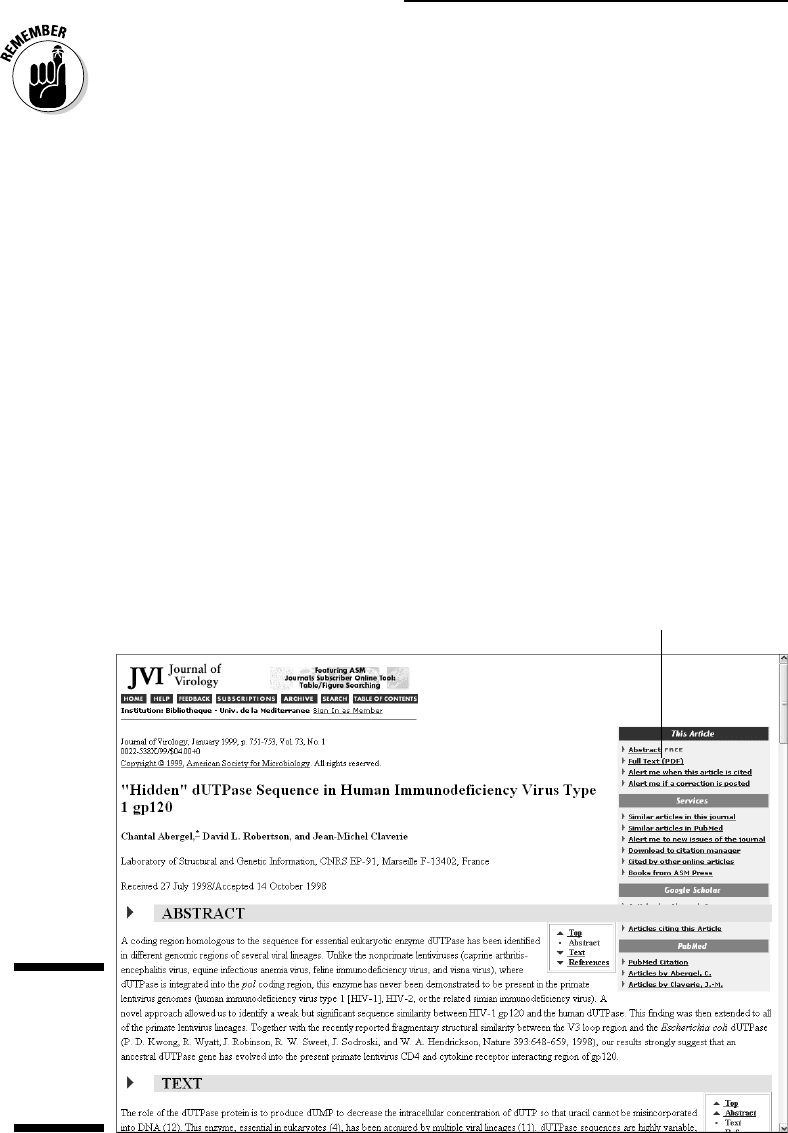
words in the titles OR in the abstracts of the papers. Figure 2-4 shows
the results of your first combined search.
32
Part I: Getting Started in Bioinformatics
06_089857 ch02.qxp 11/6/06 3:52 PM Page 32
Because only one paper corresponds to your query, PubMed automati-
cally switches from the “summary” to the “abstract” mode, and you can
now read what this unique paper is all about.
This must be the paper your boss was talking about. Congratulations!
You’ve just accomplished your first bibliographic search with PubMed!
Click here for full text.
Figure 2-4:
The result of
a standard
combined
search for
Abergel and
dUTPase.
Figure 2-3:
The results
of a
standard
PubMed
search for
Abergel.
33
Chapter 2: How Most People Use Bioinformatics
06_089857 ch02.qxp 11/6/06 3:52 PM Page 33
When a search returns more than a single reference, simply choose the
Abstract option manually from the Display drop-down menu.
But wait! There’s more! In fact, this is your lucky day: You’ve hit upon a
paper from a journal that offers free access to the full text (as indicated
by the large colored rectangles that appear above the title).
4. Click the blue rectangle on the left.
This brings you directly to the publisher’s site, where you read an interac-
tive online copy (HTML) or download a reprint in .PDF format, among
other choices (Figure 2-5). An increasing number of scientific journals —
including some leading journals in their respective fields — are offering
full-text access to articles. However, most of them will still ask you to pay
a fee, to be a registered client (for instance, through your university), or to
hold a personal subscription. For some journals (such as the one in Figure
2-5), full-text access becomes free six months after print publication.
By the way, clicking on the rectangle next to the blue one gives you
access to the same article, this time extracted from the public, open-
access bibliographic repository PubMed Central.
Thus, if you’re lucky, you can go through the entire bibliographic
process in a flash — and find out all you need about some mysterious
biological subject — without having to leave the comfort of your chair,
thanks to PubMed and the cooperating publishers.
Click here for a PDF reprint.
Figure 2-5:
The Journal
of Virology
grants free
full-text
access.
34
Part I: Getting Started in Bioinformatics
06_089857 ch02.qxp 11/6/06 3:52 PM Page 34

PubMed searches are case-insensitive; the results of the searches that appear
in Figures 2-1 through 2-4 do not depend on the capitalization of query terms
when you type them. Thus typing
DUTPASE, dUTPase, or dutpase would pro-
duce the same output (as would typing
Abergel or aBERGEL). Be aware, how-
ever, that this is NOT the case with all databases and search programs used
in bioinformatics. Watching for case sensitivity is always a good idea.
Searching PubMed using fields
In addition to searching by author and topic, PubMed offers you many more
ways to narrow down your bibliographic searches to more specific topics. To
get a handle on these different ways, however, we need to know more about
the internal structure of Medline entries — the pool of entries from which
PubMed gathers its search results.
To gain some insight into this internal structure, refer to Figure 2-4. We had
just used the PubMed site (
www.ncbi.nlm.nih.gov/entrez/) to track
down a single article after inputting
Abergel and dUTPase as a query. With
that Results list on your computer screen, you can now do the following:
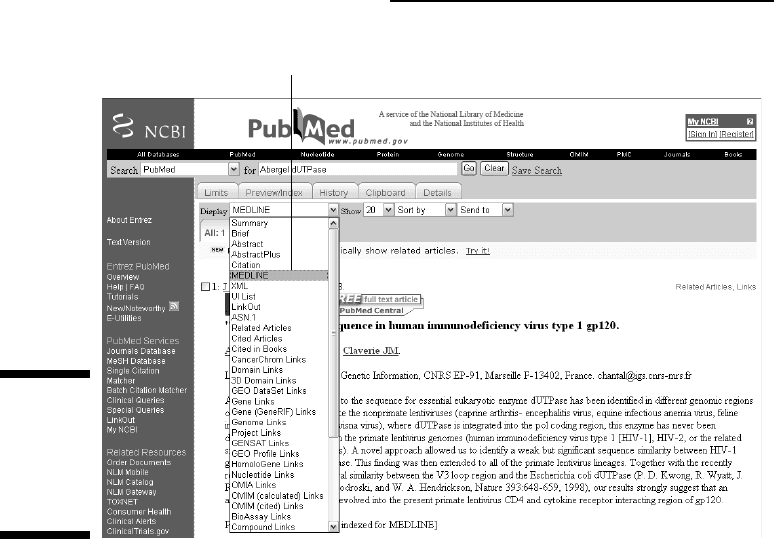
1. Click the small arrow to the right of the Display drop-down menu.
The contents of the drop-down menu appear: These options are different
ways to display information related to the current article, or are links to
related information.
2. Select the MEDLINE option (Figure 2-6).
The Medline page appears, as shown in Figure 2-7.
In Figure 2-7 you can see the internal structure of a Medline database record.
The information is spread out over separate sections, called
fields, each one
preceded by a specific abbreviation —
TI for title fields, AB for abstracts, AD
for the laboratory address, AU for the authors, SO for the journal abbrevia-
tion, and so forth. This structure applies to all Medline records.
Putting fields to good use
Unfortunately, not all PubMed searches are as easy and productive as the one
we used in the dUTPase example. You can get flooded with an overwhelming
number of
hits (the standard term for search results) if you formulate queries
that contain common names (such as
Smith or Cohen) or use search terms
(such as
Down) that can occur in different contexts — such as titles (for
example,
Down Syndrome), abstracts, author names, or even addresses
(
955 Down Street).
35
Chapter 2: How Most People Use Bioinformatics
06_089857 ch02.qxp 11/6/06 3:52 PM Page 35
To alleviate this problem, you can query PubMed by restricting the search
for each word of your query to a given field. Thus papers containing the
word at the wrong place are not selected. To do so, you simply have to
follow each term with the code (in brackets) that identifies the field in
which you want to find the search term. Changing the field can totally
modify the result of the searches. For instance, try entering three different
queries —
Down [AU], Down [TI], and Down [AD] into the For text box
at the PubMed site.
When we ran those queries, we got (respectively) 275, 16,318, and 1,213
totally unrelated references. At least that narrowed the search a bit.
Using fields to find experts near you
Field-restricted queries are great for dealing with author’s names or subject
terms that can be found in different fields (which would otherwise inflate
and confuse the search results). But field-restricted queries have many other
applications, as well — they’re especially useful for locating experts in partic-
ular research fields in given locations.
Select MEDLINE format here.
Figure 2-6:
Changing
the default
abstract
format to
MEDLINE.
36
Part I: Getting Started in Bioinformatics
06_089857 ch02.qxp 11/6/06 3:52 PM Page 36

PMID
OWN
STAT
DA
DCOM
LR
PUBM
IS
VI
IP
DP
TI
PG
AB
- 9847382
- NLM
- MEDLINE
- 19990128
- 19990128
- 20041117
- Print
- 0022-538X (Print)
- 73
- 1
- 1999 Jan
AD
FAU
AU
FAU
AU
FAU
AU
LA
PT
- Laboratory of Structural and Genetic Information, CNRS EP-91, Marseille
F-12302, France. chantal@igs.cnrs-mrs.fr
- Abergel, C
- Abergel C
- Robertson, D L
- Robertson DL
- Claverie, J M
- Claverie JM
- eng
- Journal Article
PL
TA
JT
JID
RN
RN
RN
- UNITED STATES
- J Virol
- Journal of virology.
- 0113724
- 0 (HIV Envelope Protein gp120)
- EC 3.6.1. - (Pyrophosphatases)
- EC 3.6.1.23 (dUTP pyrophosphatase)
SB
SB
MH
MH
MH
MH
- IM
- X
- Amino Acid Sequence
- HIV Envelope Protein gp120/*chemistry
- HIV-1/* chemistry
- Humans
MH
MH
MH
- Molecular Sequence Data
- Pyrophosphatases/*chemistry/genetics
- Research Support, Non-U.S. Gov’t
EDAT
MHDA
PST
SO
- 1998/12/16
- 1998/12/16 00:01
- ppublish
- J Virol. 1999 Jan;73(1):751-3.
- "Hidden" dUTPase sequenc
e in human immunodeficiency virus type 1 gp120.
- 751-3
- A coding region homologous to the sequence for essential eukaryotic enzyme
dUTPase has been identified in different genomic regions of several viral
lineages. -----------------------------------------------------------------------------
-----, our results strongly suggest that an ancestral dUTPase
gene has evolved into the present primate lentivirus CD4 and cytokine
receptor interacting region of gp120.
Figure 2-7:
The internal
structure of
a Medline
record.
37
Chapter 2: How Most People Use Bioinformatics
06_089857 ch02.qxp 11/6/06 3:52 PM Page 37

Suppose (for example) you just landed in Chicago and you’d like to know if
there’s anybody around who can give you some insight into the mysteries of
dUTPase. To get your personalized list of resident experts, just do the following:
1. Point your browser to the PubMed site
(www.ncbi.nlm.nih.gov/entrez/).
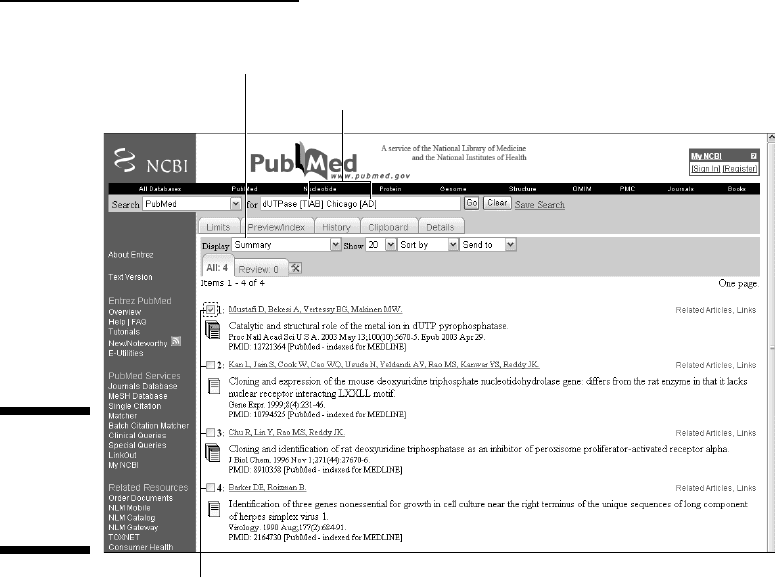
2. In the For window, enter dUTPase [TIAB] Chicago [AD], and click Go.
By specifying the [TIAB] field, you’ll be scanning the titles and
abstracts of potential articles; the
[AD] field specifies the address of the
main laboratory associated with these articles.
A couple of papers show up (Figure 2-8).
3. Click the list of authors (in blue, underlined).
You get the abstract of the corresponding article, together with the main
laboratory address. Alternatively, to get all the abstracts at once, follow
Steps 4 and 5.
4. Go back to the previous URL (after Step 2) using the Go Back button of
your browser.
5. In the Display drop-down menu, change the display option from
Summary to Abstract.
A list of abstracts appears. At the top of each abstract, you get the name
of the relevant laboratory in Chicago.
With the information contained in the Medline records, you have names,
street addresses, and sometimes e-mail addresses. If necessary, you can
use a telephone book (or a Web search engine) to supplement this infor-
mation and find out how to contact these experts — the same day. (But
please don’t call these people on our behalf!)
Searching PubMed using limits
PubMed offers yet another way of fine-tuning your queries: You can pre-define
ranges for different attributes in different fields before you run your search.
Said like this, the process sounds awfully technical and complex — but here’s
where we show you how to do it (again using our dUTPase example).
When you want to quickly find out the basics about a subject you know noth-
ing about, it’s best not to read any single highly specialized article. A better
bet is to stick with review articles, where one expert summarizes the state of
the art for you. Unless you’re an historian, you won’t have much need to know
about the state of the art as it was 20 years ago (which seems more like three
centuries ago in the field of molecular biology). Thus, we want to limit our
PubMed search to
recent review articles about dUTPase. Here’s how it’s done:
38
Part I: Getting Started in Bioinformatics
06_089857 ch02.qxp 11/6/06 3:52 PM Page 38
1. Point your browser to the PubMed site at
www.ncbi.nlm.nih.gov/entrez/
2. Type dUTPase in the For text box.
If you clicked the Go button at this point, you’d get a list of more than 320
articles — a bit too much reading for a nonspecialist! Restricting this list
to the most recent review articles written in English would be practical.
3. Click the Limits tab, located just beneath the little arrow for the pull-
down menu of the Search window.
The Limits screen appears, as shown in Figure 2-9. Here, below the
Limited To line, you now have plenty of fields and attributes you can use
for setting limits. You can go back later to this page and explore these
various options.
4. Check the English box in the Language section.
Unless you’re fluent in French, bien sûr.
5. Check the Review box in the Type of Article section.
Change from Summary to abstract here.
Restricted fields
Check these boxes to select papers.
Figure 2-8:
Searching
for experts
on dUTPase
in Chicago.
39
Chapter 2: How Most People Use Bioinformatics
06_089857 ch02.qxp 11/6/06 3:52 PM Page 39