
Schmuller J. Statistical Analysis with Excel For Dummies
Подождите немного. Документ загружается.

29
Chapter 2: Understanding Excel’s Statistical Capabilities
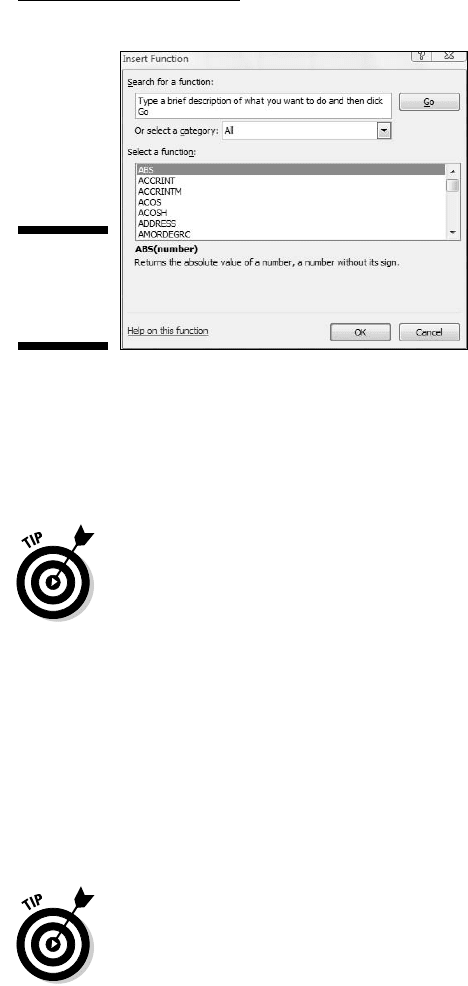
Figure 2-2:
The Insert
Function
dialog box.
This dialog box enables you to search for a function that fits your needs, or
to scroll through a list of Excel functions.
So in addition to clicking the Insert Function button next to the Formula bar,
you can open the Insert Function dialog box by selecting
Formulas | Insert Function
To open the Insert Function dialog box, you can also press Shift+F3.
Because of the way earlier versions of Excel were organized, the Insert
Function dialog box was extremely useful. In Excel 2007, however, it’s mostly
helpful if you’re not sure which function to use or where to find it.
The Function Library presents the categories of formulas you can use and
makes it convenient for you to access them. Clicking a category button in this
area opens a menu of the functions in that category.
Most of the time, I work with Statistical Functions that are easily accessible
through the Statistical Functions menu. Sometimes I work with Math functions
in the Math & Trig Functions menu. (You see a couple of these later in the
chapter.) In Chapter 5, I work with a couple of Logic functions.
The final selection of each category menu (like the Statistical Functions menu)
is called Insert Function. Selecting this option is still another way to open the
Insert Function dialog box.
The Name Box is something like a running record of what you do in the work-
sheet. Select a cell, and the cell’s address appears in the Name Box. Click
the Insert Function button and the name of the function you selected most
recently appears in the Name Box.
06 454060-ch02.indd 2906 454060-ch02.indd 29 4/21/09 7:18:47 PM4/21/09 7:18:47 PM

30
Part I: Statistics and Excel: A Marriage Made in Heaven
In addition to the statistical functions, Excel provides a number of data analy-
sis tools you access through the Data tab’s Analysis area.
Setting Up for Statistics
In this section, I show you how to use the worksheet functions and the analy-
sis tools.
Worksheet functions in Excel 2007
Because the Ribbon exposes so many of Excel’s capabilities, it’s not neces-
sary to bury them in menus any more. As I point out in the preceding section,
the Function Library area of the Formulas tab shows all the categories of
worksheet functions.
The steps in using a worksheet function are:
1. Type your data into a data array and select a cell for the result.
2. Select the appropriate formula category and choose your function
from its pop-up menu.
Doing this opens the Function Arguments dialog box.
3. In the Function Arguments dialog box, type the appropriate values for
the function’s arguments.
Argument is a term from mathematics. It has nothing to do with debates,
fights, or confrontations. In mathematics, an argument is a value on
which a function does its work.
4. Click OK to put the result into the selected cell.
Yes, that’s all there is to it.
To give you an example, I explore a function that typifies how Excel’s work-
sheet functions work. This function, SUM, adds up the numbers in cells you
specify and returns the sum in still another cell that you specify. Although
adding numbers together is an integral part of statistical number crunching,
SUM is not in the Statistical category. It is, however, a typical worksheet func-
tion and it shows a familiar operation.
Here, step by step, is how to use SUM.
06 454060-ch02.indd 3006 454060-ch02.indd 30 4/21/09 7:18:47 PM4/21/09 7:18:47 PM
31
Chapter 2: Understanding Excel’s Statistical Capabilities
1. Enter your numbers into an array of cells and select a cell for the
result.
In this example, I’ve entered 45, 33, 18, 37, 32, 46, 39 into cells C2
through C8, and selected C9 to hold the sum.
2. Select the appropriate formula category and choose your function
from its pop-up menu.
This opens the Function Arguments dialog box.
I selected Formulas | Math & Trig
and scrolled down to find and choose SUM.
3. In the Function Arguments dialog box, enter the appropriate values
for the arguments.
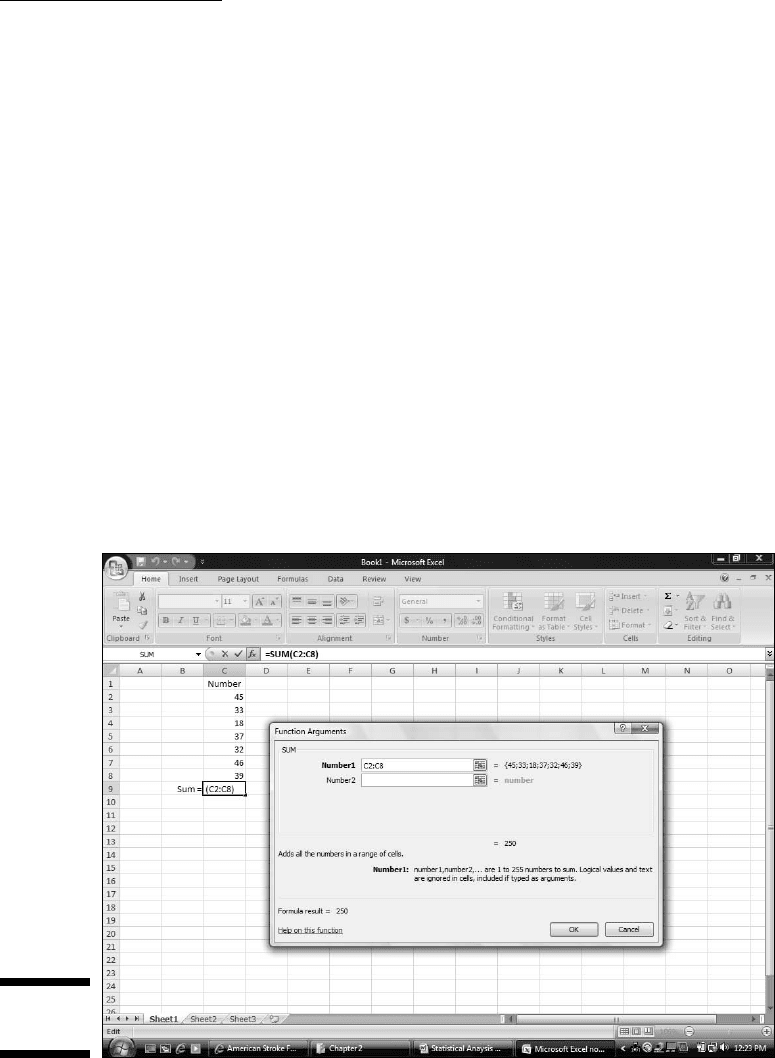
Excel guesses that you want to sum the numbers in cells C2 through C8
and identifies that array in the Number1 box. Excel doesn’t keep you in
suspense: The Function Arguments dialog box shows the result of apply-
ing the function. In this example, the sum of the numbers in the array is
250. (See Figure 2-3.)
4. Click OK to put the sum into the selected cell.
Figure 2-3:
Using SUM.
06 454060-ch02.indd 3106 454060-ch02.indd 31 4/21/09 7:18:47 PM4/21/09 7:18:47 PM
32
Part I: Statistics and Excel: A Marriage Made in Heaven
Note a couple of points. First, as Figure 2-3 shows, the Formula Bar holds
=SUM(C2:C8)
This formula indicates that the value in the selected cell equals the sum of
the numbers in cells C2 through C8.
After you get familiar with a worksheet function and its arguments, you can
bypass the menu and type the function directly into the cell or into the for-
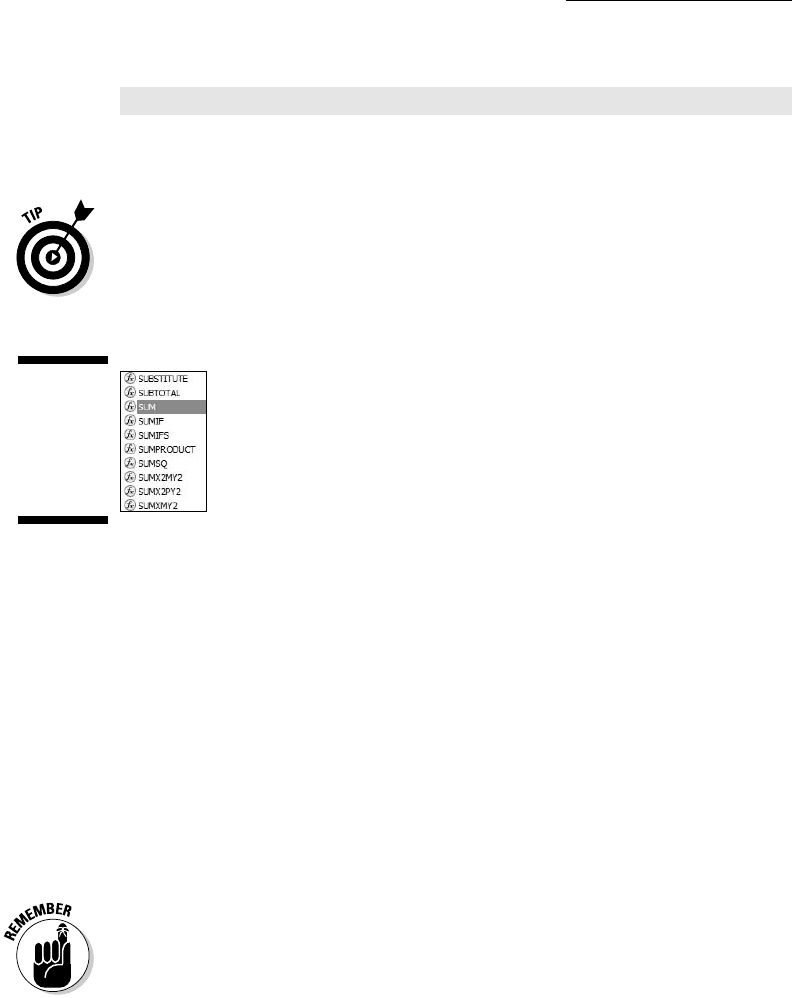
mula bar, beginning with “=”. When you do, Excel opens a helpful menu as you
type the formula. (See Figure 2-4.) The menu shows possible formulas begin-
ning with the letter(s) you type, and you can select one by double-clicking it.
Figure 2-4:
As you type
a formula,
Excel opens
a helpful
menu.
Another noteworthy point is the set of boxes in the Function Arguments
dialog box in Figure 2-3. In the figure you see just two boxes, Number1 and
Number2. The data array appears in Number1. So what’s Number2 for?
The Number2 box allows you to include an additional argument in the sum.
And it doesn’t end there. Click in the Number2 box and the Number3 box
appears. Click in the Number3 box, and the Number4 box appears . . . and on
and on. The limit is 255 boxes, with each box corresponding to an argument.
A value can be another array of cells anywhere in the worksheet, a number,
an arithmetic expression that evaluates to a number, a cell ID, or a name
that you have attached to a range of cells. (Regarding that last one: Read the
upcoming section “What’s in a name? An array of possibilities.”) As you type
in values, the SUM dialog box shows the updated sum. Clicking OK puts the
updated sum into the selected cell.
You won’t find this multiargument capability on every worksheet function.
Some are designed to work with just one argument. For the ones that do work
with multiple arguments, however, you can incorporate data that resides all
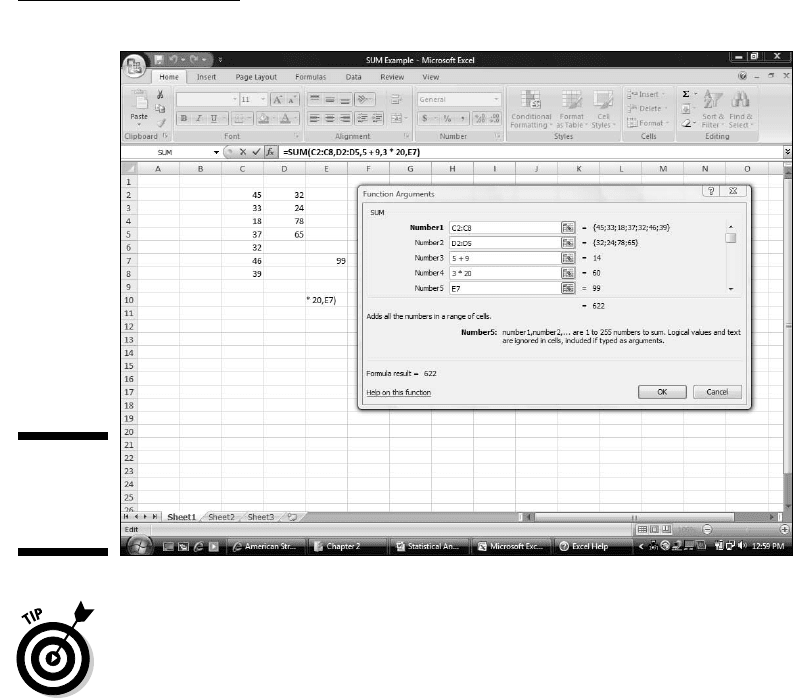
over the worksheet. Figure 2-5 shows a worksheet with a Function Arguments
dialog box that includes data from two arrays of cells, two arithmetic expres-
sions, and one cell. Notice the format of the function in the Formula Bar
(a comma separates successive arguments).
06 454060-ch02.indd 3206 454060-ch02.indd 32 4/21/09 7:18:48 PM4/21/09 7:18:48 PM
33
Chapter 2: Understanding Excel’s Statistical Capabilities
Figure 2-5:
Using SUM
with five
arguments.
If you select a cell in the same column as your data and just below the last
data cell, Excel correctly guesses the data array that you want to work on.
Excel doesn’t always guess what you want to do, however. Sometimes when
Excel does guess, its guess is incorrect. When either of those things happens,
it’s up to you to enter the appropriate values into the Function Arguments
dialog box.
Quickly accessing statistical functions
In the preceding example, I show you a function that’s not in the category of
statistical functions. In this section, I show you how to create a shortcut to
Excel’s statistical functions.
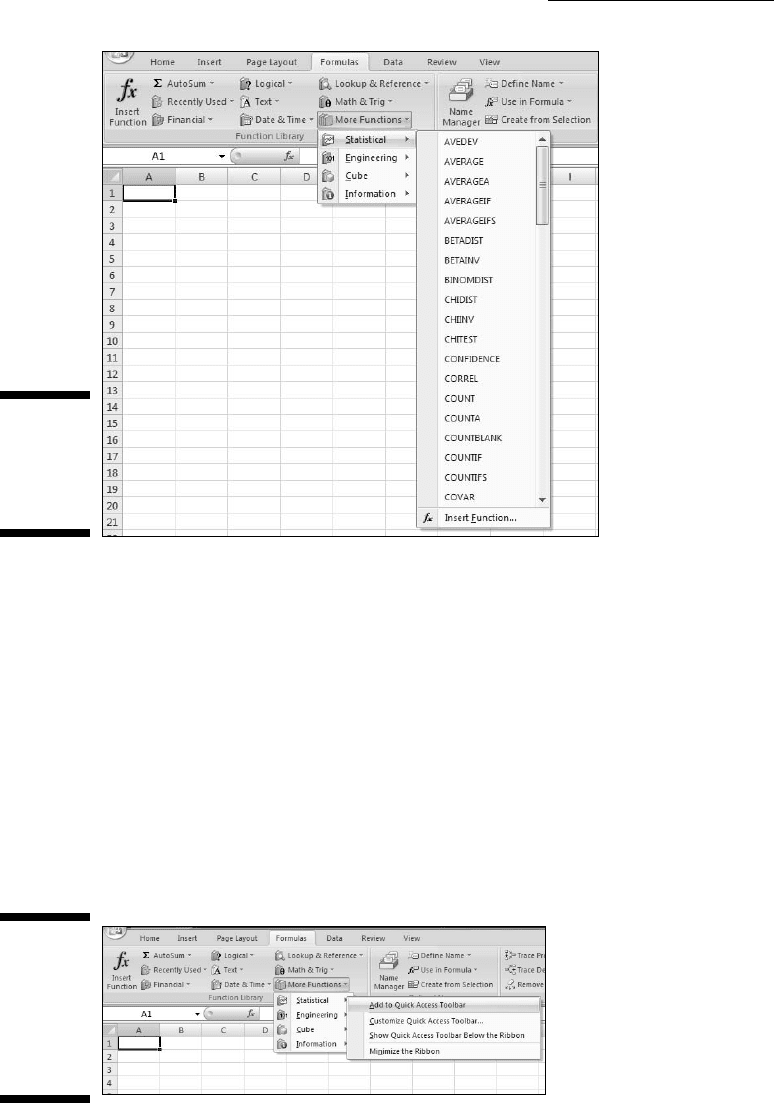
You can get to Excel’s statistical functions by selecting
Formulas | More Functions | Statistical
and then choosing from the resulting pop-up menu. (See Figure 2-6.)
06 454060-ch02.indd 3306 454060-ch02.indd 33 4/21/09 7:18:48 PM4/21/09 7:18:48 PM
34
Part I: Statistics and Excel: A Marriage Made in Heaven
Figure 2-6:
Accessing
Excel’s
Statistical
Functions.
Although Excel has buried the statistical functions several layers deep, you
can use a handy Excel 2007 technique to make them as accessible as any of
the other categories: You add them to the Quick Access Toolbar in the upper-
left corner. (Every Office 2007 application has one.)
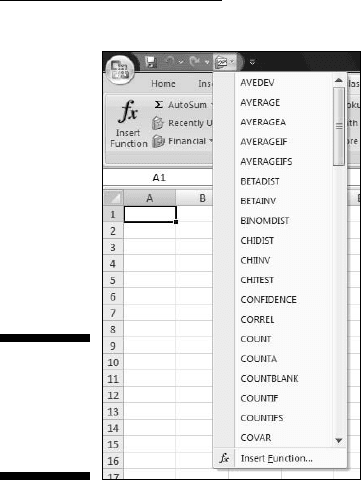
To do this, select
Formulas | More Functions
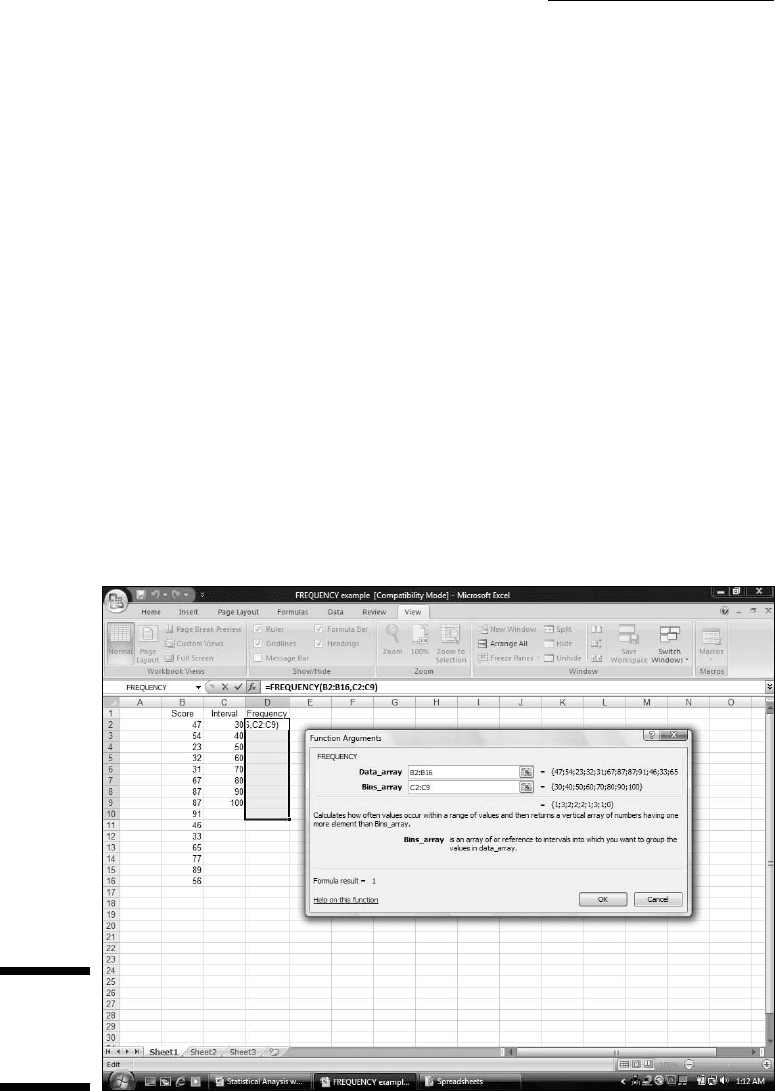
and right-click on Statistical. On the pop-up menu, pick the first option; Add
to Quick Access Toolbar. (See Figure 2-7.) Doing this adds a button to the
Quick Access Toolbar. Clicking the new button’s down arrow opens the
pop-up menu of statistical functions. (See Figure 2-8.)
Figure 2-7:
Adding the
Statistical
functions to
the Quick
Access
Toolbar.
06 454060-ch02.indd 3406 454060-ch02.indd 34 4/21/09 7:18:48 PM4/21/09 7:18:48 PM
35
Chapter 2: Understanding Excel’s Statistical Capabilities
Figure 2-8:
The
Statistical
Functions
menu.
From now on, when I deal with a statistical function, I assume that you’ve cre-
ated this shortcut, so you can quickly open the menu of statistical functions.
The next section provides an example.
Array functions
Most of Excel’s built-in functions are formulas that calculate a single value
(like a sum) and put that value into a worksheet cell. Excel has another type
of function. It’s called an array function because it calculates multiple values
and puts those values into an array of cells, rather than into a single cell.
FREQUENCY is a good example of an array function (and it’s an Excel statisti-
cal function, too). Its job is to summarize a group of scores by showing how
the scores fall into a set of intervals that you specify. For example, given
these scores
77, 45, 44, 61, 52, 53, 68, 55
and these intervals
50, 60, 70, 80
06 454060-ch02.indd 3506 454060-ch02.indd 35 4/21/09 7:18:49 PM4/21/09 7:18:49 PM
36
Part I: Statistics and Excel: A Marriage Made in Heaven
FREQUENCY shows how many are less than or equal to 50 (2 in this exam-
ple), how many are greater than 50 and less than or equal to 60 (that would
be 3), and so on. The number of scores in each interval is called a frequency.
A table of the intervals and the frequencies is called a frequency distribution.
Here’s an example of how to use FREQUENCY:
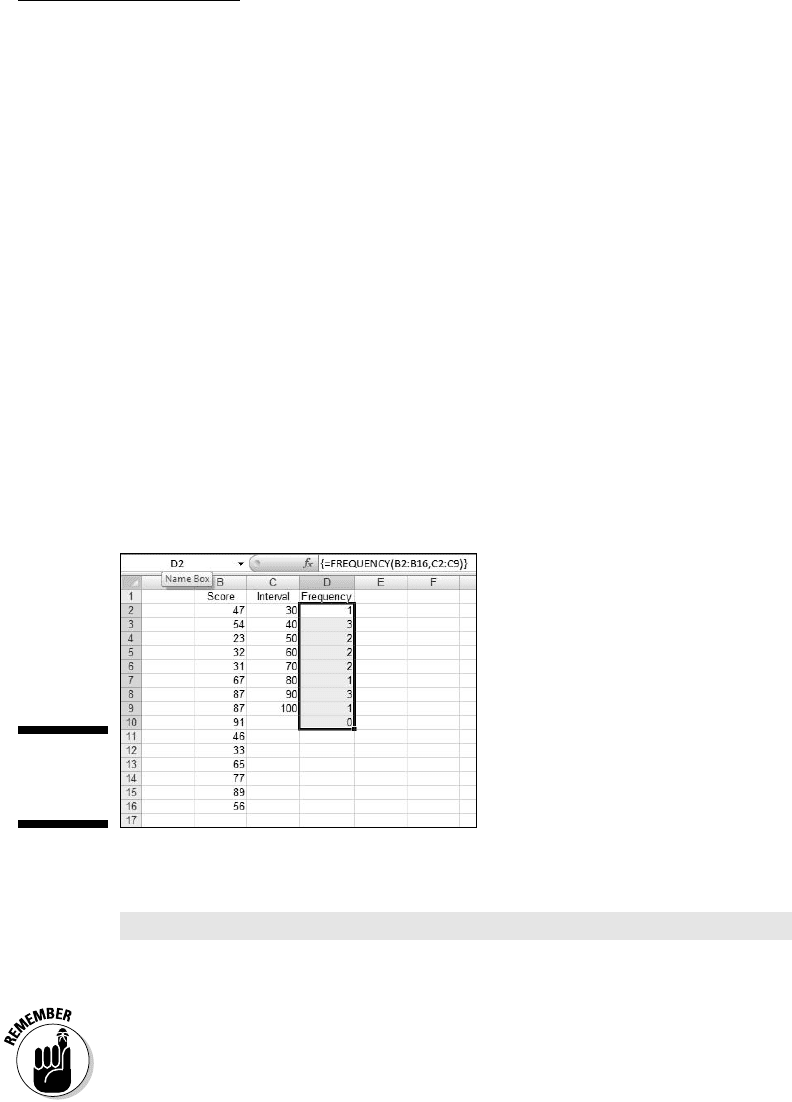
1. Enter the scores into an array of cells.
Figure 2-9 shows a group of scores in cells B2 through B16.
2. Enter the intervals into an array.
I’ve put the intervals in C2 through C9.
3. Select an array for the frequencies.
I’ve put Frequency as the label at the top of column D, so I select D2
through D10 for the resulting frequencies. Why the extra cell? FREQUENCY
returns a vertical array that has one more cell than the frequencies array.
4. From the Statistical Functions menu, select FREQUENCY to open the
Function Arguments dialog box.
I used the shortcut I installed on the Quick Access Toolbar to open this
menu and select FREQUENCY.
Figure 2-9:
Working
with
FREQUENCY.
06 454060-ch02.indd 3606 454060-ch02.indd 36 4/21/09 7:18:49 PM4/21/09 7:18:49 PM
37
Chapter 2: Understanding Excel’s Statistical Capabilities
5. In the Function Arguments dialog box, enter the appropriate values
for the arguments.
I begin with the Data_array box. In this box I entered the cells that hold
the scores. In this example, that’s B2:B16. I’m assuming you know Excel
well enough to know how to do this in several ways.
Next, I identify the intervals array. FREQUENCY refers to intervals as
“bins,” and holds the intervals in the Bins_array box. For this example,
C2:C9 goes into the Bins_array box. After identifying both arrays, the Insert
Function dialog box shows the frequencies inside a pair of curly brackets.
6. Press Ctrl+Shift+Enter to Close the Function Arguments dialog box
and put the values in the selected array.
This is VERY important. Because the dialog box has an OK button, the
tendency is to click OK, thinking that puts the results into the work-
sheet. That doesn’t get the job done when you work with an array func-
tion, however. Always use the keystroke combination Ctrl+Shift+Enter to
close the Function Arguments dialog box for an array function.
After closing the Function Arguments dialog box, the frequencies go into the
appropriate cells, as Figure 2-10 shows.
Figure 2-10:
The finished
frequencies.
Note the formula in the Formula Bar:
{= FREQUENCY(B2:B16,C2:C9)}
The curly brackets are Excel’s way of telling you that this is an array function.
I’m not one to repeat myself, but in this case I’ll make an exception. As I said in
Step 6, press Ctrl+Shift+Enter whenever you work with an array function. Keep
this in mind because the Arguments Function dialog box doesn’t provide any
reminders. If you click OK after you enter your arguments into an array func-
tion, you’ll be very frustrated. Trust me.
06 454060-ch02.indd 3706 454060-ch02.indd 37 4/21/09 7:18:49 PM4/21/09 7:18:49 PM
38
Part I: Statistics and Excel: A Marriage Made in Heaven
What’s in a name? An array
of possibilities
As you get more into Excel’s statistical features, you work increasingly with
formulas that have multiple arguments. Oftentimes, these arguments refer to
arrays of cells, as in the preceding examples.
If you apply meaningful names to these arrays, it helps you keep straight
what you’re doing. Also, if you come back to a worksheet after being away
from it for a while, meaningful array names can help you quickly get back into
the swing of things. Another benefit: If you have to explain your worksheet
and its formulas to others, meaningful array names are tremendously helpful.
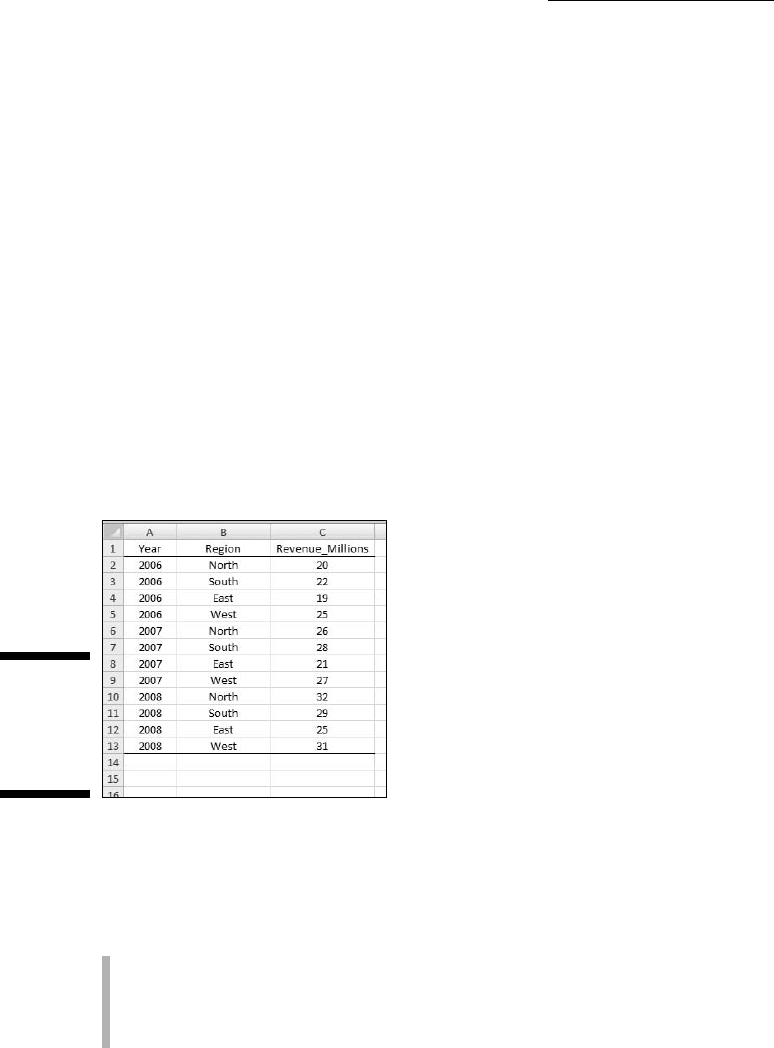
Excel gives you an easy way to attach a name to a group of cells. In Figure 2-11,
column C is named Revenue_Millions, indicating “Revenue in millions of dol-
lars.” As it stands, that just makes it a bit easier to read the column. If I explicitly
tell Excel to treat Revenue_Millions as the name of the array of cells C2 through
C13, however, I can use Revenue_Millions whenever I refer to that array of cells.
Figure 2-11:
Defining
names for
arrays of
cells.
Why did I use Revenue_Millions and not Revenue (Millions) or Revenue In
Millions or Revenue: Millions? Excel doesn’t like blank spaces or symbols
in its names. In fact, here are four rules to follow when you supply a name
for a range of cells:
✓ Begin a name with an alphabetic character — a letter rather than a
number or a punctuation mark.
✓ As I just mentioned, make sure that the name contains no spaces or sym-
bols. Use an underscore to denote a space between words in the name.
06 454060-ch02.indd 3806 454060-ch02.indd 38 4/21/09 7:18:49 PM4/21/09 7:18:49 PM