
Baker K.R. Optimization Modeling with Spreadsheets
Подождите немного. Документ загружается.

BOX 1.2
Excel Mini-Lesson: Using Range Names with Solver
Excel offers the opportunity to refer to a cell range using a custom name. The range name
can be entered in the Name Box (located just above the heading for column A) after select-
ing the desired range of cells. A one-cell range can be named in the same manner.
To illustrate the effect of using named ranges, suppose we return to the model of
Figure 1.2 and name the following cells:
Cells Name
C9:C10 Decisions
C13 Formula
E13 Constant
C16 Profit
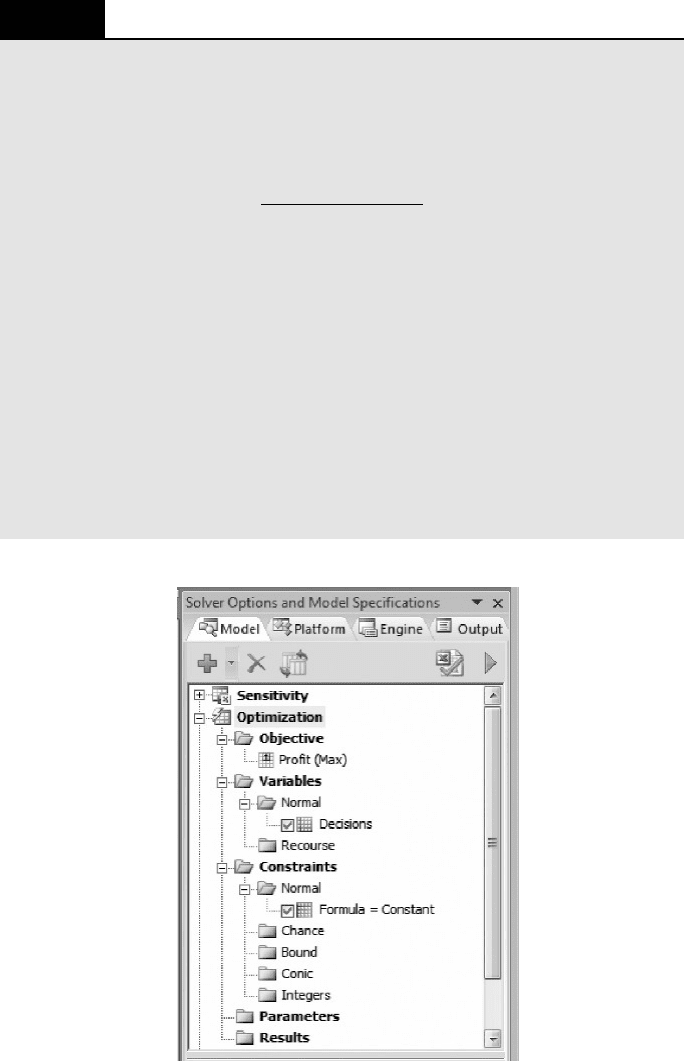
Then the task pane window describes the model with range names instead of cell refer-
ences, as shown in Figure 1.9. When a new user examines the model, this form is likely
to be more meaningful than the use of literal cell references because the range names pro-
vide both description and documentation. Thus, range names are valuable for situations in
which communicating the model to other audiences is an important consideration. When
Solver is applied in an organizational setting, the use of range names is normally desirable.
In the remainder of this book, however, we will continue to rely on cell references because
they relate the information in the task pane directly to the contents of the spreadsheet
display.
Figure 1.9. Model specification with range names.
16 Chapter 1 Introduction to Spreadsheet Models for Optimization
that achieves the target value. This is not an optimization tool, and we will not pursue
this particular capability.)
When an optimization model contains several decision variables, we can enter
them one at a time, creating a list of Normal Variables in the task pane, each with
its own checked box. More conveniently, we can arrange the spreadsheet so that all
the variables appear in adjacent cells, as in Figure 1.2, and reference their cell range
with just one entry in the Normal Variables folder. Because most optimization prob-
lems have several decision variables, we save time by placing them in adjacent cells.
This layout also makes the information in the task pane easier to interpret when
someone else is trying to audit our work, or if we are reviewing it after not having
seen it for a long time. However, exceptions to this design guideline sometimes
occur. Certain applications lead us to use nonadjacent locations for convenience in
laying out the decision variable cells.
SUMMARY
Many types of applications invite the use of Excel’s Solver. In one sense, that is what this book is
about—the problem types that Solver can handle and the use of Solver to obtain solutions. Thus,
the book builds skill and confidence with spreadsheet applications because Solver is a spread-
sheet tool. Actually, as mentioned earlier, Solver is a collection of procedures. Therefore, this
book describes a variety of applications that can be addressed with spreadsheet capabilities.
In another sense, this book is about the problem types that Solver can handle, but the infor-
mation on how to run Solver is incidental. The transcendent theme is the building of optimization
models. If Solver wasn’t around to produce solutions, then some other software would perform
the computational task. The more basic skill is creating the model in the first place and recogniz-
ing its potential role in decision support.
Thus far, we have introduced six design guidelines for spreadsheet optimization models.
†
Separate inputs from decisions and decisions from outputs.
†
Create distinct modules for decision variables, objective function, and constraints.
†
Display parameters explicitly on the spreadsheet, rather than in formulas.
†
Enter parameters in the spreadsheet, rather than in the Add Constraints window.
†
Place decision variables in adjacent cells.
†
Highlight important cells, such as the decision variables and the objective.
Subsequent chapters introduce additional features of good spreadsheet design. This is not a
claim that each example spreadsheet is the only possible way of designing a model, or even
that it’s the best way. A model should be easy to recognize, debug, use routinely, and pass
on to others. A key feature of a good spreadsheet model is its ability to communicate clearly.
Chapters 2–5 deal with the linear solver, introducing many features of optimization analysis
in the process. Chapters 6 and 7 deal with models that can be solved with the integer solver, and
Chapter 8 deals with the nonlinear solver. The evolutionary solver, which is introduced
in Chapter 9, is not properly an optimization procedure in the same sense as the others, but it
applies in situations where the other solvers might fail. Each chapter is filled with illustrative
examples and followed by a set of practice exercises. If readers work through the examples
and the exercises they will develop a firm grasp on how to solve practical optimization problems
using spreadsheets.
Summary
17

EXERCISES
1.1. Determining an Optimal Price A firm’s Marketing Department has estimated the
demand curve of a product as y ¼ 110027x, where y represents demand and x represents
the unit selling price (in dollars) for the relevant decision period. The unit cost is known to
be $24. What price maximizes net income from sales of the product?
1.2. Pricing in Two Markets Global Products, Inc. has been making an electronic appliance
for the domestic market. Demand for the appliance is price sensitive, and the demand curve
is known to follow the linear function D ¼ 400025P, where D represents annual demand
and P represents selling price in the home currency, which is the Frank (F). The cost of
manufacturing the appliance is 100F.
For the coming year, Global is planning to sell the same product in a foreign market,
where the currency is the Marc (M). From surveys, the demand curve in the foreign country
is estimated to follow a different linear function, D ¼ 200022P, where the price is
denominated in Marcs.
All production will be carried out at Global’s domestic plant, with the expectation that
the unit cost will remain unchanged. The exchange rate is 1.5 M/F, and Global plans to
offer an equivalent price in both markets.
(a) If Global were to operate exclusively in its domestic market, what would be its profit-
maximizing price and its annual profit?
(b) When Global sells in both markets at one equivalent price, what is its profit-
maximizing price and its annual profit?
1.3. Locating a Distribution Center Northeast Parts Supply is a wholesale distributor of
components for printers, fax machines, scanners, and related equipment. Northeast
stocks expensive spare parts, which dealers prefer not to hold, and offers same-day delivery
on any order. The firm now serves eight dealers in the New England area and wishes to
locate its distribution facility at a central point. In particular, its dealers have each been
assigned a location on an x –y grid, and Northeast would like to find the best location
for the distribution facility.
The eight dealers and their grid locations are shown in the following table:
Dealer 12345 6 7 8
x-location 25 82 10 27 93 14 68 147
y-location 32 36 71 58 68 163 149 192
(a) Determine the location that minimizes the sum of the distances from the distribution
facility to the dealers.
(b) Determine the location that minimizes the maximum distance from the distribution
facility to any of the dealers.
1.4. Collecting Credit Card Debt A bank offers a credit card that can be used in various
locations. The bank’s analysts believe that the percentage P of accounts receivable col-
lected by t months after credit is issued increases at a decreasing rate. Historical data
suggest the following function:
P = 0.9[1 − exp(−0.6t)]
18 Chapter 1 Introduction to Spreadsheet Models for Optimization

The average credit issued in any one month is $125 million, and historical experience
suggests that for new credit issued in any month, collection efforts cost $1 million per
month.
(a) Determine the number of months that collection efforts should be continued if the
objective is to maximize the net collections (dollars collected minus collection
costs). Allow for fractional months.
(b) Under the optimal policy in (a), what percentage of accounts receivable should be
collected?
1.5. Allocating Plant Output A firm owns five manufacturing plants that are responsible for
the quarterly production of an industrial solvent. The production process exhibits diseco-
nomies of scale. At plant p, the cost of making x thousand pounds of the solvent is approxi-
mated by the quadratic function f(x) ¼ (1/c
p
)x
2
. The parameters c
p
are plant dependent,
as shown in the table.
p 12345
c
p
36485
The quarterly volume requirement is 50,000 pounds.
How should production be allocated among the five plants in order to minimize the
total cost of meeting the volume requirement?
1.6. Determining Production Lot Sizes Four products are routed through a machining
center that is notorious for its delays. Each product has had stable demand for some
time, so that average weekly demand is predictable over a 3 –6 month time frame.
However, in the short run, demand fluctuates a great deal, and the load at the machining
center varies considerably. The production control system dictates the lot size for each
of the products. These quantities are shown, along with other relevant information, in
the following table.
Product Demand Setup Run time Lot
no. (weekly) (hours) (hours/1000) size
1 100 3 30 100
2 500 15 45 500
3 50 6 75 100
4 250 24 150 1500
With the current lot sizes, the machining center is running at a utilization of about
76%, but long lead times, sometimes over 2 weeks, have discouraged production planners
from increasing its load. (A week contains 120 productive hours.) In the past, lead times
spiraled out of control when utilization grew to around 80%.
A lead time model for this problem has been constructed on a spreadsheet.
2
The
model permits the user to select lot sizes and thereby influence the average lead time
through the bottleneck work center. The lead time prediction is based on advanced model-
ing techniques, but the details of the model are not of primary importance.
What is the shortest possible lead time, and what lot sizes achieve this value?
2
The lead time model is available in the DataSets workbook, at the book’s website (http://mba.tuck.
dartmouth.edu/opt/).
Exercises 19
1.7. Resolving a Construction Dilemma A library building is about to undergo some reno-
vations that will improve its structural integrity. As part of the process, a number of steel
beams will be carried through the existing bookcases from a broad, open area around
the entry point. The central aisle between the bookcases is 10 feet wide, while the side
aisles (which run perpendicular to the central aisle) are 6 feet wide. The renovation will
require that steel beams be carried through the stacks, down the main aisle and turning
into the smaller aisles.
What is the longest steel beam that can be carried horizontally through this space to a
construction point along the outer walls?
1.8. Selecting the Number of Warehouses The customers of a particular company are
located throughout an area comprised of S square miles, and they are serviced from k
warehouses. On average, the distance in miles between a warehouse and a customer
is given by the formula (S/k)
0.5
. The annual capital cost of building a warehouse is
$40,000 and the annual operating cost of running a warehouse is $60,000. Annual shipping
costs average $1 per mile per customer.
Suppose that the current market size is 250,000 customers, spread out over an area of
500 square miles. What is the optimal number of warehouses for the firm to operate?
REFERENCES
1. MCFEDRIES,P.Excel 2010 Simplified. John Wiley and Sons, 2010.
2. R
EDING, E. and L. WERMERS. Microsoft Office Excel 2010: Illustrated Introductory. Cengage Learning,
2011.
3. S
CHRAGE,L.Optimization Modeling with LINGO. Lindo Systems Inc., 2008.
4. F
OURER, R., D.M. GAY, and B.W. KERNIGHAN. AMPL: A Modeling Language for Mathematical
Programming (Second Edition). Cengage Learning, 2003.
20 Chapter 1 Introduction to Spreadsheet Models for Optimization

Chapter 2
Linear Programming:
Allocation, Covering, and
Blending Models
The linear programming model is a very rich context for examining business
decisions. A large variety of applications has been reported in the 50 years or so
that computers have been available for this type of decision support. Our first task
in this chapter is to describe the features of linearity in optimization models. We
then begin our survey of linear programming models. Appendix 2 provides a graphical
perspective on linear programming. This material may help with an understanding of
the linear programming model, but it is not essential for proceeding with spreadsheet-
based approaches.
The term linear refers to properties of the objective function and the constraints. A
linear function exhibits proportionality, additivity, and divisibility. Proportionality
means that the contribution from any given decision variable to the objective grows
in proportion to its value. When a decision variable doubles, then its contribution to
the objective also doubles. Additivity means that the contribution from one decision
is added to (or sometimes subtracted from) the contributions of other decisions. In
an additive function, we can separate the contributions that come from each decision
variable. Divisibility means that a fractional decision variable is meaningful. When a
decision variable involves a fraction, we can still interpret its significance for manage-
rial purposes.
The algebra of model building leads us to models that are either linear or non-
linear. Problems in linear programming are built from linear relationships, whereas
nonlinear programming includes other mathematical relationships. Together, these
two categories comprise mathematical programming problems. Linear methods
tend to be more efficient than nonlinear methods, and linear models allow for
deeper interpretations. Moreover, it is often a reasonable first step, in many appli-
cations, to assume that a linear relationship holds. For those reasons, we devote special
attention to the case of linear programming.
Optimization Modeling with Spreadsheets, Second Edition. Kenneth R. Baker
# 2011 John Wiley & Sons, Inc. Published 2011 by John Wiley & Sons, Inc.
21
In the course of this chapter, we begin to see how different situations lend them-
selves to basic linear programming representation. Although it might be an over-
simplification to say that only a few linear programming model “types” exist, it is
still helpful to think in terms of a small number of basic structures when learning
how to build linear programming models. This chapter presents three different
types, classified as allocation, covering, and blending models. The next chapter
covers another very important type, the network model. Most linear programming
applications are actually combinations of these four types, but seeing the building
blocks separately helps to clarify the key modeling concepts. Chapter 5 is devoted
to linear programming models for data envelopment analysis (DEA), where the
model is essentially an allocation problem, but the significance and application setting
is specialized. Before embarking on a tour of model types, however, we start with
some preliminary concepts regarding all models we will encounter in the linear
programming chapters.
2.1. LINEAR MODELS
Linearity is an important technical consideration in building models for Solver. When
working with a linear model, we can call on the linear solver to find optimal solutions.
Although Solver contains other procedures, as we mentioned in the previous chapter,
the linear solver is the most reliable. As we will see later, it also offers us the deepest
technical insights into sensitivity analysis. However, to harness the linear solver, our
model must adhere to the requirements of proportionality, additivity, and divisibility.
Linearity is also an important practical consideration in building models. Many
modeling applications involve linear relationships. Ultimately, however, linearity is
a feature of the model, not necessarily an intrinsic feature of the motivating problem.
Therefore, if we use a linear model, it should provide an adequate representation of the
problem at hand. In any particular application, the users of a linear model must be
satisfied that proportionality, additivity, and divisibility are reasonable assumptions.
Even when practical situations involve nonlinear relationships, they may be approxi-
mately linear in the region where realistic decisions are likely to lie.
Algebraically, a linear function is easy to recognize. Variables in a linear function
have an exponent of 1 and are never multiplied or di vided by each other. Recall the
demand curve and the profit contribution from Example 1.1:
y = 800 − 5x (2.1)
z = (x − 40)y (2.2)
Equation 2.1 is a linear function of x, but Equation 2.2 is nonlinear because it contains
the product of x and y. We could of course substitute for y and rewrite the profit func-
tion, leading to the following equation:
z = 1000x − 5x
2
− 32,000 (2.3)
In Equation 2.3, there is no product of variables in the profit contribution, but the func-
tion contains the variable x with an exponent of 2, another indication of nonlinearity.
22
Chapter 2 Linear Programming: Allocation, Covering, and Blending Models

Thus, our pricing model is nonlinear. Special functions, such as log(x), abs(x), and
exp(x) are also nonlinear.
Managerially, we can recognize linear behavior by asking questions about pro-
portionality, additivity, and divisibility. For example, suppose we write the total
cost of transporting quantities of wheat (w) and corn (c)asz ¼ 3w + 2c. To test
whether this function is a good representation, we might ask the following questions.
†
When we transport an additional unit of wheat, does the total cost rise by same
amount, no matter what the level of wheat? (Proportionality)
†
When we transport an additional unit of corn, is the increase in total cost
affected by the level of wheat? (Additivity)
†
Are we permitted to transport a fractional quantity of wheat or corn?
(Divisibility)
If the answers are affirmative, we have some evidence that the transportation cost can
be represented as a linear function.
When an algebraic model contains several decision variables, we may give them
letter names, such as x, y, and z, as in our pricing example. Alternatively, we may
number the variables and refer to them as x
1
, x
2
, x
3
, etc. When there are n decision
variables, we can write a linear objective function as follows:
z = c
1
x
1
+ c
2
x
2
+···+c
n
x
n
where z represents th e value of the objective function and the cs are a set of given
parameters called objective function coefficients. In this expression, the xs appear with
exponents of 1 (so that the objective function exhibits proportionality), appear in
BOX 2.1
Excel Mini-lesson: The SUMPRODUCT Function
The SUMPRODUCT function computes a quantity sometimes called an inner product or a
scalar product. First, we pair elements from two arrays; then we sum their pairwise pro-
ducts. (The function can be applied to more than two arrays in Excel, but our primary con-
cern in optimization models is the case of two arrays.) The basic form of the function is the
following:
SUMPRODUCT(Array1, Array2)
†
Array1 references a rectangular array; in this instance, normally a row.
†
Array2 references a rectangular array with the same dimensions as Array1.
For example, if the two arrays contain {1, 3, 5} and {2, 4, 6}, then the
SUMPRODUCT function returns the value (2 × 1) + (4 × 3) + (6 × 5) ¼ 44. The
arrays must have the same dimensions—that is, one array must have the same number
of rows and columns as the other. If the number of cells in each array is the same but
the dimensions differ, then the SUMPRODUCT function displays
#VALUE! to indicate
an error.
2.1. Linear Models
23

separate terms (so that the objective function exhibits additivity), and are not restricted
to integers (so that the objective function exhibits divisibility). In a spreadsheet, we
could calculate z with the SUMPRODUCT function, which adds the pairwise products
of corresponding numbers in two lists of the same length. Thus, in a spreadsheet, we
can recognize a linear function if it consists of a sum of pairwise products, where one
element of each product is a parameter and the other is a decision variable.
2.1.1. Linear Constraints
Constraints appear in three varieties in optimization models: less-than (LT) con-
straints, greater-than (GT) constraints, and equal-to (EQ) constraints. Each constraint
involves a relationship between a left-hand side (LHS) and a right-hand side (RHS).
By convention, the RHS is a number (usually, a parameter), and the LHS is a function
of the decision variables. The forms of the three varieties are:
LHS ≤ RHS (LT constraint)
LHS ≥ RHS (GT constraint)
LHS ¼ RHS (EQ constraint)
We use LT constraints to represent capacities or ceilings, GT constraints to
represent commitments or th resholds, and EQ constraints to represent material balance
or consistency among related variables. Box 2.2 lists some common examples of these
kinds of constraints. For an example of consistency in an EQ constraint, think about
a cash-planning application involving a requirement that end-of-month cash (E)
must equal start-of-month cash (S) plus collections (C) minus disbursements (D).
BOX 2.2
Examples of Constraints
Less-than Constraints
Number of pounds of steel consumed ≤ number of pounds available
Number of customers serviced ≤ service capacity
Thousands of televisions sold ≤ market demand (in thousands)
Greater-than Constraints
Number of cartons delivered ≥ number of cartons ordered
Number of nurses scheduled ≥ number of nurses required on duty
Weighted sum of returns ≥ return threshold
Equal-to Constraints
Total circuit boards purchased from all vendors ¼ circuit boards available
Cables fabricated + cables purchased ¼ cables in stock
Initial inventory + production – final inventory ¼ shipments
24 Chapter 2 Linear Programming: Allocation, Covering, and Blending Models

In symbols, this relationship translates into the following algebraic expression:
E = S + C − D
In a typical application, disbursement levels play the role of given parameters and the
other quantities are variables. For that reason, start-of-month cash plus collections
minus end-of-month cash would become the LHS of an EQ constraint, and disburse-
ments would become the RHS. Algebraically, we could simply rewrite the above
expression as follows:
S + C − E = D
In linear programs, the LHS of each constraint must be a linear function. In other
words, the LHS can be represented by a SUMPRODUCT function. In most cases,
we actually use the SUMPRODUCT formula in the spreadsheet model. In special
cases where the parameters in the formula are all 1s, we may substitute the SUM for-
mula for greater transparency.
2.1.2. Formulation
Every linear programming model contains decision variables, an objective function,
and a set of constraints. Before setting up a spreadsheet for optimization, a first step
in building the model is to identify these elements, at least in words if not in symbols.
Box 2.3 summarizes the questions we should ask ourselves in order to structure
the model.
To guide us toward decision variables, we ask ourselves, “What must be
decided?” The answer to that question should direct us to a choice of decision vari-
ables, and we should be especially precise about the units we are working in.
Common examples of decision variables include quantities to buy, quantities to
BOX 2.3
Questions that Help Translate a Problem into an
Optimization Model
Decision variables
Ask, What must be decided?
Objective function
Ask, What measure will we use to compare sets of decision variables?
Constraints
Ask, What restrictions limit our choice of decision variables?
2.1. Linear Models
25