
Lowe D. Networking For Dummies
Подождите немного. Документ загружается.


Book III
Chapter 6
Managing Network
Software
227
Options for Deploying Network Software
1. Create a network share and a folder within the share where you can
store the Setup program and other files required to install the program.
I usually set up a share named Software and then create a separate
folder in this share for each program I want to make available from the
network. You should enable Read access for all network users, but allow
full access only for yourself and your fellow administrators.
2. Copy the entire contents of the program’s CD or DVD to the folder you
create in Step 1.
To do so, insert the CD or DVD in your computer’s CD/DVD drive. Then,
use Windows Explorer to select the entire contents of the disc and drag
it to the folder you create in Step 1.
Alternatively, you can choose Start➪Run and enter cmd to open a com-
mand prompt. Then, enter a command, such as this:
xcopy d:\*.* \\server1\software\someprogram\*.* /s
In this example, d: is the drive letter of your CD/DVD drive, server1 is
the name of your file server, and software and someprogram are the
names of the share and folder you created in Step 1.
3. To install the program on a client computer, open a Windows Explorer
window, navigate to the share and folder you create in Step 1, and
double-click the Setup.exe file.
This launches the Setup program.
4. Follow the instructions displayed by the Setup program.
When the Setup program is finished, the software is ready to use.
Copying the Setup program to a network share spares you the annoyance
of carrying the installation discs to each computer you want to install the
software on. It doesn’t spare you the annoyance of purchasing a valid license
for each computer! It’s illegal to install the software on more computers than
the license you acquired from the vendor allows.
Installing silently
Copying the contents of a program’s installation media to a network share
spares you the annoyance of carrying the installation discs from computer
to computer, but you still have to run the Setup program and answer all its
annoying questions on every computer. Wouldn’t it be great if there were a
way to automate the Setup program so that after you run it, it runs without
any further interaction from you? With many programs, you can.
In some cases, the Setup program itself has a command line switch that
causes it to run silently. You can usually find out what command line
switches are available by entering the following at a command prompt:
setup /?
24_625873-bk03ch06.indd 22724_625873-bk03ch06.indd 227 9/21/10 10:15 PM9/21/10 10:15 PM

228
Options for Deploying Network Software
With luck, you’ll find that the Setup program itself has a switch, such as /
quiet or /silent, that installs the program with no interaction, using the
program’s default settings.
If the Setup program doesn’t offer any command line switches, don’t despair!
The following procedure describes a technique that often lets you silently
install the software:
1. Open an Explorer window and navigate to
• Windows 7 and Vista: C:\Users\name\AppData\Local\Temp
• Windows XP: C:\Documents and Settings\name\Local
Settings\Temp
Then, delete the entire contents of this folder.
This is the Temporary folder where various programs deposit tempo-
rary files. Windows may not allow you to delete every file in this folder,
but it’s a good idea to begin this procedure by emptying the Temp folder
as much as possible.
2. Run the Setup program and follow the installation steps right up to the
final step.
When you get to the confirmation screen that says the program is about
ready to install the software, stop! Don’t click the OK or Finish button.
3. Return to the Temp folder you open in Step 1, and then poke around
until you find the .msi file created by the Setup program you run in
Step 2.
The .msi file is the actual Windows Installer program that Setup runs to
install the program. It may have a cryptic name, such as 84993882.msi.
4. Copy the .msi file to the network share from which you want to
install the program on your client computers.
For example, \\server1\software\someprogram.
5. Rename the .msi file to setup.msi.
This step is optional, but I prefer to run setup.msi rather than
84993882.msi.
6. Use Notepad to create a batch file to run the .msi file with the /quiet
switch.
To create the batch file
a. Right-click in the folder where the .msi file is stored.
b. Choose New➪Text Document.
c. Change the name of the text document to Setup.bat.
24_625873-bk03ch06.indd 22824_625873-bk03ch06.indd 228 9/21/10 10:15 PM9/21/10 10:15 PM

Book III
Chapter 6
Managing Network
Software
229
Options for Deploying Network Software
d. Right-click the Setup.bat file and choose Edit.
e. Add the following line to the file:
setup.msi /quiet
7. Save the file.
You can now install the software by navigating to the folder you created
the setup.bat file in and double-clicking the setup.bat file.
Creating an administrative installation image
Some software, such as Microsoft Office and AutoCAD, comes with tools
that let you create a fully configured silent setup program that you can then
use to silently install the software. For Microsoft software, this silent setup
program is called an administrative installation image. (Note that the OEM
versions of Microsoft Office don’t include this feature. You need to purchase
a volume license to create an administrative installation.)
To create an administrative image, you simply run the configuration tool
supplied by the vendor. The configuration tool lets you choose the installa-
tion options you want to have applied when the software is installed. Then,
it creates a network setup program on a network share that you specify. You
can then install the software on a client computer by opening an Explorer
window, navigating to the network share where you saved the network setup
program, and running the network setup program.
Pushing out software with group policy
One final option you should consider for network software deployment is
using Windows Group Policy to automatically install software to network
users. Group Policy is a feature of Windows Server 2003 and 2007 that lets
you create policies that are assigned to users. You use the Windows Group
Policy feature to specify that certain users should have certain software pro-
grams available to them.
Note that group policies aren’t actually assigned to individual users, but to
Organizational Units (OUs), which are used to categorize users in Active
Directory. Thus, you might create a Group Policy to specify that everyone in
the Accounting Department OU should have Microsoft Excel.
Then, whenever anyone in the Accounting Department logs on to Windows,
Windows checks to make sure that Excel is installed on the user’s com-
puter. If Excel is not installed, Windows advertises Excel on the computer.
Advertising software on a computer means that a small portion of the soft-
ware is downloaded to the computer — just enough to display an icon for
the program on the Start menu and to associate Excel with the Excel file
extensions (such as .xls).
24_625873-bk03ch06.indd 22924_625873-bk03ch06.indd 229 9/21/10 10:15 PM9/21/10 10:15 PM

230
Keeping Software Up to Date
If the user clicks the Start menu icon for the advertised application or
attempts to open a document that’s associated with the advertised applica-
tion, the application is automatically installed on the user’s computer. The
user will have to wait a few minutes while the application is installed, but the
installation is automatic.
For more information about setting up group policy software installation,
search Google or any other search engine for “Group Policy Software.”
Keeping Software Up to Date
One of the annoyances that every network manager faces is applying soft-
ware patches to keep the operating system and other software up to date.
A software patch is a minor update that fixes the small glitches that crop
up from time to time, such as minor security or performance issues. These
glitches aren’t significant enough to merit a new version of the software, but
they’re important enough to require fixing. Most of the patches correct secu-
rity flaws that computer hackers have uncovered in their relentless attempts
to wreak havoc on the computer world.
Periodically, all the recently released patches are combined into a service
pack. Although the most diligent network administrators apply all patches
when they’re released, many administrators just wait for the service packs.
Windows includes a feature called Windows Update that automatically
installs patches and service packs when they become available. These
patches apply not just to Windows but to other Microsoft software as well.
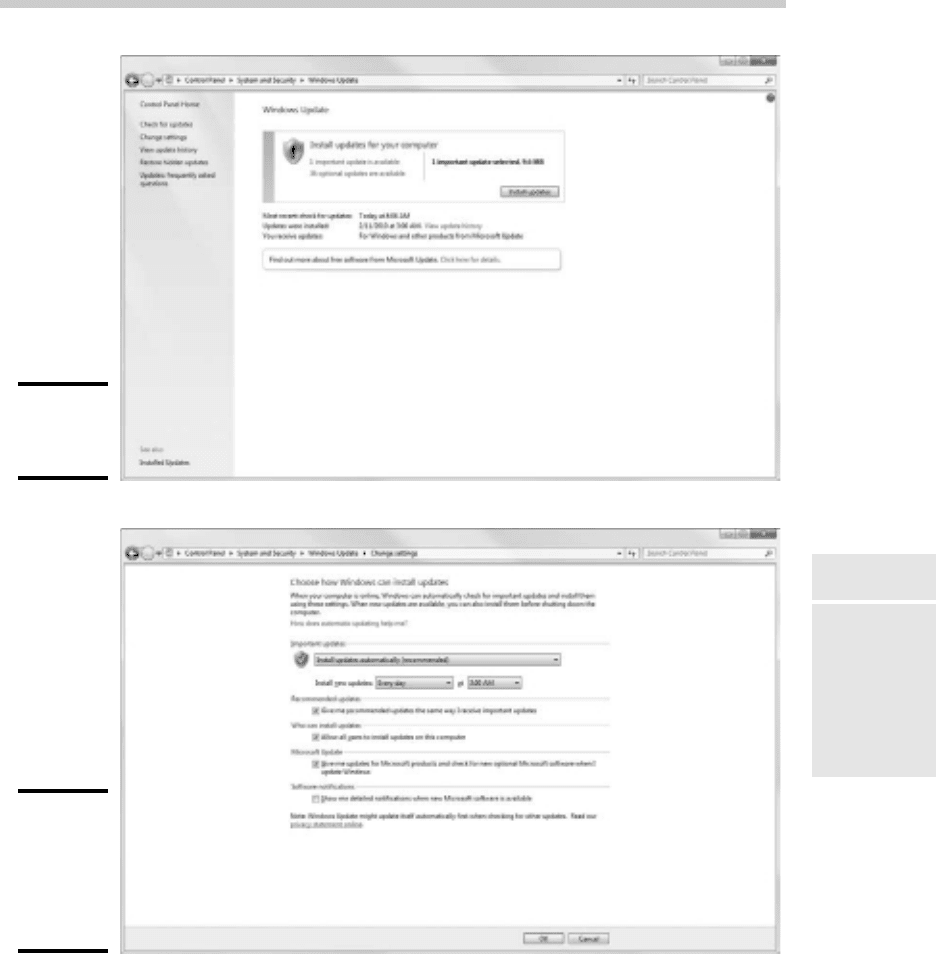
To use Windows Update, open the Control Panel, click System and Security,
then click Windows Update. A window appears, such as the one shown in
Figure 6-1.
From the Windows Update window, you can click the Install Updates button
to download any updates that apply to your computer. You can also config-
ure Windows Update so that it automatically checks for updates and installs
them without asking. To set this option, click the Change Settings link. This
displays the Windows Update Change Settings page, as shown in Figure 6-2.
The Important Updates drop-down list gives you several options for auto-
matic operation:
✦ Install Updates Automatically: This option checks for updates on a reg-
ular basis and installs them without asking. You can specify how often to
check for updates and at what time.
24_625873-bk03ch06.indd 23024_625873-bk03ch06.indd 230 9/21/10 10:15 PM9/21/10 10:15 PM
Book III
Chapter 6
Managing Network
Software
231
Keeping Software Up to Date
Figure 6-1:
Windows
Update.
Figure 6-2:
Changing
the
Windows
Update
settings.
✦ Download Updates But Let Me Choose Whether to Install Them: If you’re
a picky computer user, you should choose this option. It automatically
downloads the updates but then gives you the option of whether or not to
install them. This lets you opt out of updates you may not want.
24_625873-bk03ch06.indd 23124_625873-bk03ch06.indd 231 9/21/10 10:15 PM9/21/10 10:15 PM

232
Keeping Software Up to Date
✦ Check for Updates But Let Me Choose Whether to Download and
Install Them: This option lets you determine which updates should be
downloaded.
✦ Never Check for Updates: This option disables automatic updates
altogether.
24_625873-bk03ch06.indd 23224_625873-bk03ch06.indd 232 9/21/10 10:15 PM9/21/10 10:15 PM

Chapter 7: Solving Network
Problems
In This Chapter
✓ Checking the obvious things
✓ Fixing computers that have expired
✓ Pinpointing the cause of trouble
✓ Restarting client and server computers
✓ Reviewing network event logs
✓ Keeping a record of network woes
F
ace it: Networks are prone to breaking.
They have too many parts. Cables. Connectors. Cards. Switches. Routers.
All these parts must be held together in a delicate balance, and the network
equilibrium is all too easy to disturb. Even the best-designed computer net-
works sometimes act as if they’re held together with baling wire, chewing
gum, and duct tape.
To make matters worse, networks breed suspicion. After your computer is
attached to a network, users begin to blame the network every time some-
thing goes wrong, regardless of whether the problem has anything to do
with the network. You can’t get columns to line up in a Word document?
Must be the network. Your spreadsheet doesn’t add up? The @@#$% net-
work’s acting up again. The stock market’s down? Arghhh!!!!!!
The worst thing about network failures is that sometimes they can shut
down an entire company. It’s not so bad if just one user can’t access a par-
ticular shared folder on a file server. If a critical server goes down, however,
your network users may be locked out of their files, applications, e-mail, and
everything else they need to conduct business as usual. When that happens,
they’ll be beating down your doors and won’t stop until you get the network
back up and running.
In this chapter, I review some of the most likely causes of network trouble
and suggest some basic troubleshooting techniques that you can employ
when your network goes on the fritz.
25_625873-bk03ch07.indd 23325_625873-bk03ch07.indd 233 9/21/10 10:15 PM9/21/10 10:15 PM

234
When Bad Things Happen to Good Computers
When Bad Things Happen to Good Computers
The following are some basic troubleshooting steps explaining what you
should examine at the first sign of network trouble. In many (if not most)
of the cases, one of the following steps can get your network back up and
running:
1. Make sure that your computer and everything attached to it is
plugged in.
Computer geeks love it when a user calls for help and they get to tell the
user that the computer isn’t plugged in or that its power strip is turned
off. They write it down in their geek logs so that they can tell their
geek friends about it later. They may even want to take your picture so
that they can show it to their geek friends. (Most “accidents” involving
computer geeks are a direct result of this kind of behavior. So try to be
tactful when you ask a user whether he or she is sure the computer is
actually turned on.)
2. Make sure that your computer is properly connected to the network.
3. Note any error messages that appear on the screen.
4. Try restarting the computer.
An amazing number of computer problems are cleared up by a simple
restart of the computer. Of course, in many cases, the problem recurs,
so you’ll have to eventually isolate the cause and fix the problem. Some
problems are only intermittent, and a simple reboot is all that’s needed.
5. Try the built-in Windows network troubleshooter.
For more information, see the section, “Using the Windows Networking
Troubleshooter,” later in this chapter.
6. Check the free disk space on your computer and on the server.
When a computer runs out of disk space or comes close to it, strange
things can happen. Sometimes you get a clear error message indicating
such a situation, but not always. Sometimes the computer just grinds to a
halt; operations that used to take a few seconds now take a few minutes.
7. Do a little experimenting to find out whether the problem is indeed a
network problem or just a problem with the computer itself.
See the section, “Time to Experiment,” later in this chapter, for some
simple things that you can do to isolate a network problem.
8. Try restarting the network server.
See the section, “Restarting a Network Server,” later in this chapter.
25_625873-bk03ch07.indd 23425_625873-bk03ch07.indd 234 9/21/10 10:15 PM9/21/10 10:15 PM

Book III
Chapter 7
Solving Network
Problems
235
Fixing Dead Computers
Fixing Dead Computers
If a computer seems totally dead, here are some things to check:
✦ Make sure that the computer is plugged in.
✦ If the computer is plugged into a surge protector or a power strip,
make sure that the surge protector or power strip is plugged in and
turned on. If the surge protector or power strip has a light, it should be
glowing.
✦ Make sure that the computer’s On/Off switch is turned on. This advice
sounds too basic to even include here, but many computers have two
power switches: an on/off switch on the back of the computer, and a
push-button on the front that actually starts the computer. If you push
the front button and nothing happens, check the switch on the back to
make sure it’s in the ON position.
To complicate matters, newer computers have a Sleep feature, in which
they appear to be turned off but really they’re just sleeping. All you have
to do to wake such a computer is jiggle the mouse a little. (I used to have
an uncle like that.) It’s easy to assume that the computer is turned off,
press the power button, wonder why nothing happened, and then press
the power button and hold it down, hoping it will take. If you hold down
the power button long enough, the computer will actually turn itself off.
Then, when you turn the computer back on, you get a message saying
the computer wasn’t shut down properly. Arghhh! The moral of the
story is to jiggle the mouse if the computer seems to have nodded off.
✦ If you think the computer isn’t plugged in but it looks like it is, listen
for the fan. If the fan is running, the computer is getting power, and the
problem is more serious than an unplugged power cord. (If the fan isn’t
running but the computer is plugged in and the power is on, the fan may
be out to lunch.)
✦ If the computer is plugged in, turned on, and still not running, plug a
lamp into the outlet to make sure that power is getting to the outlet.
You may need to reset a tripped circuit breaker or replace a bad surge
protector. Or you may need to call the power company. (If you live in
California, don’t bother calling the power company. It probably won’t do
any good.)
✦ Check the surge protector. Surge protectors have a limited life span.
After a few years of use, many surge protectors continue to provide elec-
trical power for your computer, but the components that protect your
computer from power surges no longer work. If you’re using a surge
protector that is more than two or three years old, replace the old surge
protector with a new one.
25_625873-bk03ch07.indd 23525_625873-bk03ch07.indd 235 9/21/10 10:15 PM9/21/10 10:15 PM

236
Ways to Check a Network Connection
✦ Make sure that the monitor is plugged in and turned on. The monitor
has a separate power cord and switch. (The monitor actually has two
cables that must be plugged in. One runs from the back of the monitor
to the back of the computer; the other is a power cord that comes from
the back of the monitor and must be plugged into an electrical outlet.)
✦ Make sure that all cables are plugged in securely. Your keyboard, mon-
itor, mouse, and printer are all connected to the back of your computer
by cables.
Make sure that the other ends of the monitor and printer cables are
plugged in properly, too.
✦ If the computer is running but the display is dark, try adjusting the
monitor’s contrast and brightness. Some monitors have knobs that you
can use to adjust the contrast and brightness of the monitor’s display.
They may have been turned down all the way.
Ways to Check a Network Connection
The cables that connect client computers to the rest of the network are
finicky beasts. They can break at a moment’s notice, and by “break,” I don’t
necessarily mean “to physically break in two.” Although some broken cables
look like someone got to the cable with pruning shears, most cable problems
aren’t visible to the naked eye.
✦ Twisted-pair cable: If your network uses twisted-pair cable, you can
quickly tell whether the cable connection to the network is good by
looking at the back of your computer. Look for a small light located near
where the cable plugs in; if this light is glowing steadily, the cable is
good. If the light is dark or it’s flashing intermittently, you have a cable
problem (or a problem with the network card or the hub or switch that
the other end of the cable is plugged in to).
If the light isn’t glowing steadily, try removing the cable from your com-
puter and reinserting it. This action may cure the weak connection.
✦ Patch cable: Hopefully, your network is wired so that each computer is
connected to the network with a short (six feet or so) patch cable. One
end of the patch cable plugs into the computer, and the other end plugs
into a cable connector mounted on the wall. Try quickly disconnecting
and reconnecting the patch cable. If that doesn’t do the trick, try to find
a spare patch cable that you can use.
✦ Switches: Switches are prone to having cable problems, too — especially
switches that are wired in a “professional manner,” involving a rat’s nest
of patch cables. Be careful whenever you enter the lair of the rat’s nest. If
you need to replace a patch cable, be very careful when you disconnect
the suspected bad cable and reconnect the good cable in its place.
25_625873-bk03ch07.indd 23625_625873-bk03ch07.indd 236 9/21/10 10:15 PM9/21/10 10:15 PM