
Lowe D. Networking For Dummies
Подождите немного. Документ загружается.


Book IV
Chapter 4
Using DNS
337
Zone Files and Resource Records
4. The root name server doesn’t know the IP address of www.wiley.com,
so it returns a list of the name servers that are authoritative for the com
domain.
5. The ns1.LoweWriter.com name server picks one of the com domain
name servers and sends it an iterative query for www.wiley.com.
6. The com name server doesn’t know the IP address of www.wiley.com,
so it returns a list of the name servers that are authoritative for the
wiley.com domain.
7. The ns1.LoweWriter.com name server picks one of the name
servers for the wiley.com domain and sends it an iterative query for
www.wiley.com.
8. The wiley.com name server knows the IP address for www.wiley.com,
so the name server returns it.
9. The ns1.LoweWriter.com name server shouts with joy for having
finally found the IP address for www.wiley.com. It gleefully returns this
address to the client. It also caches the answer so that the next time the
user looks for www.wiley.com, the name server won’t have to contact
other name servers to resolve the name.
10. The client also caches the results of the query.
The next time the client needs to look for www.wiley.com, the client
can resolve the name without troubling the name server.
Zone Files and Resource Records
Each DNS zone is defined by a zone file (also known as a DNS database or a
master file). For Windows DNS servers, the name of the zone file is domain.
zone. For example, the zone file for the LoweWriter.com zone is named
LoweWriter.com.zone. For BIND DNS servers, the zone files are named
db.domain. Thus, the zone file for the LoweWriter.com domain would be
db.LoweWriter.com. The format of the zone file contents is the same for
both systems, however.
A zone file consists of one or more resource records. Creating and updating
the resource records that comprise the zone files is one of the primary tasks
of a DNS administrator. The Windows DNS server provides a friendly graphical
interface to the resource records. However, you should still be familiar with
how to construct resource records.
Resource records are written as simple text lines, with the following fields:
Owner TTL Class Type RDATA
33_625873-bk04ch04.indd 33733_625873-bk04ch04.indd 337 9/21/10 10:30 PM9/21/10 10:30 PM

338
Zone Files and Resource Records
These fields must be separated from each other by one or more spaces. The
following list describes the five resource record fields:
✦ Owner: The name of the DNS domain or the host that the record applies
to. This is usually specified as a fully qualified domain name (with a
trailing dot) or as a simple host name (without a trailing dot), which is
then interpreted in the context of the current domain.
You can also specify a single @ symbol as the owner name. In that case,
the current domain is used.
✦ TTL: Also known as Time to Live; the number of seconds that the record
should be retained in a server’s cache before it’s invalidated. If you omit
the TTL value for a resource record, a default TTL is obtained from the
Start of Authority (SOA) record.
✦ Class: Defines the protocol to which the record applies. You should
always specify IN, for the Internet protocol. If you omit the class field,
the last class field that you specified explicitly is used. As a result, you’ll
sometimes see zone files that specify IN only on the first resource
record (which must be an SOA record) and then allow it to default to IN
on all subsequent records.
✦ Type: The resource record type. The most commonly used resource
types are summarized in Table 4-6 and are described separately later
in this section. Like the Class field, you can also omit the Type field and
allow it to default to the last specified value.
✦ RDATA: Resource record data that is specific to each record type.
Table 4-6 Common Resource Record Types
Type Name Description
SOA Start of Authority Identifies a zone
NS Name Server Identifies a name server that is authori-
tative for the zone
A Address Maps a fully qualified domain name to
an IP address
CNAME Canonical Name Creates an alias for a fully qualified
domain name
MX Mail Exchange Identifies the mail server for a domain
PTR Pointer Maps an IP address to a fully qualified
domain name for reverse lookups
Most resource records fit on one line. If a record requires more than one
line, you must enclose the data that spans multiple lines in parentheses.
33_625873-bk04ch04.indd 33833_625873-bk04ch04.indd 338 9/21/10 10:30 PM9/21/10 10:30 PM

Book IV
Chapter 4
Using DNS
339
Zone Files and Resource Records
You can include comments to clarify the details of a zone file. A comment
begins with a semicolon and continues to the end of the line. If a line begins
with a semicolon, the entire line is a comment. You can also add a comment
to the end of a resource record. You see examples of both types of comments
later in this chapter.
SOA records
Every zone must begin with an SOA record, which names the zone and
provides default information for the zone. Table 4-7 lists the fields that
appear in the RDATA section of an SOA record. Note that these fields are
positional, so you should include a value for all of them and list them in the
order specified. Because the SOA record has so many RDATA fields, you’ll
probably need to use parentheses to continue the SOA record onto multiple
lines.
Table 4-7 RDATA Fields for an SOA Record
Name Description
MNAME The domain name of the name server that is authoritative for the zone.
RNAME An e-mail address (specified in domain name format; not regular
e-mail format) of the person responsible for this zone.
SERIAL The serial number of the zone. Secondary zones use this value to
determine whether they need to initiate a zone transfer to update
their copy of the zone.
REFRESH A time interval that specifies how often a secondary server should
check whether the zone needs to be refreshed. A typical value is
3600 (one hour).
RETRY A time interval that specifies how long a secondary server should
wait after requesting a zone transfer before trying again. A typical
value is 600 (ten minutes).
EXPIRE A time interval that specifies how long a secondary server should keep
the zone data before discarding it. A typical value is 86400 (one day).
MINIMUM A time interval that specifies the TTL value to use for zone resource
records that omit the TTL field. A typical value is 3600 (one hour).
Note two things about the SOA fields:
✦ The e-mail address of the person responsible for the zone is given in
DNS format, not in normal e-mail format. Thus, you separate the user
from the mail domain with a dot rather than an @ symbol. For example,
doug@LoweWriter.com would be listed as doug.lowewriter.com.
33_625873-bk04ch04.indd 33933_625873-bk04ch04.indd 339 9/21/10 10:30 PM9/21/10 10:30 PM

340
Zone Files and Resource Records
✦ The serial number should be incremented every time you change
the zone file. If you edit the file via the graphic interface provided
by Windows DNS, the serial number is incremented automatically.
However, if you edit the zone file via a simple text editor, you have to
manually increment the serial number.
Here’s a typical example of an SOA record, with judicious comments to
identify each field:
lowewriter.com. IN SOA (
ns1.lowewriter.com ; authoritative name server
doug.lowewriter.com ; responsible person
148 ; version number
3600 ; refresh (1 hour)
600 ; retry (10 minutes)
86400 ; expire (1 day)
3600 ) ; minimum TTL (1 hour)
NS records
Name Server (NS) records identify the name servers that are authoritative
for the zone. Every zone must have at least one NS record. Using two or
more NS records is better so that if the first name server is unavailable, the
zone will still be accessible.
The owner field should either be the fully qualified domain name for the
zone, with a trailing dot, or an @ symbol. The RDATA consists of just one
field: the fully qualified domain name of the name server.
The following examples show two NS records that serve the lowewriter.
com domain:
lowewriter.com. IN NS ns1.lowewriter.com.
lowewriter.com. IN NS ns2.lowewriter.com.
A records
Address (A) records are the meat of the zone file: They provide the IP
addresses for each of the hosts that you want to make accessible via DNS.
In an A record, you usually list just the host name in the owner field, thus
allowing DNS to add the domain name to derive the fully qualified domain
name for the host. The RDATA field for the A record is the IP address of the
host.
The following lines define various hosts for the LoweWriter.com domain:
doug IN A 192.168.168.200
server1 IN A 192.168.168.201
debbie IN A 192.168.168.202
printer1 IN A 192.168.168.203
router1 IN A 207.126.127.129
www IN A 64.71.129.102
33_625873-bk04ch04.indd 34033_625873-bk04ch04.indd 340 9/21/10 10:30 PM9/21/10 10:30 PM

Book IV
Chapter 4
Using DNS
341
Zone Files and Resource Records
Notice that for these lines, I don’t specify the fully qualified domain names
for each host. Instead, I just provide the host name. DNS will add the name of
the zone’s domain to these host names in order to create the fully qualified
domain names.
If I wanted to be more explicit, I could list these A records like this:
doug.lowewriter.com. IN A 192.168.168.200
server1.lowewriter.com. IN A 192.168.168.201
debbie.lowewriter.com. IN A 192.168.168.202
printer1.lowewriter.com. IN A 192.168.168.203
router1.lowewriter.com IN A 207.126.127.129
www.lowewriter.com. IN A 64.71.129.102
However, all this does is increase the chance for error. Plus, it creates more
work for yourself later if you decide to change your network’s domain.
CNAME records
A Canonical Name (CNAME) record creates an alias for a fully qualified
domain name. When a user attempts to access a domain name that is actually
an alias, the DNS system substitutes the real domain name — known as the
Canonical Name — for the alias. The owner field in the CNAME record provides
the name of the alias that you want to create. Then, the RDATA field provides
the Canonical Name — that is, the real name of the host.
For example, consider these resource records:
ftp.lowewriter.com. IN A 207.126.127.132
files.lowewriter.com. IN CNAME www1.lowewriter.com.
Here, the host name of an FTP server at 207.126.127.132 is ftp.lowe
writer.com. The CNAME record allows users to access this host as files.
lowewriter.com if they prefer.
PTR records
A Pointer (PTR) record is the opposite of an address record: It provides the
fully qualified domain name for a given address. The owner field should
specify the reverse lookup domain name, and the RDATA field specifies the
fully qualified domain name. For example, the following record maps the
address 64.71.129.102 to www.lowewriter.com:
102.129.71.64.in-addr.arpa. IN PTR www.lowewriter.com.
PTR records don’t usually appear in normal domain zones. Instead, they
appear in special reverse lookup zones. For more information, see the section,
“Reverse Lookup Zones,” later in this chapter.
33_625873-bk04ch04.indd 34133_625873-bk04ch04.indd 341 9/21/10 10:30 PM9/21/10 10:30 PM

342
Reverse Lookup Zones
MX records
Mail Exchange (MX) records identify the mail server for a domain. The
owner field provides the domain name that users address mail to. The
RDATA section of the record has two fields. The first is a priority number
used to determine which mail servers to use when several are available.
The second is the fully qualified domain name of the mail server itself.
For example, consider the following MX records:
lowewriter.com. IN MX 0 mail1.lowewriter.com.
lowewriter.com. IN MX 10 mail2.lowewriter.com.
In this example, the lowewriter.com domain has two mail servers, named
mail1.lowewriter.com and mail2.lowewriter.com. The priority
numbers for these servers are 0 and 10. Because it has a lower priority
number, mail will be delivered to mail1.lowewriter.com first. The
mail2.lowewriter.com server will be used only if mail1.lowewriter.
com isn’t available.
The server name specified in the RDATA section should be an actual host
name, not an alias created by a CNAME record. Although some mail servers
can handle MX records that point to CNAMEs, not all can. As a result, you
shouldn’t specify an alias in an MX record.
Be sure to create a reverse lookup record (PTR, described in the next
section) for your mail servers. Some mail servers won’t accept mail from a
server that doesn’t have valid reverse lookup entries.
Reverse Lookup Zones
Normal DNS queries ask a name server to provide the IP address that
corresponds to a fully qualified domain name. This kind of query is a forward
lookup. A reverse lookup is the opposite of a forward lookup: It returns the
fully qualified domain name of a host based on its IP address.
Reverse lookups are possible because of a special domain called the in-
addr.arpa domain, which provides a separate fully qualified domain name
for every possible IP address on the Internet. To enable a reverse lookup for
a particular IP address, all you have to do is create a PTR record in a reverse
lookup zone (a zone that is authoritative for a portion of the in-addr.arpa
domain). The PTR record maps the in-addr.arpa domain name for the
address to the host’s actual domain name.
The technique used to create the reverse domain name for a given IP
address is pretty clever. It creates subdomains beneath the in-addr.arpa
domain by using the octets of the IP address, listing them in reverse order.
For example, the reverse domain name for the IP address 207.126.67.129
is 129.67.126.207.in-addr.arpa.
33_625873-bk04ch04.indd 34233_625873-bk04ch04.indd 342 9/21/10 10:30 PM9/21/10 10:30 PM

Book IV
Chapter 4
Using DNS
343
Working with the Windows DNS Server
Why list the octets in reverse order? Because that correlates the network
portions of the IP address (which work from left to right) with the subdomain
structure of DNS names (which works from right to left). The following
description should clear this up:
✦ The 255 possible values for the first octet of an IP address each have a
subdomain beneath the in-addr.arpa domain. For example, any IP
address that begins with 207 can be found in the 207.in-addr.arpa
domain.
✦ Within this domain, each of the possible values for the second octet can
be found as a subdomain of the first octet’s domain. Thus, any address
that begins with 207.126 can be found in the 126.207.in-addr.arpa
domain.
✦ The same holds true for the third octet, so any address that begins with
207.126.67 can be found in the 67.126.207.in-addr.arpa domain.
✦ By the time you get to the fourth octet, you’ve pinpointed a specific host.
The fourth octet completes the fully qualified reverse domain name. Thus,
207.126.67.129 is mapped to 129.67.126.207.in-addr.arpa.
As a result, to determine the fully qualified domain name for the computer
at 207.126.67.129, the client queries its DNS server for the FQDN that
corresponds to 129.67.126.207.in-addr.arpa.
Working with the Windows DNS Server
Installing and managing a DNS server depends on the network operating
system that you’re using. The following sections are specific to working with
a DNS server in Windows 2003. Working with BIND in a Unix/Linux environment
is similar but without the help of a graphical user interface (GUI).
You can install the DNS server on Windows Server 2008 from the Server
Manager application. Choose Start➪Administrative Tools➪Server Manager.
Click the Server Roles, click the Add Roles link, and then follow the wizard
instructions to add the DNS role.
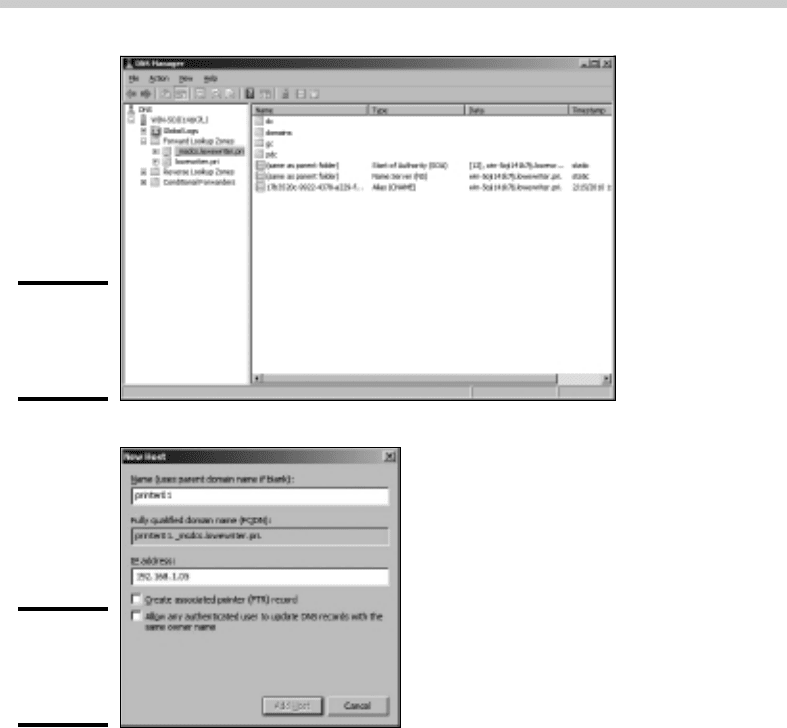
After you set up a DNS server, you can manage the DNS server from the
DNS management console, as shown in Figure 4-3. From this management
console, you can perform common administrative tasks, such as adding
additional zones, changing zone settings, adding A or MX records to an
existing zone, and so on. The DNS management console hides the details
of the actual resource records from you, thus allowing you to work with a
friendly GUI instead.
To add a new host (that is, an A record) to a zone, right-click the zone in the
DNS management console and choose the Add New Host command. This
brings up the New Host dialog box, as shown in Figure 4-4. From this dialog
box, specify the following information:
33_625873-bk04ch04.indd 34333_625873-bk04ch04.indd 343 9/21/10 10:30 PM9/21/10 10:30 PM
344
Working with the Windows DNS Server
Figure 4-3:
The DNS
management
console.
Figure 4-4:
The New
Host
dialog box.
✦ Name: The host name for the new host.
✦ IP Address: The host’s IP address.
✦ Create Associated Pointer (PTR) Record: Automatically creates a PTR
record in the reverse lookup zone file. Select this option if you want to
allow reverse lookups for the host.
✦ Allow Any Authenticated User to Update: Select this option if you want
to allow other users to update this record or other records with the
same host name. You should usually leave this option deselected.
You can add other records, such as MX or CNAME records, in the same way.
33_625873-bk04ch04.indd 34433_625873-bk04ch04.indd 344 9/21/10 10:30 PM9/21/10 10:30 PM
Book IV
Chapter 4
Using DNS
345
How to Configure a Windows DNS Client
How to Configure a Windows DNS Client
Client computers don’t need much configuration in order to work properly
with DNS. The client must have the address of at least one DNS server.
Usually, this address is supplied by DHCP, so if the client is configured to
obtain its IP address from a DHCP server, it will also obtain the DNS server
address from DHCP.
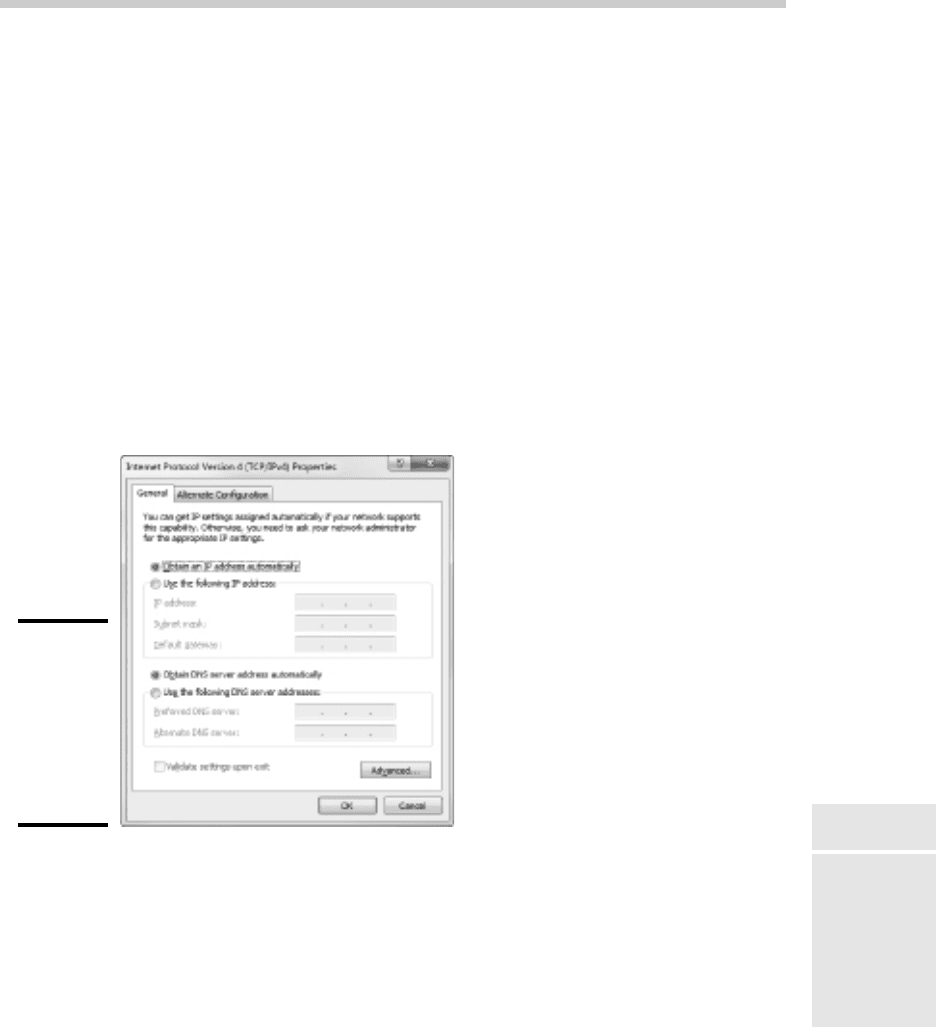
To configure a client computer to obtain the DNS server location from
DHCP, bring up the Network Properties dialog box by choosing Network
or Network Connections in Control Panel (depending on which version of
Windows the client is running). Then, select the Internet Protocol Version
4 (TCP/IPv4) protocol and click the Properties button. This summons the
dialog box shown in Figure 4-5. To configure the computer to use Dynamic
Host Configuration Protocol (DHCP), select the Obtain an IP Address
Automatically and the Obtain DNS Server Address Automatically options.
Figure 4-5:
Configuring
a Windows
client to
obtain
its DNS
address
from DHCP.
If the computer doesn’t use DHCP, you can use this same dialog box to
manually enter the IP address of your DNS server.
33_625873-bk04ch04.indd 34533_625873-bk04ch04.indd 345 9/21/10 10:30 PM9/21/10 10:30 PM

346
Book IV: TCP/IP and the Internet
33_625873-bk04ch04.indd 34633_625873-bk04ch04.indd 346 9/21/10 10:30 PM9/21/10 10:30 PM