
Lowe D. Networking For Dummies
Подождите немного. Документ загружается.

Book VIII
Chapter 2
Managing
Exchange Server
2010
617
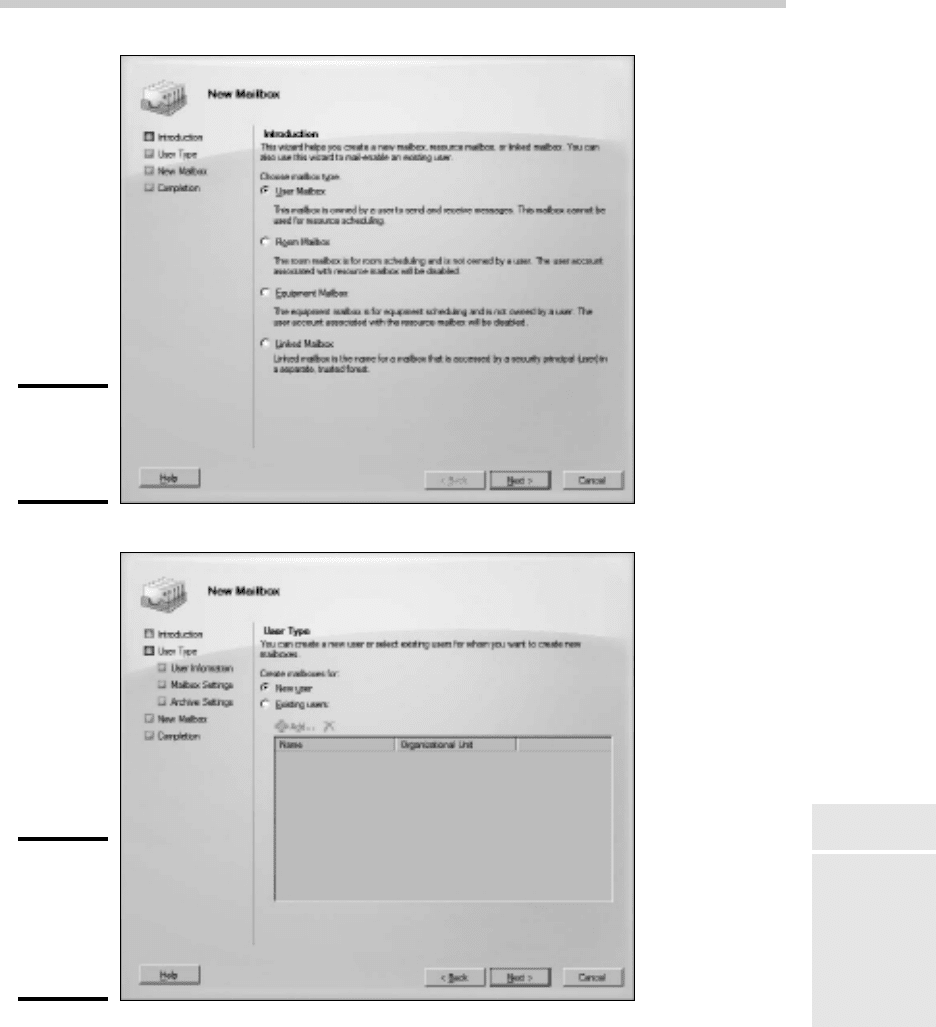
Figure 2-2:
Creating
a user
mailbox.
Figure 2-3:
The User
Type page
of the New
Mailbox
Wizard.
Creating a Mailbox
59_625873-bk08ch02.indd 61759_625873-bk08ch02.indd 617 9/21/10 10:42 PM9/21/10 10:42 PM
618
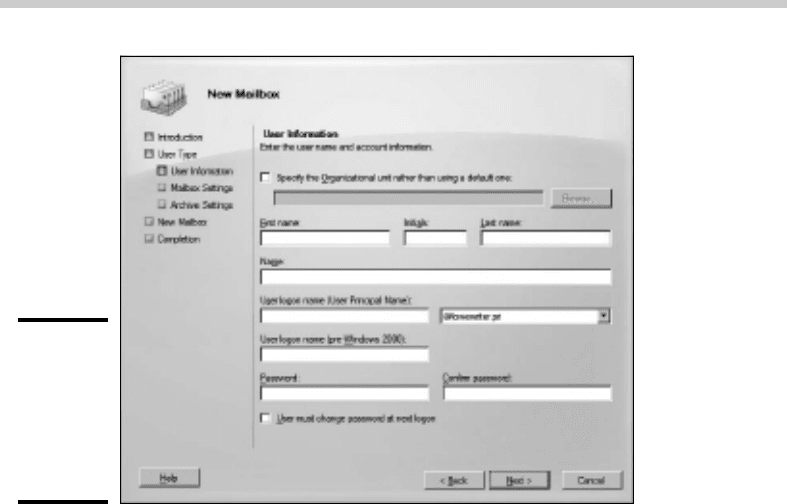
Figure 2-4:
The User
Information
page of
the New
Mailbox
Wizard.
6. Type the user’s first name, middle initial, and last name.
As you type the name, the New Object Wizard automatically fills in the
Name field.
7. Change the Name field if you want it to appear differently than
proposed.
For example, you may want to reverse the first and last names so the
last name appears first.
8. Enter the user logon name.
This name must be unique within the domain and will be used to form
the user’s e-mail address.
9. Enter the password twice.
You’re asked to type the password twice, so type it correctly. If you
don’t type it identically in both boxes, you’re asked to correct your
mistake.
10. If the password is temporary, select the User Must Change Password at
Next Logon check box.
This setting requires the user to change the temporary password the
first time he or she logs on.
Creating a Mailbox
59_625873-bk08ch02.indd 61859_625873-bk08ch02.indd 618 9/21/10 10:42 PM9/21/10 10:42 PM
Book VIII
Chapter 2
Managing
Exchange Server
2010
619
11. Click Next.
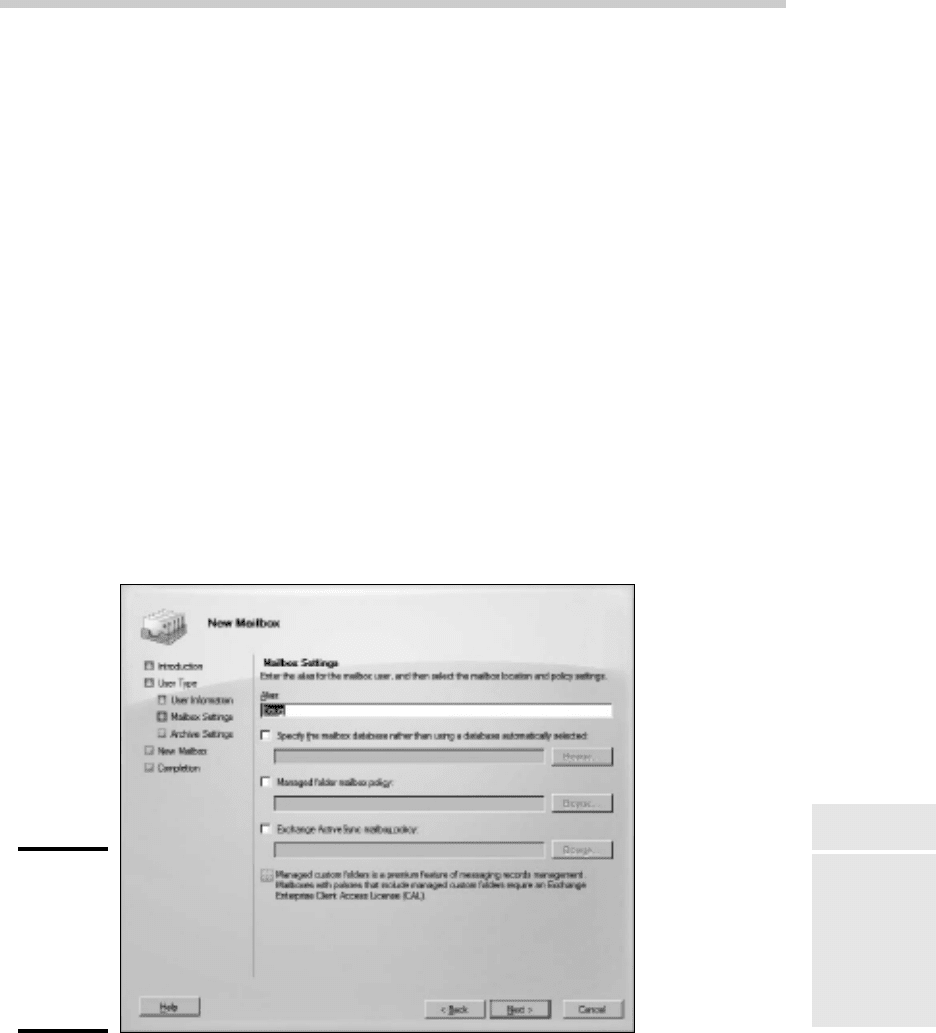
The Mailbox Settings page is displayed, as shown in Figure 2-5. This page
lets you create an alias for the user’s account name and also lets you set
several Exchange options for the user’s mailbox.
12. Enter an alias for the user and then click Next.
The alias can be the same as the name that was used in the Name field
on the previous page of the wizard, or you can type a different name if
you wish.
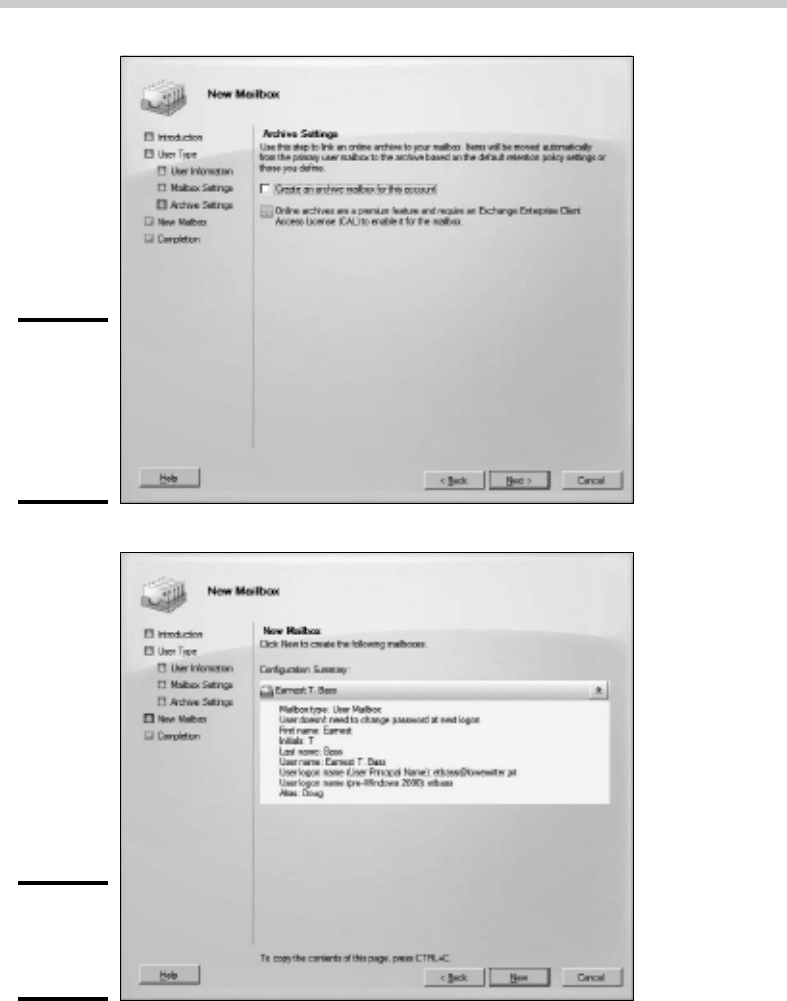
When you click Next, the page shown in Figure 2-6 is displayed.
13. If you want to create an archive mailbox for the user, select the Create
an Archive Mailbox for This Account check box. Otherwise, leave the
option deselected.
Archive mailboxes are available only with the Enterprise Edition of
Exchange Server 2010, so don’t even think about this option unless
you’ve shelled out the money for Enterprise Edition.
14. Click Next.
You’re taken to the final page of the New Mailbox Wizard, as shown in
Figure 2-7.
Figure 2-5:
The Mailbox
Settings
page of
the New
Mailbox
Wizard.
Creating a Mailbox
59_625873-bk08ch02.indd 61959_625873-bk08ch02.indd 619 9/21/10 10:42 PM9/21/10 10:42 PM
620
Figure 2-6:
The Archive
Settings
page of
the New
Mailbox
Wizard.
Figure 2-7:
Verifying
the mailbox
settings.
Creating a Mailbox
59_625873-bk08ch02.indd 62059_625873-bk08ch02.indd 620 9/21/10 10:42 PM9/21/10 10:42 PM
Book VIII
Chapter 2
Managing
Exchange Server
2010
621
15. Verify that the information is correct and then click New to create the
mailbox.
If the account information is not correct, click the Back button and cor-
rect the error.
When you click Next, Exchange Management Console displays various
and sundry messages and progress bars as it creates the user account
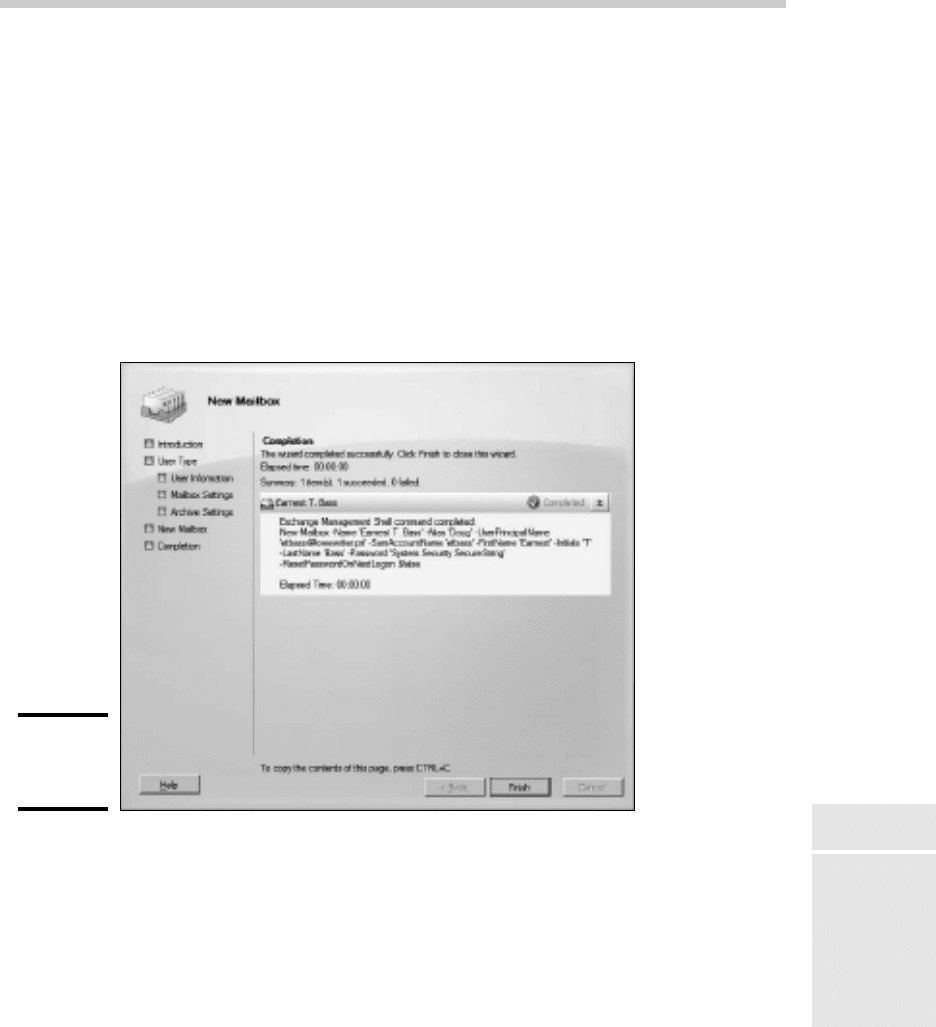
and its mailbox. When it’s finished, the Completion page shown in Figure
2-8 is displayed.
16. Pat yourself on the back; then click Finish.
You’re done!
Figure 2-8:
Congratu-
lations!
Managing Mailboxes
After you’ve set up a mailbox, you can use the Exchange Management
Console to manage the basic settings of the mailbox. To do that, just right-
click the mailbox you want to manage and choose the Properties command.
This action brings up the Properties dialog box, which is the portal that
grants access to many of the most frequently used features of Exchange.
The following sections describe several commonly used features that are
controlled via this dialog box.
Managing Mailboxes
59_625873-bk08ch02.indd 62159_625873-bk08ch02.indd 621 9/21/10 10:42 PM9/21/10 10:42 PM
622
Enabling Mailbox Features
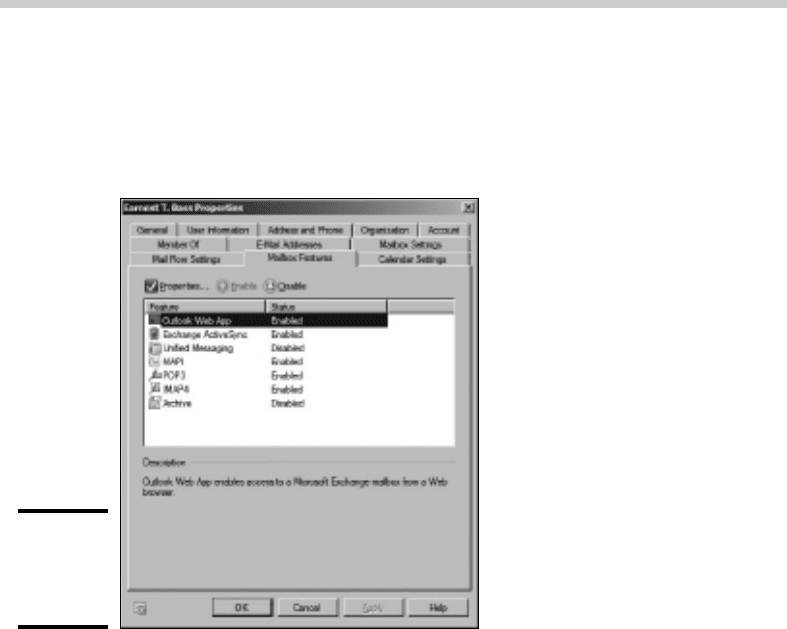
Exchange Mailbox Features refers to several features of Exchange mailboxes
that are controlled via the Mailbox Features tab of the mailbox Properties
dialog box. This tab is shown in Figure 2-9.
Figure 2-9:
The Mailbox
Features
tab.
The following paragraphs describe the features that are controlled from
this tab:
✦ Outlook Web App: Lets the user access his or her Exchange mailbox
from a Web browser rather than from an Outlook client. With this fea-
ture enabled, the user can read e-mail from any computer that has an
Internet connection. Note that this feature used to be called Outlook
Web Access.
✦ Exchange ActiveSync: ActiveSync is the feature that allows Exchange
data to synchronize with mobile devices, such as iPhones or Windows
Mobile phones.
✦ Unified Messaging: A premium feature (available only with Enterprise
Edition) that integrates voice mail and fax messages with Exchange
mailboxes.
✦ MAPI: Enables e-mail using the MAPI protocol.
✦ POP3: Enables e-mail using the POP3 protocol.
Managing Mailboxes
59_625873-bk08ch02.indd 62259_625873-bk08ch02.indd 622 9/21/10 10:42 PM9/21/10 10:42 PM
Book VIII
Chapter 2
Managing
Exchange Server
2010
623
✦ IMAP4: Enables e-mail using the IMAP4 protocol.
✦ Archive: Enables the Exchange Archive feature, which is available only
with the Enterprise edition of Exchange.
Creating a Forwarder
A forwarder is a feature that automatically forwards any incoming e-mail to
another e-mail address. This feature is most often used when an employee is
on vacation or leave and the employee’s manager has requested that some-
one else temporarily handles the absent employee’s e-mail.
To configure a forwarder, follow these steps:
1. Choose Start➪Administrative Tools➪Microsoft Exchange Server
2010➪Exchange Management Console.
This fires up the Exchange Management Console. (Refer to Figure 2-1.)
2. In the Navigation pane, navigate to Microsoft Exchange➪Microsoft
Exchange On-Premises➪Recipient Configuration.
3. Right-click the mailbox for the user whose e-mail you want to forward
and choose Properties.
This summons the mailbox Properties dialog box.
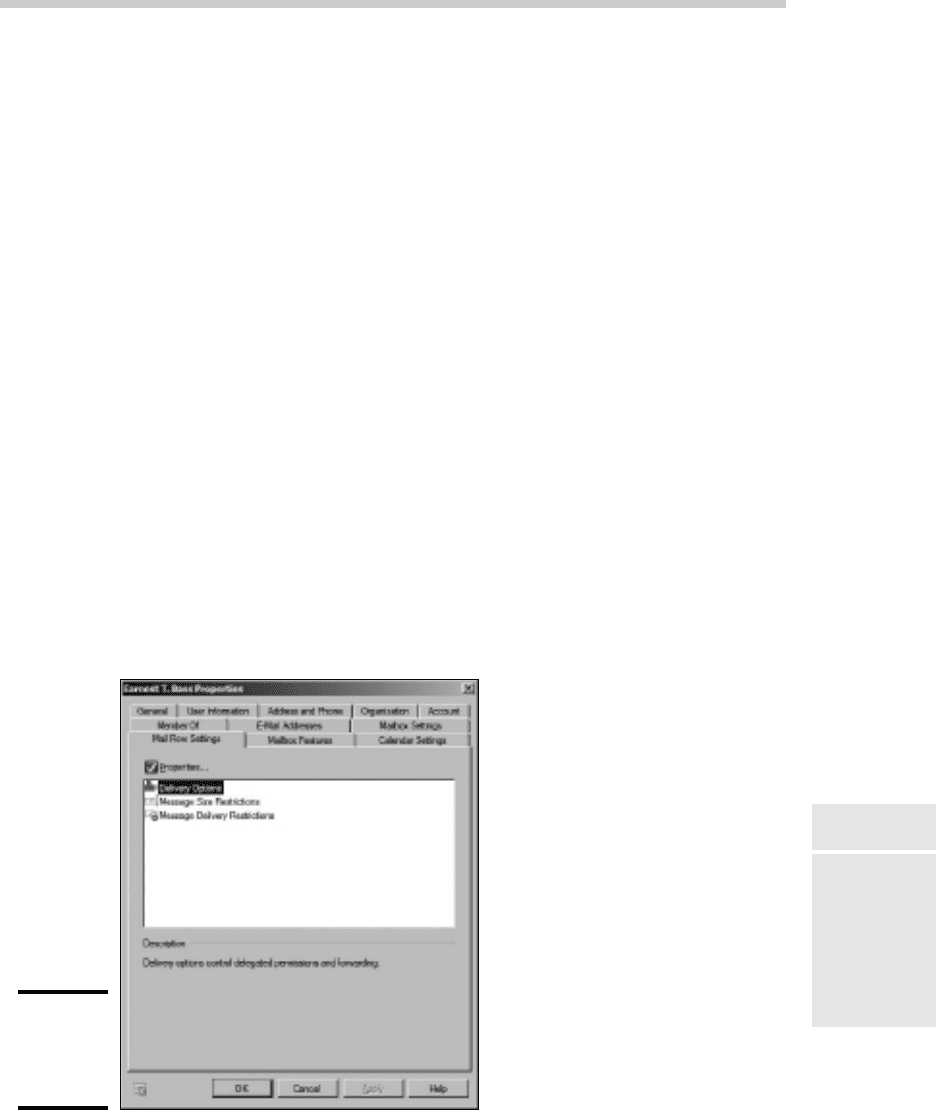
4. Click the Mail Flow Settings tab.
The Mail Flow settings are displayed, as shown in Figure 2-10.
Figure 2-10:
The Mail
Flow
Settings tab.
Managing Mailboxes
59_625873-bk08ch02.indd 62359_625873-bk08ch02.indd 623 9/21/10 10:42 PM9/21/10 10:42 PM
624
5. Double-click Delivery Options.
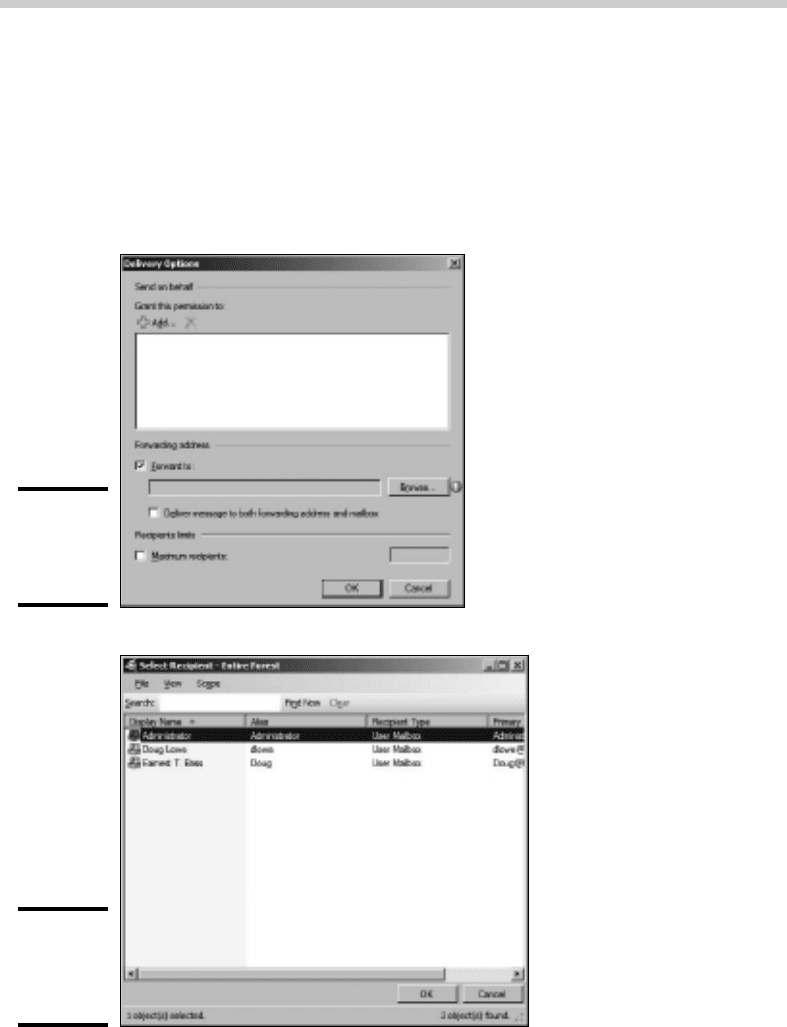
The Delivery Options dialog box appears, as shown in Figure 2-11.
6. Select the Forward To check box.
7. Click the Browse button.
The Select Recipient dialog box appears, as shown in Figure 2-12.
Figure 2-11:
The Delivery
Options
dialog box.
Figure 2-12:
The Select
Recipient
dialog box.
Managing Mailboxes
59_625873-bk08ch02.indd 62459_625873-bk08ch02.indd 624 9/21/10 10:42 PM9/21/10 10:42 PM

Book VIII
Chapter 2
Managing
Exchange Server
2010
625
8. Select the recipient you want to forward the e-mail to and then click OK.
The name you selected is displayed in the text box next to the Browse
button.
9. If you want the e-mail to be delivered to this user’s mailbox in addi-
tion to the forwarding address, select the Deliver Message to Both
Forwarding Address and Mailbox option.
If you leave this option deselected, only the forwarding address will
receive the e-mail — the mail won’t be delivered to this user’s mailbox.
10. Click OK, then click the next OK.
The first OK click returns you to the mailbox Properties dialog box, and
the second dismisses the dialog box.
Setting Mailbox Storage Limits
Exchange lets you set a limit on the size of each user’s mailbox. In a very
small organization, you can probably get away without imposing strict mail-
box size limits. But if your organization has 20 or more, you need to limit the
size of each user’s mailbox to prevent the Exchange private mail store from
getting out of hand.
Exchange provides three kinds of storage limits for user mailboxes:
✦ Issue warning at: When this limit is exceeded, an e-mail warning is sent
to the user to let them know that their mailbox is getting large.
✦ Prohibit send at: When this limit is reached, the user can’t send e-mail,
but the mailbox continues to receive e-mail. The user won’t be able to
send e-mails again until he or she deletes enough e-mails to reduce the
mailbox size below the limit.
✦ Prohibit send and receive at: When this limit is reached, the mailbox
shuts down and can neither send nor receive e-mails.
You can (and should) set a default storage limit that applies to all mailboxes
in your organization. You can also override these limits for specific users.
To configure the default storage limits for all mailboxes, follow these steps:
1. Choose Start➪Administrative Tools➪Microsoft Exchange Server
2010➪Exchange Management Console.
This fires up the Exchange Management Console. (Refer to Figure 2-1.)
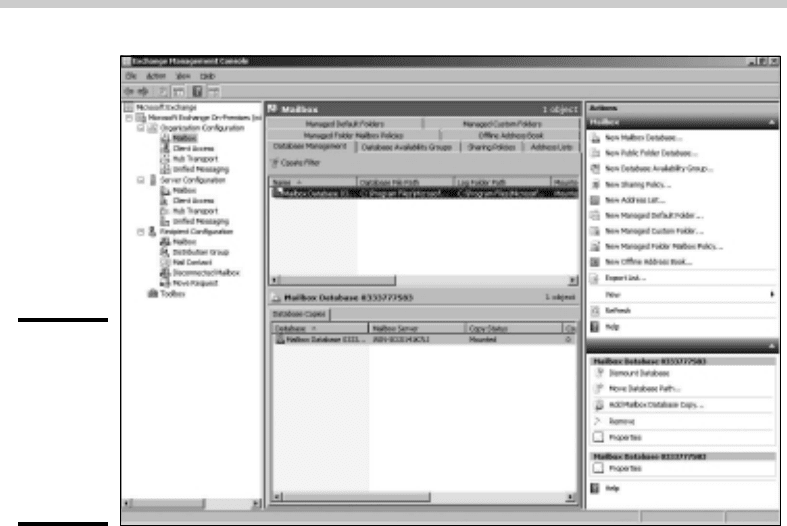
2. In the Navigation pane, navigate to Microsoft Exchange➪Microsoft
Exchange On-Premises➪Organization Configuration➪Mailbox.
This displays the organization’s mailbox configuration, as shown in
Figure 2-13.
Managing Mailboxes
59_625873-bk08ch02.indd 62559_625873-bk08ch02.indd 625 9/21/10 10:42 PM9/21/10 10:42 PM
626
Figure 2-13:
The
Organization
Mailbox
page of the
Exchange
Management
Console.
3. In the list of mailbox databases, right-click the mailbox database and
choose Properties.
Usually there’s only one mailbox database listed; the mailbox database
is highlighted in the figure.
When you choose Properties, the Mailbox Database Properties dialog
box is displayed.
4. Click the Limits tab.
The Limits tab is displayed, as shown in Figure 2-14.
5. Change the storage limit settings to meet your needs.
By default, the storage limits are set quite high: Warnings are issued
at about 1.9GB, send permission is revoked at 2GB, and both send and
receive permissions are revoked at about 2.3GB. A 2GB allowance for
each user’s mailbox is generous, but bear in mind that if you have 100
users, that means your mailbox database may grow to 200GB. You may
want to set lower limits.
6. Click OK.
The limits you have set take effect immediately.
Managing Mailboxes
59_625873-bk08ch02.indd 62659_625873-bk08ch02.indd 626 9/21/10 10:42 PM9/21/10 10:42 PM