
Lowe D. Networking For Dummies
Подождите немного. Документ загружается.


Book VIII
Chapter 3
Using SQL
Server 2008
647
The following sections explain how to perform some of the most common
SQL Server chores, such as creating databases and tables, viewing database
data, and so on.
Creating a New Database
To create a new database, follow these steps:
1. Right-click the Databases node in the Navigation pane (on the left side
of the Management Studio window) and choose New Database from
the menu that appears.
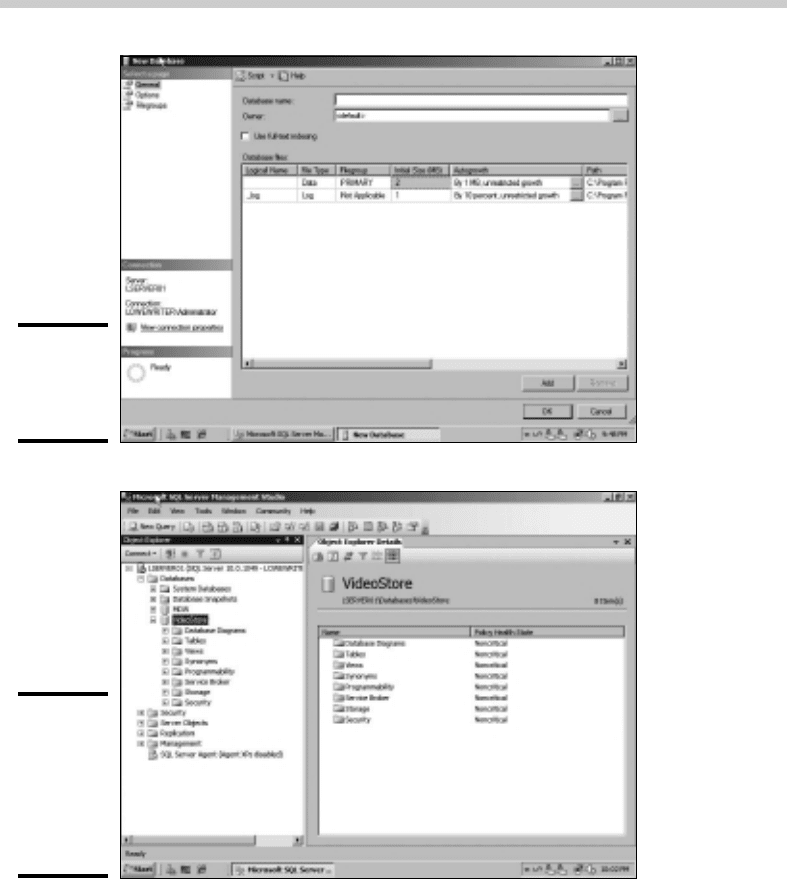
This brings up the New Database dialog box, shown in Figure 3-12.
2. Type a name for the new database in the Database Name field.
3. Enter the domain username for the user who is responsible for the
database in the Owner field.
You can leave this set to the default if you want yourself to be listed as
the owner.
4. If you want, change the settings for the database and log files.
You can change the following settings:
• Initial Size: This refers to the amount of disk space initially allocated
to the files. The defaults are a ridiculously small 2MB for the data-
base and 1MB for the log files. Unless your databases are going to be
extremely small, you should probably increase these defaults.
• Autogrowth: This setting sets the incremental amount by which the data-
base grows when it exceeds the allocated capacity. Again, you’ll prob-
ably want to change these amounts for any but the smallest databases.
• Path: This points the way to the folder where the files are stored.
By default, the files are created under the Program Files folder on
the server’s C: drive. You may want to change this setting to a more
appropriate location.
• File Name: You can change this setting if you want to use a filename
that’s different from the database name.
Note that you can change additional options by clicking Options or
Filegroups near the left side of the New Database window. This links
to additional pages of options you can set to tweak the behavior of the
database.
5. Click OK.
SQL Server grinds and whirs for a few moments while it creates the new
database. When it’s finished, the database appears under the Databases
node, as shown in Figure 3-13.
That’s all!
Creating a New Database
60_625873-bk08ch03.indd 64760_625873-bk08ch03.indd 647 9/21/10 10:43 PM9/21/10 10:43 PM
648
Figure 3-12:
Creating
a new
database.
Figure 3-13:
A new
database
named
VideoStore
has been
created.
The new database is ready to use. Of course, the database won’t be very
useful until you define some tables. So read on.
Creating Tables
A database is nothing more than a container for various types of database
objects. The most important of these objects are tables, which hold the
actual data that makes up the database. A database isn’t very useful without
Creating Tables
60_625873-bk08ch03.indd 64860_625873-bk08ch03.indd 648 9/21/10 10:43 PM9/21/10 10:43 PM
Book VIII
Chapter 3
Using SQL
Server 2008
649
at least one table. Most real-world databases have more than one table — in
fact, many databases have dozens of tables.
To create a table, follow these steps:
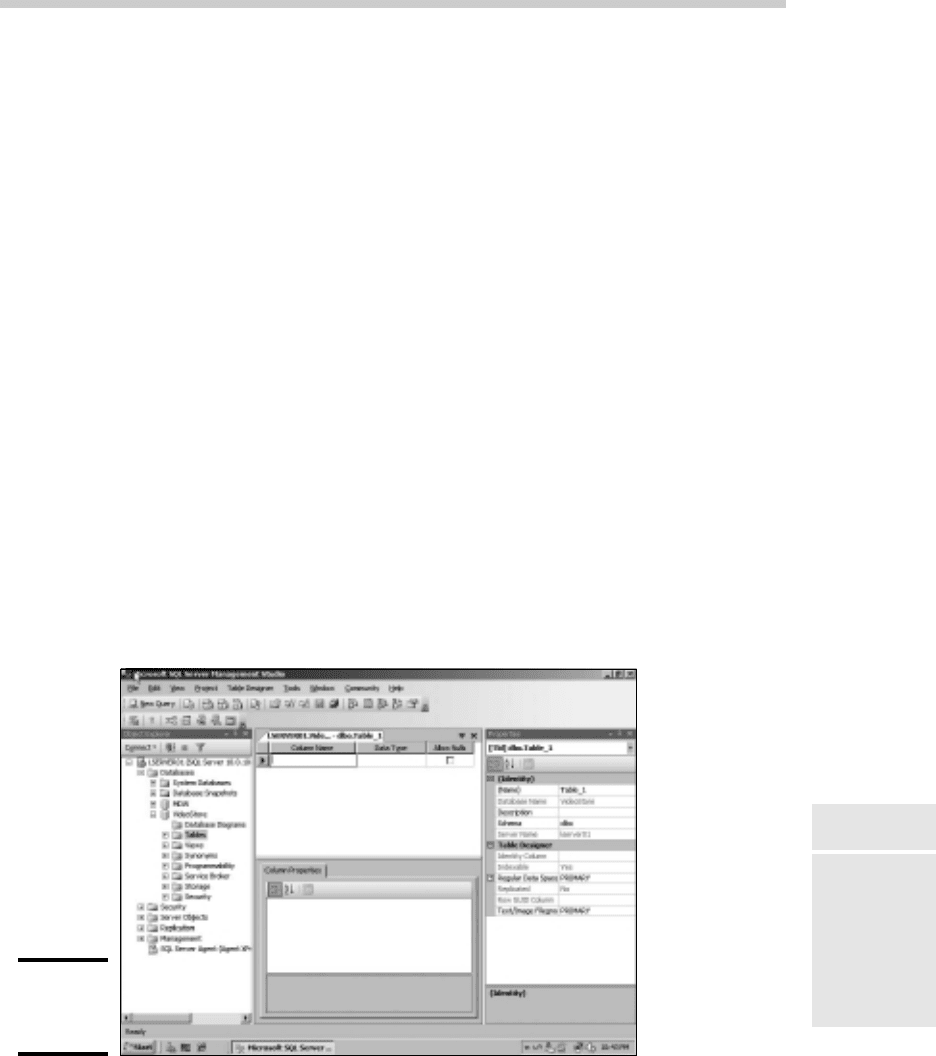
1. Right-click the Tables node for the database and choose New Table.
The window shown in Figure 3-14 appears.
2. Type the name of the first column of the table and then press the
Tab key.
3. Choose the data type for the column and then press the Tab key.
SQL Server has several data types to choose from for each column. Use
the drop-down list to choose the appropriate type.
4. Use the Allow Nulls check box to indicate whether the column should
allow null values. Then press the Tab key.
Nulls are one of the more confusing aspects of database design and
programming. In a SQL database, null means that the item does not
have a value. It is different than zero (for numbers) or an empty string
(for text). Allowing a column to have null values introduces program-
ming complexities because when you retrieve the value of a column, the
program has to anticipate that the value might be missing. But prohibit-
ing nulls (by deselecting the check box) also introduces complexities
because you have to make sure you always provide an explicit value for
every column.
Figure 3-14:
Creating a
new table.
Creating Tables
60_625873-bk08ch03.indd 64960_625873-bk08ch03.indd 649 9/21/10 10:43 PM9/21/10 10:43 PM
650
The phrase null value is actually an oxymoron. Because null means the
absence of a value, it doesn’t make sense to say a column can have a
null value, or that the value of a column is null.
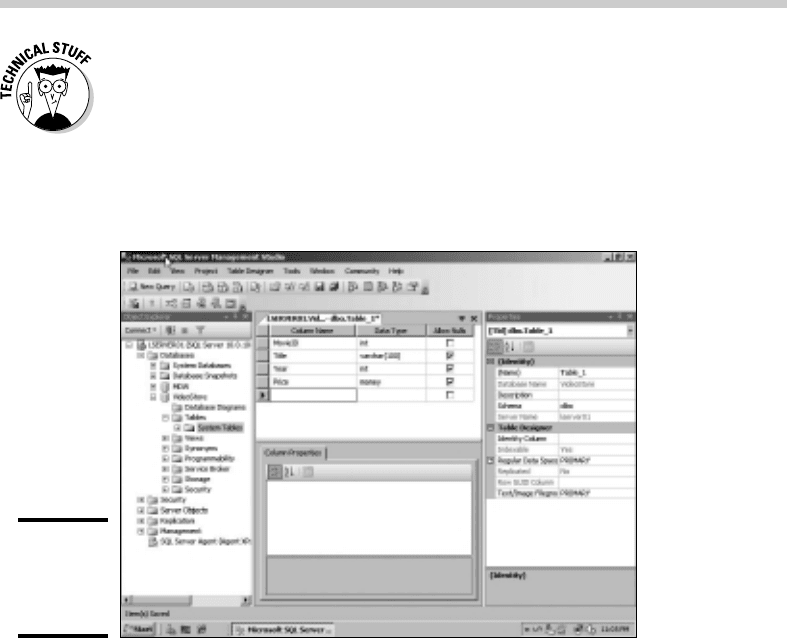
5. Repeat Steps 2 through 4 to create additional columns.
Figure 3-15 shows how the table looks after several columns have been
defined.
Figure 3-15:
A table with
several
columns.
6. When all the columns have been created, select the column you want
to use as a key field for the table, right-click the column, and choose
Set Primary Key.
A little key icon will appear next to the column or columns to indicate
the primary key.
(The primary key provides a unique value that can be used to iden-
tify each row in the table. Most tables use a single column, such as a
Customer Number or an Invoice Number, as the primary key. But some
tables create the primary key by combining two or more columns. This
type of key is called a composite key.)
7. Right-click the table name tab that appears above the list of columns
and choose Save.
A Save dialog box appears, prompting you to enter a name for the table.
Creating Tables
60_625873-bk08ch03.indd 65060_625873-bk08ch03.indd 650 9/21/10 10:43 PM9/21/10 10:43 PM

Book VIII
Chapter 3
Using SQL
Server 2008
651
8. Type a name for the table and then click OK.
The table is created.
Note that each column has a properties page that appears when you select
the column. You can set a variety of properties for each column, including
the following:
✦ Default Value: A value that’s supplied for the column if no value is pro-
vided when a row is created. This property is especially useful for col-
umns that don’t allow null values.
✦ Description: A text description that you can use to explain the purpose
of the column.
✦ Identity Specification: Used to create an identity field, which is a field
whose value is automatically generated when rows are created. Identity
fields are often used as the primary key field for a table when it is desir-
able for the table to have a primary key, but no other column in the
table provides a unique value for each row.
When you create an identity field, you can specify two settings that
affect how the values are generated. The seed is the value used for the
first row in the table. The increment is a value that’s added to the seed
for each subsequent row. For example, if you specify 1000 for the seed
and 1 for the increment, the rows in the table will be numbered 1001,
1002, 1003, and so on.
Editing Tables
SQL Management Studio includes a spreadsheet-like feature that lets you
directly edit the contents of database tables. To use it, right-click the table
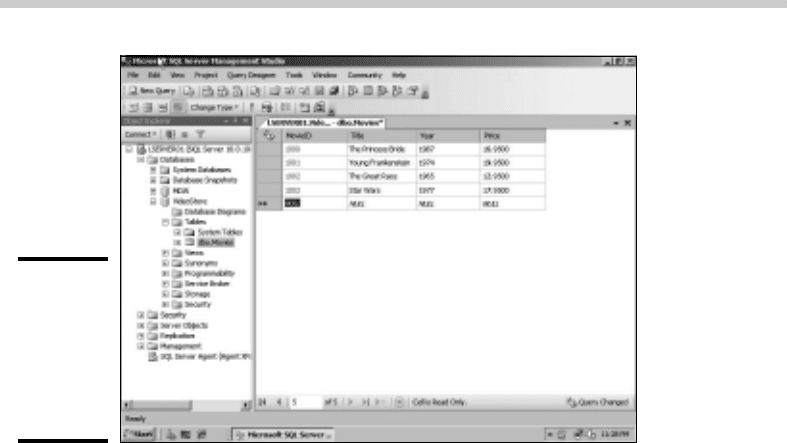
you want to edit and choose Open Table. The table is opened in a
spreadsheet-like window. You can then add data to the table by entering
table values for each row. Figure 3-16 shows a table after some data has been
added via the Open Table command.
Note that in addition to inserting new rows, you can edit existing rows. You
can also delete one or more rows by selecting the rows you want to delete
and pressing the Delete key.
Editing Tables
60_625873-bk08ch03.indd 65160_625873-bk08ch03.indd 651 9/21/10 10:43 PM9/21/10 10:43 PM
652
Figure 3-16:
A table with
several
rows added
via the
Open Table
command.
Working with Queries
SQL Management Studio includes a query tool that lets you type SQL com-
mands and execute them. You can type any SQL statement you want in a
query Window, and then press the Execute button to execute the query.
There are two important rules to follow when you work with queries:
✦ First, each SQL statement in the query should end with a semicolon.
✦ Second, you should begin the query with a USE statement that provides
the name of the database.
Here’s an example of a query that follows these two rules:
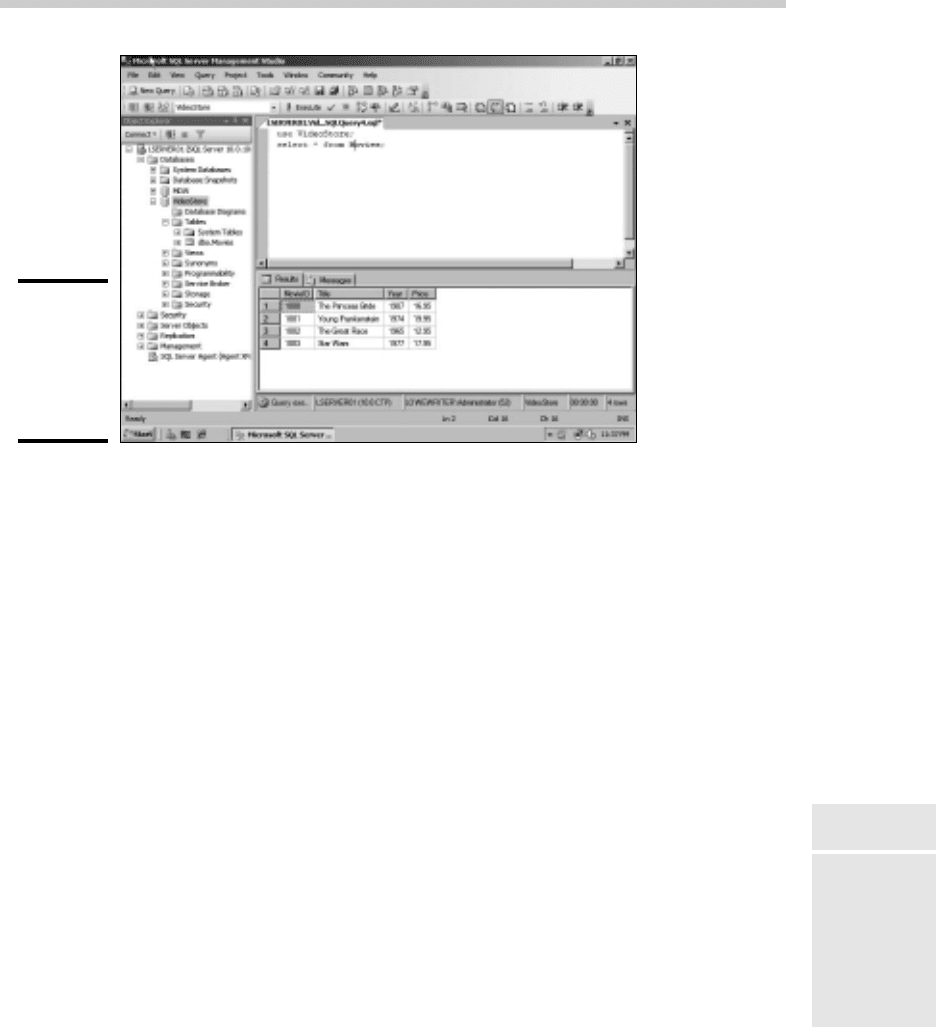
use VideoStore;
select * from movies;
The USE statement indicates that the query applies to the VideoStore
database, and the select statement retrieves all the data from the Movies
table.
To use the query tool, click the New Query button on the toolbar. Then,
enter the statements for your query in the window and click the Execute
button on the toolbar. The results of the query will be displayed in the
window, as shown in Figure 3-17.
Working with Queries
60_625873-bk08ch03.indd 65260_625873-bk08ch03.indd 652 9/21/10 10:43 PM9/21/10 10:43 PM
Book VIII
Chapter 3
Using SQL
Server 2008
653
Figure 3-17:
A query that
retrieves
data from
the Movies
table.
Working with Scripts
One final feature of SQL Management Studio I want to cover in this chapter
is the use of scripts. Although you can create databases by using the graphi-
cal features presented earlier in this chapter (in the sections “Creating a
New Database” and “Creating Tables”), it’s actually a much better practice
to write SQL scripts that contain the CREATE commands necessary to create
the database as well as its tables and other objects. That’s because during
the development and operation of any database application, there’s often a
need to delete the database and re-create it from scratch. By scripting these
actions, you can delete the database and re-create it simply by running a
script.
Fortunately, SQL Management Studio can generate scripts from existing
databases and tables. Thus, you can use the visual design features of SQL
Management Studio to initially create your databases. Then, you can gener-
ate scripts that will let you easily delete and re-recreate the database.
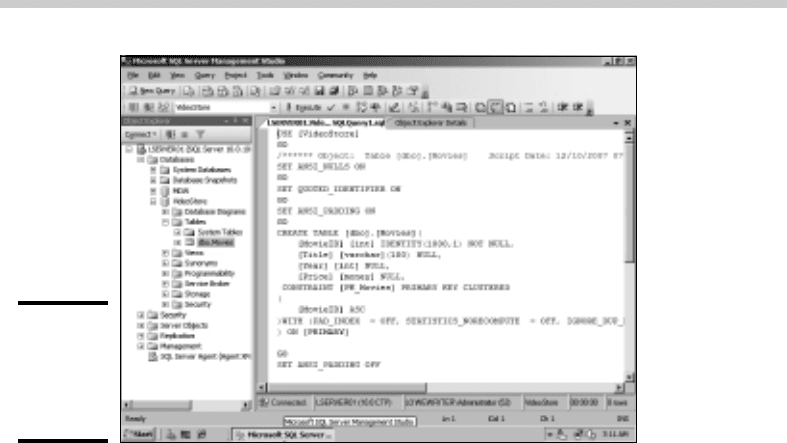
To create a script for a database or table, just right-click the database or
table, and then choose one of the Script As commands. For example,
Figure 3-18 shows the script that results when I right-click the Movies table
and choose Script Table As➪CREATE To➪New Query Window. As you can
see, this command generated a CREATE TABLE statement along with other
advanced SQL statements to create the Movies table automatically.
Working with Scripts
60_625873-bk08ch03.indd 65360_625873-bk08ch03.indd 653 9/21/10 10:43 PM9/21/10 10:43 PM
654
Figure 3-18:
A script
that creates
the Movies
table.
After you’ve created the script, you can save it to a text file by clicking the
Save button. Then, you can run the script at any time by following these
steps:
1. Choose File➪Open➪File.
2. Select the file you saved the script to.
3. Click Open.
4. Click the Execute button to run the script.
The only limitation of this technique is that although you can generate
scripts to define your databases and tables, you can’t automatically generate
scripts to insert data into your tables. If you want scripts that insert data,
you have to manually create the INSERT statements to insert the data.
Working with Scripts
60_625873-bk08ch03.indd 65460_625873-bk08ch03.indd 654 9/21/10 10:43 PM9/21/10 10:43 PM

Chapter 4: Using SharePoint
In This Chapter
✓ Looking at SharePoint
✓ Installing SharePoint
✓ Creating new SharePoint pages
✓ Working with libraries
S
harePoint is a Web-based tool used mostly to create intranet sites
that are designed to help people work together. The basic edition
of SharePoint, called SharePoint Services, is free and was included with
Windows Server 2003 and 2008. For Windows Server 2008 R2, SharePoint
Services is a separate download.
A more advanced version, called simply SharePoint 2010, is available
for an additional charge. This chapter covers the basics of working with
SharePoint 2010 in Windows Server 2008. For more detailed informa-
tion about SharePoint Portal Server, please refer to SharePoint 2010 For
Dummies, by Vanessa L. Williams and published by Wiley, of course.
What Is SharePoint?
SharePoint is a Web application that lets you create team Web sites
designed to let your network users work together on projects. Among other
things, these team Web sites can include the following features:
✦ Announcements and news
✦ Document libraries that can store and track documents
✦ Discussion forums where team members can discuss issues
✦ Task lists that help keep track of things that need to be done
✦ Contact lists
✦ Wikis, which are collections of pages where users can work together to
build a repository of interlinked articles.
61_625873-bk08ch04.indd 65561_625873-bk08ch04.indd 655 9/21/10 10:43 PM9/21/10 10:43 PM
656
Connecting to a SharePoint Site
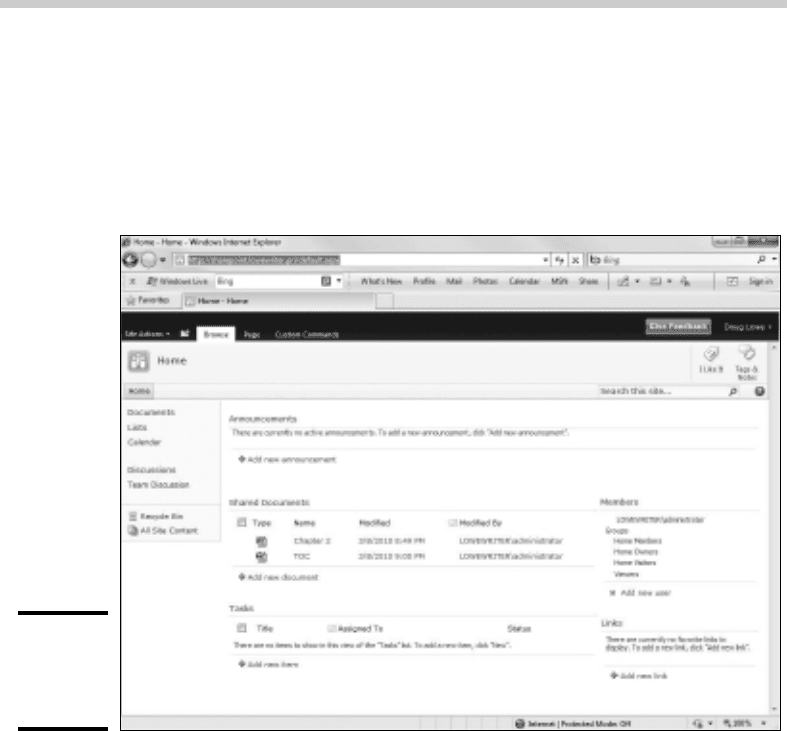
Users access SharePoint sites by opening a Web browser and browsing to
the server that hosts SharePoint. For example, Figure 4-1 shows the default
home page of the SharePoint site on a server named sharepoint.
lowewriter.pri.
Figure 4-1:
A
SharePoint
site.
The default SharePoint site consists of the following pages:
✦ A home page with announcements, a reminder of upcoming events on
the site’s calendar, and an area where you can add favorite links
✦ A document library named Shared Documents, where you can store files
that can be accessed by other SharePoint users
✦ A calendar
✦ A task list
✦ A discussion area named Team Discussion
Connecting to a SharePoint Site
61_625873-bk08ch04.indd 65661_625873-bk08ch04.indd 656 9/21/10 10:43 PM9/21/10 10:43 PM