
Lowe D. Networking For Dummies
Подождите немного. Документ загружается.

Book IX
Chapter 1
Installing a Linux
Server
677
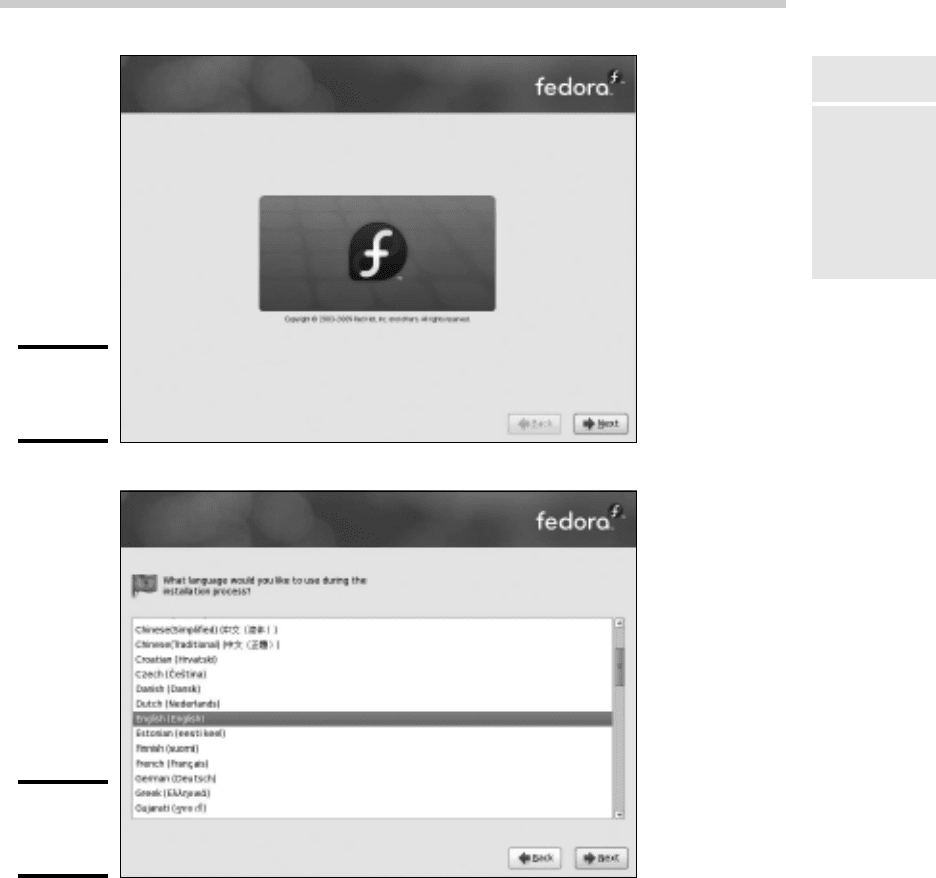
Figure 1-3:
Welcome to
Fedora.
Figure 1-4:
Choosing a
language.
7. Choose your keyboard type and then click Next.
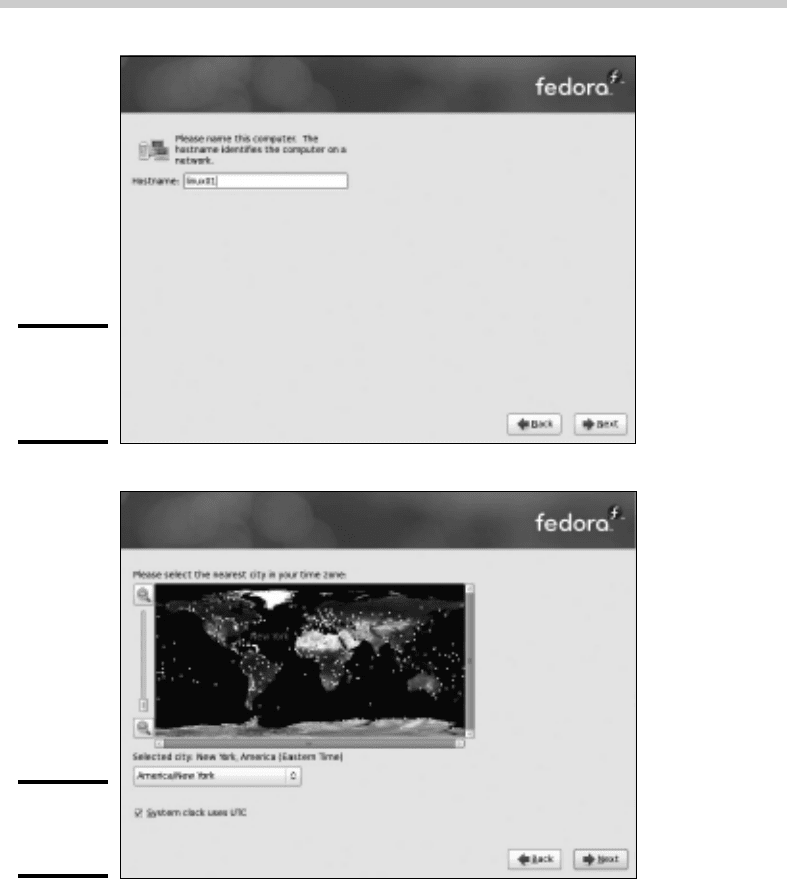
Next, Fedora asks for the host name for the computer, as shown in
Figure 1-5.
8. Enter the name you want to assign this computer and then click Next.
The Time Zone Selection screen appears, as shown in Figure 1-6. On this
screen is a map of the world with dots representing about 500 different
locations throughout the world.
Installing Fedora 7
63_625873-bk09ch01.indd 67763_625873-bk09ch01.indd 677 9/21/10 10:45 PM9/21/10 10:45 PM
678
Figure 1-5:
Choosing
the host
name.
Figure 1-6:
Choose a
time zone.
9. Click the location that’s closest to you and then click Next.
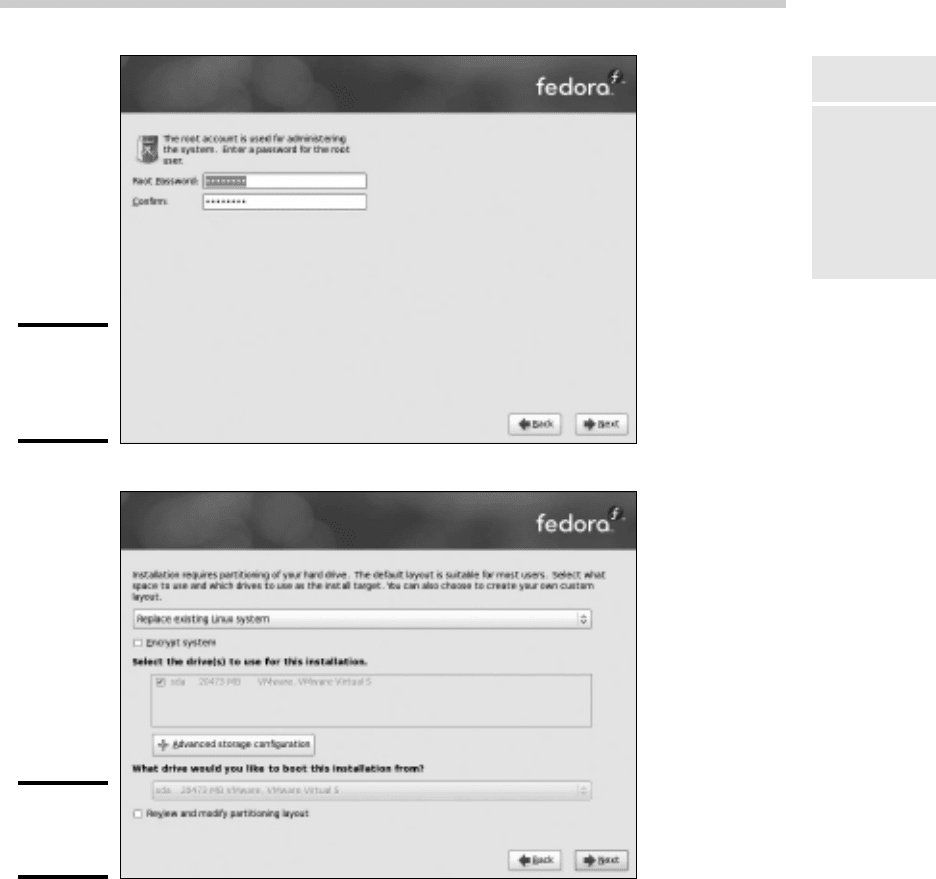
Next, the Set Root Password screen appears, as shown in Figure 1-7.
This screen lets you enter the all-important root account password. It’s
vital that this account be protected by a strong password, so choose a
good one. Write down the password somewhere and store it in a secure
location away from the computer.
The screen shown in Figure 1-8 is displayed.
Installing Fedora 7
63_625873-bk09ch01.indd 67863_625873-bk09ch01.indd 678 9/21/10 10:45 PM9/21/10 10:45 PM
Book IX
Chapter 1
Installing a Linux
Server
679
Figure 1-7:
Setting
the root
password.
Figure 1-8:
Partitioning
the disk.
10. Click Next.
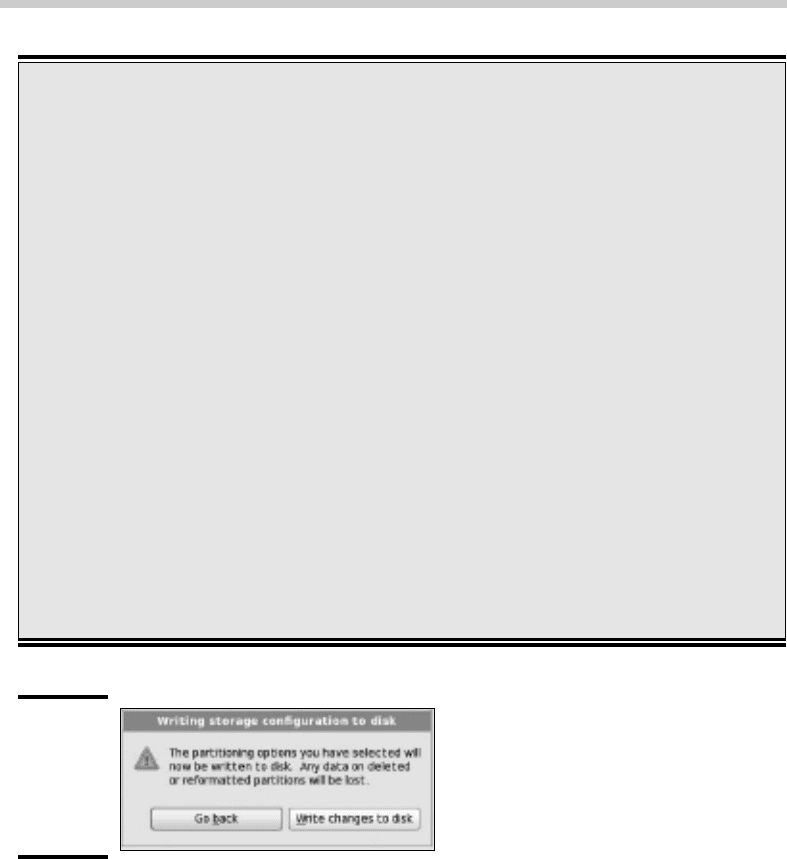
Fedora warns you that it is about to wipe out any existing data on your
hard disk, as shown in Figure 1-9.
Installing Fedora 7
63_625873-bk09ch01.indd 67963_625873-bk09ch01.indd 679 9/21/10 10:45 PM9/21/10 10:45 PM
680
Figure 1-9:
Fedora
warns you
that existing
data will be
lost.
11. Click Write Changes to Disk.
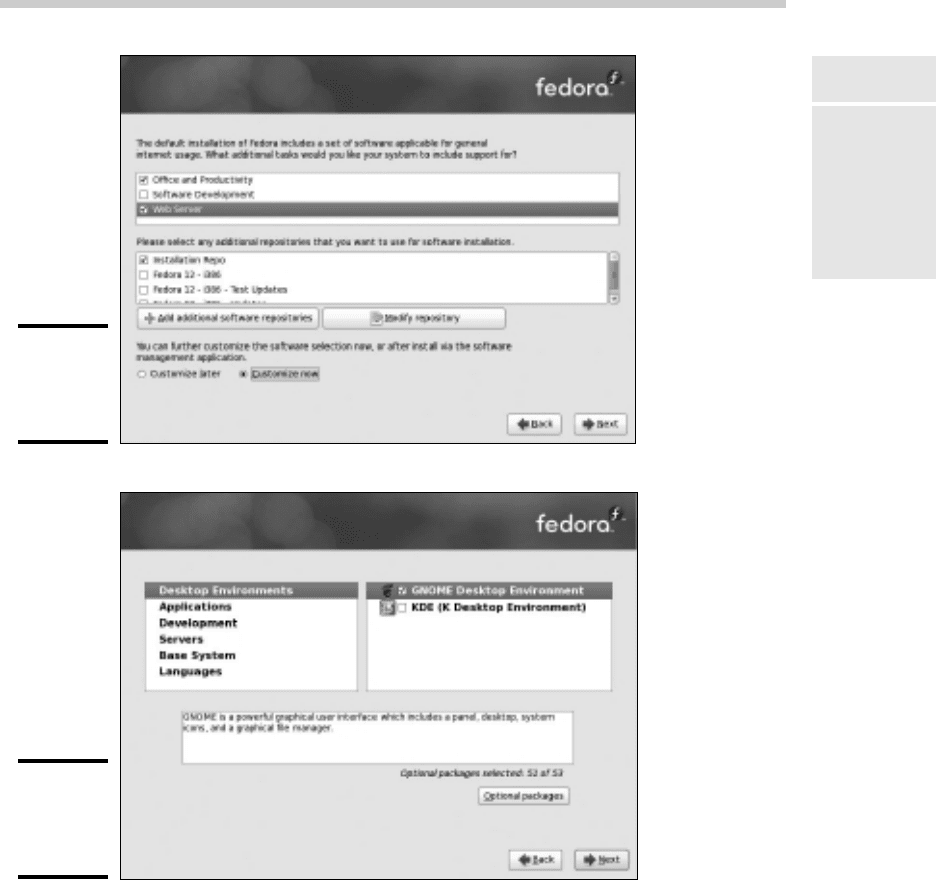
Next, the installation program displays the screen shown in Figure 1-10,
which lets you choose the optional features you want to install.
12. Select the Web Server and Customize Now options and then click Next.
The screen shown in Figure 1-11 appears. This screen allows you to fur-
ther customize the packages to be installed.
Linux is inherently a command line oriented
operating system. Graphical user interfaces —
including the installation program’s GUI — are
provided by an optional component called X
Window System. However, while you’re work-
ing with the graphical user interface of the
installation program, Linux keeps several addi-
tional command line consoles open. Normally,
you don’t need to use every one of these con-
soles during installation. However, if something
goes wrong during installation, these consoles
may be useful.
The following list describes the consoles:
✓ Console 1: The Installation dialog box. This
is the main installation console. You see it
when Setup first starts. After the graphical
user interface takes over, it’s hidden in the
background. You can call it up by pressing
Ctrl+Alt+F1.
✓ Console 2: Shell prompt. This console pro-
vides you with a shell prompt, from which
you can enter Linux commands. If you need
to do something manually during installa-
tion, you can do it from this console. The
keyboard shortcut is Ctrl+Alt+F2.
✓ Console 3: Install log. This console lists
messages generated by the installation
program. You can get to it by pressing
Ctrl+Alt+F3.
✓ Console 4: System log. This console dis-
plays system-related messages. You can
get to it by pressing Ctrl+Alt+F4.
✓ Console 5: Other messages. Still more mes-
sages may appear in this console, which
you can open by pressing Ctrl+Alt+F5.
✓ Console 6: X graphical display. This is the
console where the graphical user interface
of the installation program is displayed. If
you use a Ctrl+Alt keyboard combina-
tion to view any of the other logs, press
Ctrl+Alt+F7 to return to the installation GUI.
Virtual consoles and the installation program
Installing Fedora 7
63_625873-bk09ch01.indd 68063_625873-bk09ch01.indd 680 9/21/10 10:45 PM9/21/10 10:45 PM
Book IX
Chapter 1
Installing a Linux
Server
681
Figure 1-10:
Choosing
optional
features.
Figure 1-11:
Selecting
additional
packages.
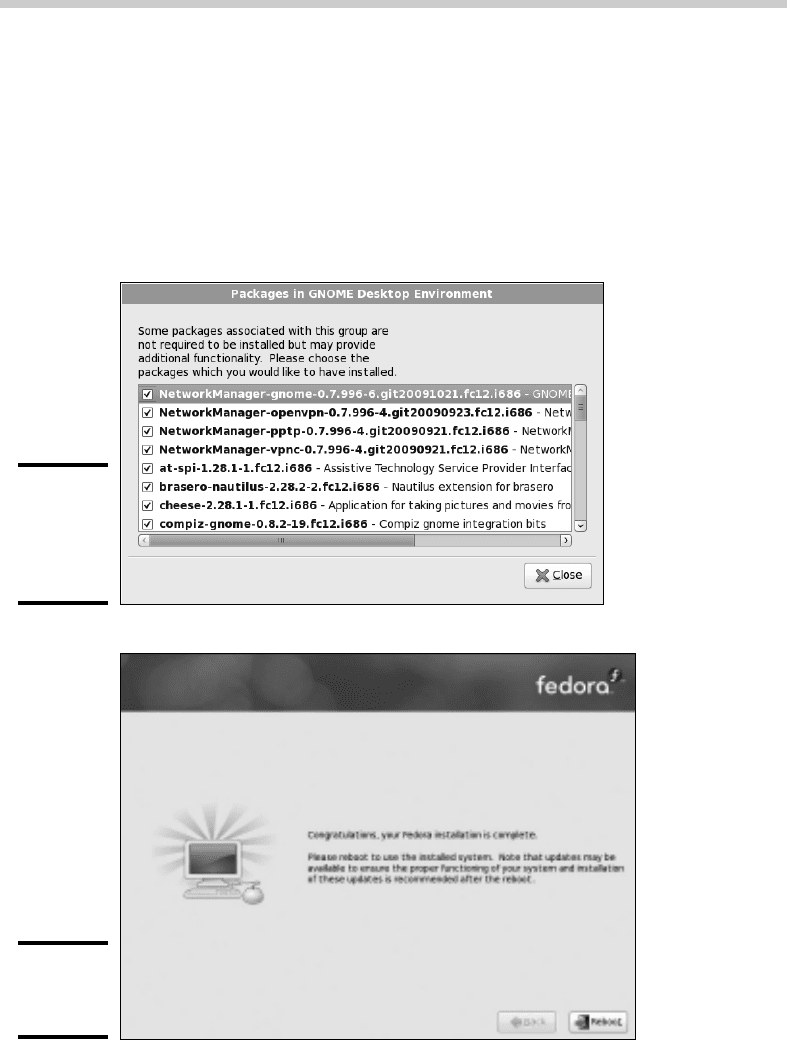
13. Click Servers.
The list of optional server packages appears, as shown in Figure 1-12.
14. Select the server packages you want to install and then click Next.
When you click Next, the installation program does some double-checking
to make sure that none of the packages you have chosen depend on
other packages you have not chosen. If it finds such a dependency, it
adds the dependent package so that your system will function properly.
Installing Fedora 7
63_625873-bk09ch01.indd 68163_625873-bk09ch01.indd 681 9/21/10 10:45 PM9/21/10 10:45 PM
682
After these dependencies have been verified, the installation programs
begins the process of installing Linux. This will take awhile — maybe a
long while — so now would be a good time to grab a book or take a nap.
When the installation finishes, the screen shown in Figure 1-13 is shown.
Pat yourself on the back for your ingenuity and perseverance.
15. Remove the installation disk from the drive and then click Reboot.
The system is rebooted. Installation is done!
Figure 1-12:
Selecting
optional
server
packages.
Figure 1-13:
Congratu-
lations!
Installing Fedora 7
63_625873-bk09ch01.indd 68263_625873-bk09ch01.indd 682 9/21/10 10:45 PM9/21/10 10:45 PM
Book IX
Chapter 1
Installing a Linux
Server
683
Using the Setup Agent
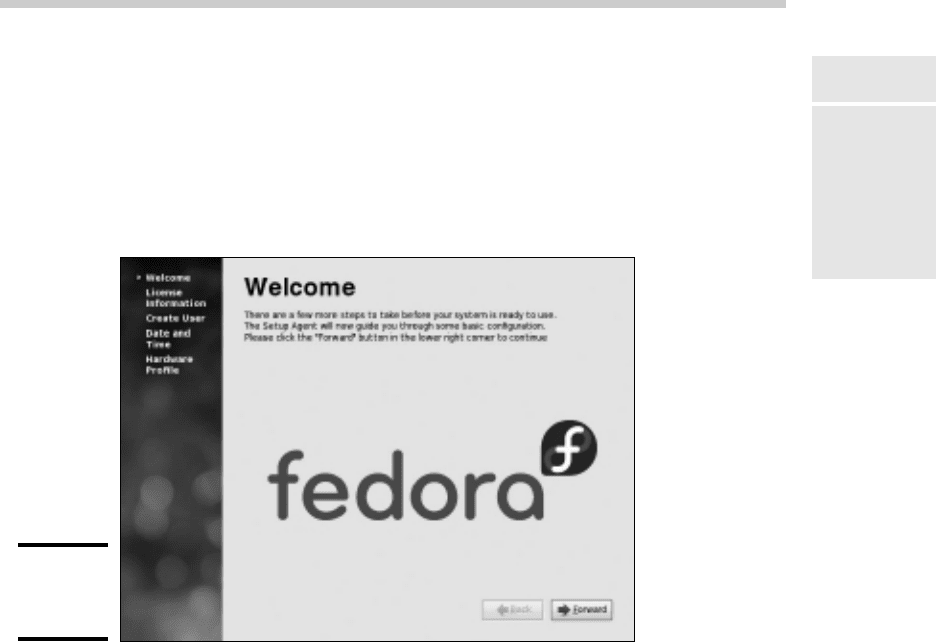
When Fedora restarts the first time after completing the installation program,
it launches a handy feature called the Setup Agent, as shown in Figure 1-14.
(The Setup Agent runs only if you installed a GUI.) The Setup Agent resem-
bles the installation program, but it asks a few questions that the installation
program forgot to ask.
Figure 1-14:
The Setup
Agent.
When the Setup Agent starts, follow these steps to see it through to completion:
1. On the Welcome screen, click Forward to get started.
The Setup Agent displays the License Agreement, as if after going
through the previous 15 steps to install Fedora, you’re now going to
decide you don’t agree to their terms. It’s useless to resist.
2. Click Forward to confirm your acceptance of the license agreement.
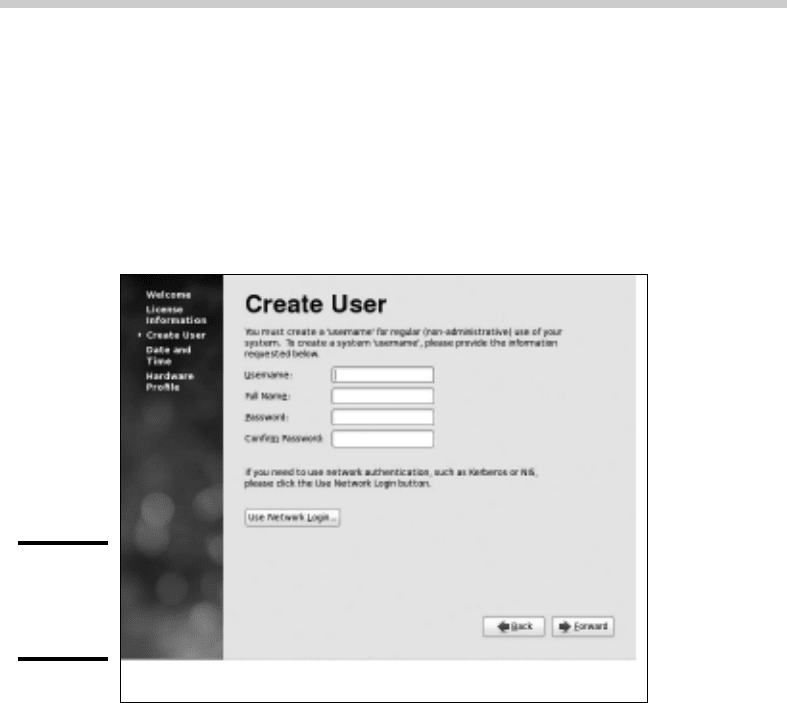
The Setup Agent asks you to create a user account so that you don’t have
to access the system by using the root account, as shown in Figure 1-15.
3. Type a name and password for the user account and then click
Forward.
The Setup Agent now asks you to set the date and time.
Using the Setup Agent
63_625873-bk09ch01.indd 68363_625873-bk09ch01.indd 683 9/21/10 10:45 PM9/21/10 10:45 PM
684
4. Select the correct date and time and then click Forward.
Now the Setup Agent asks if you want to submit details about your hard-
ware configuration as part of an effort to improve Linux’s support for
various hardware devices.
5. Click Send Profile or Do Not Send Profile and then click Finish.
That’s all there is. Your Linux system is now set up and ready to go.
Figure 1-15:
Creating
a user
account.
Using the Setup Agent
63_625873-bk09ch01.indd 68463_625873-bk09ch01.indd 684 9/21/10 10:45 PM9/21/10 10:45 PM

Chapter 2: Getting Used to Linux
In This Chapter
✓ Getting used to the Linux way of thinking
✓ Logging on and off Linux
✓ Using a GUI
✓ Working with commands
✓ Setting up user accounts
B
efore you can set up Linux to do serious networking, you need to
discover the basics of getting around Linux. In this chapter, you find
out those basics. You see how to log on and off Linux, how the Linux file
system works, and how to use commands. I also introduce you to GNOME,
the graphical user interface that’s used most with Fedora and many other
Linux distributions. Finally, I show you the basics of setting up a Linux user
account.
In this chapter, I assume that you have plenty of experience with Windows,
so I focus mostly on the differences between Linux and Windows — which,
unfortunately, are many.
Linux: It Isn’t Windows
Before I get into the details of actually using a Linux system, you need to
understand some basic differences between Linux and Windows that will
puzzle you at first. Linux looks a lot like Windows, but underneath, it’s very
different. You won’t have any trouble finding out how to point and click
your way through the GNOME user interface, but before long, you’ll run into
Linux file-naming conventions, terminal windows, configuration files, and a
host of other significant differences.
The following sections describe some of the more important differences
between Linux and Windows.
X Window
Linux doesn’t have a built-in graphical user interface (GUI) as Windows
does. Instead, the GUI in Linux is provided by an optional component called
X Window System. You can run Linux without X Window, in which case you
interact with Linux by typing commands. If you prefer to use a GUI, you
must install and run X Window.
64_625873-bk09ch02.indd 68564_625873-bk09ch02.indd 685 9/21/10 10:45 PM9/21/10 10:45 PM

686
Linux: It Isn’t Windows
X Window is split into two parts:
✦ A server component, called an X server, handles the basic chores of
managing multiple windows and providing graphics services for applica-
tion programs.
✦ A user interface component, called a window manager, provides user
interface features such as menus, buttons, toolbars, a taskbar, and so
on. Several different window managers are available, each with a dif-
ferent look and feel. The most popular is GNOME. I describe it in more
detail later in this chapter, in the section “Using GNOME.”
Virtual consoles
Linux is a true multiuser operating system. This means that you can log
on to Linux by using one user account and then log on by using a different
account, so that you’re logged on twice at the same time. You switch back
and forth between the different user sessions, and actions that you take in
one session don’t affect any of your other sessions.
In addition to an X Window client such as GNOME, Linux provides a tradi-
tional text-based environment called a console, through which you can enter
Linux commands to perform any function available in Linux. The more you
work with Linux, the more you’ll discover the limitations of even a sophis-
ticated GUI such as GNOME. When that happens, you’ll turn to a console
where you can enter brute-force commands.
Because Linux is a multiuser system, it lets you work with more than one
console. In fact, you actually have six virtual consoles at your disposal. You
can switch to a particular virtual console by pressing Ctrl+Alt+F1 through F6.
For example, to switch to virtual console 3, press Ctrl+Alt+F3.
When a GUI such as GNOME is running, you can switch to it by pressing
Ctrl+Alt+F7.
Understanding the file system
The Linux file system is a bit different from the Windows file system. Two of
the most obvious differences are actually superficial:
✦ Linux uses forward slashes rather than backward slashes to separate
directories. Thus, /home/doug is a valid path in Linux; \Windows\
System32 is a valid path in Windows.
✦ Linux filenames don’t use extensions. You can use periods within a file-
name, but unlike Windows, the final period doesn’t identify a file extension.
64_625873-bk09ch02.indd 68664_625873-bk09ch02.indd 686 9/21/10 10:45 PM9/21/10 10:45 PM