
Lowe D. Networking For Dummies
Подождите немного. Документ загружается.


Book II
Chapter 2
Installing Network
Hardware
107
Installing Coaxial Cable
across. You then snap a removable cap over the top of the slots and press
it down. This forces the wires into the slots, where little metal blades pierce
the insulation and establish the electrical contact.
When you connect the wire to a jack or patch panel, be sure to untwist as
little of the wire as possible. If you untwist too much of the wire, the signals
that pass through the wire may become unreliable.
Installing Coaxial Cable
Although twisted-pair cable is by far the most commonly used type of net-
working cable, some networks still rely on old-fashioned coaxial cable, usu-
ally called thinnet or sometimes BNC cable because of the type of connectors
used on each end of the cable.
Here are some salient points about working with coaxial cable:
✦ You attach thinnet to the network interface card by using a goofy twist-
on connector called a BNC connector. You can purchase preassembled
cables with BNC connectors already attached in lengths of 25 or 50 feet,
or you can buy bulk cable on a big spool and attach the connectors
yourself by using a special tool. (I suggest buying preassembled cables.
Attaching connectors to bulk coaxial cable can be tricky.)
✦ With coaxial cables, you run cable from computer to computer until all
the computers are chained together. At each computer, use a T connec-
tor to connect two cables to the network interface card.
✦ A special plug called a terminator is required at each end of a series of
thinnet cables. The terminator prevents data from spilling out the end of
the cable and staining the carpet.
✦ The cables strung end-to-end from one terminator to the other are col-
lectively called a segment. The maximum length of a thinnet segment
is about 200 meters (actually, 185 meters). You can connect as many
as 30 computers on one segment. To span a distance greater than 185
meters or to connect more than 30 computers, you must use two or
more segments with a funky device called a repeater to connect each
segment.
✦ Although Ethernet coaxial cable resembles TV coaxial cable, the two
types of cable aren’t interchangeable. Don’t try to cut costs by wiring
your network with cheap TV cable.
11_625873-bk02ch02.indd 10711_625873-bk02ch02.indd 107 9/21/10 10:09 PM9/21/10 10:09 PM
108
Attaching a BNC Connector to Coaxial Cable
Attaching a BNC Connector to Coaxial Cable
Properly connecting a BNC connector to coaxial cable is an acquired skill.
You need two tools — a wire stripper that can cut through the various layers
of the coaxial cable at just the right location and a crimping tool that crimps
the connector tightly to the cable after you get the connector into position.
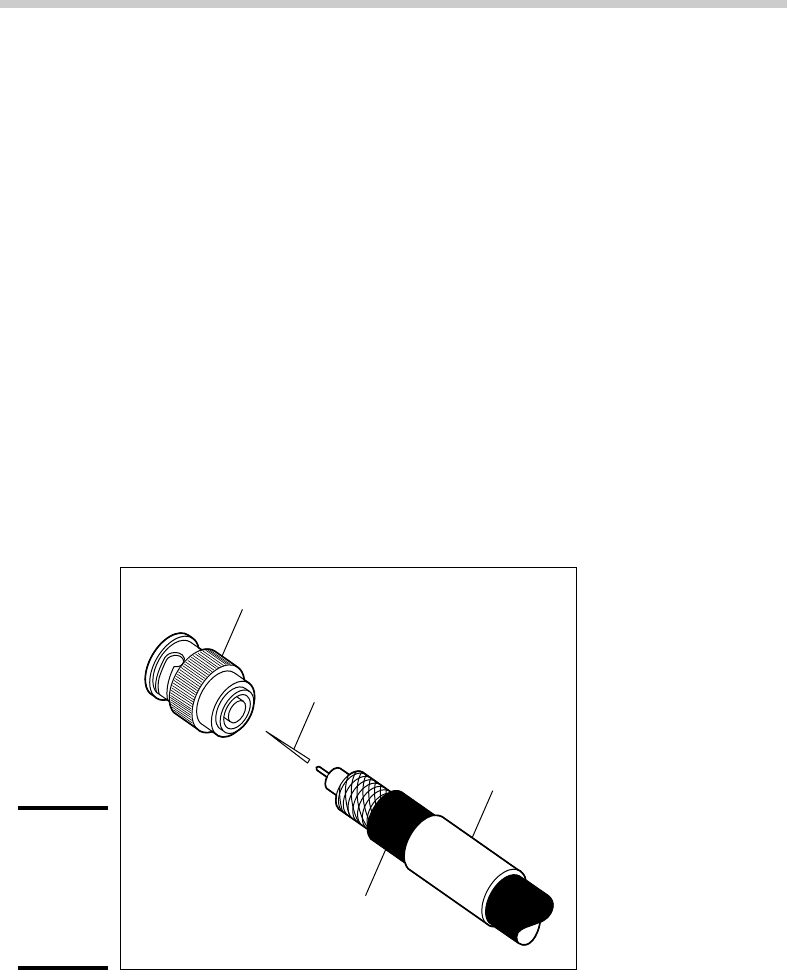
BNC connectors have three separate pieces, as shown in Figure 2-4.
Here’s the procedure, in case you ignore my advice and try to attach the
connectors yourself:
1. Slide the hollow tube portion of the connector (lovingly called the fer-
rule) over the cable.
Let it slide back a few feet to get it out of the way.
2. Cut the end of the cable off cleanly.
3. Use the stripping tool to strip the cable.
Strip the outer jacket back
1
⁄2 inch from the end of the cable; strip the
braided shield back
1
⁄4 inch from the end; and then strip the inner insula-
tion back
3
⁄16 inch from the end.
Figure 2-4:
Attaching
a BNC
connector
to coaxial
cable.
Connector body
Center pin
Properly stripped cable
Ferrule
4. Insert the solid center conductor into the center pin.
Slide the center pin down until it covers the inner insulation.
11_625873-bk02ch02.indd 10811_625873-bk02ch02.indd 108 9/21/10 10:09 PM9/21/10 10:09 PM

Book II
Chapter 2
Installing Network
Hardware
109
Daisy-Chaining Switches
5. Use the crimping tool to crimp the center pin.
6. Slide the connector body over the center pin and inner insulation but
under the braided shield.
After you push the body back far enough, the center pin clicks into place.
7. Now slide the ferrule forward until it touches the connector body.
Crimp it with the crimping tool.
Don’t get sucked into the trap of trying to use easy “screw-on” connectors.
They aren’t very reliable.
Installing Switches
Setting up a network switch is remarkably simple. In fact, you need to know
only a few details:
✦ Installing a switch is usually very simple. Just plug in the power cord
and then plug in patch cables to connect the network.
✦ Each port on the switch has an RJ-45 jack and a single LED indicator
labeled Link that lights up when a connection has been established on
the port. If you plug one end of a cable into the port and the other end
into a computer or other network device, the Link light should come on.
If it doesn’t, something is wrong with the cable, the hub (or switch port),
or the device on the other end of the cable.
✦ Each port may also have an LED indicator that flashes to indicate net-
work activity. If you stare at a switch for awhile, you can find out who
uses the network most by noting which activity indicators flash the most.
✦ The ports may also have a Collision indicator that flashes whenever a
packet collision occurs on the port. It’s perfectly acceptable for this light
to flash now and then, but if it flashes a lot, you may have a problem
with the network. Usually this just means that the network is overloaded
and should be segmented with a switch to improve performance. But in
some cases, a flashing Collision indicator may be caused by a faulty net-
work node that clogs up the network with bad packets.
Daisy-Chaining Switches
If a single switch doesn’t have enough ports for your entire network,
you can connect switches together by daisy-chaining them. If one of the
switches has an uplink port, you can use a normal patch cable to connect
the uplink port to one of the regular ports on the other switch. If neither
11_625873-bk02ch02.indd 10911_625873-bk02ch02.indd 109 9/21/10 10:09 PM9/21/10 10:09 PM

110
Daisy-Chaining Switches
device has an uplink port, use a crossover cable to connect them. (For
instructions on making a crossover cable, see the section, “Crossover
cables,” earlier in this chapter.)
On some hubs and switches, a button is used to switch one of the ports
between a normal port and an uplink port. This button is often labeled MDI/
MDIX. To use the port as a normal port, switch the button to the MDI posi-
tion. To use the port as an uplink port, switch the button to MDIX.
Some hubs and switches have a separate jack for the uplink port, but it turns
out that the uplink port shares one of the normal ports internally. If that’s
the case, plugging a cable into the uplink port disables one of the normal
ports. You shouldn’t plug cables into both of these jacks. If you do, the
switch won’t work properly.
Note that the number of switches that you can chain together is limited. For
10BaseT networks, you shouldn’t connect more than three switches to each
other. For 100 Mbps or gigabit segments, you can chain only two switches
together.
You can get around this rule by using stackable switches. Stackable switches
have a special type of cable connector that connects two or more switches
in a way that lets them function as if they were a single switch. Stackable
switches are a must for large networks.
11_625873-bk02ch02.indd 11011_625873-bk02ch02.indd 110 9/21/10 10:09 PM9/21/10 10:09 PM

Chapter 3: Setting Up
a Network Server
In This Chapter
✓ Thinking about the different ways to install a network operating
system
✓ Getting ready for the installation
✓ Installing a network operating system
✓ Figuring out what to do after you install the network operating system
A
fter you’ve installed the network cables and other devices, such as
hubs and switches, the next step in building a network is usually set-
ting up a server. After you’ve physically connected the server computer
to the network, you can install the network operating system (NOS) on the
server. Then, you can configure it to provide the network services that you
expect and need from the server.
The Many Ways to Install a
Network Operating System
Regardless of which network operating system you choose to use for your
network servers, you can use any of several common ways to actually install
the NOS software on the server computer. The following sections describe
these alternatives.
Full install versus upgrade
One of the basic NOS installation choices is whether you want to perform a
full installation or an upgrade installation. In some cases, you may be better
off performing a full installation even if you’re installing the NOS on a com-
puter that already has an earlier version of the NOS installed.
12_625873-bk02ch03.indd 11112_625873-bk02ch03.indd 111 9/21/10 10:09 PM9/21/10 10:09 PM

112
The Many Ways to Install a Network Operating System
✦ If you’re installing the NOS on a brand-new server, you’ll be performing
a full installation that installs the operating system and configures it with
default settings.
✦ If you’re installing the NOS on a server computer that already has a
server operating system installed, you can perform an upgrade installa-
tion that replaces the existing operating system with the new one but
retains as many of the settings from the existing operating system as
possible.
✦ You can also perform a full installation on a computer that already has
an operating system installed. In that case, you have the option of delet-
ing the existing operating system or performing a multiboot installation
that installs the new server operating system alongside the existing
operating system. Then, when you restart the computer, you can choose
which operating system you want to run.
✦ Although multiboot installation may sound like a good idea, it’s fraught
with peril. I suggest that you avoid multiboot unless you have a specific
reason to use it. For more information about multiboot setups, see the
sidebar, “Giving multiboot the boot.”
✦ You can’t upgrade a client version of Windows to a server version.
Instead, you must perform a full installation, which deletes the existing
Windows operating system, or a multiboot installation, which leaves
the existing client Windows intact. Either way, however, you can pre-
serve existing data on the Windows computer when you install the
server version.
Installing over the network
Normally, you install the NOS directly from the CD-ROM distribution discs
on the server’s CD-ROM drive. However, you can also install the operating
system from a shared drive located on another computer, provided that the
server computer already has access to the network. You can either use a
shared CD-ROM drive or you can copy the entire contents of the distribution
CD-ROM disc onto a shared hard drive.
Obviously, the server computer must have network access in order for this
technique to work. If the server already has an operating system installed,
it probably already has access to the network. If not, you can boot the com-
puter from a floppy that has basic network support.
If you’re going to install the NOS onto more than one server, you can save
time by first copying the distribution CD onto a shared hard drive. That’s
because even the fastest CD-ROM drives are slower than the network. Even
with a basic 10 Mbps network, access to hard drive data over the network is
much faster than access to a local CD-ROM drive.
12_625873-bk02ch03.indd 11212_625873-bk02ch03.indd 112 9/21/10 10:09 PM9/21/10 10:09 PM

Book II
Chapter 3
Setting Up a
Network Server
113
The Many Ways to Install a Network Operating System
Automated and remote installations
In case you find yourself in the unenviable position of installing a NOS onto
several servers, you can use a few tricks to streamline the process:
✦ Automated setup lets you create a setup script that provides answers to
all the questions asked by the installation program. After you’ve created
the script, you can start the automated setup, leave, and come back
when the installation is finished. Creating the setup script is a bit of
work, so automated setup makes sense only if you have more than a few
servers to install.
✦ Microsoft has a feature called Remote Installation Services (RIS) that lets
you install Windows server versions from a remote network location
without even going to the server computer. This is tricky to set up, how-
ever, so it’s really worth it only if you have a lot of servers on which to
install operating systems. (You can also use RIS to install client operat-
ing systems.)
Multiboot installations enable you to have more
than one operating system on a single com-
puter. Of course, only one of these operating
systems can be running at any time. When you
boot the computer, a menu appears with each
of the installed operating systems listed. You
can choose which operating system to boot
from this menu.
Multiboot is most useful for software develop-
ers or network managers who want to make
sure that software is compatible with a wide
variety of operating systems. Rather than set
up a bunch of separate computers with differ-
ent operating system versions, you can install
several operating systems on a single PC and
use that one PC to test the software. For pro-
duction network servers, however, you proba-
bly don’t need to have more than one operating
system installed.
If you still insist on loading two or more oper-
ating systems on a network server, be sure to
install each operating system into its own disk
partition. Although most network operating
systems let you install two (or more) operat-
ing systems into a single partition, doing so is
not a very good idea. To support two operating
systems in a single partition, the operating sys-
tems have to play a risky shell game with key
system files — moving or renaming them each
time you restart the computer. Unfortunately,
things can go wrong. For example, if lightning
strikes and the power goes out just as the NOS
is switching the startup files around, you may
find yourself with a server that can’t boot to any
of its installed operating systems.
The best way to set up a multiboot system is to
install each operating system into its own par-
tition. Then, you can use a boot manager pro-
gram to choose the partition you want to boot
from when you start the computer.
Giving multiboot the boot
12_625873-bk02ch03.indd 11312_625873-bk02ch03.indd 113 9/21/10 10:09 PM9/21/10 10:09 PM

114
Gathering Your Stuff
Gathering Your Stuff
Before you install a network operating system, you should gather every-
thing you need so you don’t have to look for something in the middle of
the setup. The following sections describe the items you’re most likely to
need.
A capable server computer
Obviously, you have to have a server computer on which to install the NOS.
Each NOS has a list of the minimum hardware requirements supported by
the operating system. For example, Table 3-1 summarizes the minimum
requirements for the Standard Edition of the current edition of Windows
Server, known as Windows Server 2008 Rw.
My suggestion is that you take these minimums with a grain of salt.
Windows Server 2008 will crawl like a snail with 512MB of RAM; I wouldn’t
bother with less than 4GB, and 16GB is a more appropriate minimum for
most purposes.
Table 3-1 Minimum Hardware Requirements
for Windows Server 2008 R2
Item Windows Server 2008 R2
CPU 1.4 GHz
RAM 512MB
Free disk space 32GB
You should also check your server hardware against the list of compatible
hardware published by the maker of your NOS. For example, Microsoft
publishes a list of hardware that it has tested and certified as compatible
with Windows servers. This list is called the Hardware Compatibility List, or
HCL for short. You can check the HCL for your specific server by going to
Microsoft’s Web site at www.microsoft.com/whdc/hcl/default.mspx.
You can also test your computer’s compatibility by running the Check
System Compatibility option from the Windows distribution CD-ROM.
You can find more specific details on server computer recommendations in
Book I, Chapter 3.
12_625873-bk02ch03.indd 11412_625873-bk02ch03.indd 114 9/21/10 10:09 PM9/21/10 10:09 PM

Book II
Chapter 3
Setting Up a
Network Server
115
Gathering Your Stuff
The server operating system
You also need a server operating system to install. You’ll need either the
distribution CDs or DVDs or access to a copy of them over the network. In
addition to the discs, you should have the following:
✦ The product key: The installation program asks you to enter the prod-
uct key during the installation to prove that you have a legal copy of the
software. If you have the actual CDs or DVDs, the product key should be
on a sticker attached to the case.
✦ Manuals: If the operating system came with printed manuals, you should
keep them handy.
✦ Your license type: You can purchase Microsoft operating systems on a
per-server or a per-user/per device basis. You need to know which plan
you have when you install the NOS.
Check the CD or DVD distribution disc for product documentation and addi-
tional last-minute information. For example, Windows servers have a \docs
folder that contains several files that have useful setup information.
Other software
In most cases, the installation program should be able to automatically con-
figure your server’s hardware devices and install appropriate drivers. Just
in case, though, you should dig out the driver disks that came with your
devices, such as network interface cards, SCSI devices, DVD drives, printers,
scanners, and so on.
A working Internet connection
This isn’t an absolute requirement, but the installation will go much
smoother if you have a working Internet connection before you start. The
installation process may use this Internet connection for several things:
✦ Downloading late-breaking updates or fixes to the operating system.
This can eliminate the need to install a service pack after you finish
installing the NOS.
✦ Locating drivers for nonstandard devices. This can be a big plus if you
can’t find the driver disk for your obscure SCSI card.
✦ Activating the product after you complete the installation (for
Microsoft operating systems).
12_625873-bk02ch03.indd 11512_625873-bk02ch03.indd 115 9/21/10 10:09 PM9/21/10 10:09 PM

116
Making Informed Decisions
A good book
You’ll spend lots of time watching progress bars during installation, so you
may as well have something to do while you wait. May I recommend The
Hitchhiker’s Guide to the Galaxy?
Making Informed Decisions
When you install a NOS, you have to make some decisions about how you
want the operating system and its servers configured. Most of these decisions
aren’t cast in stone, so don’t worry if you’re not 100 percent sure how you
want everything configured. You can always go back and reconfigure things.
However, you’ll save yourself time if you make the right decisions up front
rather than just guess when the setup program starts asking you questions.
The following list details most of the decisions that you’ll need to make.
(This list is for Windows Server 2003 and 2008 installations. For other net-
work operating systems, the decisions may vary slightly.)
✦ The existing operating system: If you want to retain the existing operating
system, the installation program can perform a multiboot setup, which
allows you to choose which operating system to boot to each time you
start the computer. This is rarely a good idea for server computers, so I
recommend that you elect to delete the existing operating system.
✦ Partition structure: Most of the time, you’ll want to treat the entire
server disk as a single partition. However, if you want to divide the disk
into two or more partitions, you should do so during setup. (Unlike most
of the other setup decisions, this one is hard to change later.)
✦ File system: Windows servers provide two choices for the file system to
format the server’s disk: FAT32 and NTFS. In every case, you should elect
to use NTFS. FAT32 should never be used for a server operating system.
✦ Computer name: During the operating system setup, you’re asked to
provide the computer name used to identify the server on the network.
If your network has only a few servers, you can just pick a name such
as Server01 or MyServer. If your network has more than a few servers,
you’ll want to follow an established guideline for creating server names.
✦ Administrator password: Okay, this one is tough. You don’t want to pick
something obvious, like Password, Administrator, or your last name.
On the other hand, you don’t want to type in something random that
you’ll later forget, because you’ll find yourself in a big pickle if you forget
the administrator password. I suggest that you make up a complex
password consisting of a mix of uppercase and lowercase letters, some
numerals, and a special symbol or two; then write it down and keep it in
a secure location where you know it won’t get lost.
12_625873-bk02ch03.indd 11612_625873-bk02ch03.indd 116 9/21/10 10:09 PM9/21/10 10:09 PM