
Lowe D. Networking For Dummies
Подождите немного. Документ загружается.


Book II
Chapter 5
Macintosh
Networking
137
What You Need to Know to Use a Macintosh Network
What You Need to Know to Use a Macintosh Network
The following questions often come up after you install the network cable.
Note that the following sections assume that you’re working with AppleTalk
networking using Mac OS X. The procedures may vary somewhat if you’re
using Open Transport networking or an earlier version of the Macintosh
operating system.
Configuring a Mac for networking
Before you can access the network from your Mac, you must configure your
Mac for networking: Activate AppleTalk and assign your network name and
password.
Activating AppleTalk
After all the cables are in place, you have to activate AppleTalk. Here’s how:
1. Select the Chooser from the Apple menu.
The Chooser is an application for choosing network resources.
2. Click the Active button.
3. Close the Chooser.
Assigning your name and password
After you activate AppleTalk, you’re ready to assign an owner name, a pass-
word, and a name for your computer. This process allows other network
users to access your Mac. Here’s how:
1. Choose the File Sharing control panel from the Apple menu (Apple➪
Control Panels➪File Sharing).
2. Type your name in the Owner Name field.
3. Type a password in the Owner Password field.
Don’t forget what the password is.
4. Type a descriptive name for your computer in the Computer Name
field.
Other network users will know your computer by this name.
5. Click the Close button.
14_625873-bk02ch05.indd 13714_625873-bk02ch05.indd 137 9/21/10 10:10 PM9/21/10 10:10 PM

138
What You Need to Know to Use a Macintosh Network
Accessing a network printer
Accessing a network printer with AppleTalk is no different than accessing a
printer when you don’t have a network. If more than one printer is available
on the network, you use the Chooser to select the printer you want to use.
Chooser displays all the available network printers — just pick the one you
want to use. And keep the following points in mind:
✦ Be sure to enable Background Printing for the network printer. If you
don’t, your Mac is tied up until the printer finishes your job — that can
be a long time if someone else sent a 500-page report to the printer just
before you. When you enable Background Printing, your printer output
is captured to a disk file and then sent to the printer later while you con-
tinue with other work.
To enable Background Printing
1. Choose Apple➪Chooser desk accessory.
2. Select the printer you want to use from the Chooser.
3. Click the Background Printing On button.
✦ Don’t enable Background Printing if a dedicated print server has
been set up. In that case, print data is spooled automatically to the print
server’s disk so your Mac doesn’t have to wait for the printer to become
available.
Sharing files with other users
To share files on your Mac with other network users, you set up a shared
resource. You can share a disk or just individual folders and restrict access
to certain users.
Before you can share files with other users, you must activate the AppleTalk
file-sharing feature. Here’s how:
1. Choose the File Sharing control panel from the Apple Menu.
2. Click the Start button in the File Sharing section of the control panel.
3. Click the Close button.
To share a file or folder, click the file or folder once. Then open the File
menu, choose Get Info, and choose Sharing from the submenu that appears.
You can also use the Sharing section of the Info window to restrict access to
the file or folder.
14_625873-bk02ch05.indd 13814_625873-bk02ch05.indd 138 9/21/10 10:10 PM9/21/10 10:10 PM

Book II
Chapter 5
Macintosh
Networking
139
What You Need to Know to Network Macintoshes with PCs
Accessing shared files
To access files on another Macintosh, follow this procedure:
1. Choose the Chooser from the Apple menu.
2. Click the AppleShare icon from the Chooser window.
3. Click the name of the computer you want to access. (If your network
has zones, you must first click the zone you want to access.)
4. Click OK.
A logon screen appears.
5. If you have a user account on the computer, click the Registered User
button and enter your username and password. Otherwise, click the
Guest button and then click OK.
A list of shared folders and disks appears.
6. Click the folders and disks you want to access.
A check box appears next to each item. If you check this box, you con-
nect to the corresponding folder or disk automatically when you start
your computer.
7. Click OK.
With Mac OS 8.5 and later, you can also use the Network Browser, found in
the Apple menu, to access network drives or folders. Just open the Network
Browser from the Apple menu, double-click the server that contains the shared
disk or folder, and then double-click the drive or folder you want to use.
What You Need to Know to Network
Macintoshes with PCs
Life would be too boring if Macs really lived on one side of the tracks and
PCs lived on the other. If your organization has a mix of both Macs and
PCs, odds are good that you eventually want to network them together.
Fortunately, you have several ways:
✦ If your network has an OS X Server, you can use the Windows client soft-
ware that comes with OS X Server to connect any version of Windows to
the server. Doing so enables Windows users to access the files and print-
ers on the Macintosh server.
14_625873-bk02ch05.indd 13914_625873-bk02ch05.indd 139 9/21/10 10:10 PM9/21/10 10:10 PM

140
What You Need to Know to Network Macintoshes with PCs
✦ The server versions of Windows include a feature called Services for
Macintosh that allows Macintosh computers to access files and printers
managed by the Windows servers without installing special client soft-
ware on the Macintosh computers.
✦ If you use NetWare, you must purchase separate NetWare client software
for your Macintosh computers. After you install this client software, the
Macs can access files and printers managed by your NetWare servers.
The biggest complication that occurs when you mix Macintosh and Windows
computers on the same network is that the Mac OS and Windows have
slightly different rules for naming files. For example:
✦ Macintosh filenames are limited to 31 characters, but Windows file-
names can be up to 255 characters.
✦ Although a Macintosh filename can include any characters other than
a colon, Windows filenames can’t include backslashes, greater-than or
less-than signs, and a few other oddball characters.
The best way to avoid filename problems is to stick with short names (under
31 characters) and limit your filenames to letters, numbers, and common
symbols (such as the hyphen or pound sign). Although you can translate any
filenames that violate the rules of the system being used into a form that’s
acceptable to both Windows and the Macintosh, doing so sometimes leads
to cryptic or ambiguous filenames. But hey, network administration is as
much an art as a science.
14_625873-bk02ch05.indd 14014_625873-bk02ch05.indd 140 9/21/10 10:10 PM9/21/10 10:10 PM

Chapter 6: Configuring Other
Network Features
In This Chapter
✓ Setting up network printers
✓ Configuring your client computer’s Internet connections
✓ Mapping network drives
A
fter you have your network servers and clients up and running, you
still have many details to attend to before you can pronounce your
network “finished.” In this chapter, you discover a few more configuration
chores that have to be done: configuring Internet access, setting up network
printers, configuring e-mail, and configuring mapped network drives.
Configuring Network Printers
Before network users can print on the network, the network’s printers must
be properly configured. For the most part, this is a simple task. All you have
to do is configure each client that needs access to the printer.
Before you configure a network printer to work with network clients, read
the client configuration section of the manual that came with the printer.
Many printers come with special software that provides more advanced
printing and networking features than the standard features provided by
Windows. If so, you may want to install the printer manufacturer’s software
on your client computers rather than use the standard Windows network
printer support.
Adding a network printer
The exact procedure for adding a network printer varies a bit, depending on
the Windows version that the client runs. The following steps describe the
procedure for Windows 7 (the procedure for Windows Vista is similar):
1. Choose Start➪Devices and Printers.
2. Click the Add a Printer button on the toolbar.
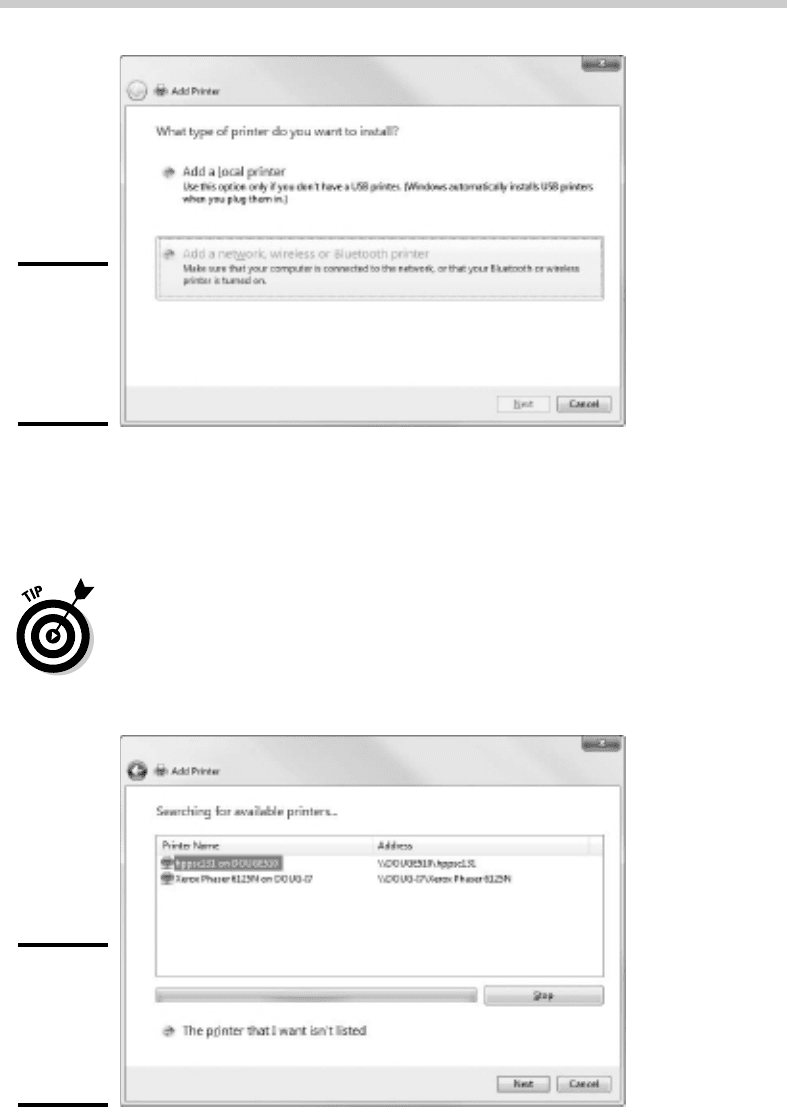
This step starts the Add Printer Wizard, shown in Figure 6-1.
15_625873-bk02ch06.indd 14115_625873-bk02ch06.indd 141 9/21/10 10:11 PM9/21/10 10:11 PM
142
Configuring Network Printers
Figure 6-1:
The Add
Printer
Wizard
comes to
life.
3. Select the Add a Network, Wireless or Bluetooth Printer option.
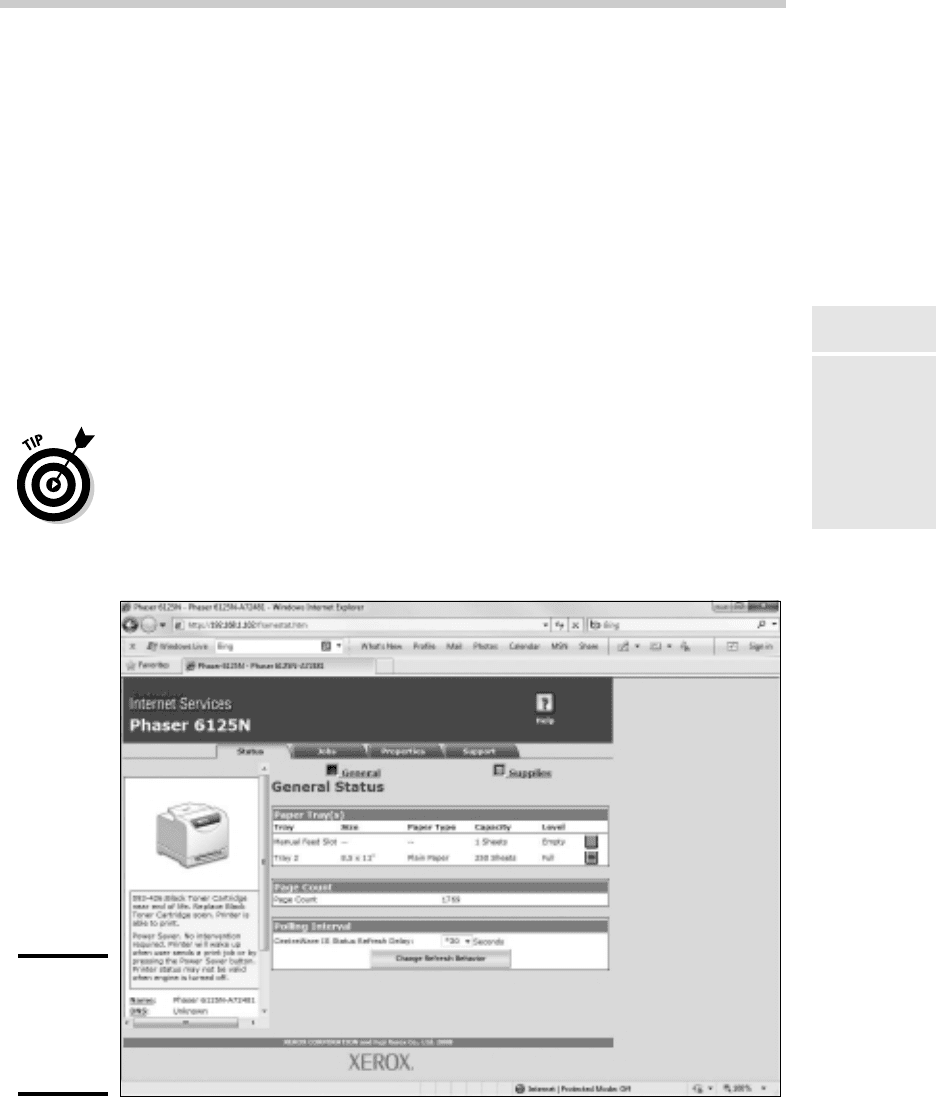
The wizard searches the network for available printers and displays a
list of the printers it finds, as shown in Figure 6-2.
4. Click the printer you want to use.
If you can’t find the printer you want to use, click The Printer That I
Want Isn’t Listed and enter the UNC or IP address for the printer when
prompted.
5. Click Next to add the printer.
Figure 6-2:
The Add
Printer
Wizard asks
you to pick a
printer.
15_625873-bk02ch06.indd 14215_625873-bk02ch06.indd 142 9/21/10 10:11 PM9/21/10 10:11 PM
Book II
Chapter 6
Configuring Other
Network Features
143
Configuring Network Printers
The wizard copies to your computer the correct printer driver for the
network printer. (You may be prompted to confirm that you want to add
the driver. If so, click Install Driver to proceed.)
The Add Printer Wizard displays a screen that shows the printer’s name
and asks whether you want to designate the printer as your default
printer.
6. If you want, designate the printer as your default printer.
7. Click Next to continue.
A final confirmation dialog box is displayed.
8. Click Finish.
You’re done!
Accessing a network printer using a Web interface
Printers that have a direct network connection often include a built-in Web
server that lets you manage the printer from any browser on the network.
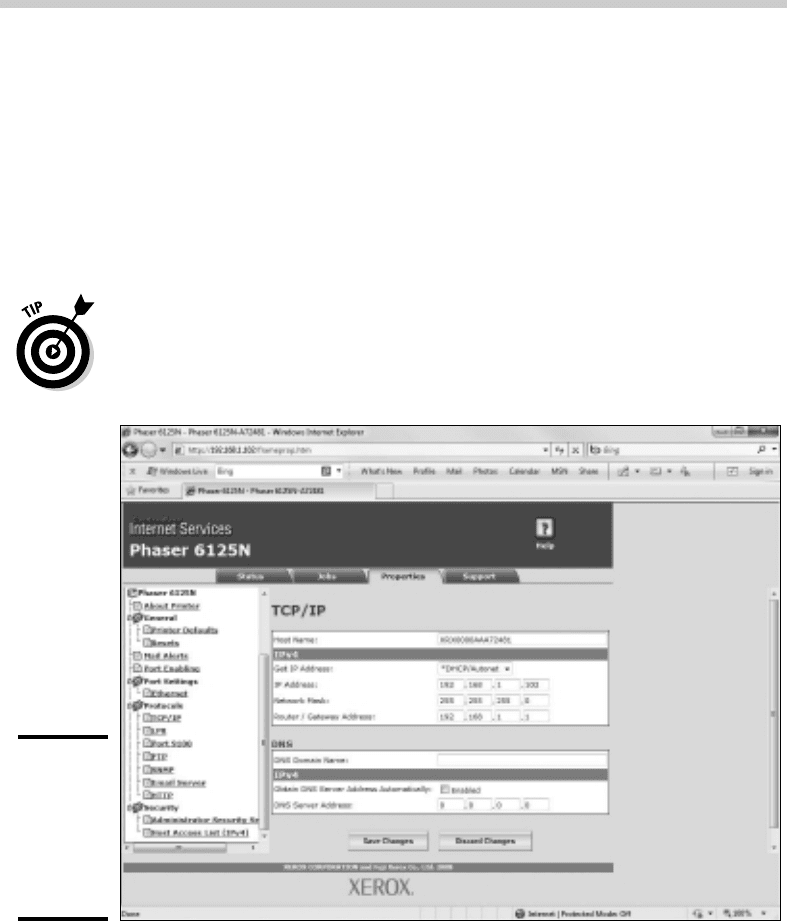
For example, Figure 6-3 shows the home page for a Xerox Phaser 6125
printer. This Web interface lets you view status information about the
printer and check the printer’s configuration. You can even view error logs
to find out how often the printer jams.
Figure 6-3:
Using a
printer’s
Web
interface.
15_625873-bk02ch06.indd 14315_625873-bk02ch06.indd 143 9/21/10 10:11 PM9/21/10 10:11 PM
144
Configuring Network Printers
To call up a printer’s Web interface, enter its IP address or host name in the
address bar of any Web browser.
In addition to simply displaying information about the printer, you can also
adjust the printer’s configuration from a Web browser. For example, Figure
6-4 shows the Network Settings page for the Xerox printer. Here, you can
change the network configuration details, such as the TCP/IP host name, IP
address, subnet mask, domain name, and so on. Other configuration pages
allow you to tell the printer to send an e-mail notification to an address that
you specify whenever you encounter a problem with the printer.
As the network administrator, you may need to visit the printer’s Web page
frequently. I suggest that you add it to your browser’s Favorites menu so
that you can get to it easily. If you have several printers, add them under a
folder named Network Printers.
Figure 6-4:
Changing
network
settings via
a printer’s
Web
interface.
15_625873-bk02ch06.indd 14415_625873-bk02ch06.indd 144 9/21/10 10:11 PM9/21/10 10:11 PM

Book II
Chapter 6
Configuring Other
Network Features
145
Configuring Internet Access
Configuring Internet Access
To enable the network users to access the Internet, you need to make sure
that the TCP/IP configuration settings on each client computer are set cor-
rectly. If you have a high-speed Internet connection, such as T1, DSL, cable,
or ISDN, connected to the Internet via a router and your network uses DHCP
for automatic TCP/IP configuration, you may not need to do anything special
to get your clients connected to the Internet.
Configuring clients for DHCP
The easiest way to configure client computers to access the Internet via a
shared high-speed connection is to use DHCP. DHCP automatically distrib-
utes the detailed TCP/IP configuration information to each client. Then, if
your configuration changes, all you have to do is change the DHCP server’s
configuration. You don’t have to manually change each client. Plus, the
DHCP server avoids common manual configuration errors, such as assigning
the same IP address to two computers.
Before you configure the clients to use DHCP, you should first set up the
DHCP server. The DHCP server’s configuration should include:
✦ A scope that specifies the range of IP addresses and the subnet mask to
be distributed to client computers.
✦ The IP address of the router that should be used as the default gateway
for client computers to reach the Internet.
✦ The IP addresses of the DNS servers that clients should use.
Note that DHCP can be provided either by a server computer or by an intel-
ligent router that has built-in DHCP. For more information about configuring
DHCP, see Book IV, Chapter 3.
After the DHCP server is configured, setting up Windows clients to use it is a
snap. Just follow these steps for Windows 7:
1. Open the Control Panel and click View Network Status and Tasks.
2. Click Change Adapter Settings.
3. Right-click the LAN connection icon and choose Properties.
This brings up the Local Area Connection Properties dialog box, as
shown in Figure 6-5.
15_625873-bk02ch06.indd 14515_625873-bk02ch06.indd 145 9/21/10 10:11 PM9/21/10 10:11 PM

146
Configuring Internet Access
Figure 6-5:
The Local
Area
Connection
Properties
dialog box.
4. Select Internet Protocol Version 4 (TCP/IPv4) from the list of items
used by the connection and then click the Properties button.
This displays the Internet Protocol Version 4 (TCP/IP) Properties dialog
box, as shown in Figure 6-6.
5. Make sure that both the Obtain An IP Address Automatically and
Obtain DNS Server Address Automatically options are selected.
These options enable DHCP for the client.
Figure 6-6:
The Internet
Protocol
Version 4
(TCP/IPv4)
Properties
dialog box.
15_625873-bk02ch06.indd 14615_625873-bk02ch06.indd 146 9/21/10 10:11 PM9/21/10 10:11 PM