
Lowe D. Networking For Dummies
Подождите немного. Документ загружается.


Book II
Chapter 3
Setting Up a
Network Server
117
Installing a Network Operating System
✦ Networking protocols: You’ll almost always need to install the TCP/
IP protocol, the Microsoft network client protocol, and file and printer
sharing. Depending on how the server will be used, you may want to
install other protocols as well.
✦ TCP/IP configuration: You’ll need to know what IP address to use for
the server. Even if your network has a DHCP server to dynamically
assign IP addresses to clients, most servers use static IP addresses.
✦ Workgroup or domain: You’ll need to decide whether the server will
join a domain or just be a member of a workgroup. In either case, you’ll
need to know the domain name or the workgroup name.
Final Preparations
Before you begin the actual installation, you should take a few more steps:
✦ Clean up the server’s disk by uninstalling any software that you don’t
need and removing any old data that is no longer needed. This cleanup
is especially important if you’re converting a computer that’s been in
use as a client computer to a server. You probably don’t need Microsoft
Office or a bunch of games on the computer after it becomes a server.
✦ Do a complete backup of the computer. Operating system setup programs
are almost flawless, so the chances of losing data during installation are
minimal. But you still face the chance that something may go wrong.
✦ If the computer is connected to an uninterruptible power supply (UPS)
that has a serial or USB connection to the computer, unplug the serial
or USB connection. In some cases, this control connection can confuse
the operating system’s setup program when it tries to determine which
devices are attached to the computer.
✦ If the computer has hard drives compressed with DriveSpace or
DoubleSpace, uncompress the drives before you begin.
✦ Light some votive candles, take two Tylenol, and put on a pot of coffee.
Installing a Network Operating System
The following sections present an overview of a typical installation of
Windows Server 2008. Although the details vary, the overall installation pro-
cess for other network operating systems is similar.
In most cases, the best way to install Windows Server 2008 is to perform
a new install directly from the DVD installation media. Although upgrade
installs are possible, your server will be more stable if you perform a new
install. (For this reason, most network administrators avoid upgrading to
Windows Server 2008 until it’s time to replace the server hardware.)
12_625873-bk02ch03.indd 11712_625873-bk02ch03.indd 117 9/21/10 10:09 PM9/21/10 10:09 PM

118
Installing a Network Operating System
To begin the installation, insert the DVD distribution media in the server’s
DVD drive and then restart the server. This causes the server to boot
directly from the distribution media, which initiates the setup program.
As the setup program proceeds, it leads you through two distinct installa-
tion phases: Collecting Information and Installing Windows. The following
sections describe these installation phases in greater detail.
Phase 1: Collecting Information
In the first installation phase, the setup program asks for the preliminary
information that it needs to begin the installation. A setup wizard prompts
you for the following information:
✦ Language: Select your language, time-zone, and keyboard type.
✦ Product Key: Enter the 25-character product key that came with the
installation media. If setup says you entered an invalid product key,
double-check it carefully. You probably just typed the key incorrectly.
✦ Operating System Type: The setup program lets you select Windows
Server 2008 Standard Edition or Core. Choose Standard Edition to install
the full server operating system; choose Core if you want to install the
new text-only version.
✦ License Agreement: The official license agreement is displayed. You
have to agree to its terms in order to proceed.
✦ Install Type: Choose an Upgrade or Clean Install type.
✦ Disk Location: Choose the partition in which you want to install
Windows.
✦ Upgrade to NTFS: If you want to upgrade a FAT32 system to NTFS, you’ll
need to say so now.
Phase 2: Installing Windows
In this phase, Windows setup begins the actual process of installing
Windows. The following steps are performed in sequence:
1. Copying Files: Compressed versions of the installation files are copied
to the server computer.
2. Expanding Files: The compressed installation files are expanded.
3. Installing Features: Windows server features are installed.
4. Installing Updates: The setup program checks Microsoft’s Web site and
downloads any critical updates to the operating system.
5. Completing Installation: When the updates are installed, the setup pro-
gram reboots so it can complete the installation.
12_625873-bk02ch03.indd 11812_625873-bk02ch03.indd 118 9/21/10 10:10 PM9/21/10 10:10 PM
Book II
Chapter 3
Setting Up a
Network Server
119
Configuring Your Server
Configuring Your Server
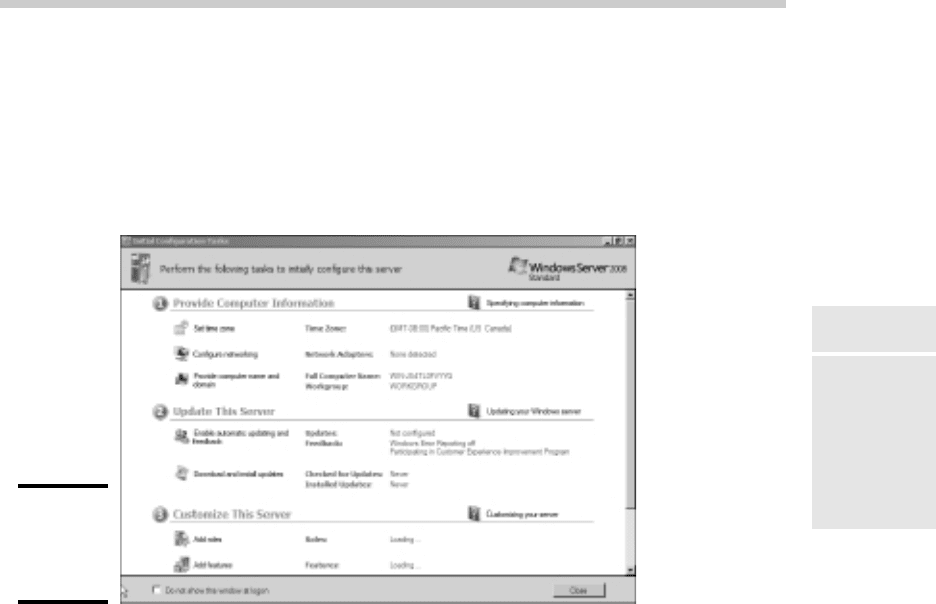
After you’ve installed Windows Server 2008, the computer automatically
reboots, and you’re presented with the Initial Configuration Tasks Wizard,
as shown in Figure 3-1. This wizard guides you through the most important
initial tasks for configuring your new server.
Figure 3-1:
Initial
Configura-
tion Tasks.
The following list describes the server configuration settings available from
this wizard:
✦ Set the Administrator Password: The very first thing you should do
after installing Windows is set a secure administrator password.
✦ Set the Time Zone: This is necessary only if the indicated time zone is
incorrect.
✦ Configure Networking: The default network settings are usually appro-
priate, but you can use this option to change the defaults if you wish.
✦ Provide Computer Name and Domain: This option lets you change the
server’s computer name and join a domain.
✦ Enable Automatic Updating: Use this option if you want to let the server
automatically check for operating system updates.
✦ Download and Install Updates: Use this option to check for critical
operating system updates.
✦ Add Roles: This option launches the Add Roles Wizard, which lets you
configure important roles for your server.
12_625873-bk02ch03.indd 11912_625873-bk02ch03.indd 119 9/21/10 10:10 PM9/21/10 10:10 PM

120
Configuring Your Server
✦ Add Features: This option lets you add more operating system features.
✦ Enable Remote Desktop: Use this option to enable the Remote Desktop
feature, which lets you administer this server from another computer.
✦ Configure Windows Firewall: If you want to use the built-in Windows
firewall, this option lets you configure it.
12_625873-bk02ch03.indd 12012_625873-bk02ch03.indd 120 9/21/10 10:10 PM9/21/10 10:10 PM

Chapter 4: Configuring
Windows Clients
In This Chapter
✓ Configuring network connections for Windows clients
✓ Setting the computer name, description, and workgroup
✓ Joining a domain
✓ Setting logon options
B
efore your network setup is complete, you must configure the net-
work’s client computers. In particular, you have to configure each
client’s network interface card so that it works properly, and you have to
install the right protocols so that the clients can communicate with other
computers on the network.
Fortunately, the task of configuring client computers for the network is
child’s play in Windows. For starters, Windows automatically recognizes
your network interface card when you start up your computer. All that
remains is to make sure that Windows properly installed the network proto-
cols and client software.
With each version of Windows, Microsoft has simplified the process of con-
figuring client network support. In this chapter, I describe the steps for con-
figuring networking for Windows XP, Vista, and Windows 7.
Configuring Network Connections
Windows automatically detects the presence of a network adapter; nor-
mally, you don’t have to install device drivers manually for the adapter.
When Windows detects a network adapter, it automatically creates a net-
work connection and configures it to support basic networking protocols.
However, you may need to change the configuration of a network connec-
tion manually. The procedures for Windows XP and Vista are described in
the following sections.
13_625873-bk02ch04.indd 12113_625873-bk02ch04.indd 121 9/21/10 10:10 PM9/21/10 10:10 PM
122
Configuring Network Connections
Configuring Windows XP network connections
The following steps show how to configure your network connection on a
Windows XP system:
1. Choose Start➪Control Panel to open the Control Panel.
The Control Panel appears.
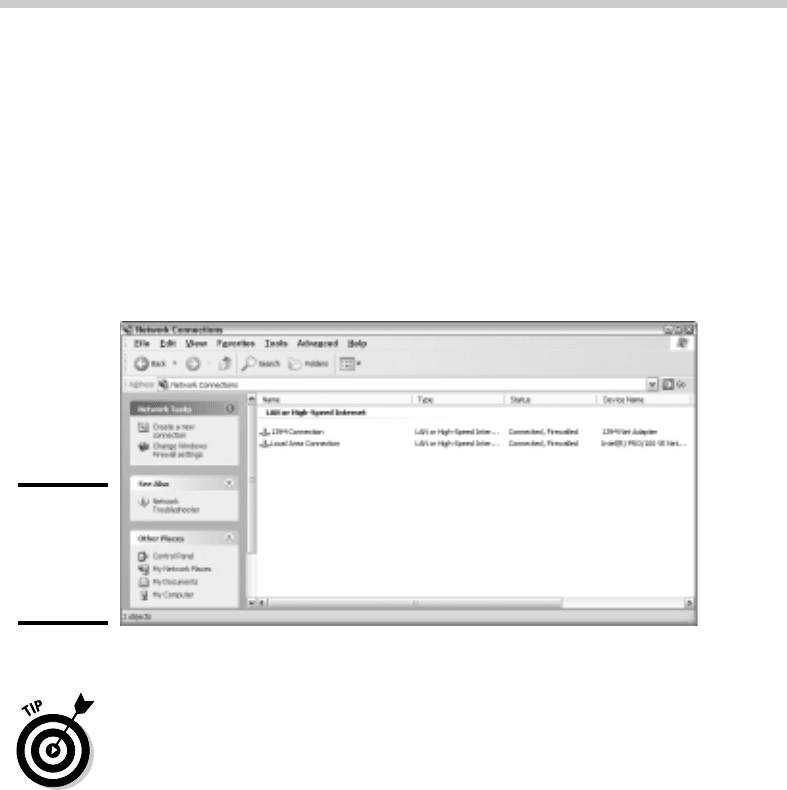
2. Double-click the Network Connections icon.
The Network Connections folder appears, as shown in Figure 4-1.
Figure 4-1:
The
Network
Connections
folder.
3. Right-click the connection that you want to configure and then choose
Properties from the menu that appears.
Or you can select the network connection and click Change Settings of
This Connection in the task pane.
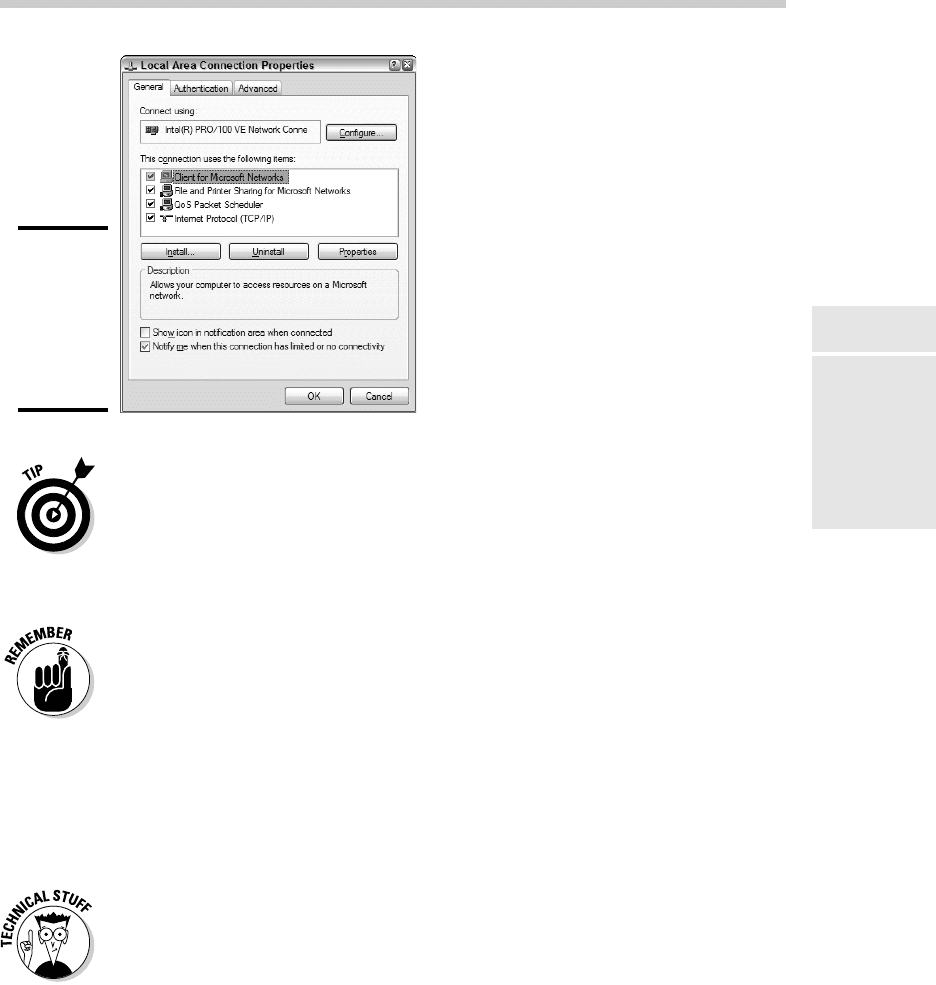
Either way, the Properties dialog box for the network connection
appears, as shown in Figure 4-2.
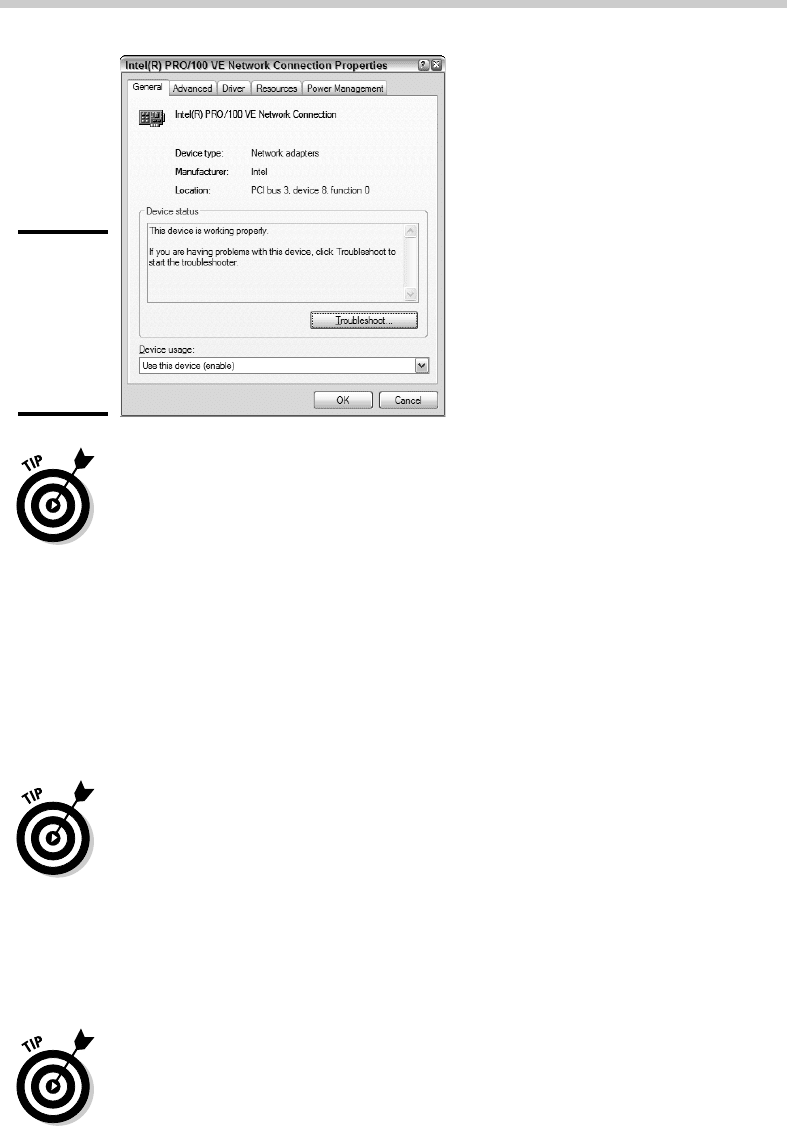
4. To configure the network adapter card settings, click Configure.
This action summons the Properties dialog box for the network adapter,
as shown in Figure 4-3. This dialog box has five tabs that let you config-
ure the NIC:
• General: This tab shows basic information about the NIC, such as
the device type and status. For example, the device shown in Figure
4-3 is an Intel Pro 100 network interface. (It’s installed in slot 3 of the
computer’s PCI bus.)
13_625873-bk02ch04.indd 12213_625873-bk02ch04.indd 122 9/21/10 10:10 PM9/21/10 10:10 PM
Book II
Chapter 4
Configuring
Windows Clients
123
Configuring Network Connections
Figure 4-2:
The
Properties
dialog
box for a
network
connection.
If you’re having trouble with the adapter, you can click the Trouble-
shoot button to open the Windows XP Hardware Troubleshooter.
You can also disable the device if it’s preventing other components
of the computer from working properly.
• Advanced: This tab lets you set a variety of device-specific param-
eters that affect the operation of the NIC. For example, some cards
allow you to set the speed parameter (typically at 10 Mbps or 100
Mbps) or the number of buffers the card should use.
Consult the manual that came with the card before you play around
with any of those settings.
• Driver: This tab displays information about the device driver that’s
bound to the NIC and lets you update the driver to a newer version,
roll back the driver to a previously working version, or uninstall the
driver.
• Resources: With this tab, you can use manual settings to limit the
system resources used by the card — including the memory range,
I/O range, IRQ, and DMA channels.
In the old days, before Plug and Play cards, you had to configure
these settings whenever you installed a card, and it was easy to
create resource conflicts. Windows configures these settings auto-
matically so that you should rarely need to fiddle with them.
• Power Management: This tab lets you set power-management
options. You can specify that the network card be shut down when-
ever the computer goes into sleep mode — and that the computer
wake up periodically to refresh its network state.
13_625873-bk02ch04.indd 12313_625873-bk02ch04.indd 123 9/21/10 10:10 PM9/21/10 10:10 PM
124
Configuring Network Connections
Figure 4-3:
The
Properties
dialog
box for a
network
adapter.
When you click OK to dismiss the network adapter’s Properties dialog box,
the network connection’s Properties dialog box closes. Select the Change
Settings of This Connection option again to continue the procedure.
5. Make sure that the network items your client requires are listed in the
network connection Properties dialog box.
The following list describes the items you commonly see listed here.
Note that not all networks need all these items:
• Client for Microsoft Networks: This item is required if you want to
access a Microsoft Windows network. It should always be present.
• File and Printer Sharing for Microsoft Networks: This item allows your
computer to share its files or printers with other computers on the
network.
This option is usually used with peer-to-peer networks, but you can
use it even if your network has dedicated servers. However, if you
don’t plan to share files or printers on the client computer, you
should disable this item.
• Internet Protocol (TCP/IP): This item enables the client computer to
communicate by using the TCP/IP protocol.
If all servers on the network support TCP/IP, this protocol should be
the only one installed on the client.
• NWLink IPX/SPX/NetBIOS Compatible Transport Protocol: This pro-
tocol is required only if your network needs to connect to an older
NetWare network that uses the IPX/SPX protocol.
In most modern networks, you should enable TCP/IP only and leave
this item disabled.
13_625873-bk02ch04.indd 12413_625873-bk02ch04.indd 124 9/21/10 10:10 PM9/21/10 10:10 PM

Book II
Chapter 4
Configuring
Windows Clients
125
Configuring Network Connections
6. If a protocol that you need isn’t listed, click the Install button to add
the needed protocol.
A dialog box appears, asking whether you want to add a network client,
protocol, or service. Click Protocol and then click Add. A list of available
protocols appears. Select the one you want to add; then click OK. (You
may be asked to insert a disc or the Windows CD.)
7. Make sure that the network client that you want to use appears in the
list of network resources.
For a Windows-based network, make sure that Client for Microsoft
Networks is listed. For a NetWare network, make sure that Client Service
for NetWare appears. If your network uses both types of servers, you
can choose both clients.
If you have NetWare servers, use the NetWare client software that comes
with NetWare rather than the client supplied by Microsoft with Windows.
8. If the client that you need isn’t listed, click the Install button to add
the client that you need, click Client, and then click Add. Then choose
the client that you want to add and click OK.
The client you select is added to the network connection’s Properties
dialog box.
9. To remove a network item that you don’t need (such as File and
Printer Sharing for Microsoft Networks), select the item and click the
Uninstall button.
For security reasons, you should make it a point to remove any clients,
protocols, or services that you don’t need.
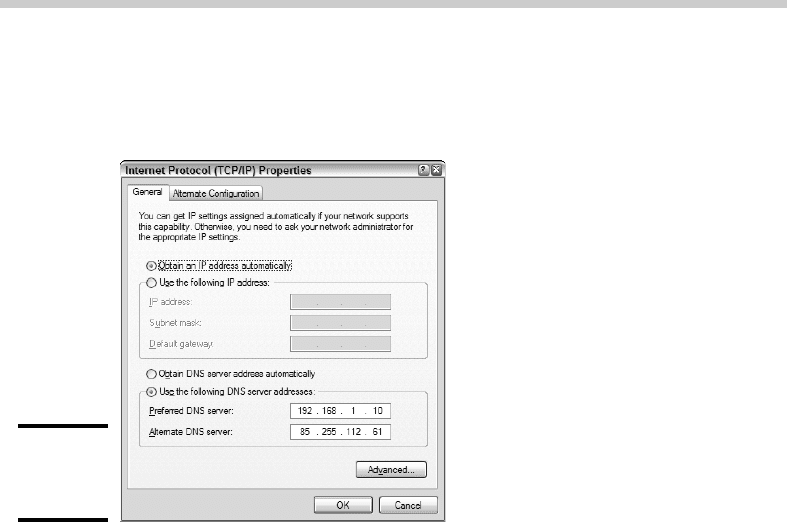
10. To configure TCP/IP settings, click Internet Protocol (TCP/IP) and
click Properties to display the TCP/IP Properties dialog box. Adjust
the settings and then click OK.
The TCP/IP Properties dialog box, shown in Figure 4-4, lets you choose
from these options:
• Obtain an IP Address Automatically: Choose this option if your net-
work has a DHCP server that assigns IP addresses automatically.
Choosing this option drastically simplifies the administering of TCP/
IP on your network. (See Book IV, Chapter 3, for more information
about DHCP.)
• Use the Following IP Address: If your computer must have a specific
IP address, choose this option and then type the computer’s IP
address, subnet mask, and default gateway address. (For more infor-
mation about these settings, see Book IV, Chapter 2.)
• Obtain DNS Server Address Automatically: The DHCP server can also
provide the address of the Domain Name System (DNS) server that the
computer should use. Choose this option if your network has a DHCP
server. (See Book IV, Chapter 4, for more information about DNS.)
13_625873-bk02ch04.indd 12513_625873-bk02ch04.indd 125 9/21/10 10:10 PM9/21/10 10:10 PM
126
Configuring Network Connections
• Use the Following DNS Server Addresses: Choose this option if a DNS
server isn’t available. Then type the IP address of the primary and
secondary DNS servers.
Figure 4-4:
Configuring
TCP/IP.
Configuring Windows Vista network connections
The procedure for configuring a network connection on Windows Vista is
similar to the procedure for Windows XP, except that Microsoft decided to
bury the configuration dialog boxes a little deeper in the bowels of Windows.
To find the settings you need, follow these steps:
1. Choose Start➪Control Panel to open the Control Panel.
The Control Panel appears.
2. Choose View Network Status and Tasks under the Network and
Internet heading.
This step opens the Network and Sharing Center, shown in Figure 4-5.
3. Click Manage Network Connections.
The Network Connections folder appears, as shown in Figure 4-6.
4. Right-click the connection that you want to configure and then choose
Properties from the menu that appears.
13_625873-bk02ch04.indd 12613_625873-bk02ch04.indd 126 9/21/10 10:10 PM9/21/10 10:10 PM