
Lowe D. Networking For Dummies
Подождите немного. Документ загружается.


Book II
Chapter 6
Configuring Other
Network Features
147
Mapping Network Drives
6. Click OK to return to the Local Area Connection Properties dialog box
and then click OK again.
That’s all there is to it. The computer is now configured to use DHCP. You
should check to make sure that every computer on your network is config-
ured for DHCP.
If your network doesn’t have a DHCP server, you’ll have to configure the
TCP/IP configuration manually for each computer. Start by deciding the IP
address that you want to assign to each computer. Then, follow the preced-
ing procedure on every computer. When you get to Step 4, enter the comput-
er’s IP address as well as the IP address of the default gateway (your Internet
router) and the IP addresses of your DNS servers.
Frankly, setting up a DHCP server is a lot easier than manually configuring
each computer’s TCP/IP information, unless your network has only two or
three computers. So unless your network is tiny, get a DHCP server.
Using Internet Connection Sharing
Actually, the title of this section is misleading. It should be “Not Using
Internet Connection Sharing.” Windows XP, Vista, and Windows 7 come with
a built-in feature, called Internet Connection Sharing (ICS), designed to let you
share an Internet connection with several computers on a small network.
However, this feature is designed to be used only on very small networks
that don’t have a separate router to enable the connection to be shared.
All versions of Windows that support ICS also include a feature called the
Windows Firewall that provides basic firewall support for home networks.
This feature keeps hackers from invading your home network.
I recommend that you use ICS and the Windows Firewall only for home net-
works with no more than three computers. Even then, you’re better off pur-
chasing an inexpensive connection-sharing device.
If the Windows Firewall has been enabled and you don’t need it, you should
disable it. Otherwise, it will disrupt your network. For information about
how to enable or disable this feature, refer to Book III, Chapter 4.
Mapping Network Drives
One of the main reasons that users want to use a network is to access
shared disk storage located on network file servers. Although you can do
this in several ways, the most common method is called mapping. Mapping
assigns a drive letter to a shared folder on a network server. Then, the user
can use the drive letter to access the shared folder as if it were a local drive.
15_625873-bk02ch06.indd 14715_625873-bk02ch06.indd 147 9/21/10 10:11 PM9/21/10 10:11 PM
148
Mapping Network Drives
Before you map network drives for your network’s client computers, you
should devise a strategy for how you’ll share folders and map them to
drives. Here are just two possibilities:
✦ For private storage, you can create a separate shared folder for each
user on the file server and then map a drive letter on each user’s com-
puter to that user’s shared folder. For example, you can create shares
named jBrannan, dHodgson, and mCaldwell. Then, you can map drive
N: to jBrannan on jBrannan’s computer, dHodgson on dHodgson’s com-
puter, and mCaldwell on mCaldwell’s computer.
✦ For shared storage for an entire department, you can create a share for
the entire department and then map a drive to that share on each com-
puter in the department. For example, you may map drive M: to a share
named Marketing for the entire Marketing department to use.
After you’ve decided how to map the file server’s shared folder, the next
step is to create and share the folders on the server. For information about
how to do that, refer to the appropriate chapters on specific network operat-
ing systems later in this book.
When you’re ready to map drives on the client computers, follow these
steps:
1. Choose Start➪Computer.
2. Click the Map Network Drive button.
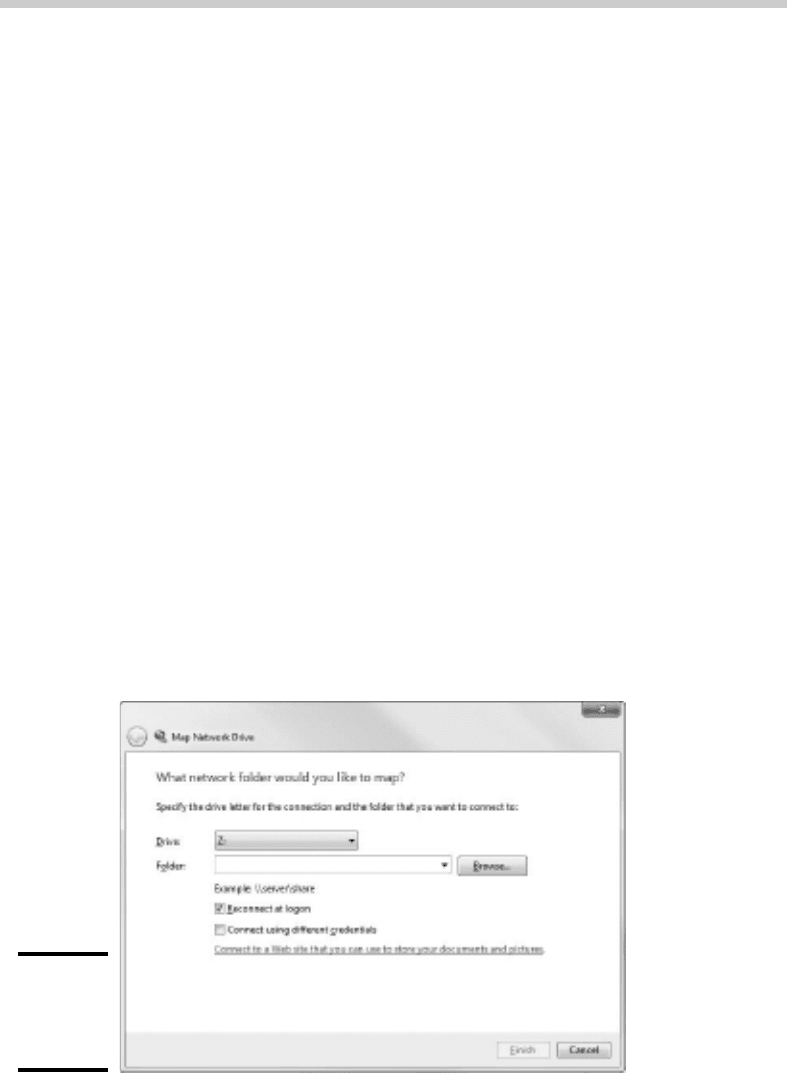
The Map Network Drive dialog box appears, as shown in Figure 6-7.
Figure 6-7:
Mapping
a network
drive.
15_625873-bk02ch06.indd 14815_625873-bk02ch06.indd 148 9/21/10 10:11 PM9/21/10 10:11 PM

Book II
Chapter 6
Configuring Other
Network Features
149
Mapping Network Drives
3. Select the drive letter that you want to map in the Drive drop-down list.
4. Type a valid path to the server and share that you want to map in the
Folder text box.
For example, to map a folder named pCaldwell on a server named
MKTSERVER, type \\MKTSERVER\pCaldwell.
If you don’t know the server or share name, click the Browse button and
browse your way to the folder that you want to map.
5. To cause the network drive to be automatically mapped each time the
user logs on, select the Reconnect at Logon check box.
If you leave this check box deselected, the drive is mapped only until the
next time you shut down Windows or log off.
6. Click Finish.
That’s it! You’re done.
If you’re the type who prefers to do things through the command line, you
can quickly map network drives by using the NET USE command at a com-
mand prompt. For example, here’s a NET USE command that maps drive Z:
to \\MKTSERVER\pCaldwell:
net use z: \\MKTSERVER\pCaldwell /persistent:yes
Specifying /persistent:yes causes the drive to be remapped each time
the user logs on. To remove a drive mapping via the command line, use a
command like this:
net use z: /delete
Here, the mapping for drive Z: is removed.
Manually setting up drive mappings as described here works well enough
for small networks but not so well for large networks. If a server or share
name changes, would you want to go to 200 computers in order to update
drive mappings? How about 2,000 computers? For larger networks, you’re
more likely to use either login scripts or group policies to configure network
storage for end users. You can find more information about login scripts and
group policies in Book VII, Chapters 4 and 6.
15_625873-bk02ch06.indd 14915_625873-bk02ch06.indd 149 9/21/10 10:11 PM9/21/10 10:11 PM

Book II: Building a Network
150
15_625873-bk02ch06.indd 15015_625873-bk02ch06.indd 150 9/21/10 10:11 PM9/21/10 10:11 PM

Chapter 7: Verifying Your
Network Installation
In This Chapter
✓ Checking the network configuration settings
✓ Pinging yourself and others
✓ Making sure that you can log on
✓ Verifying mapped drives and checking network printers
Y
ou’ve installed all the network cards, plugged in all the cables, and
configured all the software. However, one task remains before you can
declare your network finished: You must verify that the network works as
expected.
Verifying a network isn’t difficult. All you have to do is make sure that
users can log on and access the network resources they need. If every-
thing works the way it should, you can declare victory, give yourself a high
five, and take the afternoon off. If not, you have to do some troubleshoot-
ing to determine the source of the problem.
In this short chapter, I describe some of the tests that you should perform to
make sure that your network is functioning. Along the way, I suggest a few of
the most common problems that may interrupt the network. However, the
focus of this chapter is on verifying that your network is functioning — not on
troubleshooting it if it isn’t. For information about network troubleshooting,
refer to Book III, Chapters 6 and 7, as well as Book VII, Chapter 7.
Incidentally, most of the techniques described in this chapter work from an
MS-DOS command prompt. You can open a command prompt in Windows
Vista or Windows 7 by clicking the Start button, typing cmd, and pressing
Enter. In Windows XP, choose Start➪Run, type cmd, and then click OK.
Is the Computer Connected to the Network?
This one is easy to check. Just check the Link light on the computer’s net-
work interface card and the light on the network hub or switch port that the
computer is connected to. If both are lit, the computer is connected to the
network. If one or both aren’t lit, you have a connection problem. Several
things may be wrong:
16_625873-bk02ch07.indd 15116_625873-bk02ch07.indd 151 9/21/10 10:11 PM9/21/10 10:11 PM

152
Is the Network Configuration Working?
✦ The patch cable that connects the computer to the wall outlet or that
connects to the hub or switch may be bad. Replace it with one that you
know is good in order to verify this problem.
✦ The cable run between the wall outlet and the patch panel may be bad.
The cable may be physically broken, or it may be routed right next to a
20,000-watt generator or an elevator motor.
✦ The computer’s NIC may be bad or configured incorrectly. Check the
configuration settings. If necessary, replace the card.
✦ The hub or switch may be bad.
Is the Network Configuration Working?
You can run three commands from a command window to verify the
basic configuration of each computer. These commands are net config
workstation, net config server, and ipconfig.
The net config workstation command displays basic information
about the computer’s network configuration. Here’s a sample of the output it
displays:
C:>net config workstation
Computer name \\DOUG
Full Computer name doug
User name Doug Lowe
Workstation active on
NetbiosSmb (000000000000)
NetBT_Tcpip_{FC6D2F39-FDDD-448E-9B3C-0C12847F2B61}
(0050BA843911)
Software version Windows 2002
Workstation domain WORKGROUP
Workstation Domain DNS Name (null)
Logon domain DOUG
COM Open Timeout (sec) 0
COM Send Count (byte) 16
COM Send Timeout (msec) 250
The command completed successfully.
The most important information to check in the net config work
station command’s output is the computer name and domain information.
If the computer is configured to enable file and print sharing, you can also
run net config server to display basic information about the server con-
figuration. Here’s a sample of its output:
16_625873-bk02ch07.indd 15216_625873-bk02ch07.indd 152 9/21/10 10:11 PM9/21/10 10:11 PM

Book II
Chapter 7
Verifying
Your Network
Installation
153
Is the Network Configuration Working?
C:>net config server
Server Name \\DOUG
Server Comment
Software version Windows 2002
Server is active on
NetbiosSmb (000000000000)
NetBT_Tcpip_{FB6D2F79-FDDF-418E-9B7C-0C82887F2A61}
(0050ba843911)
Server hidden No
Maximum Logged On Users 5
Maximum open files per session 16384
Idle session time (min) 15
The command completed successfully.
The ipconfig command displays information about the computer’s TCP/
IP configuration. If you type ipconfig by itself, the computer’s IP address,
subnet mask, and default gateway are displayed. If you type ipconfig /all,
you see more detailed information. Here’s typical output from the ipconfig
/all command:
C:>ipconfig /all
Windows IP Configuration
Host Name . . . . . . . . . . . . : doug
Primary Dns Suffix . . . . . . . :
Node Type . . . . . . . . . . . . : Unknown
IP Routing Enabled. . . . . . . . : No
WINS Proxy Enabled. . . . . . . . : No
Ethernet adapter Local Area Connection:
Connection-specific DNS Suffix . : we1.client2.
attbi.com
Description . . . . . . . . . . . : D-Link DFE-530TX+
PCI Adapter
Physical Address. . . . . . . . . : 00-50-BA-84-39-11
Dhcp Enabled. . . . . . . . . . . : Yes
Autoconfiguration Enabled . . . . : Yes
IP Address. . . . . . . . . . . . : 192.168.1.100
Subnet Mask . . . . . . . . . . . : 255.255.255.0
Default Gateway . . . . . . . . . : 192.168.1.1
DHCP Server . . . . . . . . . . . : 192.168.1.1
DNS Servers . . . . . . . . . . . : 204.127.198.19
63.240.76.19
Lease Obtained. . . . . . . . . . : Saturday, May 24,
2003 6:28:49 PM
Lease Expires . . . . . . . . . . : Sunday, May 25,
2003 6:28:49 PM
The most important information to glean from this output is the computer’s
IP address. You should also verify that the default gateway matches the IP
address of your Internet router and that the IP addresses for the DHCP and
DNS servers are correct.
16_625873-bk02ch07.indd 15316_625873-bk02ch07.indd 153 9/21/10 10:11 PM9/21/10 10:11 PM

154
Can the Computers Ping Each Other?
Can the Computers Ping Each Other?
A basic test that you can perform to ensure that your network is function-
ing is to use the ping command from a command prompt to make sure that
the computers on the network can contact each other. The ping command
simply sends a packet to another computer and requests that the second
computer send a packet back in reply. If the reply packet is received, ping
displays a message indicating how long it took to hear from the other com-
puter. If the reply packet isn’t received, ping displays an error message indi-
cating that the computer couldn’t be reached.
You should try several ping tests. First, you can make sure that TCP/IP is
up and running by having the computer try to ping itself. Open a command
prompt and type ping 127.0.0.1. (127.0.0.1 is the standard loop-back address
that a computer can use to refer to itself.) If you prefer, you can type ping
localhost instead.
Next, have the computer ping itself by using the IP address displayed by
the \ ipconfig command. For example, if Ipconfig says the computer’s IP
address is 192.168.0.100, type ping 192.168.0.100 at the command prompt.
Now try to ping your servers. You’ll have to run ipconfig at each of the
servers to determine their IP addresses. Or, you can just ping the comput-
er’s name.
A final test is to make sure that you can ping the workstation from other
computers on the network. You don’t have to try to ping every computer
from every other computer on the network unless you’ve determined that
you have a connectivity problem that you need to pinpoint. However, you
should try to ping each workstation from each of the servers, just to make
sure the servers can see the workstations. Make a list of the IP addresses of
the workstations as you test them and then take that list to the servers and
ping each IP address on the list.
Can You Log On?
After you’ve established that the basic network connections are working, the
next step is to verify that network logon works. This is as simple as attempt-
ing to log on from each computer by using the correct user account for the
computer. If you can’t log on, several things may be causing the problem.
Here are the most common:
✦ You may not have the right user account information. Double-check the
username, password, and domain.
✦ Make sure that the domain name is correct.
16_625873-bk02ch07.indd 15416_625873-bk02ch07.indd 154 9/21/10 10:11 PM9/21/10 10:11 PM

Book II
Chapter 7
Verifying
Your Network
Installation
155
Do Network Printers Work?
✦ Passwords are case-sensitive. Make sure that you have typed the pass-
word correctly and that the Caps Lock key isn’t on.
✦ You may not have a computer account for the computer. Double-check
the computer name and make sure that you have a valid computer
account on the server.
✦ Double-check the user account policies to make sure that there isn’t
something that would prevent the user from logging on, such as a time-
of-day restriction.
Are Network Drives Mapped Correctly?
After you know the user can log on, you should make sure that mapped
network drives are available. To do so, type net use at a command prompt.
You’ll see a list of all the network mappings. For example:
C:>net use
New connections will be remembered.
Status Local Remote Network
---------------------------------------------------------------
OK M: \\Doug\Prod Microsoft Windows Network
OK X: \\Doug\admin Microsoft Windows Network
OK Z: \\Doug\Marketing Microsoft Windows Network
The command completed successfully.
Here, you can see that three drives are mapped, and you can tell the server
and share name for each mapped drive.
Next, try to display a directory list of each drive to make sure that you can
actually reach it. For example, type dir m:. If everything is working, you see a
directory of the shared folder you’ve mapped to drive M:.
Do Network Printers Work?
The final test I describe in this chapter is making sure that your network
printers work. The easiest way to do this is to print a short document to the
network printer and make sure that the document prints. I suggest that you
open Notepad (choose Start➪Accessories➪Notepad), type a few words (like
“Yo, Adrianne!”), and then choose File➪Print to bring up the Print dialog
box. Select the network printer and click OK.
If the network printer doesn’t appear in the list of available printers, go to
the Printers and Faxes window and recheck the network printer. You may
have incorrectly configured the printer. If the configuration looks okay, go to
the printer itself and make sure that it’s turned on and ready to print.
16_625873-bk02ch07.indd 15516_625873-bk02ch07.indd 155 9/21/10 10:11 PM9/21/10 10:11 PM

Book II: Building a Network
156
16_625873-bk02ch07.indd 15616_625873-bk02ch07.indd 156 9/21/10 10:11 PM9/21/10 10:11 PM