
Lowe D. Networking For Dummies
Подождите немного. Документ загружается.


Book IX
Chapter 5
Doing the
Samba Dance
727
Editing the smb.conf File
When you create a new share by using the Samba Configuration program,
the share should be immediately visible to other network users. If it isn’t, try
restarting the Samba server as described in the section “Starting and
Stopping Samba,” earlier in this chapter.
Editing the smb.conf File
If you like the feeling of raw power that comes from editing configura-
tion files, fire up your favorite text editor and play with the Samba con-
figuration file. It’s called smb.conf and is usually located in the /etc/
samba directory, although some distributions may place this file in
another location. Figure 5-9 shows you the smb.conf file being edited
in the standard Text Editor program, which you can access by choosing
Applications➪Accessories➪Text Editor.
Figure 5-9:
Editing the
smb.conf
file.
Any line in the smb.conf file that begins with a hash mark (#) or semicolon
(;) is a comment. The default smb.conf file is loaded with comments that
describe what each configuration line does. Plus, you can find many sample
configuration entries that are commented out. The sample configuration
lines are marked with a semicolon to distinguish them from explanatory text
lines, which begin with a hash mark.
67_625873-bk09ch05.indd 72767_625873-bk09ch05.indd 727 9/21/10 10:46 PM9/21/10 10:46 PM

728
Editing the smb.conf File
The overall structure of the smb.conf file is something like this:
[global]
workgroup = workgroup
server string = samba server
security = USER
encrypt passwords = yes
smb passwd file = /etc/samba/smbpasswd
guest ok = yes
other global settings...
[sharename]
comment = comment
path = path
writeable = yes
The first section of the file, marked by the [global] line, contains options
that apply to the entire server. These are the options that are set by the
Preferences➪Server Settings command in the GNOME Samba Server
Configuration program. Table 5-1 lists a few of the more common settings
that you can use in the global section.
Table 5-1 Common Global Settings for the smb.conf File
Setting Description
workgroup
The name of the workgroup or domain.
server string
The comment that describes the server.
hosts allow
Lets you limit access to the Samba server to the IP
addresses listed. If a partial IP address is listed
(for example, 192.168.1), it is treated as a subnet.
guest ok Specify Yes to allow guest access.
guest account
Specifies the Linux account to be used.
security
Specifies the security mode: Domain, Server, Share, or
User.
Located after the global section is a section for each share that begins with
the [sharename] line. The settings in these groups specify the details of a
share, such as the comment and path. Table 5-2 lists the settings that you
can specify for a share.
67_625873-bk09ch05.indd 72867_625873-bk09ch05.indd 728 9/21/10 10:46 PM9/21/10 10:46 PM

Book IX
Chapter 5
Doing the
Samba Dance
729
Using the Samba Client
Table 5-2 Share Settings for the smb.conf File
Setting Description
[sharename]
The name used by the share.
path=path
The path to the directory to be shared.
comment=comment
A description of the shared resource.
guest ok Specify Yes to allow guest access.
writeonly Specify Yes for read/write, No for read-only.
browseable Specify Yes to make the share visible in My Network
Places.
valid users
A list of users who can access the share.
hosts allow
Lets you limit access to the Samba server to the IP
addresses listed. If a partial IP address is listed (for
example, 192.168.1), it’s treated as a subnet.
After you modify the smb.conf file and save your changes, you need to
restart the SMB service in order for the changes to take effect. See the section
“Starting and Stopping Samba,” earlier in this chapter, for more information.
Using the Samba Client
Earlier in this chapter, I show you how to set up Samba’s server program
so that you can enable a Linux computer to operate as a file server in a
Windows network, thus allowing Windows clients to access files in shared
directories on the Linux computer. That’s the most common reason for
using Samba.
But Samba can also work the other way around: It includes a program called
smbclient that lets you access Windows file servers from a Linux computer.
The smbclient program works much like an FTP client, so if you’ve used FTP
before, you’ll have no trouble understanding how it works.
Smbclient is a command line tool, so you need to log on to a virtual console
or open a terminal window. Then, enter the smbclient command, followed
by the server and share name, like this:
smbclient //server01/share01
67_625873-bk09ch05.indd 72967_625873-bk09ch05.indd 729 9/21/10 10:46 PM9/21/10 10:46 PM

730
Using the Samba Client
When the client successfully accesses the share, you are greeted by the
friendly SMB prompt:
smb:\>
Then, you can enter smbclient commands to access the data in the shared
directory. Table 5-3 summarizes the more common commands that are avail-
able at the smb:\> prompt.
Table 5-3 Commonly Used smbclient Commands
Command Description
cd directory
Changes to the specified directory on
the remote system.
del filename
Deletes the specified file or files on the
remote system.
dir
Lists files in the current directory on
the remote system.
exit
Terminates the session.
get remote-file local-file
Copies the specified remote file to the
specified local file.
lcd directory
Changes the local current directory to
the specified directory.
md directory
Creates a directory on the remote
system.
mget wildcard-mask
Copies all files that match the wildcard
mask from the remote system to the
local system.
mput wildcard-mask
Copies all files that match the wildcard
mask from the local system to the
remote system.
put local-file remote-file
Copies the specified file from the local
system to the remote system.
rd directory
Deletes the specified directory on the
remote system.
67_625873-bk09ch05.indd 73067_625873-bk09ch05.indd 730 9/21/10 10:46 PM9/21/10 10:46 PM

Chapter 6: Running Apache
In This Chapter
✓ Getting Apache up and running
✓ Using the HTTP configuration tool
✓ Restricting access
✓ Creating virtual hosts
✓ Creating Web pages
A
ll the popular Linux distributions come with Apache, the most popular
Web server on the Internet today. In most cases, Apache is installed
and configured automatically when you install Linux. Then, setting up a Web
server for the Internet or an intranet is simply a matter of tweaking a few
Apache configuration settings and copying your HTML document files to
Apache’s home directory.
Installing Apache
You can quickly find out whether Apache is installed on your system by
entering the following command from a shell prompt:
rpm -q httpd
If Apache has been installed, the package version is displayed. If not, the
message package httpd is not installed is displayed.
If Apache isn’t installed on your Linux server, you can install it by following
these steps:
1. Choose System➪Administration➪Add/Remove Software.
This summons the Add/Remove Software program.
2. Choose Package Collections in the list on the left side of the Add/
Remove Software window.
This displays a list of commonly installed collections of packages.
68_625873-bk09ch06.indd 73168_625873-bk09ch06.indd 731 9/21/10 10:47 PM9/21/10 10:47 PM

732
Starting and Stopping Apache
3. In the main list box in the Add/Remove Software window, scroll down
almost to the end of the list and select the Web Server option.
This selects the Apache Web Server packages.
4. Click Apply.
The Add/Remove Software program installs the basic Apache packages.
5. Type Apache Configuration in the search text box and click the Find
button.
This finds the Apache Configuration tool, which is a valuable tool for
configuring Apache that isn’t included in the basic Web Server package
collection.
6. Click Apply.
The Apache Configuration Tool is installed.
7. Close the Add/Remove Software program.
Apache is now installed.
Starting and Stopping Apache
Before you can use Apache, you must start the httpd daemon. From a com-
mand shell, use this command:
service httpd start
Whenever you make a configuration change, you should stop and restart the
service with this command:
service httpd restart
If you prefer, you can stop and start the service with separate commands:
service httpd stop
service httpd start
If you’re not sure if Apache is running, enter this command:
service httpd status
You get a message indicating whether the httpd daemon is running.
68_625873-bk09ch06.indd 73268_625873-bk09ch06.indd 732 9/21/10 10:47 PM9/21/10 10:47 PM
Book IX
Chapter 6
Running Apache
733
Confirming that Apache Is Running
To configure Apache to start automatically when you start Linux, use this
command:
chkconfig -–level 35 httpd on
To make sure that the chkconfig command worked right, enter this command:
chkconfig –-list httpd
You should see output similar to the following:
httpd 0:off 1:off 2:off 3:on 4:off 5:on 6:off
Confirming that Apache Is Running
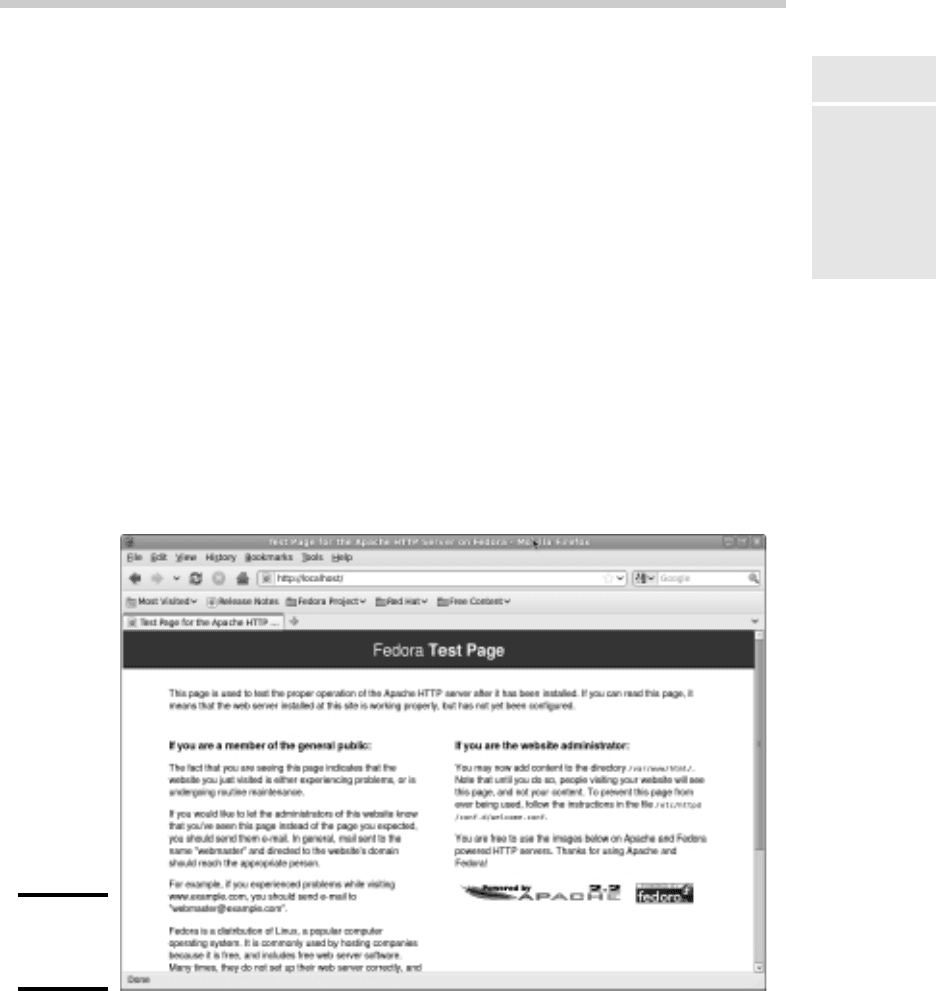
You can test to see whether Apache is up and running by opening the Firefox
Web browser (Applications➪Internet➪Firefox Web Browser) and typing loc-
alhost in the address bar. If Apache is running on the server, a page such as
the one shown in Figure 6-1 appears.
Figure 6-1:
Apache is
running!
If this doesn’t work, first make sure that you can ping your Linux server from
the remote system. To do that, type ping followed by the IP address of the
68_625873-bk09ch06.indd 73368_625873-bk09ch06.indd 733 9/21/10 10:47 PM9/21/10 10:47 PM
734
Using the HTTP Configuration Tool
Linux server. If the ping command times out, you have a connectivity prob-
lem you need to correct.
If you can ping the Linux server but still can’t reach the Apache server home
page, here are a few things to check:
✦ Make sure that the httpd service is running as described in the
“Starting and Stopping Apache” section, earlier in this chapter.
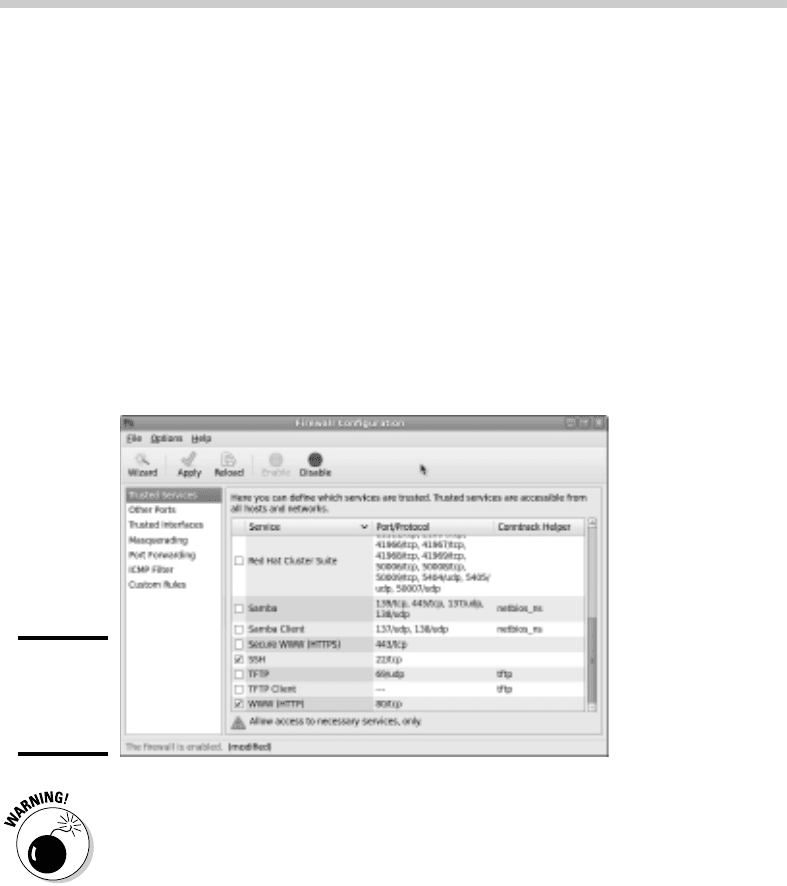
✦ Make sure that the Linux firewall is turned off or configured to allow
HTTP traffic. In Fedora, you can manage the firewall settings from the
GNOME-based Security Level Configuration tool. To run it, choose
System➪Administration➪Firewall. Then, select WWW (HTTP) in the list
of trusted services. Figure 6-2 shows the System Settings Configuration
tool with the firewall enabled and the HTTP service trusted.
Figure 6-2:
Trusting
the HTTP
service.
Do not disable the firewall altogether unless you have another firewall,
such as a firewall router, between your Linux server and your Internet
connection.
Using the HTTP Configuration Tool
Apache should run fine using the default configuration settings made when
you install it. However, you can change various configuration settings either
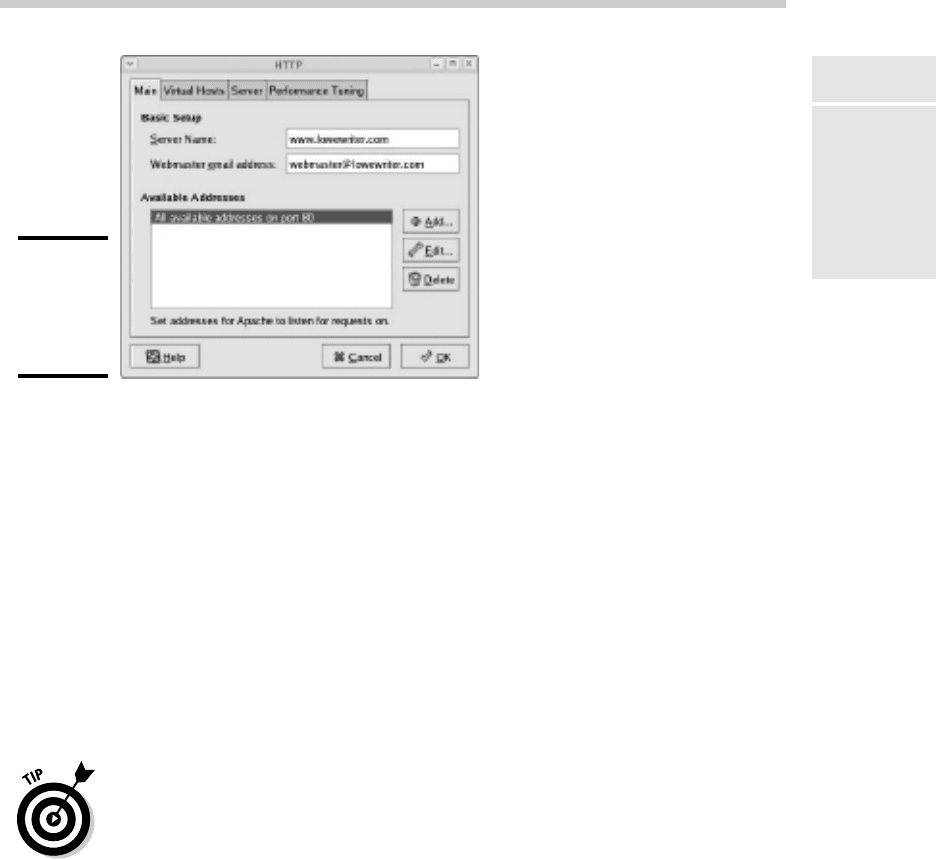
by editing the Apache configuration files or by using the HTTP configura-
tion tool, as shown in Figure 6-3. To start this tool, choose System➪Server
Settings➪Http.
68_625873-bk09ch06.indd 73468_625873-bk09ch06.indd 734 9/21/10 10:47 PM9/21/10 10:47 PM
Book IX
Chapter 6
Running Apache
735
Restricting Access to an Apache Server
Figure 6-3:
Configuring
Apache’s
HTTP
settings.
The Main tab of the HTTP configuration tool provides the basic configura-
tion settings for Apache. Here, you can set the following options:
✦ Server Name: This option sets the name that the Apache server will
return. If you leave this name blank, Apache will figure out the actual
name of the Linux server and return it. So you need to set this option
only if you want to use a different name for your Apache server.
✦ Webmaster E-Mail Address: This is the e-mail address of the Webmaster
for this Web server.
✦ Available Addresses: This list box shows the addresses that Apache
will service HTTP requests for. By default, Apache will reply to HTTP
requests for any computer that makes the request on port 80, the stan-
dard HTTP port. However, you can change the port or restrict access, as
described in the following section.
Whenever you use the HTTP configuration tool to change Apache’s configu-
ration, you need to restart Apache. You can do so by entering this command
from a console prompt:
service httpd restart
Restricting Access to an Apache Server
To restrict access to your Apache server, you can alter the Available
Addresses list in the Main tab of the HTTP configuration tool by using the
Add, Edit, and Delete buttons. If all you want to do is change the port that
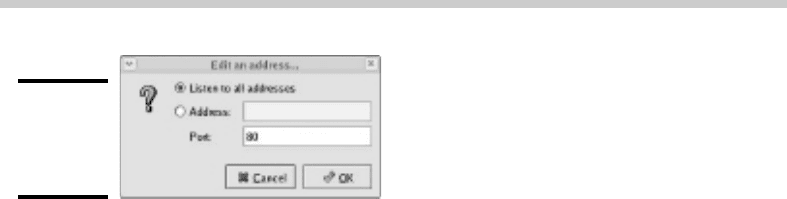
the Apache server uses, select All Available Addresses on Port 80 in the
Available Addresses list and click Edit. This brings up the dialog box shown
in Figure 6-4. Then, specify the port you want to use and click OK.
68_625873-bk09ch06.indd 73568_625873-bk09ch06.indd 735 9/21/10 10:47 PM9/21/10 10:47 PM
736
Configuring Virtual Hosts
Figure 6-4:
The Edit an
Address
dialog box.
If you want to restrict access to certain IP addresses, select the All Available
Addresses line, click the Edit button, select the Address radio button, and
then enter the address you want to allow access to. You can enter a single IP
address, but you’re more likely to enter a partial IP address or an IP/netmask
combination. For example, to allow access to all addresses from 212.66.5.0 to
212.66.5.255, you could enter either of the following:
212.66.5
212.66.5.0/255.255.255.0
If you want to allow access to a list of specific IP addresses, you can add
lines to the Available Addresses list box. First, though, you should remove
the All Available Addresses line or edit it to allow just a single address. Then,
click the Add button to add addresses you want to allow.
Configuring Virtual Hosts
A virtual host is simply a Web site with its own domain name hosted by an
Apache server. By default, Apache is set up to serve just one virtual host.
However, you can add more virtual hosts. As a result, a single Apache server
is able to host more than one Web site.
For example, if I were so inclined, I might set up an Apache server to host my
own personal Web site (www.lowewriter.com) that has information about
my books and a second Web site (www.hauntedlowes.com) that has infor-
mation about my favorite hobby, decorating my house for Halloween. Both
of these Web sites could be implemented as virtual hosts on a single Apache
server.
To configure a virtual host (including the default virtual host if you have
only one), you use the Virtual Hosts tab of the HTTP configuration tool, as
shown in Figure 6-5.
Configuring the default host
Even if you don’t plan on creating additional virtual hosts, you can still use
the Virtual Hosts tab to configure the default virtual host for your Web site.
To do so, select the virtual host in the Virtual Hosts list and click the Edit
button. This brings up the Virtual Host Properties dialog box, as shown in
Figure 6-6.
68_625873-bk09ch06.indd 73668_625873-bk09ch06.indd 736 9/21/10 10:47 PM9/21/10 10:47 PM