
Velten K. Mathematical Modeling and Simulation: Introduction for Scientists and Engineers
Подождите немного. Документ загружается.

1.8 Everything Looks Like a Nail? 45
1.8
Everything Looks Like a Nail?
To some extent, the modeling and simulation scheme discussed above is just an
idealistic theory of how mathematical modeling should work, and this must of course
be distinguished from the way in which people are dealing with mathematical
models in practice. Being aware of this fact, Golomb [34] compiled the following:
Note 1.8.1 (Don’ts of Mathematical Modeling)
1. Don’t believe that the model is the reality.
2. Don’t extrapolate beyond the region of fit.
3. Don’t distort reality to fit the model.
4. Don’t retain a discredited model.
5. Don’t fall in love with your model.
Don’t No. 1 reminds us of the limitations of our models, that is, we should
always be aware of the simplifying assumptions made in a model when discussing
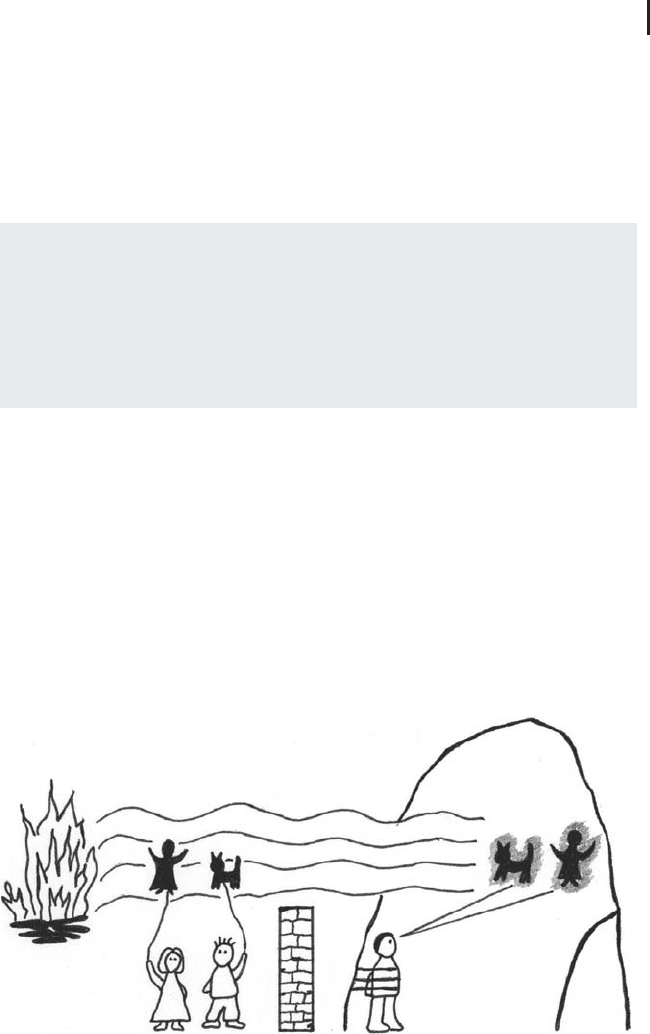
its implications for the real system. You may know the cave allegory of the Greek
philosopher Plato, which provides a nice picture of the relationship between a
model and the reality, Figure 1.12 [35]. In this allegory, prisoners are chained deep
inside a cave in a way that restricts their view to one particular wall of the cave.
Behind the prisoners, there is a big fire and some people who are using the light of
that fire to project three-dimensional objects such as puppets, animals, and plants
onto the cave wall. Plato assumes that the prisoners are chained in the cave since
their childhood and thus have never seen anything else apart from the shadows on
that cave wall. Thus, they believe that these shadows are the reality, although the
Fig. 1.12 Plato’s cave allegory: Don’t believe that
the model is the reality! (Figure: B. Bl
¨
um, idea:
http://commons.wirimedia.org.)

46 1 Principles of Mathematical Modeling
shadows are of course no more than simplified, two-dimensional models of the
real, three-dimensional objects behind them. Very similarly, we must be aware of
the fact that we are always ‘‘chained’’ in some way as long as we think about reality
in terms of a scientific model, which restricts our view on the real system more or
less depending on its inherent assumptions.
Don’t No. 2 says that models should be used for prediction only in those regions
of the parameter space where they are sufficiently supported by experimental data
(see Section 2.2.2 and Note 2.2.3 for more details), while Don’ts Nos 3–5 basically
require us to abandon models that fail to pass the validation step of the modeling
and simulation scheme (Note 1.2.3). In [11], the message of Don’t Nos 3–5 is
expressed as follows:
When you have a hammer, you look for a nail.
When you have a good hammer, everything looks like a nail.
You understand the message: People always tend to solve problems similar to the
way in which they successfully solved problems in the past. Yesterday, our problem
might have been to drive a nail into a piece of wood, and we might have solved
this problem adequately using a hammer. Today, however, we may have to drive a
screw into a piece of wood, and it is of course not quite such a good idea to use the
hammer again. Similarly, mathematical models are like tools that help us to solve
problems, and we will always tend to reuse the models that helped us to solve our
yesterday’s problems. This is like a law of nature in mathematical modeling, similar
to Newton’s law of inertia; let us call it the ‘‘law of inertia of mathematical modeling’’.
Forces need to be applied to physical bodies to change their state of motion, and
in a similar way forces need to be applied in a mathematical modeler’s mind
before he will eventually agree to replace established models by more adequate
approaches. Even great scientists such as A. Einstein were affected by this kind
of inertia. Einstein did not like the idea that the physical universe is probabilistic
rather than deterministic (a consequence of the ‘‘Copenhagen interpretation’’ of
quantum mechanics), and he expressed this aversion in his famous quote ‘‘God
does not play dice with the universe’’ [36]. But do not take this as an excuse for
any violation of Golomb’s Don’t’s.Itjustshowsthateverybody, including yourself,
should use models with care.

47
2
Phenomenological Models
Remember the distinction between phenomenological and mechanistic models in
Definition 1.6.1: Phenomenological models are constructed based on experimental
data only, using no a priori information about S. Mechanistic models, on the other
hand, use a priori information about the ‘‘internal mechanics’’ of S, that is, about
processes occurring in S. They are treated in Chapters 3 and 4. Thus, in this
chapter, our starting point will be a dataset, and we will learn about methods to
analyze this dataset. As we will see, most of the methods treated in this chapter can
be efficiently implemented using freely available open source software: Calc for
elementary statistical computations or as an elementary database, and a software
package called R for professional statistical computations. Real datasets will be
used throughout the chapter whenever possible.
As mentioned, the starting point of phenomenological modeling is a dataset,
and hence a first natural thing to do is to analyse the dataset itself, for example,
in terms of elementary statistical methods. Section 2.1 provides some of the most
important statistical methods of elementary data analysis in the form of a ‘‘crash
course’’, that is, with no attempt to be exhaustive, focusing on what is needed for
this book, and emphasizing practical procedures rather than theory. Section 2.1
will also be used to introduce the reader to the use of Calc and R.
Sections 2.2–2.4 treat regression models. Basically, regression models pro-
vide a mathematical description of input–output systems. The importance of
input–output systems has already been pointed out, cf. Figure 1.2 and Sections 1.3
and 1.5. Using regression models, the output of a system can be computed for a
given input, which can be used for prediction or interpolation of given data. Linear
regression (one input), multiple linear regression (several inputs), and nonlinear
regression (nonlinear equations, one or several inputs) will be treated. Everyone
concerned with data analysis should know these methods which are really easy
to use based on R. Even in cases where mechanistic models are being developed,
the application of regression methods frequently makes sense since they usually
require much less time and resources and allow some quick and rough conclusions
to be drawn from a dataset.
Section 2.5 treats neural network models, providing a look beyond classical
regression models. Although an in-depth treatment of the various types of neural
network models is beyond the scope of this book, Section 2.5 is intended to

48 2 Phenomenological Models
introduce the reader to feedforward neural networks, which can be viewed as a
generalized nonlinear regression method. One reason why feedforward neural
networks are treated here is their ‘‘cost-effectiveness’’, that is, they are a very useful
tool and at the same time easily implemented based on R. As we will see, the
main advantage of feedforward neural networks compared to classical nonlinear
regression is that they can be used without any a priori knowledge of the particular
mathematical form of the nonlinearity.
After introducing some basic methods for an appropriate design of experiments
in Section 2.6, the chapter ends in Section 2.7 with an overview of other phenomeno-
logical approaches that cannot be treated in detail within the scope of this book.
2.1
Elementary Statistics
In Section 1.3 above it was emphasized that a minimum requirement to be
satisfied by a system that is investigated in science and engineering is observability
in the sense that the system produces measurable output. As explained there,
most systems do also accept some kind of input, and most investigations in
science and engineering (except for more theoretically oriented work) thus begin
with a compilation of an input–output dataset having the general form shown in
Figure 1.2b. In this sense, it is valid to say that most modeling and simulation
work starts with a dataset. Elementary statistical methods offer phenomenological
modeling approaches that can be used for a first analysis of datasets.
2.1.1
Descriptive Statistics
The first thing that is usually done with a given dataset is descriptive statistics,
that is, the application of methods that summarize and describe the data [19].
In many cases, datasets will be given in some spreadsheet format such as Calc
(which is a part of the open source OpenOffice package, see Appendix A) or Excel
(a part of the commercial Microsoft Office). Since the focus of this book is on open
source software, we will exclusively refer to Calc in the following. This means no
restriction for people who want to use Excel instead of Calc,sinceCalc and Excel
work almost the same way from a standard user’s perspective. Beyond this, Calc
imports and exports Excel data without problems (problems may occur if you are
using sophisticated features of Excel which a standard user will never see).
Spreadsheet programs such as Calc usually offer a number of options for a
statistical analysis of the data. Although none of these programs can really compete
with a professional and comprehensive statistical software such as R,itisfrequently
efficient to use the statistical facilities of spreadsheet programs. As explained above,
you will obtain most of your datasets in a spreadsheet format, and a quick analysis
of the data in this original format will be faster in many cases compared to an

2.1 Elementary Statistics 49
Table 2.1
Spring data (see spring.ods in the book software).
x 10 20 30 40 50
y 3 5 11 12 16
analysis within R, which may involve several more steps beginning with an import
of these data into R and so on.
As an example, let us start with the spring dataset in Table 2.1. This dataset
has already been considered in Section 1.5.6 above, and it can be found in
the file
spring.ods in the ‘‘PhenMod/Stat’’ directory of the book software (see
Appendix A). Note that the file extension ‘‘
ods’’ (‘‘open document sheet’’) is the
standard extension of Calc spreadsheet files.
2.1.1.1 Using Calc
The simplest thing that one can do with a dataset such as spring.ods is to
compute measures of position, which characterize the approximate location of the
data in various ways. The most well known and most frequently used measure of
position is the arithmetic mean, which is defined as follows:
x =
n
i=1
x
i
n
(2.1)
Here, x
1
, x
2
, ..., x
n
is some given set of real numbers and n ∈ N. For example,
the arithmetic means of the x and y data in
spring.ods are x = 30 and y = 9.4,
respectively, which basically says that the x and y data spread around these values.
Let us now see how this computation can be done in Calc. Although we cannot
provide a general introduction into Calc here, we will try to provide enough
information such that everything should be understandable even for first-time
users (for more information you may refer to the documentation provided under
www.openoffice.org).
Once you open
spring.ods in Calc, you see a spreadsheet consisting of cells.
Individual cells are labeled e.g. as
A2 where A refers to the column and 2 refers to the
line in which you find that cell. The numbers of the x column of
spring.ods are
in the group of cells
A2,A3, ...,A6, which is also denoted as A2:A6 in Calc notation.
Now you can use a Calc function called
AVERAGE to compute the arithmetic mean
for this group of cells. To do this, enter the formula
=AVERAGE(A2:A6) into an
empty cell of
spring.ods (note that every Calc formula begins with an ‘‘=’’). After
performing this procedure, you will see a ‘‘30’’ in the cell where the formula was
entered. To see and eventually edit the formula behind that number, you may use
a double click on the cell containing the ‘‘30’’.
An alternative procedure would have been to select and use the
AVERAGE
function within Calc’s Function Wizard which you start using the menu option
Insert/Function. The Function Wizard is particularly useful for inexperienced

50 2 Phenomenological Models
users since it asks the user for all necessary information and then automatically
generates the formula. It also provides a list of the available formulas which are
classified into categories such as ‘‘Financial’’, ‘‘Mathematical’’, and ‘‘Statistical’’,
along with an explanation of what each particular formula is doing. Within the
‘‘Statistical’’ category, you will find a great number of other functions that can
be used to compute alternative measures of position, such as the median (Calc
function
MEDIAN()), or the geometric mean (Calc function GEOMEAN()), see [19, 37]
for details.
After computing measures of position, the next step usually is to look at measures
of variation (or measures of statistical dispersion), which basically measure how
widely spread the values in a dataset are. The most popular measure of variation is
the sample standard deviation
s =
n
i=1
(x
i
− x)
2
n − 1
(2.2)
which can be computed similar to above using the Calc function STDEV(). STDEV()
yields s ≈ 15.8ands ≈ 5.3 when applied to the x and y data of spring.ods,
respectively. As Equation 2.2 shows, the sample standard deviation measures the
variability of the data in terms of the deviations from the mean, x
1
− x, ..., x
n
− x.
Basically, the sample standard deviation expresses an average of these (squared)
deviations. To understand the meaning of this expression a little more, let us look
at what is meant by a ‘‘sample’’ here.
Statistical investigations typically focus on a well-defined collection of objects
which constitute what is called a population [37]. For example, if an investigator
wants to characterize the impact of a nutrient on a particular plant species, then
his investigation will involve a population consisting of all plants of this species. In
many cases, it will be impossible and inefficient to investigate the entire population
due to limited time and resources (e.g. the plant species under investigation may
cover most of the earth’s surface). Statistical investigations will thus typically be
restricted to a subset of a population which is called a sample. A number of strategies
such as random sampling (each member of the population has an equal chance of
being selected) or stratified sampling (which uses a division of the population into
subgroups sharing the same characteristics such as gender or age) are used to make
sure that the sample represents the entire population as good as possible [19, 37].
The sample standard deviation s refers to a sample x
1
, ..., x
n
.Later(in
Section 2.1.2) we will understand that such a sample can be thought of as be-
ing generated by a random variable X. The variability of a random variable can also
be characterized by a standard deviation σ , which expresses a property of the entire
population (Section 2.1.2.6). Under certain assumptions discussed in [37], s can
be shown to be a reasonable (‘‘unbiased’’) estimate of σ ,andinthesamewaythe
arithmetic mean
x is a reasonable estimate of another property of the population,
the expected value μ (see Section 2.1.2 again).

2.1 Elementary Statistics 51
Other frequently used measures of variation include e.g. [37]
•
the (sample) range, that is, the difference between the
maximum and minimum values in the sample, which can be
computed using Calc’s
MAX() and MIN() functions;
•
the (sample) average deviation, that is, the mean of the
absolute deviations |x
i
− x|, which can be computed using
Calc’s
AVEDEV() function; and
•
various dimensionless measures such as the (sample)
coefficient of variation c
v
= s/x, which can be computed
using Calc’s
MEAN() and STDEV() functions as described
above.
There are also a number of measures that can be used to characterize the
interaction of statistical variables, such as Pearson’s sample correlation coefficient
r =
n
i=1
x
i
y
i
− n · x · y
n
i=1
x
2
i
− n · x
2
·
n
i=1
y
2
i
− n · y
2
(2.3)
which assumes a given sample (x
1
, y
1
), ...,(x
n
, y
n
), and which expresses the
strength of an assumed linear correlation of x and y on a scale between −1
and 1 (−1 or 1: the data match a descending or ascending straight line, 0: no inter-
action, anything in between: data scatter around descending or ascending straight
lines depending on the sign of r). Again, r can be interpreted as an approximation
of the correlation of random variables, see [37] for more details on that. Calc’s
CORREL() function can be used to compute r, which yields a value of r ≈ 0.98
when applied to
spring.ods, reflecting the fact that the data in spring.ods
almost match an ascending straight line (Figure 1.9).
As you know, ‘‘a picture is worth a thousand words’’. Applied to descriptive
statistics, this can be phrased like this: a picture is worth a thousand numerical
measures of position, variation, and so on, that is, you should use pictures and
graphs to visualize your data whenever possible. Calc offers a great number of
graphical plotting options that can be accessed via the menu ‘‘Insert/Chart’’. This
option has, for example, been used to generate Figure 1.9 in Section 1.5.6.
2.1.1.2 Using the R Commander
Compared to Calc, R is a much more professional and much more comprehensive
tool to perform a statistical analysis on the computer (see Appendix B). As
mentioned above, Calc’s main advantage over R is that it can often be used
very quickly since the analysis can be performed in a spreadsheet format, that
is, in the original format of the data in many cases. However, if your intention
is a thorough analysis of a dataset that involves statistical models or graphical
capabilities beyond Calc’s scope, you will have to use R. For a beginner, an easy
way of getting acquainted with R is the R Commander, a graphical user interface

52 2 Phenomenological Models
(GUI) for R. Appendix B explains the way in which you start the R Commander
within CAELinux.
Before starting the analysis, the data should be saved in the ‘‘csv’’ data format, for
example, by using Calc’s ‘‘Save as’’ menu option. The resulting ‘‘.csv’’ file can then
be imported via the R Commander’s ‘‘Data/Import data/From text file’’ option (be
careful to choose ‘‘,’’ as the field delimiter when saving or importing csv files). After
this, the same descriptive analysis as in the last section can be performed by using
the R Commander menu options. For example, the arithmetic mean and the stan-
dard deviation can be obtained using the ‘‘Statistics/Summaries/Numerical sum-
maries’’ menu option, graphs can be created via the ‘‘Graphs’’ menu option and so
on. (‘‘Graphs/Scatterplot’’ creates scatterplots similar to Figure 1.9 in Section 1.5.6).
If the standard formatting of the graphs produced by the R Commander does not
meet your requirements, you can generate a great variety of possible formats based
on R programs (see Appendix B for details on using R programs). Look through
the various R programs in the book software (Appendix A) to see how this can be
done, or consult the literature that is recommended in Appendix B. As an example,
consider the program
HeatClos.r that you find in the MechPDE directory of the
book software. This program generates a plot using R’s
plot command, and the
plot involves, for example, a nonstandard font size and a nonstandard line width.
Looking into the
plot command in HeatClos.r, you will see that the font size
can be adjusted using a
par command which is issued immediately before the
plot command, and the line width can be set using the lwd option of the plot
command.
The R commander provides a script window that can be used to facilitate your
first steps in R programming. Everything you do in the R Commander is translated
into appropriate R code within the script window. For example, after producing a
scatterplot using the R Commander’s ‘‘Graphs/Scatterplot’’ menu option, you will
find a
scatterplot(...) command in the script window that corresponds exactly
to all the choices that you have made in the ‘‘Graphs/Scatterplot’’ window. If you
then copy and paste the content of the script window into a text file and save that
file with extension ‘‘.r’’, the resulting program can be executed as described in
Appendix B, and it will generate exactly the result that you have produced before
using the R Commander.ThisR program can then be edited and optimized, for
example, by using formatting commands as described above.
2.1.2
Random Processes and Probability
Suppose you are interested in some quantity which we denote by X,andwhichmay
be temperature, the concentration of some substance, and so on. You will usually
need to have precise measurements of that quantity, so let us assume that you
have a new measurement device and want to know about the measurement errors
produced by that device. Then, a standard procedure is to repeatedly measure that
quantity in a situation where the correct result is known (e.g. by using standardized

2.1 Elementary Statistics 53
solutions if X is the concentration of some substance). Assuming that the true value
of the quantity of interest is 20, the data produced in this way may look like this:
20.13443 19.83828 20.01702 19.99835 19.94526 20.01415 19.96707
What we see here is that the measurement values oscillate in a random way
around the true value. Most measurement devices produce random errors of this
kind, which is no problem as long as the amplitude of these oscillations is small
enough. Now a natural question regarding the above data is this: what is the
probability with which the deviations of the measurement value from the true value
will be less than some specified value such as 0.1? In this section, methods will be
developed that can be used to answer this kind of questions.
2.1.2.1 Random Variables
In statistical terms, we would say that the above data have been generated by the
random variable X, where [19]
Definition 2.1.1 (Random variable) A random variable is a variable that has a
single numerical value, determined by chance, for each outcome of a procedure.
Everyone of us is concerned with an abundant number of random processes and
random variables in this sense, not only as a scientist or engineer. Perhaps the
most classical example is the random variable
X
1
:resultofadice
but you may also think of
X
2
: waiting time at a bus stop if you arrive there without knowing
thetimetable
and many other examples.
2.1.2.2 Probability
Let us ask for the probability with which a random variable attains certain values.
This is an easy thing if one is concerned with simple systems such as a dice.
Everyone of us knows that the probability of getting a ‘‘3’’ in a dice play is 1/6 or
16.7%. In statistics, this is usually written as
P(X
1
= 3) =
1
6
(2.4)
where P is a ‘‘probability function’’ that yields the probability of the ‘‘event’’ X
1
= 3
as a number between 0 and 1. To make this precise, let us define [19]
Definition 2.1.2 (Events and sample space)
•
An event is any collection of results or outcomes of a procedure.

54 2 Phenomenological Models
•
A simple event is an outcome or an event that cannot be further
broken down into simpler components.
•
The sample space for a procedure consists of all possible simple
events.
In the dice example, the sample space would be
S =
{
1, 2, 3, 4, 5, 6
}
(2.5)
and all subsets A ⊂ S such as A
1
=
{
1, 2
}
(‘‘dice result is below 3’’) or A
2
=
{
1, 3, 5
}
(‘‘dice result is an odd number’’) would be events in the sense of the above
definition. Examples of simple events would be A
3
=
{
2
}
, A
4
=
{
5
}
,andsoon.In
thebus-waiting-timeexample,thesamplespacewouldbe
S =
{
x ∈ R|0 ≤ x < 15
}
(2.6)
if we assume that the buses arrive in 15-min intervals, and a possible event would
be [0, 2[ (‘‘the waiting time is below 2 min’’).
The probability function P is usually defined based on axioms [37]. A less formal
definition, which is sufficient for our purposes, can be given as follows [37]
Definition 2.1.3 (Probability)
Given a sample space S,theprobability function P assigns to each event A ⊂ S
anumberP(A) ∈ [0, 1], called the probability of the event A,whichwillgivea
precise measure of the chance that A will occur.
Above it was said that the probability to get ‘‘3’’ as a dice result is 1/6. This is
based on the following formula (a consequence of the probability axioms [19, 37]):
Proposition 2.1.1 (Classical approach to probability)
Assume that a given procedure has n different simple events and that each of
those simple events has an equal chance of occurring. If event A can occur in s
of these n ways, then
P(A) =
s
n
(2.7)
This formula works well for the dice and many other similar discrete random
variables that involve a finite number of equally likely possible results (note that
discrete random variables may also involve countable infinitely many possible
results, see [19]). It does not work, however, for continuous random variables
with an infinite number of possible results similar to the random variable X
2
discussed above that describes the bus waiting time. Note that the sample space