
Lowe D. Networking For Dummies
Подождите немного. Документ загружается.


Book VII
Chapter 2
Managing Windows
Server 2008
497
Using Microsoft Management Console
Using Microsoft Management Console
Microsoft Management Console, also known as MMC, is a general-purpose
management tool that’s used to administer many different types of objects
on a Windows system. Throughout this minibook, you see many examples of
MMC for working with objects such as user accounts, disk drives, event logs,
and so on. This section provides a general overview of how to use MMC.
By itself, MMC doesn’t actually manage anything. Instead, it’s a framework
that accepts management snap-ins. It’s the snap-ins that do the actual managing.
The main point of MMC is that it provides a consistent framework for building
management snap-ins. That way, the snap-ins all behave in similar ways.
As a result, you don’t have to struggle to learn completely different tools to
manage various aspects of Windows Server 2008.
Another advantage of MMC is that you can create your own custom
management consoles with just the right combination of snap-ins. For
example, suppose that you spend most of your time managing user
accounts, disk devices, and IIS (Internet Information Services, the Web
server that comes with Windows Server 2008), and studying event logs. You
can easily craft a management console with just these four snap-ins. For
more information, see the section “Customizing MMC,” later in this chapter.
Working with MMC
There are several ways to open a Microsoft Management Console
window. The easiest is to open one of the predefined consoles that
come with Windows Server 2008. These consoles are available from the
Start➪Administrative Tools menu.
You can also start MMC from a command prompt or from the Run dialog box
(opened by choosing Start➪Run). To start MMC without opening a snap-in,
just type mmc at a command prompt or in the Run dialog box. To open a
specific console, type the path to the console file after mmc. For example, the
following command opens the Computer Management console:
mmc \Windows\System32\compmgmt.msc
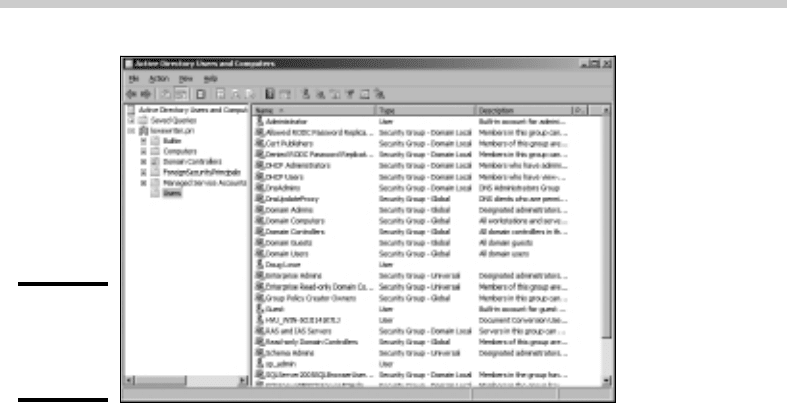
Figure 2-3 shows a typical Microsoft Management Console window, displaying
the Active Directory Users and Computers snap-in. As you can see, the MMC
window consists of two panes. The pane on the left is a tree pane that
displays a hierarchical tree of the objects that you can manage. The pane on
the right is a details pane that shows detailed information about the object
that’s selected in the tree pane.
50_625873-bk07ch02.indd 49750_625873-bk07ch02.indd 497 9/21/10 10:38 PM9/21/10 10:38 PM
498
Using Microsoft Management Console
Figure 2-3:
A typical
MMC
window.
The procedures for working with the information in the Details pane vary
depending on the console you’re viewing. However, most of the consoles
display a list of some kind, such as a list of settings or a list of user accounts.
Double-clicking an item usually brings up a properties box that lets you view
or set properties for the object. In most cases, you can click the column
headings at the top of the list to change the order in which the list items are
displayed.
MMC also includes a menu and toolbar with commands and buttons that
vary depending on the item selected in the tree. In particular, the Action
menu contains commands that apply to the current item. For example, the
Action menu includes a New User command when you’re working with the
Active Directory Users and Computers console and a Defragment command
when you view the Disk Defragmenter item in the Computer Management
Console. As you work with different items within the different consoles, be
sure to check the Action menu frequently to find out what commands are
available.
An overview of the MMC consoles
The Start➪Administrative Tools menu gives you direct access to many
useful management consoles. You find detailed descriptions of several of
these tools later in this minibook. The following paragraphs give you a brief
overview of the most important of these consoles:
✦ Active Directory Domains and Trusts: Manages the domains and trusts
relationships for the server.
✦ Active Directory Sites and Services: Manages Active directory services.
✦ Active Directory Users and Computers: This is the console where you
create and modify user accounts.
50_625873-bk07ch02.indd 49850_625873-bk07ch02.indd 498 9/21/10 10:38 PM9/21/10 10:38 PM

Book VII
Chapter 2
Managing Windows
Server 2008
499
Using Microsoft Management Console
✦ Certification Authority: If you’ve configured your server to act as a
Certificate Authority, you can use this console to manage certificate
services.
✦ Cluster Administrator: This console is available only on Windows
Server 2008 Enterprise Server. It lets you manage clustering, which
allows several servers to work together as a single unit.
✦ Component Services: This console lets you manage how COM+
(Component Object Model) services work on the server. You mess with
this console only if you’re involved in developing applications that use
COM+ services.
✦ Computer Management: This console provides access to several useful
tools for managing a server. In particular, the Computer Management
console provides the following management tools:
• Event Viewer: Lets you view event logs.
• Shared Folders: Lets you manage shared folders for a file server. In
addition to finding out what shares are available, you can use this
tool to find out which users are connected to the server and which
files are open.
• Local Users and Groups: This tool is available only on servers that
are not domain controllers. It lets you manage local user and group
accounts. For a domain controller, you use the Active Directory
Users and Computers console to manage user accounts.
• Performance Logs and Alerts: Use this tool to monitor system
performance counters.
• Device Manager: This tool lets you manage the hardware devices
connected to a server. You’ll probably use it only if you’re having a
problem with the server that you suspect may be hardware related.
• Removable Storage: You can use this tool to manage removable
storage devices such as CD-ROM drives and tape drives.
• Disk Defragmenter: This tool lets you defragment the server’s disks.
• Disk Management: This console tool lets you view the physical disks
and volumes that are available to the system. You can also use this
tool to create and delete partitions, set up RAID volumes, format
disks, and so on.
• Services: This tool lets you manage system services. You can use this
tool to start or stop services such as Exchange e-mail services, TCP/
IP services such as DNS and DHCP, and so on.
• WMI Control: This tool lets you configure Windows Management
Instrumentation services, which are used to track management data
about computers, users, applications, and other objects in large
Enterprise networks.
50_625873-bk07ch02.indd 49950_625873-bk07ch02.indd 499 9/21/10 10:38 PM9/21/10 10:38 PM

500
Using Microsoft Management Console
• Indexing Service: The Indexing Service dynamically builds indexes to
make searching for documents easier. Although these indexes are
useful, keeping them constantly up to date can consume a lot
of system resources, thus slowing down the server. As a result,
many administrators disable this service to improve the server’s
performance.
• Telephony: This console lets you configure telephony services if
you’ve enabled them on the server.
✦ Data Sources (ODBC): Manages database connections that use ODBC.
You’ll probably use this console only if you’re a developer or database
administrator.
✦ DHCP: Manages the DHCP server.
✦ Distributed File System: Manages Distributed File System, which lets
you create the appearance of a single disk file structure from multiple
shares that may be located on different drives and even different servers.
✦ DNS: Manages the DNS server.
✦ Domain Controller Security Policy: Lets you set security policy for a
domain controller.
✦ Domain Security Policy: Lets you set security policies that apply to an
entire domain.
✦ Event Viewer: Lets you view event logs.
✦ Group Policy Management: Lets you set system policies that can be
applied to objects such as users and groups.
✦ Health Monitor: Displays a console that lets you monitor the health of
the server.
✦ Internet Information Services (IIS) Manager: If IIS (Microsoft’s Web
server) is installed on the server, this console lets you manage the
services it provides.
✦ Performance: This console lets you monitor a server’s performance and
twiddle with various settings that can have a positive or negative effect
on performance.
✦ Routing and Remote Access: This console lets you manage Routing and
Remote Access Services, also known as RRAS. The first R in RRAS refers
to routing, which essentially lets you configure Windows Server 2008 to
function as a router. The RAS in RRAS refers to setting up the server so
that remote clients can access it via dialup lines or VPN connections.
✦ Server Management: The Server Management console is a general-purpose
console that combines several of the most commonly used management
consoles for specific server roles, such as file servers, Web servers, and
so on.
✦ Services: This console lets you start and stop Windows services. (It’s
also available via the Computer Management console.)
50_625873-bk07ch02.indd 50050_625873-bk07ch02.indd 500 9/21/10 10:38 PM9/21/10 10:38 PM
Book VII
Chapter 2
Managing Windows
Server 2008
501
Customizing MMC
Customizing MMC
One of the best things about Microsoft Management Console is that you can
customize it so that the tools you use most often are grouped together in
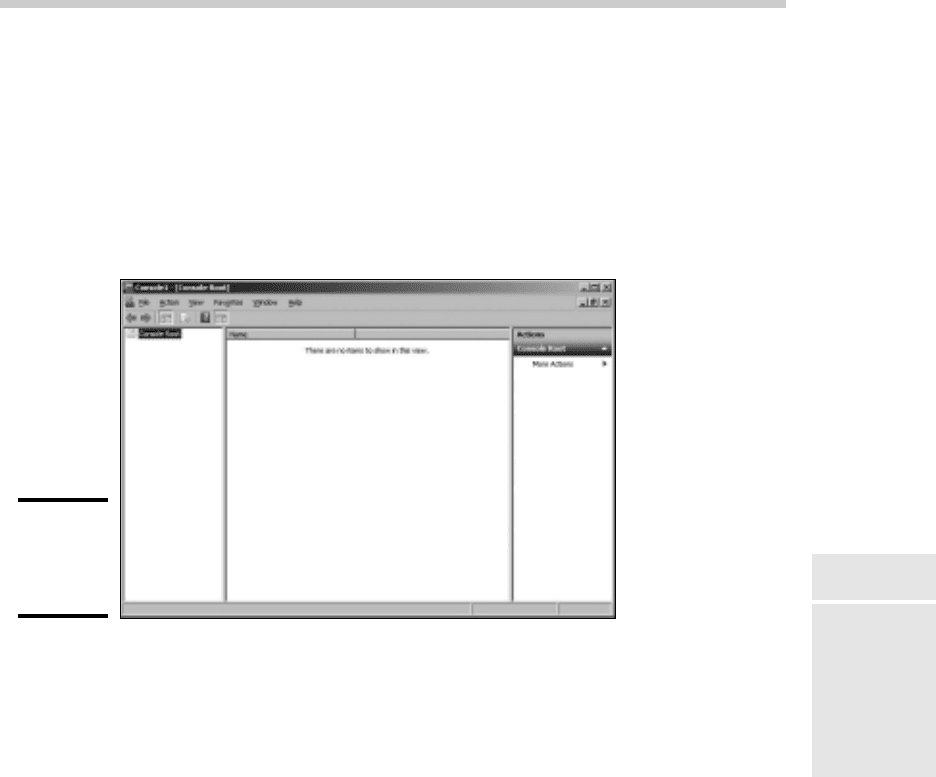
whatever combination you choose. To create a custom console, first start
Microsoft Management Console without loading a console by choosing
Start➪Run, typing mmc in the Open text box, and clicking OK or pressing
Enter. This creates an empty console, as shown in Figure 2-4.
Figure 2-4:
An empty
MMC
console.
Adding snap-ins
After you’ve created an empty console, you can customize it by adding
whatever snap-ins you want to make use of in the console. To add a snap-in,
follow these steps:
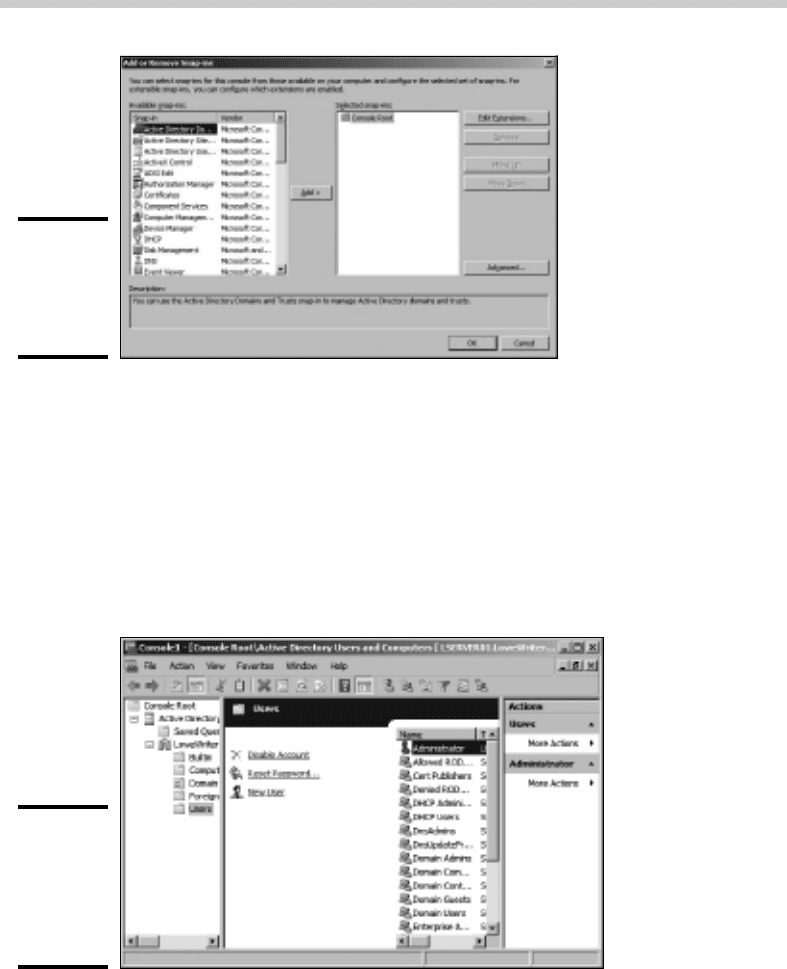
1. Choose File➪Add/Remove Snap-In.
This brings up the Add or Remove Snap-Ins dialog box, shown in
Figure 2-5.
2. Select the snap-in you want to add, and then click the Add button.
Depending on which snap-in you select, a dialog box will appear asking if
you want to use the add-in to manage settings on your own computer or
on a local computer.
3. Repeat Step 2 if you want to add other snap-ins to the console.
4. Click OK.
The console is now equipped with the snap-ins you’ve selected.
50_625873-bk07ch02.indd 50150_625873-bk07ch02.indd 501 9/21/10 10:38 PM9/21/10 10:38 PM
502
Customizing MMC
Figure 2-5:
The Add
or Remove
Snap-Ins
dialog box.
Adding taskpads
A taskpad is a customized page that’s displayed within a console. Taskpads
are designed to provide quick access to the most common chores for a
particular snap-in. A taskpad can display shortcuts that run programs,
execute menu commands, open Web pages, or open folders. For example,
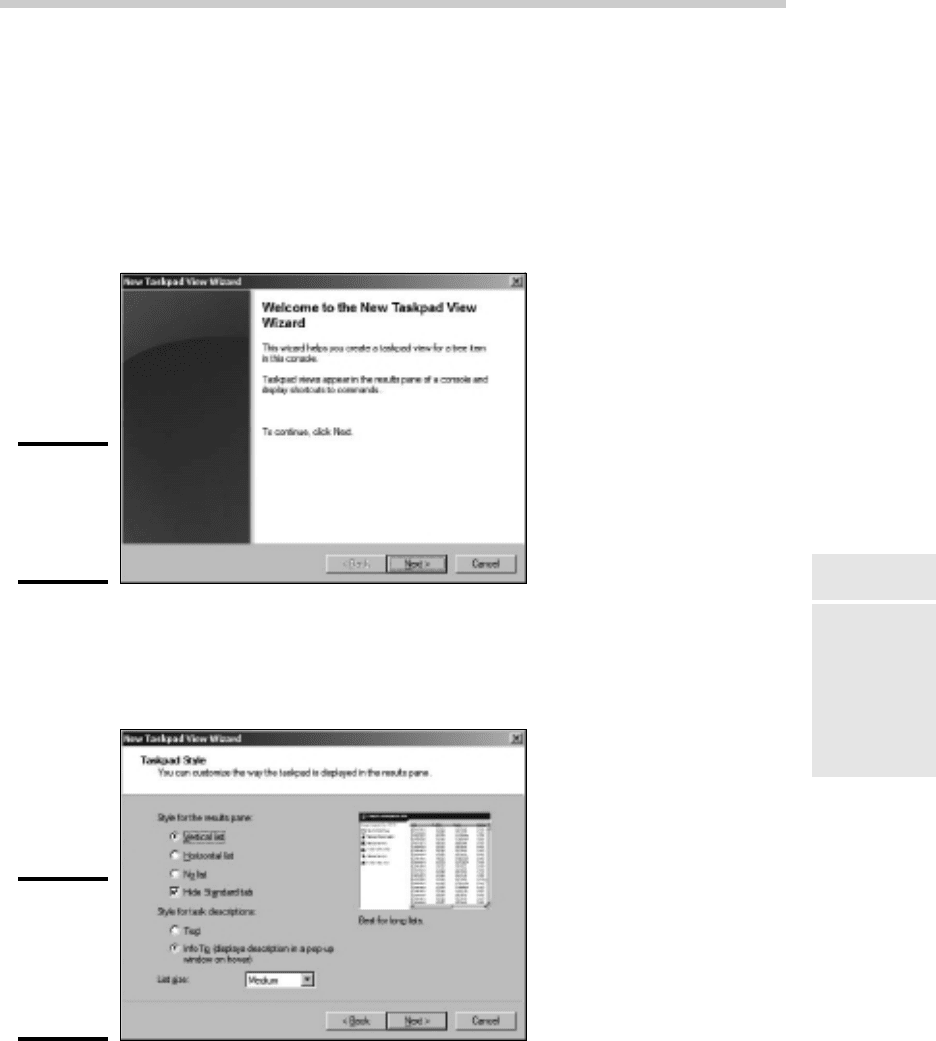
Figure 2-6 shows a simple taskpad that I created for managing local user
accounts. As you can see, it includes icons that let you quickly add an
account, delete an account, and change an account’s password.
Figure 2-6:
A taskpad
for
managing
user
accounts.
To add a taskpad, follow these steps:
1. Select the tree node where you want the taskpad to appear.
50_625873-bk07ch02.indd 50250_625873-bk07ch02.indd 502 9/21/10 10:38 PM9/21/10 10:38 PM
Book VII
Chapter 2
Managing Windows
Server 2008
503
Customizing MMC
Each taskpad you create is specific to a tree node. For example, the
taskpad shown in Figure 2-6 is displayed only when you select a user
account. To create this taskpad, I opened the Local Users and Groups
node and selected the Users node.
2. Choose Action➪New Taskpad View.
This step brings up the New Taskpad View Wizard, as shown in
Figure 2-7.
Figure 2-7:
The New
Taskpad
View
Wizard.
3. Click Next.
The Taskpad Style page appears, as shown in Figure 2-8.
Figure 2-8:
Setting the
style options
for a new
taskpad
page.
50_625873-bk07ch02.indd 50350_625873-bk07ch02.indd 503 9/21/10 10:38 PM9/21/10 10:38 PM

504
Customizing MMC
This page provides the following options for formatting the taskpad
display:
• Vertical List: If you want to include the list from the details page, you
can select this option to place taskpad icons to the left of the list.
This is the option I selected for the taskpad shown in Figure 2-6.
• Horizontal List: This option places the taskpad icons beneath the
details page list.
• No List: This option creates a taskpad with no list, just taskpad icons.
• Hide Standard Tab: Each taskpad can have a standard view, which
simply lists all of the items in the taskpad without showing custom
tasks. The Hide Standard Tab check box, which is selected by
default, hides this tab. Most of the time, you’ll want to leave this
check box selected.
• Text: This option displays descriptive information beneath each
taskpad icon.
• InfoTip: This option displays descriptive information as a pop-up tip
that appears when you hover the mouse over the icon.
• List Size: This drop-down list lets you select how much of the
taskpad area should be devoted to the list. The options are Small,
Medium, and Large.
It’s a good thing this wizard wasn’t designed by a fast-food company.
If it was, the options for List Size would be Large, Extra Large, and
MegaSuperKing.
4. Select the taskpad options you want and then click Next.
The next page of the wizard presents two options that let you control
when the taskpad should be displayed. The choices are:
• Selected Tree Item: The taskpad will be displayed only for the specific
tree item that you selected in Step 1.
• All Tree Items That Are the Same Type as the Selected Item: The
taskpad will be displayed not only for the selected tree item, but also
for other items of the same type. This is the more common option.
5. Select the taskpad display option and then click Next.
The next page of the wizard asks for a name and description for the
taskpad.
6. Type a name and description for the taskpad and then click Next.
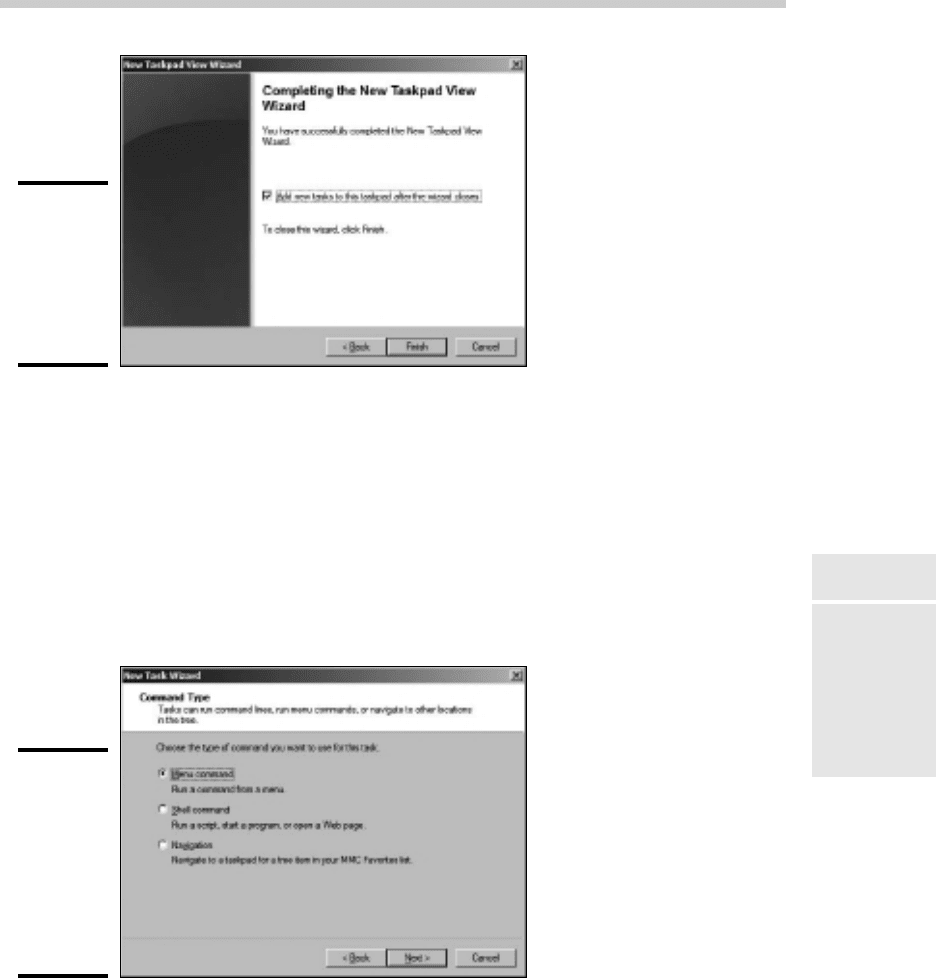
The final page of the New Taskpad View Wizard is displayed, as shown
in Figure 2-9.
50_625873-bk07ch02.indd 50450_625873-bk07ch02.indd 504 9/21/10 10:38 PM9/21/10 10:38 PM
Book VII
Chapter 2
Managing Windows
Server 2008
505
Customizing MMC
Figure 2-9:
The final
page of
the New
Taskpad
View
Wizard.
7. Select the Add New Tasks to This Taskpad After the Wizard Closes
check box and then click Finish.
This completes the New Taskpad View Wizard but automatically launches
the New Task Wizard so that you can begin adding tasks to the taskpad.
The New Task Wizard begins by displaying a typical greeting page.
8. Click Next.
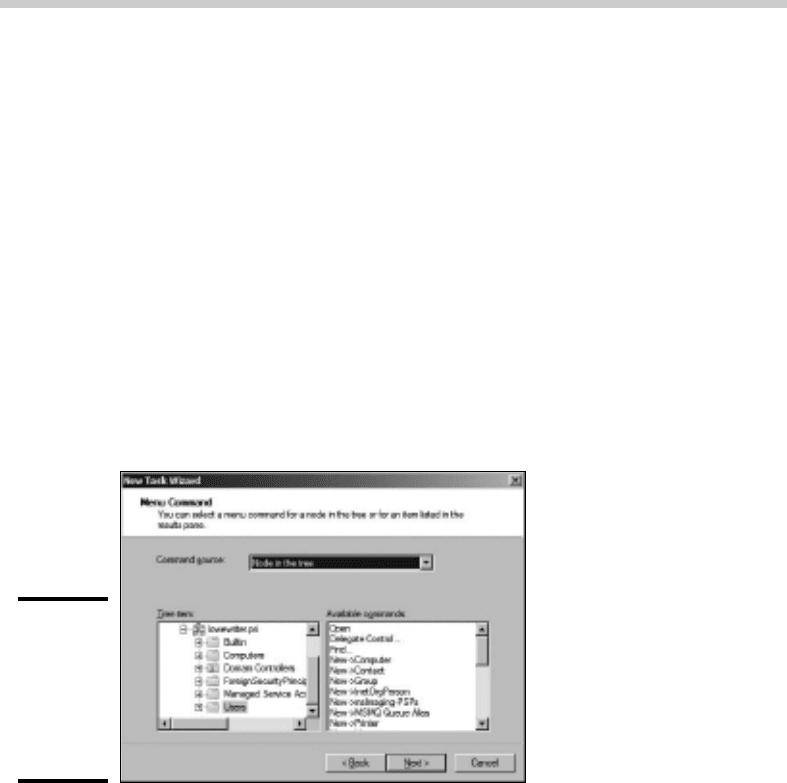
The page shown in Figure 2-10 is displayed. This page lets you select one
of three types of shortcuts to create on the taskpad:
Figure 2-10:
The New
Task Wizard
gives you
several
choices for
adding new
tasks to a
taskpad.
50_625873-bk07ch02.indd 50550_625873-bk07ch02.indd 505 9/21/10 10:38 PM9/21/10 10:38 PM
506
Customizing MMC
• Menu Command: This option lets you choose one of the console’s
menu commands. All three of the shortcuts shown in the taskpad in
Figure 2-6 are menu commands.
• Shell Command: Lets you run another program, start a batch file, or
open a Web page.
• Navigation: Lets you go to one of the views you’ve added to the
Favorites menu. (If you want to add shortcuts that navigate to
different taskpads in a console, first add each taskpad view to
your Favorites menu by navigating to the taskpad and choosing
Favorites➪Add to Favorites.)
9. Choose the type of shortcut command you want to create and then
click Next.
The page that’s displayed next depends on which option you selected
in Step 8. The rest of this procedure assumes you selected the Menu
Command option, which displays the page shown in Figure 2-11.
Figure 2-11:
Choosing
a menu
command
for a
taskpad
shortcut.
10. Choose the command you want to use and then click Next.
The available commands are listed in the Available Commands list box.
Note that you can bring up several different lists of available commands
by choosing an option in the Command Source drop-down list.
When you click Next, the wizard asks for a name and description for the
command you’ve selected.
11. Enter a name and description for the command and then click Next.
This step brings up the page shown in Figure 2-12.
50_625873-bk07ch02.indd 50650_625873-bk07ch02.indd 506 9/21/10 10:38 PM9/21/10 10:38 PM