
Lowe D. Networking For Dummies
Подождите немного. Документ загружается.

Book VII
Chapter 3
Dealing with Active
Directory
517
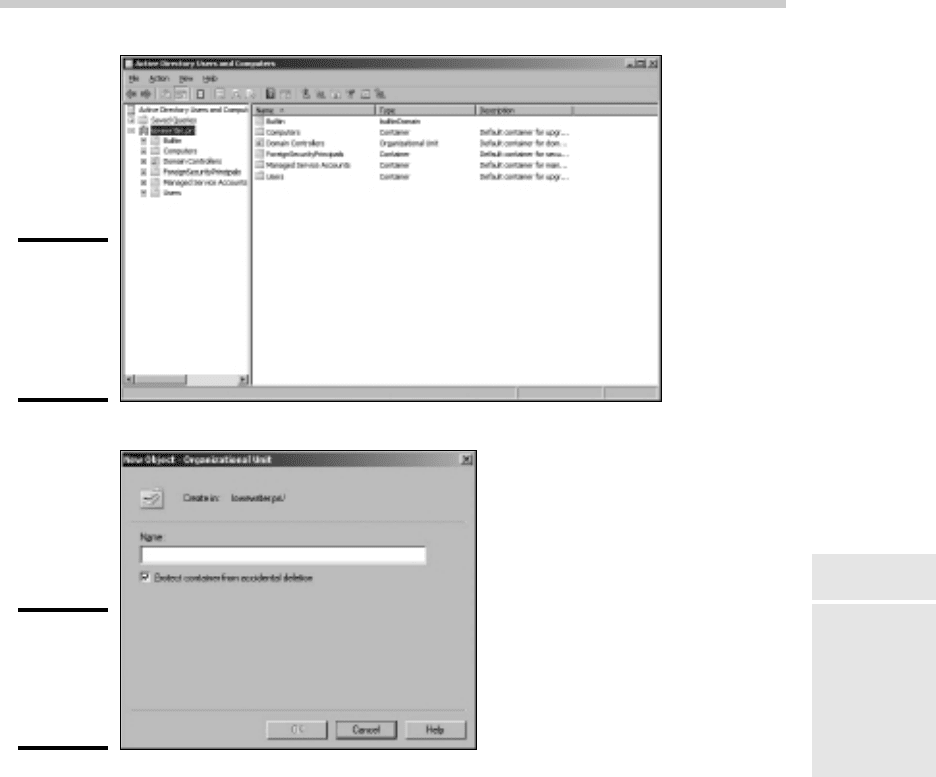
Creating an Organizational Unit
Figure 3-4:
The Active
Directory
Users and
Computers
console.
Figure 3-5:
Creating
a new
organizational
unit.
Here are just a few more thoughts about OUs to ponder as you drift off to sleep:
✦ You can delegate administrative authority for an OU to another user by
right-clicking the OU and choosing Select Delegate Control. Then you
can select the user or group that will have administrative authority over
the OU. You can also choose which administrative tasks will be assigned
to the selected user or group.
✦ Remember that OUs are not the same as groups. Groups are security
principals, which means that you can assign them rights. Then, when
you assign a user to a group, the user is given the rights of the group.
In contrast, an OU is merely an administrative tool that lets you control
how user and group accounts are managed.
✦ For more information about how to create user and group accounts as
well as other Active Directory objects, turn to the next chapter.
51_625873-bk07ch03.indd 51751_625873-bk07ch03.indd 517 9/21/10 10:38 PM9/21/10 10:38 PM

518
Book VII: Windows Server 2008 Reference
51_625873-bk07ch03.indd 51851_625873-bk07ch03.indd 518 9/21/10 10:38 PM9/21/10 10:38 PM

Chapter 4: Managing
Windows User Accounts
In This Chapter
✓ Understanding user accounts
✓ Creating user accounts
✓ Setting account options
✓ Working with groups
✓ Creating a roaming profile
E
very user who accesses a network must have a user account. User
accounts let you control who can access the network and who can’t. In
addition, user accounts let you specify what network resources each user
can use. Without user accounts, all your resources would be open to anyone
who casually dropped by your network.
Understanding Windows User Accounts
User accounts are one of the basic tools for managing a Windows server.
As a network administrator, you’ll spend a large percentage of your time
dealing with user accounts — creating new ones, deleting expired ones,
resetting passwords for forgetful users, granting new access rights, and so
on. Before I get into the specific procedures of creating and managing user
accounts, this section presents an overview of user accounts and how they
work.
Local accounts versus domain accounts
A local account is a user account that’s stored on a particular computer and
applies only to that computer. Typically, each computer on your network
will have a local account for each person who uses that computer.
In contrast, a domain account is a user account that’s stored by Active
Directory and can be accessed from any computer that’s a part of the
domain. Domain accounts are centrally managed. This chapter deals
primarily with setting up and maintaining domain accounts.
52_625873-bk07ch04.indd 51952_625873-bk07ch04.indd 519 9/21/10 10:39 PM9/21/10 10:39 PM

520
Creating a New User
User account properties
Every user account has a number of important account properties that spec-
ify the characteristics of the account. The three most important account
properties are
✦ Username: A unique name that identifies the account. The user must
enter the username when logging on to the network. The username is
public information. In other words, other network users can (and often
should) find out your username.
✦ Password: A secret word that must be entered in order to gain access
to the account. You can set up Windows so that it enforces password
policies, such as the minimum length of the password, whether the pass-
word must contain a mixture of letters and numerals, and how long the
password remains current before the user must change it.
✦ Group membership: The group or groups to which the user account
belongs. Group memberships are the key to granting access rights to
users so that they can access various network resources, such as file
shares or printers or to perform certain network tasks, such as creating
new user accounts or backing up the server.
Many other account properties record information about the user, such
as the user’s contact information, whether the user is allowed to access
the system only at certain times or from certain computers, and so on. I
describe some of these features in later sections of this chapter, and some
are described in more detail in Chapter 6 of this minibook.
Creating a New User
To create a new domain user account in Windows Server 2008, follow these
steps:
1. Choose Start➪Administrative Tools➪Active Directory Users and
Computers.
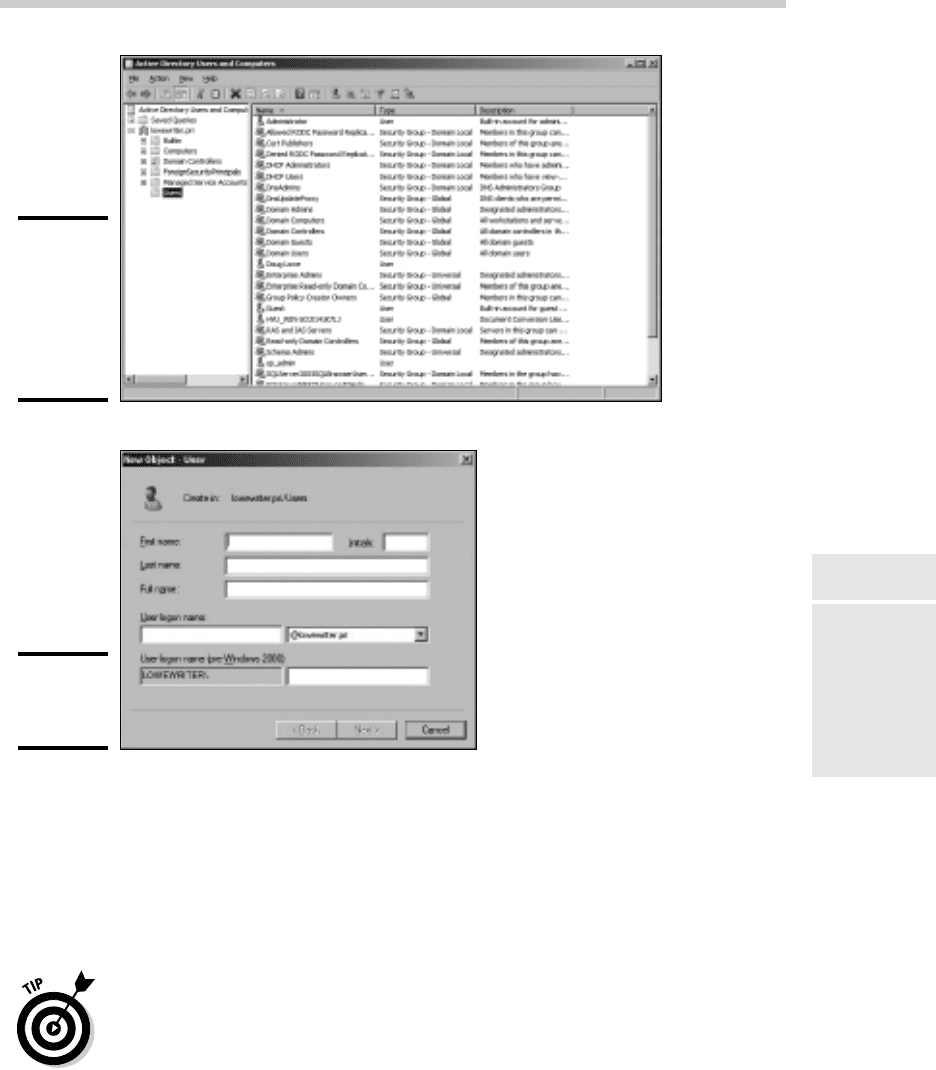
This fires up the Active Directory Users and Computers management
console, as shown in Figure 4-1.
2. Right-click the domain that you want to add the user to and then
choose New➪User.
This summons the New Object — User Wizard, as shown in Figure 4-2.
3. Type the user’s first name, middle initial, and last name.
As you type the name, the New Object Wizard automatically fills in the
Full Name field.
52_625873-bk07ch04.indd 52052_625873-bk07ch04.indd 520 9/21/10 10:39 PM9/21/10 10:39 PM
Book VII
Chapter 4
Managing Windows
User Accounts
521
Creating a New User
Figure 4-1:
The Active
Directory
Users and
Computers
management
console.
Figure 4-2:
Creating a
new user.
4. Change the Full Name field if you want it to appear differently than
proposed.
For example, you may want to reverse the first and last names so the
last name appears first.
5. Type the user logon name.
This name must be unique within the domain.
Pick a naming scheme to follow when creating user logon names. For
example, use the first letter of the first name followed by the complete
last name, the complete first name followed by the first letter of the last
name, or any other scheme that suits your fancy.
52_625873-bk07ch04.indd 52152_625873-bk07ch04.indd 521 9/21/10 10:39 PM9/21/10 10:39 PM
522
Creating a New User
6. Click Next.
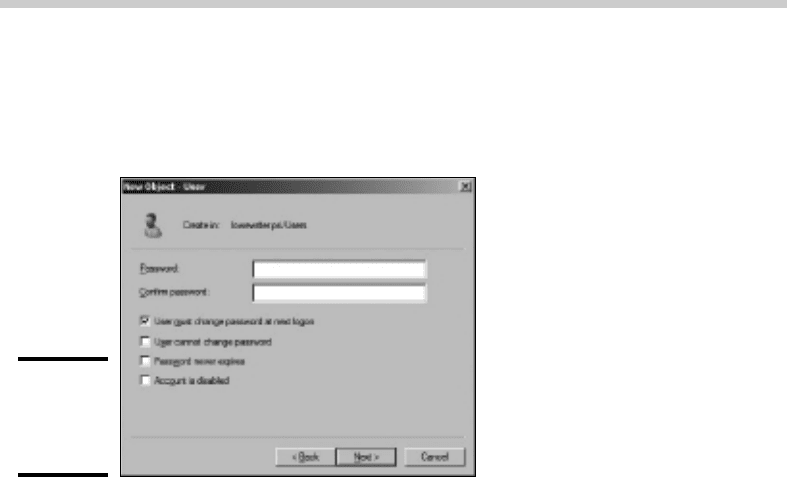
The second page of the New Object — User Wizard appears, as shown in
Figure 4-3.
Figure 4-3:
Setting
the user’s
password.
7. Type the password twice.
You’re asked to type the password twice, so type it correctly. If you don’t
type it identically in both boxes, you’re asked to correct your mistake.
8. Specify the password options that you want to apply.
The following password options are available:
• User must change password at next logon.
• User cannot change password.
• Password never expires.
• Account is disabled.
For more information about these options, see the section “Setting
account options,” later in this chapter.
9. Click Next.
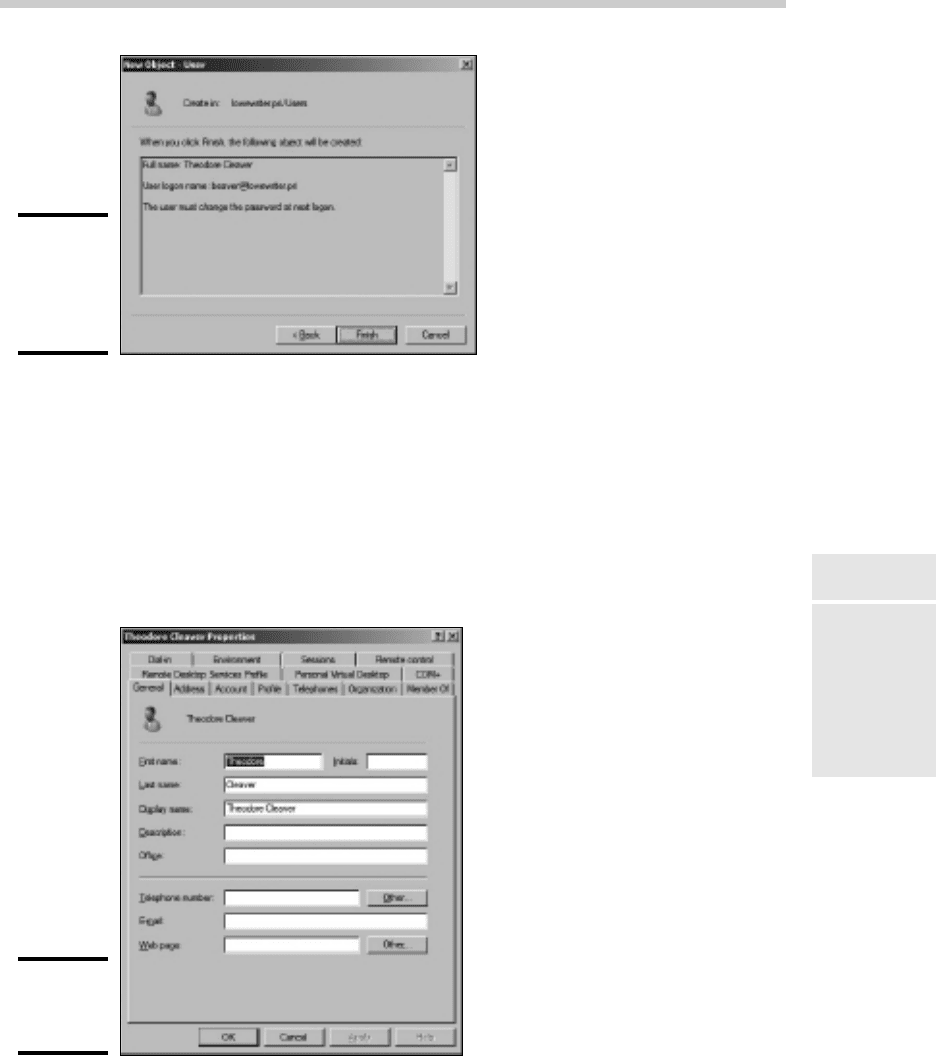
You’re taken to the final page of the New Object — User Wizard, as
shown in Figure 4-4.
10. Verify that the information is correct and then click Finish to create
the account.
If the account information is not correct, click the Back button and
correct the error.
You’re done! Now you can customize the user’s account settings. At a minimum,
you’ll probably want to add the user to one or more groups. You may also
want to add contact information for the user or set up other account options.
52_625873-bk07ch04.indd 52252_625873-bk07ch04.indd 522 9/21/10 10:39 PM9/21/10 10:39 PM
Book VII
Chapter 4
Managing Windows
User Accounts
523
Setting User Properties
Figure 4-4:
Verifying
the user
account
information.
Setting User Properties
After you’ve created a user account, you can set additional properties for
the user by right-clicking the new user and choosing Properties. This brings
up the User Properties dialog box, which has about a million tabs that you
can use to set various properties for the user. Figure 4-5 shows the General
tab, which lists basic information about the user, such as the user’s name,
office location, phone number, and so on.
Figure 4-5:
The General
tab.
The following sections describe some of the administrative tasks that you
can perform via the various tabs of the User Properties dialog box.
52_625873-bk07ch04.indd 52352_625873-bk07ch04.indd 523 9/21/10 10:39 PM9/21/10 10:39 PM
524
Setting User Properties
Changing the user’s contact information
Several tabs of the User Properties dialog box contain contact information
for the user:
✦ Address: Lets you change the user’s street address, post office box, city,
state, zip code, and so on.
✦ Telephones: Lets you specify the user’s phone numbers.
✦ Organization: Lets you record the user’s job title and the name of his or
her boss.
Setting account options
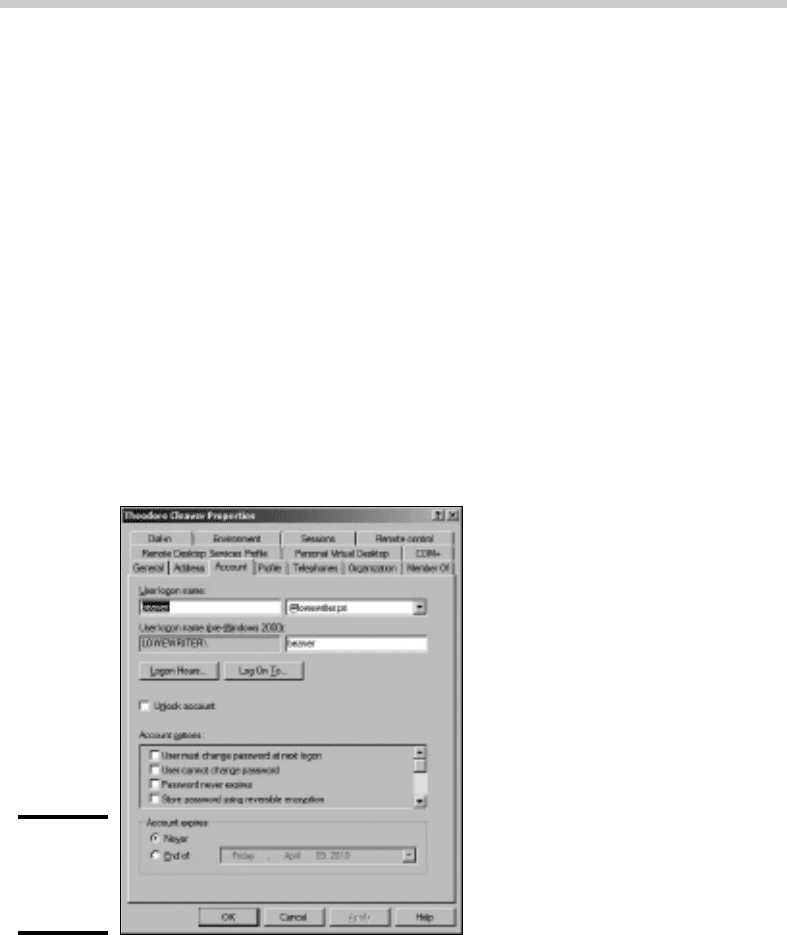
The Account tab of the User Properties dialog box, shown in Figure 4-6,
features a variety of interesting options that you can set for the user. From
this dialog box, you can change the user’s logon name. In addition, you can
change the password options that you set when you created the account
and you can set an expiration date for the account.
Figure 4-6:
The
Account
tab.
52_625873-bk07ch04.indd 52452_625873-bk07ch04.indd 524 9/21/10 10:39 PM9/21/10 10:39 PM

Book VII
Chapter 4
Managing Windows
User Accounts
525
Setting User Properties
The following account options are available in the Account Options list box:
✦ User must change password at next logon: This option, which is
selected by default, allows you to create a one-time-only password that
can get the user started with the network. The first time the user logs on
to the network, he or she is asked to change the password.
✦ User cannot change password: Use this option if you don’t want to
allow users to change their passwords. (Obviously, you can’t use this
option and the previous one at the same time.)
✦ Password never expires: Use this option if you want to bypass the
password expiration policy for this user so that the user will never have
to change his or her password.
✦ Store password using reversible encryption: This option stores
passwords using an encryption scheme that hackers can easily break, so
you should avoid it like the plague.
✦ Account is disabled: This option allows you to create an account that
you don’t yet need. As long as the account remains disabled, the user
won’t be able to log on. See the section “Disabling and Enabling User
Accounts,” later in this chapter, to find out how to enable a disabled
account.
✦ Smart card is required for interactive logon: If the user’s computer
has a smart card reader to automatically read security cards, check this
option to require the user to use it.
✦ Account is trusted for delegation: This option indicates that the
account is trustworthy and can set up delegations. This is an advanced
feature that’s usually reserved for Administrator accounts.
✦ Account is sensitive and cannot be delegated: Prevents other users
from impersonating this account.
✦ Use DES encryption types for this account: Beefs up the encryption for
applications that require extra security.
✦ Do not require Kerberos preauthentication: Select this option if you
use a different implementation of the Kerberos protocol.
Specifying logon hours
You can restrict the hours during which the user is allowed to log on to the
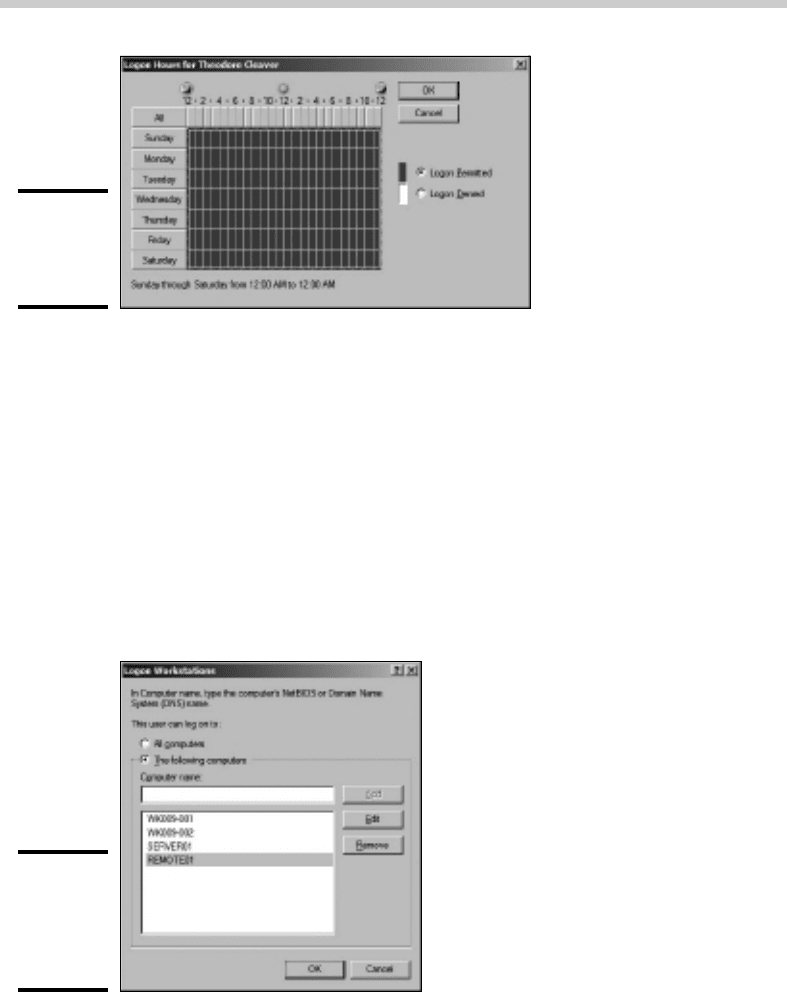
system by clicking the Logon Hours button from the Account tab of the User
Properties dialog box. This brings up the Logon Hours for [User] dialog box,
shown in Figure 4-7.
52_625873-bk07ch04.indd 52552_625873-bk07ch04.indd 525 9/21/10 10:39 PM9/21/10 10:39 PM
526
Setting User Properties
Figure 4-7:
Restricting
the user’s
logon hours.
Initially, the Logon Hours dialog box is set to allow the user to log on at any
time of day or night. To change the hours that you want the user to have
access to, click a day and time or a range of days and times and choose
either Logon Permitted or Logon Denied.
Restricting access to certain computers
Normally, a user can use his or her user account to log on to any computer
that’s a part of the user’s domain. However, you can restrict a user to certain
computers by clicking the Log On To button on the Account tab of the User
Properties dialog box. This brings up the Logon Workstations dialog box, as
shown in Figure 4-8.
Figure 4-8:
Restricting
the user
to certain
computers.
To restrict the user to certain computers, select the radio button labeled
The Following Computers. Then, for each computer you want to allow the
user to log on from, type the computer’s name in the text box and click Add.
52_625873-bk07ch04.indd 52652_625873-bk07ch04.indd 526 9/21/10 10:39 PM9/21/10 10:39 PM