
Lowe D. Networking For Dummies
Подождите немного. Документ загружается.

Book VII
Chapter 4
Managing Windows
User Accounts
527
Setting User Properties
If you make a mistake, you can select the incorrect computer name and
either click Edit to change the name or click Remove to delete the name.
Setting the user’s profile information
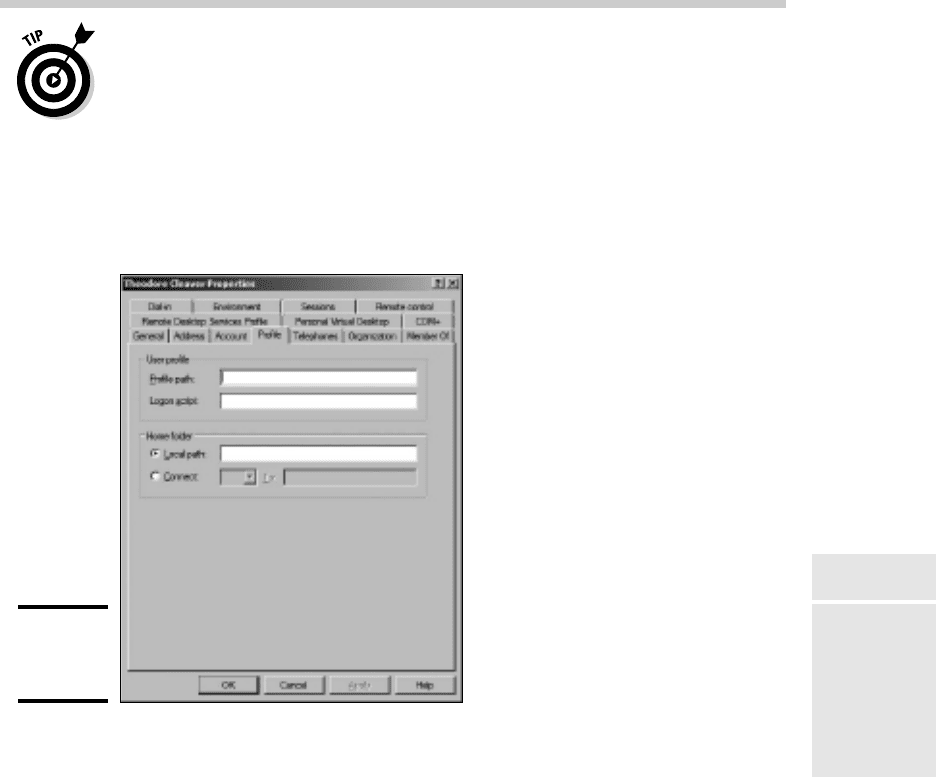
The Profile tab, shown in Figure 4-9, lets you configure the user’s profile
information. This dialog box lets you configure three bits of information
related to the user’s profile:
Figure 4-9:
The Profile
tab.
✦ Profile Path: This field specifies the location of the user’s roaming
profile. For more information, see the section “User Profiles,” later in
this chapter.
✦ Logon Script: This is the name of the user’s logon script. A logon script
is a batch file that’s run whenever the user logs on. The main purpose
of the logon script is to map the network shares that the user requires
access to. Logon scripts are a carryover from the early versions of
Windows NT Server. In Windows Server 2008, profiles are the preferred
way to configure the user’s computer when the user logs on, includ-
ing setting up network shares. However, many administrators still like
the simplicity of logon scripts. For more information, see the section
“Creating a Logon Script” later in this chapter.
✦ Home Folder: This is where you specify the default storage location for
the user.
52_625873-bk07ch04.indd 52752_625873-bk07ch04.indd 527 9/21/10 10:39 PM9/21/10 10:39 PM

528
Resetting User Passwords
The Profile tab lets you specify the location of an existing profile for the
user, but it doesn’t actually let you set up the profile. For more information
about setting up a profile, see the section “User Profiles,” later in this chapter.
Resetting User Passwords
By some estimates, the single most time-consuming task of most network
administrators is resetting user passwords. It’s easy to just think users
are forgetful idiots, but put yourself in their shoes. We insist that they set
their passwords to something incomprehensible, such as 94kD82leL384K,
that they change it a week later to something more unmemorable, such as
dJUQ63DWd8331, and that they don’t write it down. Then we get mad when
they forget their passwords.
So when a user calls and says he or she forgot his or her password, the least
we can do is be cheerful when we reset it for them. After all, they’ve probably
already spent 15 minutes trying to remember it before they finally gave up
and admitted failure.
Here’s the procedure to reset the password for a user domain account:
1. Log on as an administrator.
You must have administrator privileges in order to perform this procedure.
2. Choose Start➪Administrative Tools➪Active Directory Users and
Computers.
The Active Directory Users and Computers management console
appears.
3. Click Users in the console tree.
4. In the Details pane, right-click the user who forgot his or her password
and choose Reset Password.
5. Type the new password in both password boxes.
You have to type the password twice to ensure that you type it correctly.
6. If desired, select the User Must Change Password at Next Logon
option.
If you select this option, the password that you assign will work for only
one logon. As soon as the user logs on, he or she will be required to
change the password.
7. Click OK.
That’s all there is to it! The user’s password is now reset.
52_625873-bk07ch04.indd 52852_625873-bk07ch04.indd 528 9/21/10 10:39 PM9/21/10 10:39 PM

Book VII
Chapter 4
Managing Windows
User Accounts
529
Deleting a User
Disabling and Enabling User Accounts
If you want to temporarily prevent a user from accessing the network, you
can disable his or her account. Then you can enable the account later, when
you’re ready to restore the user to full access. Here’s the procedure:
1. Log on as an administrator.
You must have administrator privileges to perform this procedure.
2. Choose Start➪Administrative Tools➪Active Directory Users and
Computers.
The Active Directory Users and Computers management console
appears.
3. Click Users in the console tree.
4. In the Details pane, right-click the user that you want to enable or
disable. Then choose either Enable Account or Disable Account to
enable or disable the user.
Deleting a User
Deleting a user account is surprisingly easy. Just follow these steps:
1. Log on as an administrator.
You must have administrator privileges in order to perform this procedure.
2. Choose Start➪Administrative Tools➪Active Directory Users and
Computers.
The Active Directory Users and Computers management console
appears.
3. Click Users in the console tree.
4. In the details pane, right-click the user that you want to delete and
then choose Delete.
Windows asks whether you really want to delete the user, just in case
you’re kidding.
5. Click Yes.
Poof! The user account is deleted.
Deleting a user account is a permanent, non-reversible action. Do it only if
you’re absolutely sure that you’ll never want to restore the user’s account. If
there is any possibility of restoring the account later, you should disable the
account instead of deleting it.
52_625873-bk07ch04.indd 52952_625873-bk07ch04.indd 529 9/21/10 10:39 PM9/21/10 10:39 PM

530
Working with Groups
Working with Groups
A group is a special type of account that represents a set of users who have
common network access needs. Groups can dramatically simplify the task
of assigning network access rights to users. Rather than assigning access
rights to each user individually, groups let you assign rights to the group
itself. Then, those rights automatically extend to any user that you add to
the group.
The following sections describe some of the key concepts that you need to
understand in order to use groups and some of the most common procedures
you’ll employ when setting up groups for your server.
Group types
Two distinct types of groups exist:
✦ Security groups: Most groups are security groups, which extend access
rights to members of the group. For example, if you want to allow a
group of users to access your high-speed color laser printer, you can
create a group called ColorPrintUsers. Then, you can grant permission
to use the printer to the ColorPrintUsers group. Finally, you can add
individual users to the ColorPrintUsers group.
✦ Distribution groups: Distribution groups aren’t used as much as security
groups. They’re designed as a way to send e-mail to a group of users by
specifying the group as the recipient.
Group scope
A group can have any of three distinct scopes, which determines what
domains the group’s members can belong to. Three distinct scopes exist:
✦ Domain local: A group with domain local scope can have members from
any domain. However, the group can be granted permissions only from
the domain in which the group is defined.
✦ Global: A group with global scope can have members only from the
domain in which the group is defined. However, the group can be
granted permissions in any domain in the forest. (For more information
about forests, refer to Chapter 3 of this minibook.)
✦ Universal scope: Groups with universal scope are available in all
domains that belong to the same forest.
As you can probably guess, universal scope groups are usually found
only on very large networks.
52_625873-bk07ch04.indd 53052_625873-bk07ch04.indd 530 9/21/10 10:39 PM9/21/10 10:39 PM

Book VII
Chapter 4
Managing Windows
User Accounts
531
Working with Groups
One common way you can use domain local and global groups is as follows:
1. Use domain local groups to assign access rights for network resources.
For example, to control access to a high-speed color printer, create
a domain local group for the printer. Grant the group access to the
printer, but don’t add any users to the group.
2. Use global groups to associate users with common network access
needs.
For example, create a global group for users who need to access color
printers. Then, add each user who needs access to a color printer
membership to the group.
3. Finally, add the global group to the domain local group.
That way, access to the printer is extended to all members of the global
group.
This technique gives you the most flexibility when your network grows.
Default groups
Windows Server 2008 comes with a number of predefined groups that you
can use. Although you shouldn’t be afraid to create your own groups when
you need them, there’s no reason to create your own group if you find a
default group that meets your needs.
Some of these groups are listed in the Built-in container in the Active
Directory Users and Computers management console. Others are found in
the Users container. Table 4-1 lists the more useful default groups found in
Builtin, while Table 4-2 lists the default groups found in the Users container.
Table 4-1 Default Groups Located in the Built-In Container
Group Description
Account
Operators
This group is for users who should be allowed to create,
edit, or delete user accounts but shouldn’t be granted full
administrator status.
Administrators These are the system administrators who have full control
over the domain. The Administrator account is a default
member of this group. You should create only a limited
number of accounts that belong to this group.
Backup Operators This group is for users who need to perform backup
operations. Because this group must have access to the
files that are backed up, it presents a security risk. So you
should limit the number of users that you add to this group.
(continued)
52_625873-bk07ch04.indd 53152_625873-bk07ch04.indd 531 9/21/10 10:39 PM9/21/10 10:39 PM

532
Working with Groups
Table 4-1 (continued)
Group Description
Guests This group allows members to log on, but little else. The
default Guest account is a member of this group.
Network
Configuration
This group is allowed to twiddle with network configuration
settings, including releasing and renewing DHCP leases.
Print Operators This group grants users access to printers, including the
ability to create and share new printers and manage print
queues.
Remote Desktop
Users
This group can remotely log on to domain controllers in the
domain.
Replicator This group is required to support directory replication.
Don’t add users to this group.
Server Operators These users can log on locally to a domain controller.
Users These users can perform common tasks, such as running
applications and using local and network printers.
Table 4-2 Default Groups Located in the Users Container
Group Description
Cert Publishers These users can publish security certificates for users and
computers.
DnsAdmins This group is installed if you install DNS. It grants
administrative access to the DNS Server service.
DnsUpdateProxy This group is installed if you install DNS. It allows DNS
clients to perform dynamic updates on behalf of other
clients, such as DHCP servers.
Domain Admins These users have complete control of the domain. By
default, this group is a member of the Administrators group
on all domain controllers, and the Administrator account is
a member of this group.
Domain
Computers
This group contains all computers that belong to the
domain. Any computer account created becomes a
member of this group automatically.
Domain
Controllers
This group contains all domain controllers in the domain.
Domain Guests This group contains all domain guests.
52_625873-bk07ch04.indd 53252_625873-bk07ch04.indd 532 9/21/10 10:39 PM9/21/10 10:39 PM
Book VII
Chapter 4
Managing Windows
User Accounts
533
Working with Groups
Group Description
Domain Users This group contains all domain users. Any user account
created in the domain is added to this group automatically.
Group Policy These users can modify Group Policy for the domain.
IIS_WPG This group is created if you install IIS. It’s required for IIS to
operate properly.
RAS and IAS
Servers
This group is required for RAS and IAS servers to work
properly.
Creating a group
If none of the built-in groups meets your needs, you can create your own
group by following these steps:
1. Log on as an administrator.
You must have administrator privileges to perform this procedure.
2. Choose Start➪Administrative Tools➪Active Directory Users and
Computers.
The Active Directory Users and Computers management console
appears.
3. Right-click the domain to which you want to add the group and then
choose New➪Group.
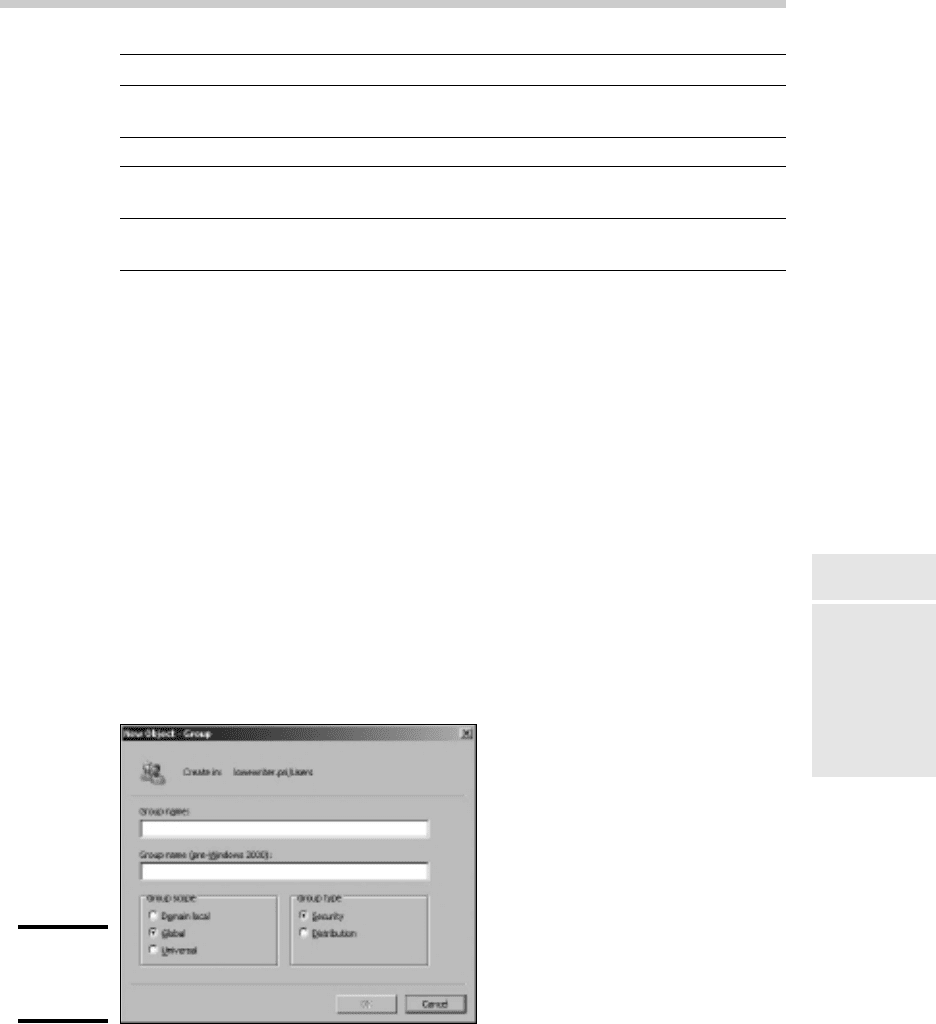
The New Object — Group dialog box appears, as shown in Figure 4-10.
Figure 4-10:
Creating a
new group.
52_625873-bk07ch04.indd 53352_625873-bk07ch04.indd 533 9/21/10 10:39 PM9/21/10 10:39 PM

534
Working with Groups
4. Type the name for the new group.
Enter the name in both text boxes.
5. Choose the group scope.
The choices are Domain Local, Global, and Universal. For groups that will
be granted access rights to network resources, choose Domain Local. Use
Global for groups to which you’ll add users and Domain Local groups. Use
Universal groups only if you have a large network with multiple domains.
6. Choose the group type.
The choices are Security and Distribution. In most cases, choose
Security.
7. Click OK.
The group is created.
Adding a member to a group
Groups are collections of objects, called members. The members of a group
can be user accounts or other groups. When you create a group, it has
no members. As a result, the group isn’t useful until you add at least one
member.
Follow these steps to add a member to a group:
1. Log on as an administrator.
You must have administrator privileges to perform this procedure.
2. Choose Start➪Administrative Tools➪Active Directory Users and
Computers.
The Active Directory Users and Computers management console
appears.
3. Open the folder that contains the group to which you want to add
members and then double-click the group.
The Group Properties dialog box appears.
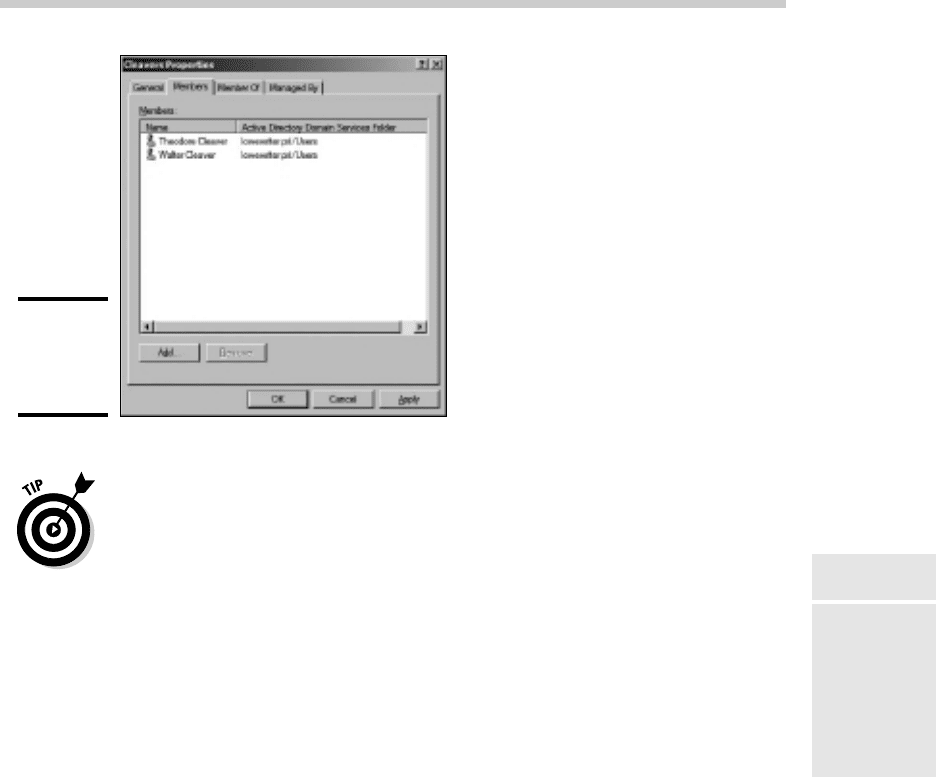
4. Click the Members tab.
The members of the group are displayed, as shown in Figure 4-11.
5. Type the name of a user or other group that you want to add to this
group and then click Add.
The member is added to the list.
6. Repeat Step 5 for each user or group that you want to add.
Keep going until you’ve added everyone!
7. Click OK.
52_625873-bk07ch04.indd 53452_625873-bk07ch04.indd 534 9/21/10 10:39 PM9/21/10 10:39 PM
Book VII
Chapter 4
Managing Windows
User Accounts
535
User Profiles
Figure 4-11:
Adding
members to
a group.
That’s all there is to it.
The Group Properties dialog box also has a Member Of tab that lists each
group that the current group is a member of.
Adding members to a group is only half the process of making a group
useful. The other half is adding access rights to the group so that the
members of the group can actually do something. The procedures for doing
that are covered in the next chapter.
User Profiles
User profiles automatically maintain desktop settings for Windows users. By
default, user profiles are stored on each user’s local computer. The following
items are just some of the settings that are stored as part of the user profile:
✦ Desktop settings in the Display Properties dialog box, including
wallpaper, screen savers, and color schemes
✦ Start menu programs and Windows toolbar options
✦ Favorites, which provide easy access to the files and folders that the
user accesses frequently
✦ Application Data, such as option settings, custom dictionaries, and so on
✦ Cookies, used for Internet browsing
52_625873-bk07ch04.indd 53552_625873-bk07ch04.indd 535 9/21/10 10:39 PM9/21/10 10:39 PM

536
User Profiles
✦ My Recent Documents, which keeps shortcuts to the documents most
recently accessed by the user
✦ Templates, which stores user templates
✦ Network Neighborhood, which keeps shortcuts to the user’s network
locations
✦ Send To, which keeps shortcuts to document-handling utilities
✦ Local Settings, such as history and temporary files
✦ Printers, which keeps shortcuts to the user’s printers
✦ My Documents
Types of user profiles
Four types of user profiles exist:
✦ Local user profile: A local user profile is stored on the user’s local
computer and is applied only when the user logs on to that computer. A
local user profile is created automatically when a new user logs on.
✦ Roaming user profile: A roaming user profile is created on a network
share. That way, the user can access the roaming profile when he or she
logs on to any computer on the network.
✦ Mandatory user profile: A mandatory user profile is a roaming user
profile that the user is not allowed to change. One benefit of mandatory
user profiles is that users can’t mess up their desktop settings. Another
is that you can create a single mandatory profile that can be used by
multiple users.
✦ Temporary user profile: If a roaming or mandatory profile is not available
for some reason, a temporary user profile is automatically created for
the user. The temporary profile is deleted when the user logs off, so any
changes that the user makes while using a temporary profile are lost at
the end of the session.
Creating a roaming profile
A roaming user profile is simply a user profile that has been copied to a
network share so that it can be accessed from any computer on the network.
Before you can create roaming user profiles, you should create a shared
folder on the server to hold the profiles. You can name the shared folder
anything you like, but most administrators call it Users. For information on
the procedure to create a shared folder, see Chapter 3 of this minibook.
After you’ve created the shared Users folder, you can copy the profile to the
server by following these steps at the user’s local computer (Windows 7 or
Vista):
52_625873-bk07ch04.indd 53652_625873-bk07ch04.indd 536 9/21/10 10:39 PM9/21/10 10:39 PM