
Lowe D. Networking For Dummies
Подождите немного. Документ загружается.

Book VII
Chapter 4
Managing Windows
User Accounts
537
User Profiles
1. Log on to the computer by using an account other than the one you
want to make a user account.
Windows won’t let you copy the profile that you’re logged on with.
2. Click the Start button and type the word Profile. Then choose the
Configure Advanced User Profile Properties option from the menu
that appears.
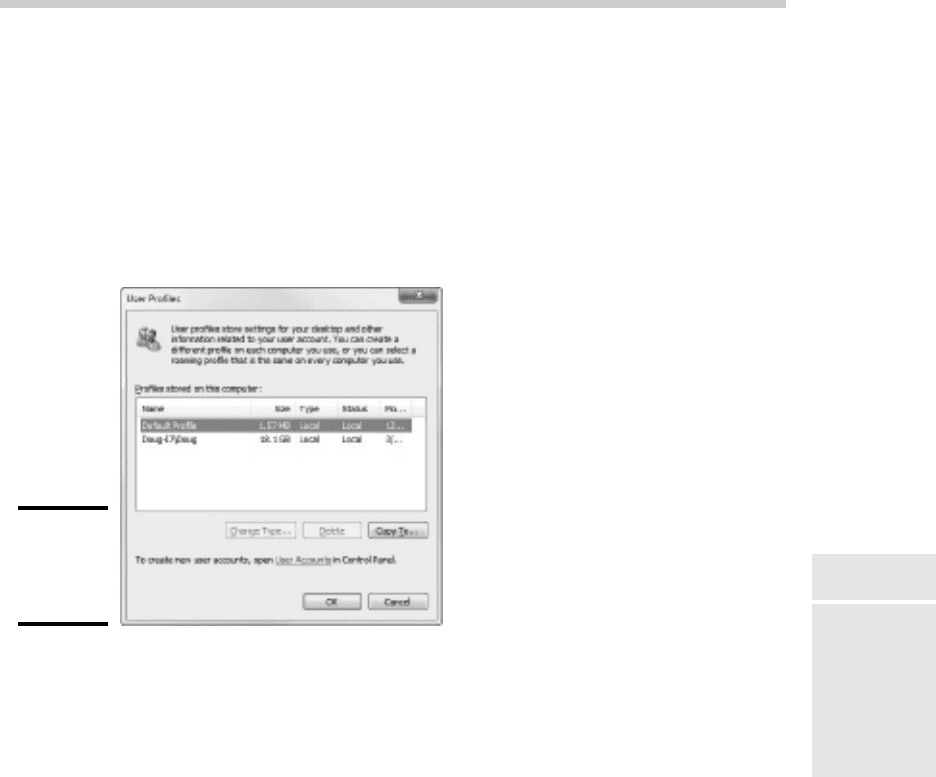
This brings up the User Profiles dialog box shown in Figure 4-12.
Figure 4-12:
The User
Profiles
dialog box.
3. Select the profile that you want to copy and then click Copy To.
A Copy To dialog box appears.
4. Type the path and name for the roaming profile in the Copy Profile
To box.
For example, to copy a profile named Doug to the User share on a server
named Server01, type \\Server01\Users\Doug.
5. Click OK.
The profile is copied.
Now, you can go back to the server, log on as an administrator, and follow
these steps to designate a roaming profile for the user’s domain account:
1. Choose Start➪Administrative Tools➪Active Directory Users and
Computers.
The Active Directory Users and Computers management console
appears.
52_625873-bk07ch04.indd 53752_625873-bk07ch04.indd 537 9/21/10 10:39 PM9/21/10 10:39 PM

538
Creating a Logon Script
2. Right-click the user account and choose Properties.
The User Properties dialog box appears.
3. Click the Profile tab.
The Profile tab appears. This tab was shown in Figure 4-9, so I won’t
repeat it again here.
4. Type the path and name of the profile in the Profile Path text box.
The path and name that you type here should be the same path and
name that you used to copy the profile to the server.
5. Click OK.
Creating a Logon Script
A logon script is a batch file that’s run automatically whenever a user logs
on. The most common reason for using a logon script is to map the network
shares that the user needs access to. For example, here’s a simple logon
script that maps three network shares:
echo off
net use m: \\server1\shares\admin
net use n: \\server1\shares\mktg
net use o: \\server2\archives
Here, two shares on server1 are mapped to drives M and N, and a share on
server2 is mapped as drive O.
If you want, you can use the special variable %username% to get the user’s
username. This is useful if you’ve created a folder for each user and you
want to map a drive to each user’s folder. For example:
net use u: \\server1\users\%username%
For example, if a user logs on with the username dlowe, drive U is mapped
to \\server1\users\dlowe.
Scripts should be saved in the Scripts folder, which is buried deep in the
bowels of the SYSVOL folder — typically, c:\Windows\SYSVOL\Sysvol\
domainname\Scripts, where domainname is your domain name. Because
you frequently need to access this folder, I suggest creating a shortcut to it
on your desktop.
After you’ve created a logon script, you can assign it to a user by using the
Profile tab of the User Properties dialog box. For more information, see the
section “Setting the user’s profile information,” earlier in this chapter.
52_625873-bk07ch04.indd 53852_625873-bk07ch04.indd 538 9/21/10 10:39 PM9/21/10 10:39 PM

Chapter 5: Managing a File Server
In This Chapter
✓ Configuring a file server
✓ Sharing folders
✓ Setting permissions
I
n this chapter, you discover how to set up and manage file and print
servers for Windows Server 2008. Because the features for file and print
servers are essentially the same for both operating systems, the techniques
presented in this chapter should work for either system.
Understanding Permissions
Before I get into the details of setting up a file server, you need to have a
solid understanding of the concept of permissions. Permissions allow users
to access shared resources on a network. Simply sharing a resource such
as a disk folder or a printer doesn’t guarantee that a given user is able to
access that resource. Windows makes this decision based on the permissions
that have been assigned to various groups for the resource and group
memberships of the user. If the user belongs to a group that has been
granted permission to access the resource, the access is allowed. If not,
access is denied.
In theory, permissions sound pretty simple. In practice, however, they
can get pretty complicated. The following paragraphs explain some of the
nuances of how access control and permissions work:
✦ Every object — that is, every file and folder — on an NTFS volume has
a set of permissions called the Access Control List, or ACL, associated
with it.
✦ The ACL identifies the users and groups who can access the object and
specifies what level of access each user or group has. For example, a
folder’s ACL may specify that one group of users can read files in the
folder, while another group can read and write files in the folder, and a
third group is denied access to the folder altogether.
✦ Container objects — files and volumes — allow their ACLs to be
inherited by the objects that they contain. As a result, if you specify
permissions for a folder, those permissions extend to the files and child
folders that appear within it.
53_625873-bk07ch05.indd 53953_625873-bk07ch05.indd 539 9/21/10 10:39 PM9/21/10 10:39 PM

540
Understanding Permissions
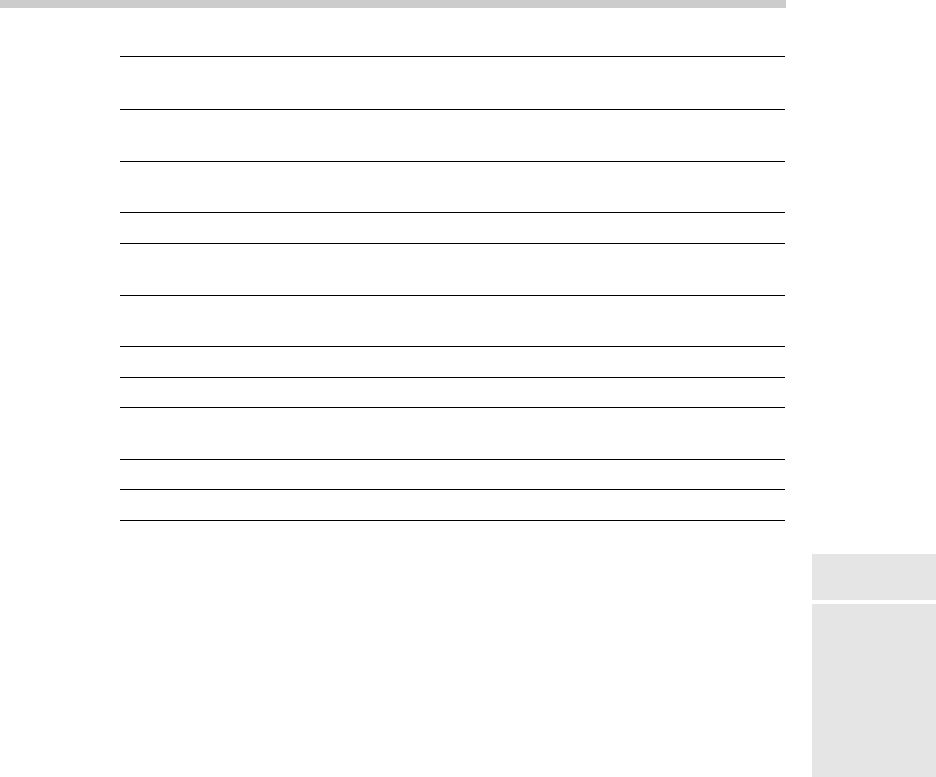
✦ Table 5-1 lists the six permissions that can be applied to files and folders
on an NTFS volume.
Table 5-1 File and Folder Permissions
Permission Description
Full control The user has unrestricted access to the file or folder.
Modify The user can change the file or folder’s contents, delete the
file or folder, read the file or folder, or change the attributes
of the file or folder. For a folder, this permission allows you
to create new files or subfolders within the folder.
Read & Execute For a file, this permission grants the right to read or execute
the file. For a folder, this permission grants the right to list
the contents of the folder or to read or execute any of the
files in the folder.
List Folder
Contents
This permission applies only to folders; it grants the right to
list the contents of the folder.
Write Grants the right to change the contents of a file or its
attributes. For a folder, grants the right to create new files
and subfolders within the folder.
Read Grants the right to read the contents of a file or folder.
✦ Actually, the six file and folder permissions comprise various combinations
of special permissions that grant more detailed access to files or folders.
Table 5-2 lists the special permissions that apply to each of the six file
and folder permissions.
✦ It’s best to assign permissions to groups rather than to individual users.
Then, if a particular user needs access to a particular resource, add that
user to a group that has permission to use the resource.
Table 5-2 Special Permissions
Special Permission Full
Control
Modify Read &
Execute
List Folder
Contents
Read Write
Traverse Folder/
Execute File
✓✓✓✓
List Folder/
Read Data
✓✓✓✓ ✓
Read Extended
Attributes
✓✓✓✓ ✓
53_625873-bk07ch05.indd 54053_625873-bk07ch05.indd 540 9/21/10 10:39 PM9/21/10 10:39 PM
Book VII
Chapter 5
Managing a File
Server
541
Understanding Shares
Special Permission Full
Control
Modify Read &
Execute
List Folder
Contents
Read Write
Create Files/
Write Data
✓✓ ✓
Create Folders/
Append Data
✓✓ ✓
Write Attributes
✓✓ ✓
Write Extended
Attributes
✓✓ ✓
Delete Subfolders
and Files
✓
Delete
✓✓
Read Permissions
✓✓✓✓ ✓✓
Change
Permissions
✓
Take Ownership
✓
Synchronize
✓✓✓✓ ✓✓
Understanding Shares
A share is simply a folder that is made available to other users via the
network. Each share has the following elements:
✦ Share name: The name by which the share is known over the network.
To be compatible with older computers, you should stick to eight-character
share names whenever possible.
✦ Path: The path to the folder on the local computer that’s being shared,
such as C:\Accounting.
✦ Description: A one-line description of the share.
✦ Permissions: A list of users or groups who have been granted access to
the share.
When you install Windows and configure various server roles, special shared
resources are created to support those roles. You shouldn’t disturb these
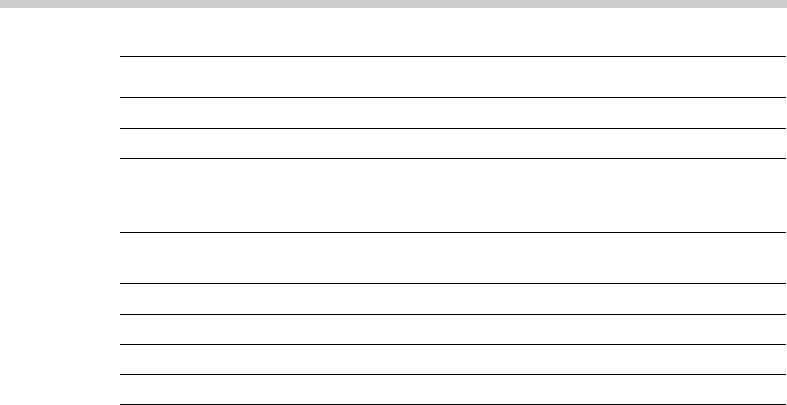
special shares unless you know what you’re doing. Table 5-3 lists some of
the more common special shares.
53_625873-bk07ch05.indd 54153_625873-bk07ch05.indd 541 9/21/10 10:39 PM9/21/10 10:39 PM
542
Configuring the File Server Role
Table 5-3 Special Shares
Share Name Description
drive$
The root directory of a drive.
ADMIN$
Used for remote administration of a computer. This share
points to the operating system folder (usually,
C: \Windows).
IPC$
Used by named pipes, a programming feature that lets pro-
cesses communicate with one another.
NETLOGON
Required in order for domain controllers to function.
SYSVOL
Another required domain controller share.
PRINT$
Used for remote administration of printers.
FAX$
Used by fax clients.
Notice that some of the special shares end with a dollar sign ($). These
shares are hidden shares that aren’t visible to users. However, you can still
access them by typing the complete share name (including the dollar sign)
when the share is needed. For example, the special share C$ is created to
allow you to connect to the root directory of the C: drive from a network
client. You wouldn’t want your users to see this share, would you? (Of
course, shares such as C$ are also protected by privileges so that if an
ordinary user finds out that C$ is the root directory of the server’s C: drive,
he or she still can’t access it.)
Configuring the File Server Role
To use Windows Server 2003 or 2008 as a file server, you must first enable
the file server role. In Windows Server 2003, you can do so by running
Manage Your Server (choose Start➪Administrative Tools➪Manage Your
Server). Then, choose Add or Remove a Role and select the File Server
role. In Windows Server 2008, choose Start➪Administrative Tools➪Server
Management, choose Roles, and then enable the File Services role.
Managing Your File Server
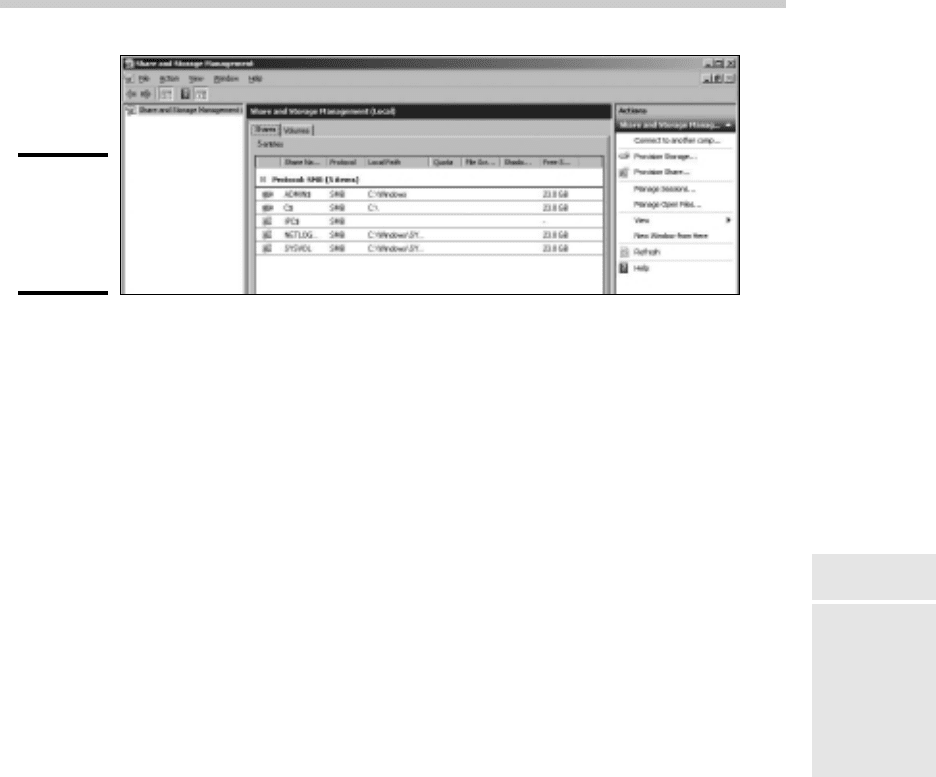
Windows Server 2008 includes a useful new management console called
Share and Storage Management, as shown in Figure 5-1. From this console,
you can easily create new shares, set up the permissions for a share,
remove a share, and so on. To summon the File Server Manager, choose
Start➪Administrative Tools➪Share and Storage Management.
53_625873-bk07ch05.indd 54253_625873-bk07ch05.indd 542 9/21/10 10:39 PM9/21/10 10:39 PM
Book VII
Chapter 5
Managing a File
Server
543
Managing Your File Server
Figure 5-1:
The Share
and Storage
Management
console.
The following sections describe some of the more common procedures that
you’ll use when managing your file server.
Using the Provision a Shared Folder Wizard
To be useful, a file server should offer one or more shares — folders that
have been designated as publicly accessible via the network. You can see
a list of the current shares available from a file server by firing up the File
Server Manager and clicking Shares in the console tree. The Share and
Storage Management console displays the share name, description, and
network path for each share that you’ve already created.
To create additional shares, use the Provision a Shared Folder Wizard, as
described in the following procedure.
1. In the Share and Storage Management console, choose Provision
Share.
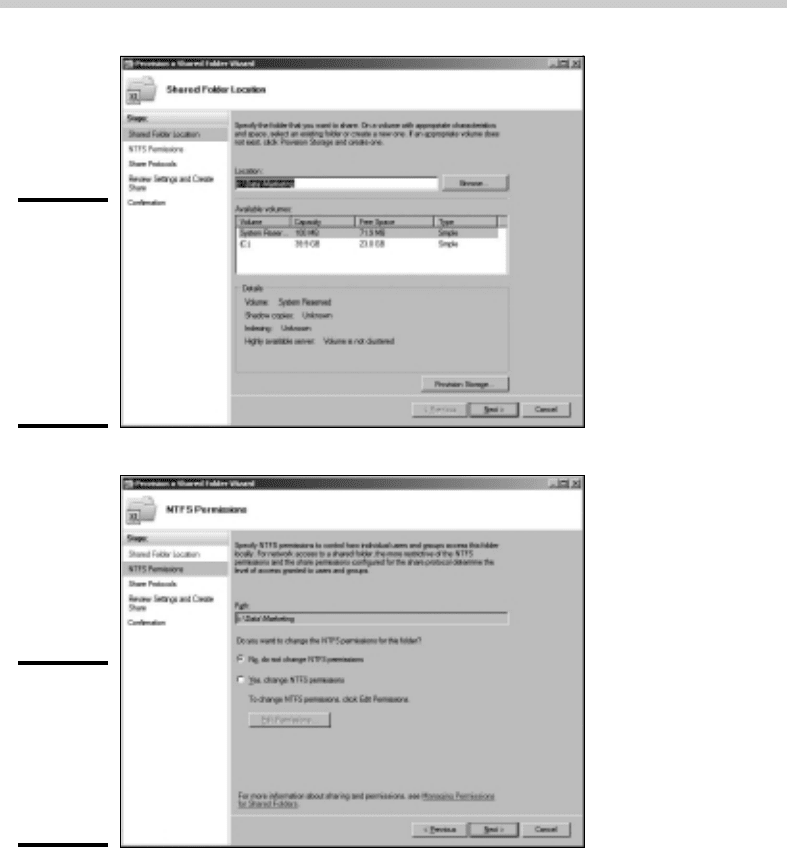
The opening screen of the Provision a Shared Folder Wizard appears, as
shown in Figure 5-2. Here, the wizard asks you what folder you want to
share.
2. Type the path of the folder that you want to share over the network
and then click Next.
If you aren’t sure of the path, you can click Browse. This action calls up
a dialog box that lets you search the server’s hard drive for a folder to
share. You can also create a new folder from this dialog box if the folder
that you want to share doesn’t yet exist. After you’ve selected or created
the folder to share, click OK to return to the wizard.
Next, the dialog box shown in Figure 5-3 appears.
53_625873-bk07ch05.indd 54353_625873-bk07ch05.indd 543 9/21/10 10:39 PM9/21/10 10:39 PM
544
Managing Your File Server
Figure 5-2:
The
Provision
a Shared
Folder
Wizard asks
what folder
you want to
share.
Figure 5-3:
The wizard
asks
whether you
want to set
the NTFS
permissions.
3. Change the NTFS Permissions if you want and then click Next.
The NTFS permissions are the permissions that are applied to the folder
that you are sharing, not to the share itself. If you want to change the
underlying NTFS permissions for the folder you are sharing, click Edit
Permissions and set the permissions the way you want. Otherwise,
click Next to proceed to the next step. The wizard displays the dialog
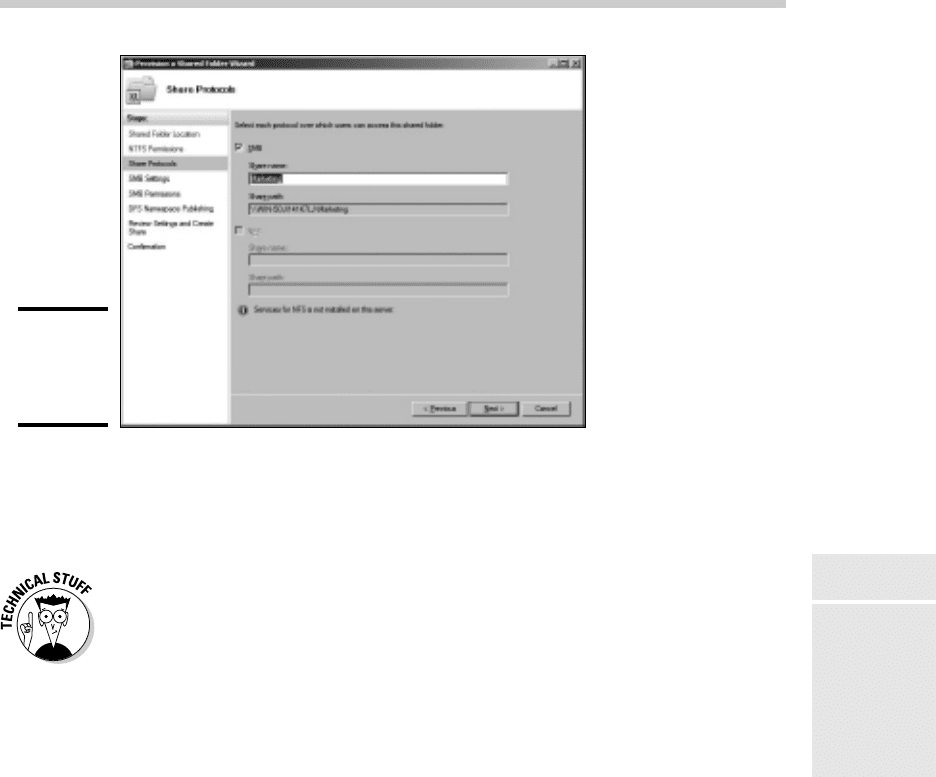
box shown in Figure 5-4, which lets you set the name this share will be
known by.
53_625873-bk07ch05.indd 54453_625873-bk07ch05.indd 544 9/21/10 10:39 PM9/21/10 10:39 PM
Book VII
Chapter 5
Managing a File
Server
545
Managing Your File Server
Figure 5-4:
Specifying
the share
name.
4. Type the name that you want to use for the share in the Share
Name box.
The default name is the name of the folder being shared. If the folder
name is long, you can use a more succinct name here.
Windows Server 2008 includes the ability to share files using the Unix
NFS file protocol. If you’ve enabled NFS sharing on this computer, this
dialog box also lets you set the sharing information for NFS.
5. Click Next.
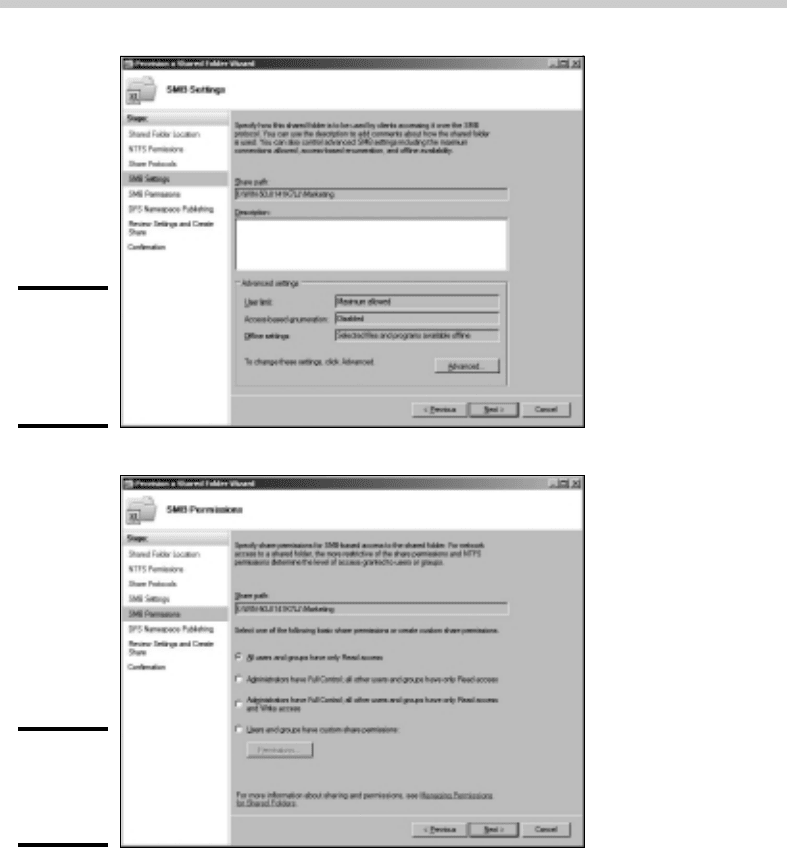
The dialog box shown in Figure 5-5 appears.
6. Enter a description for the share and then click Next.
The dialog box shown in Figure 5-6 appears.
7. Select the sharing permissions you want to impose.
You have four choices:
• All users have read-only access. Use this option to share information
that you want everyone to have access to, but you don’t want to
allow anyone to change the information.
• Administrators have full control, and everyone else has read-only
access.
• Administrators have full control, and everyone else has read/write
access.
• Custom permissions: When you select this option, you can then click
the Permissions button to set custom permissions.
53_625873-bk07ch05.indd 54553_625873-bk07ch05.indd 545 9/21/10 10:39 PM9/21/10 10:39 PM
546
Managing Your File Server
Figure 5-5:
Entering a
description
for the
share.
Figure 5-6:
Setting
the share
permissions.
8. Click Next.
The dialog box shown in Figure 5-7 appears.
9. If you’ve set up a Distributed File System (DFS) namespace and want
to connect this share to it, select the Publish the SMB Share to a DFS
Namespace check box.
DFS is a system that lets you combine two or more separate file shares
under a single name. Its purpose is to simplify the management of large
file server networks, so it is typically used only on networks that have a
large number of file servers.
53_625873-bk07ch05.indd 54653_625873-bk07ch05.indd 546 9/21/10 10:39 PM9/21/10 10:39 PM