
Lowe D. Networking For Dummies
Подождите немного. Документ загружается.

Book VII
Chapter 5
Managing a File
Server
547
Managing Your File Server
If you’ve never heard of DFS until now, skip this step.
Figure 5-7:
Joining a
Distributed
File System
network.
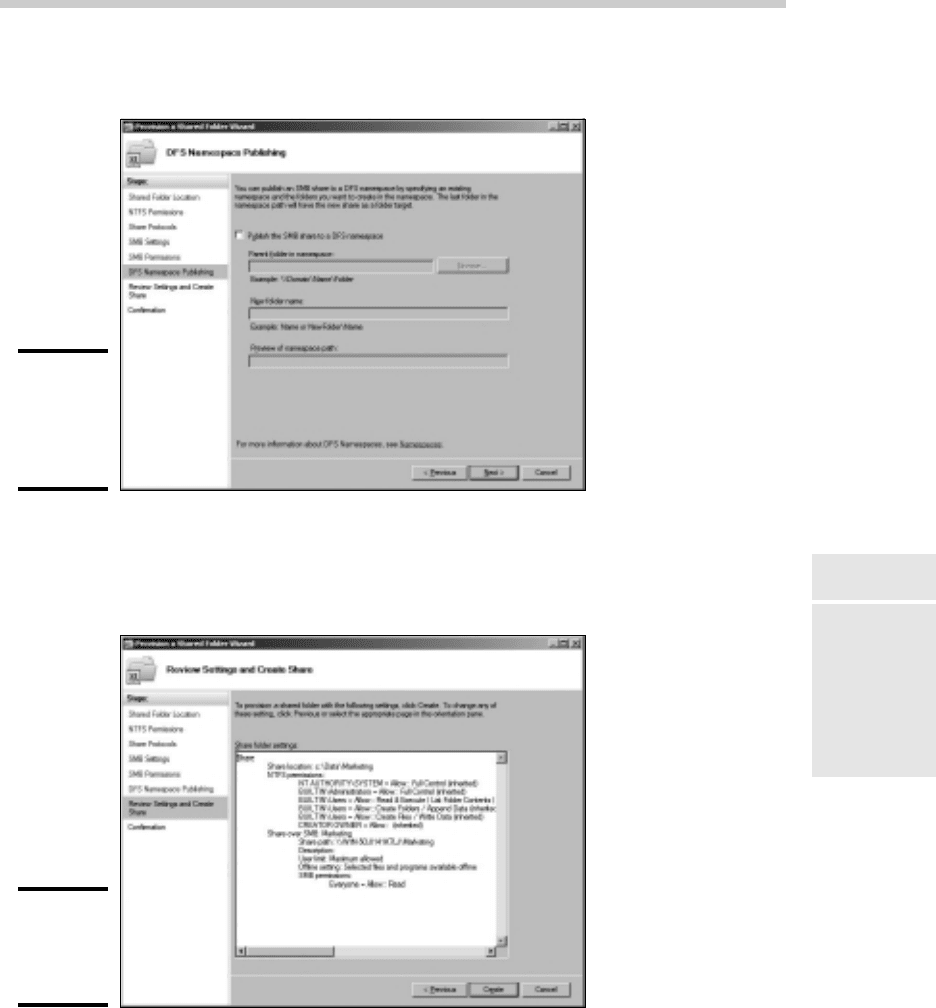
10. Click Next.
The dialog box shown in Figure 5-8 appears.
Figure 5-8:
Verifying
the share
settings.
11. Verify that all the settings are correct and then click Create.
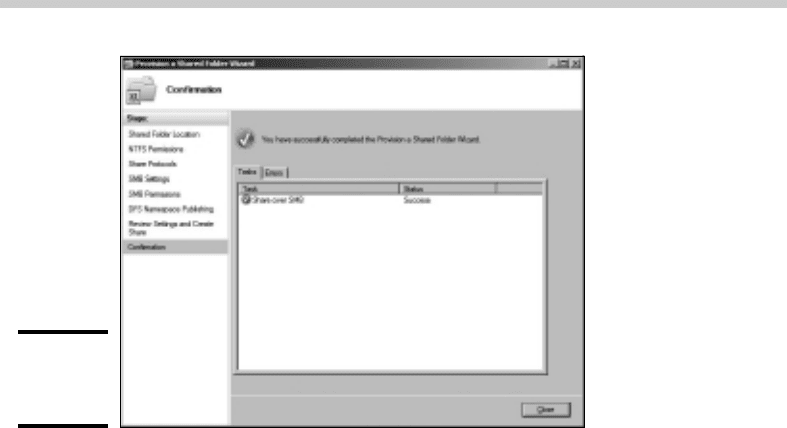
The share is created, and a final confirmation dialog box is displayed, as
shown in Figure 5-9.
53_625873-bk07ch05.indd 54753_625873-bk07ch05.indd 547 9/21/10 10:39 PM9/21/10 10:39 PM
548
Managing Your File Server
Figure 5-9:
You’re
done!
Sharing a folder without the wizard
If you think wizards should be confined to Harry Potter movies, you can set
up a share without bothering with the wizard. Just follow these steps:
1. Open the My Computer window and navigate to the folder that you
want to share.
2. Right-click the folder and choose Properties.
This action brings up the Properties dialog box for the folder.
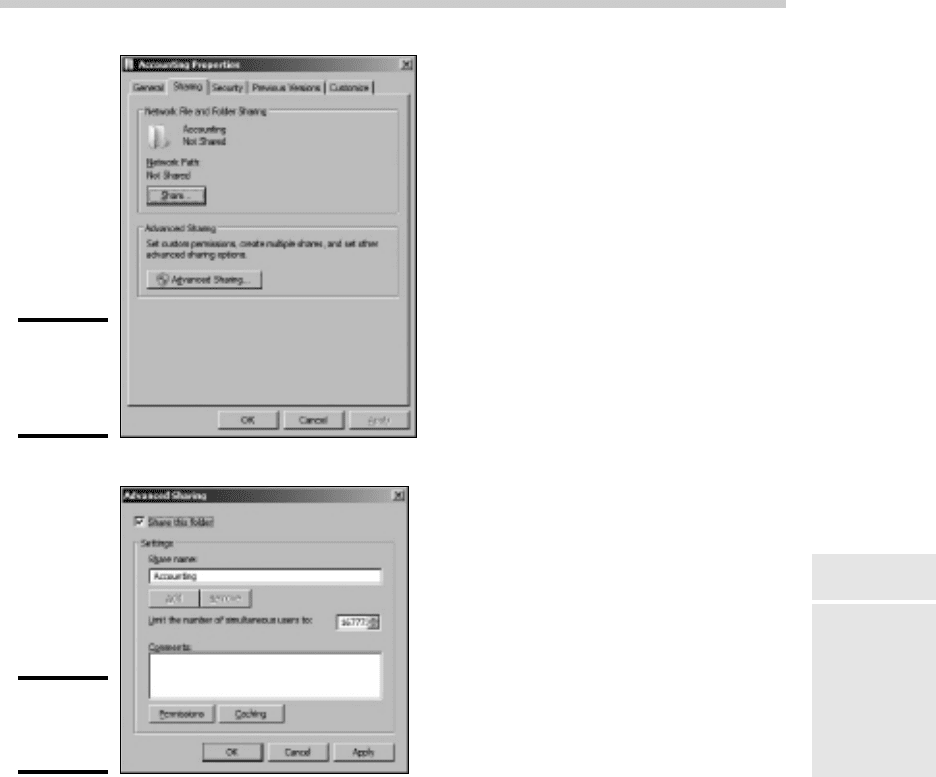
3. Click the Sharing tab.
The Sharing tab comes to the front, as shown in Figure 5-10.
4. Click the Advanced Sharing button.
The dialog box shown in Figure 5-11 appears.
5. Select the Share This Folder check box to designate the folder as
shared.
The rest of the controls in this dialog box will be unavailable until you
select this check box.
6. Type the name that you want to use for the share in the Share Name
box and type a description of the share in the Comments box.
The default name is the name of the folder being shared. If the folder
name is long, you can use a more succinct name here.
The description is strictly optional but can sometimes help users
determine the intended contents of the folder.
53_625873-bk07ch05.indd 54853_625873-bk07ch05.indd 548 9/21/10 10:39 PM9/21/10 10:39 PM
Book VII
Chapter 5
Managing a File
Server
549
Managing Your File Server
Figure 5-10:
Manually
sharing a
folder.
Figure 5-11:
Setting the
share name.
7. If you want to specify permissions now, click Permissions.
This brings up a dialog box that lets you create permissions for the
share. For more information, see the next section, “Granting permissions.”
8. Click OK.
The folder is now shared.
Granting permissions
When you first create a file share, all users are granted read-only access to
the share. If you want to allow users to modify files in the share or allow
them to create new files, you need to add additional permissions. Here’s
how to do this via the Share and Storage Management console:
53_625873-bk07ch05.indd 54953_625873-bk07ch05.indd 549 9/21/10 10:39 PM9/21/10 10:39 PM
550
Managing Your File Server
1. Choose Start➪Administrative Tools➪Share and Storage Management.
The Share and Storage Management console appears.
2. Right-click the share you want to set permissions for, choose
Properties, and then click the Permissions tab.
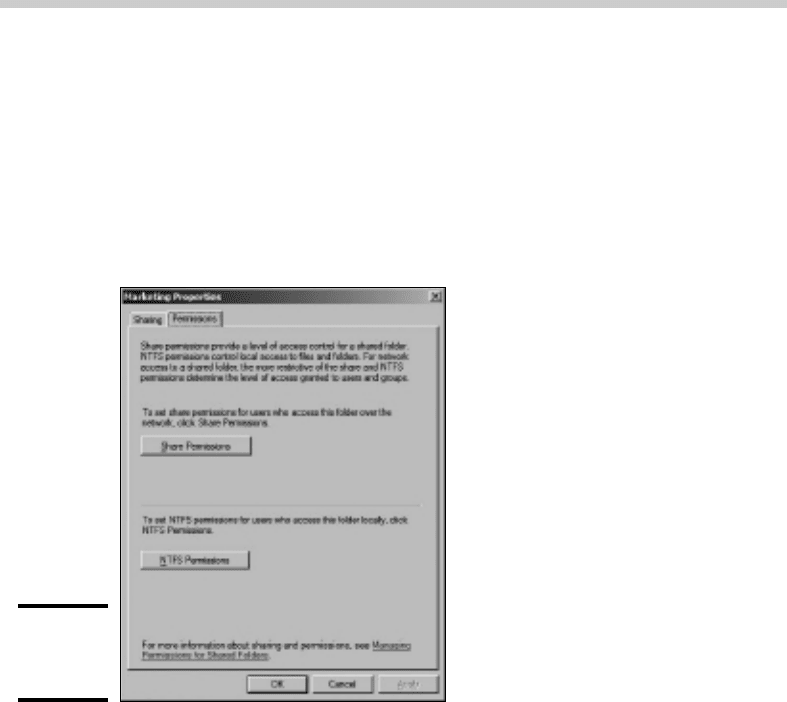
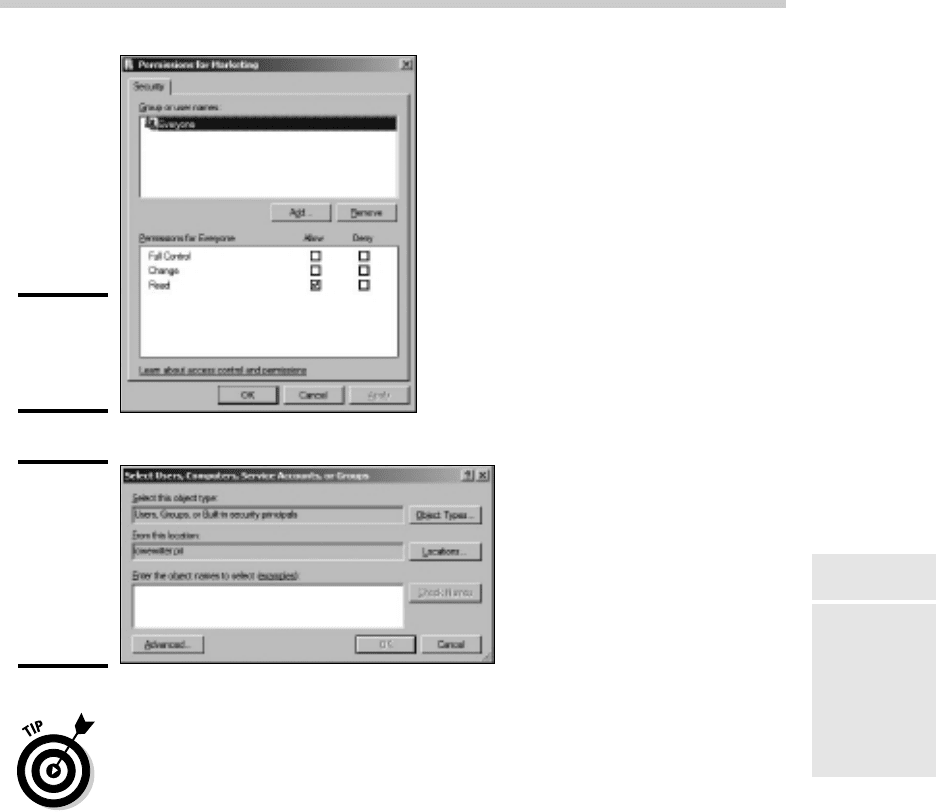
The dialog box shown in Figure 5-12 appears. This dialog box lets you
set the permissions for the share itself or set the NTFS permissions for
the folder being shared.
Figure 5-12:
Setting
permissions.
3. Click Share Permissions.
The dialog box shown in Figure 5-13 appears. This dialog box lists all
the users and groups to whom you’ve granted permission for the folder.
When you select a user or group from the list, the check boxes at the
bottom of the list change to indicate which specific permissions you’ve
assigned to each user or group.
4. Click Add.
The dialog box shown in Figure 5-14 appears.
5. Type the name of the user or group to whom you want to grant
permission and then click OK.
You return to the Share Permissions tab, with the new user or group
added.
53_625873-bk07ch05.indd 55053_625873-bk07ch05.indd 550 9/21/10 10:39 PM9/21/10 10:39 PM
Book VII
Chapter 5
Managing a File
Server
551
Managing Your File Server
Figure 5-13:
Setting
the Share
Permissions.
Figure 5-14:
The Select
Users,
Computers,
Service
Accounts,
or Groups
dialog box.
If you’re not sure of the name, click Advanced. This action brings up the
Select Users, Computers, Service Accounts, or Groups dialog box shown.
Then, you can click the Find Now button to display a list of all users and
groups in the domain.
Alternatively, you can enter the first part of the name that you’re looking
for before you click Find Now to search more specifically. When you find
the user or group that you’re looking for, click OK.
6. Select the appropriate Allow or Deny check boxes to specify which
permissions to allow for the user or group.
7. Repeat Steps 4 through 6 for any other permissions that you want
to add.
8. When you’re done, click OK.
53_625873-bk07ch05.indd 55153_625873-bk07ch05.indd 551 9/21/10 10:39 PM9/21/10 10:39 PM

552
Managing Your File Server
Here are a few other thoughts to ponder concerning adding permissions:
✦ If you want to grant full access to everyone for this folder, don’t bother
adding another permission. Instead, select the Everyone group and then
select the Allow check box for each permission type.
✦ You can remove a permission by selecting the permission and then
clicking Remove.
✦ If you’d rather not fuss with the Share and Storage Management console,
you can set the permissions from My Computer. Right-click the shared
folder and choose Sharing and Security and then click Permissions. You
can then follow the preceding procedure, picking up at Step 4.
✦ The permissions assigned in this procedure apply only to the share
itself. The underlying folder can also have permissions assigned to it. If
that’s the case, whichever of the restrictions is more restrictive always
applies. For example, if the Share Permissions grant a user Full Control
permission, but the folder permission grants the user only Read
permission, the user has only Read permission for the folder.
53_625873-bk07ch05.indd 55253_625873-bk07ch05.indd 552 9/21/10 10:39 PM9/21/10 10:39 PM

Chapter 6: Using Group Policy
In This Chapter
✓ Looking at group policy concepts
✓ Enabling group policy on a Windows Server
✓ Editing group policy objects
G
roup policy refers to a feature of Windows operating systems that
lets you control how certain aspects of Windows and other Microsoft
software work throughout your network. Many features that you might
expect to find in a management console such as Active Directory Users and
Computers are controlled instead by group policy. For example, you must
use group policy to control how often users must change their passwords
and how complicated their passwords must be. As a result, group policy is
an important tool for any Windows network administrator.
Unfortunately, group policy can be a confusing beast. In fact, it’s one of the
more confusing aspects of Windows network administration. So don’t be put
off if you find this chapter more confusing than other chapters in this section.
Group policy becomes clear after you spend some time actually working
with it.
Understanding Group Policy
Here it is in a nutshell: Group policy consists of a collection of group policy
objects (also called GPOs) that define individual policies. These policy objects
are selectively applied to both users and computers. Each policy object
specifies how some aspect of Windows or some other Microsoft
software should be configured. For example, a group policy object might
specify the home page that’s initially displayed when any user launches
Internet Explorer. Then, when a user logs on to the domain, that policy object
is retrieved and applied to the user’s Internet Explorer configuration.
Group policy objects can apply to either computers or users. A policy that
applies to a computer will be enforced for any user of the computer. And a
policy that applies to a user will be enforced for that user no matter what
computer he or she logs on to. As a network administrator, you’ll be mostly
concerned with policies that apply to users. But computer policies are
useful from time to time as well.
54_625873-bk07ch06.indd 55354_625873-bk07ch06.indd 553 9/21/10 10:40 PM9/21/10 10:40 PM

554
Enabling Group Policy Management on Windows Server 2008
To use group policy, you have to know how to do two things: (1) create
individual group policy objects, and (2) apply — or link — those objects to
user and computer objects. Both tasks can be a little tricky.
The trick to creating group policy objects is finding the particular setting
you want to employ. Trying to find a specific group policy among the thousands
of available policies can be frustrating. For example, suppose you want to
force all network users to change their passwords every 30 days. You know
there’s a group policy that controls the password expiration date. But where
is it? You’ll find help with this aspect of working with group policy in the
section titled “Creating Group Policy Objects,” later in this chapter.
After you’ve created a group policy object, you then are faced with the task
of linking it to the users or computers you want it to apply to. Creating a
policy that applies to all users or computers is simple enough. But things
get more complicated if you want to be more selective — for example, if
you want the policy to apply only to users in a particular organizational unit
(OU) or to users that belong to a particular group. You’ll find help for this
aspect of working with group policy in the section “Filtering Group Policy
Objects,” later in this chapter.
Enabling Group Policy Management
on Windows Server 2008
Before you can work with group policy on a Windows Server 2008, you must
enable group policy on the server. The procedure is simple enough and
needs to be done only once for each server. Here are the steps:
1. Choose Start➪Administrative Tools➪Server Manager.
2. Click Features in the console tree.
3. Click Add Features.
Be patient — it takes a few minutes for the list of features to populate.
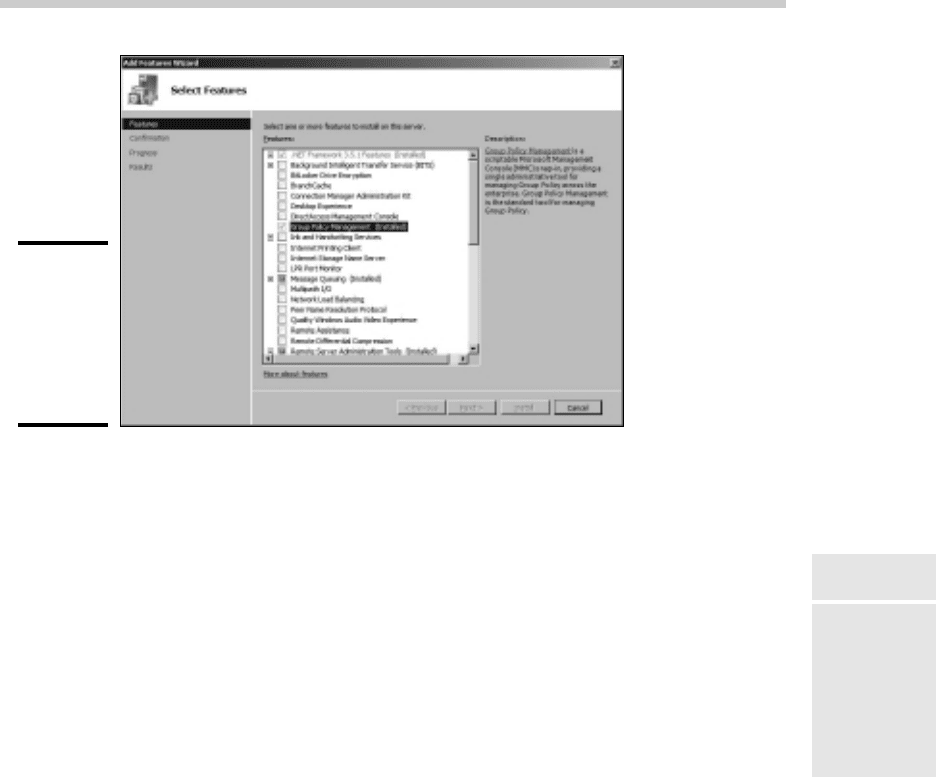
Eventually, the dialog box shown in Figure 6-1 appears.
4. Select the Group Policy Management check box and then click Next.
5. When the confirmation page appears, click Install.
Be patient again — it may take a few minutes to install.
6. Click Close — you’re done!
After you’ve completed this procedure, a new command titled Group Policy
Management appears on the Start➪Administrative Tools menu. You use this
command to create and link Group Policy objects.
54_625873-bk07ch06.indd 55454_625873-bk07ch06.indd 554 9/21/10 10:40 PM9/21/10 10:40 PM
Book VII
Chapter 6
Using Group Policy
555
Creating Group Policy Objects
Figure 6-1:
Enabling
Group
Policy
Management
on Windows
Server 2008.
Creating Group Policy Objects
The easiest way to create group policy objects is to use the Group Policy
Management Console, which you can run by clicking Start, and then
choosing Administrative Tools➪Group Policy Management.
A single group policy object can consist of one or many individual group
policy settings. The Group Policy Management Console presents the thousands
of group policy settings that are available for your use in several categories.
The more you work with group policy, the more these categories will begin
to make sense. When you first get started, you can expect to spend a lot of
time hunting through the lists of policies to find the specific one you’re
looking for.
The easiest way to learn how to use the Group Policy Management Console
is to use it to create a simple group policy object. In the following procedure,
I show you how to create a GPO that defines a group policy that sets the
browser’s home page to www.dummies.com.
1. Choose Start➪Administrative Tools➪Group Policy Management.
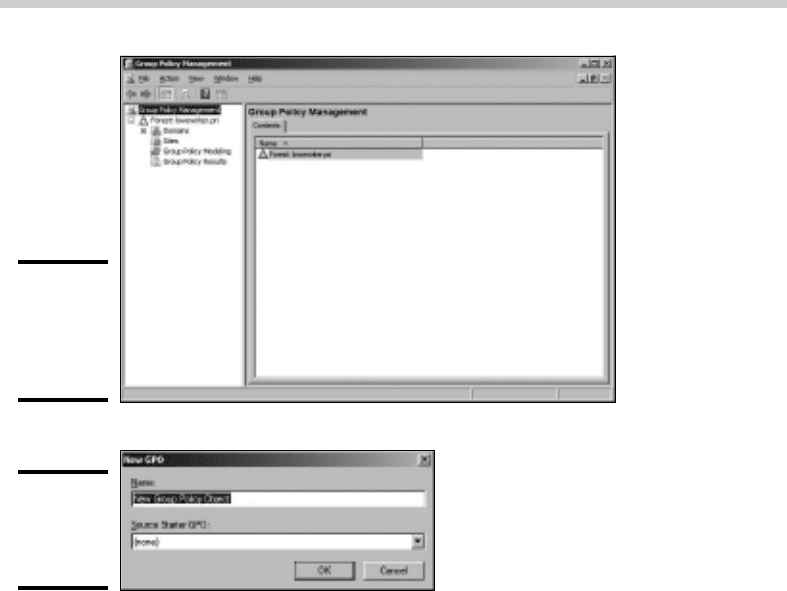
The Group Policy Management console appears, as shown in Figure 6-2.
2. In the Navigation pane, drill down to the Group Policy Objects node
for your domain.
3. Right-click the Group Policy Objects node and then choose New from
the menu that appears.
This brings up the dialog box shown in Figure 6-3.
54_625873-bk07ch06.indd 55554_625873-bk07ch06.indd 555 9/21/10 10:40 PM9/21/10 10:40 PM
556
Creating Group Policy Objects
Figure 6-2:
The Group
Policy
Management
console.
Figure 6-3:
Creating a
new group
policy object.
4. Type a name for the group policy object and then click OK.
For this example, I typed IE Home Page as the group policy object
name.
When you click OK, the group policy object is created.
5. Double-click the new group policy.
The group policy opens, as shown in Figure 6-4. Note that at this stage,
the Location section of the group policy does not list any objects. As a
result, this policy is not yet linked to any Active Directory domains or
groups. I get to that in a moment. But first, I create the policy settings.
6. Click the Settings tab.
The group policy settings are displayed, as shown in Figure 6-5.
7. Right-click User Configuration and then choose Edit.
This opens the Group Policy Management Editor to edit the User
Configuration policies, as shown in Figure 6-6.
54_625873-bk07ch06.indd 55654_625873-bk07ch06.indd 556 9/21/10 10:40 PM9/21/10 10:40 PM