
Lowe D. Networking For Dummies
Подождите немного. Документ загружается.

Book VII
Chapter 6
Using Group Policy
557
Creating Group Policy Objects
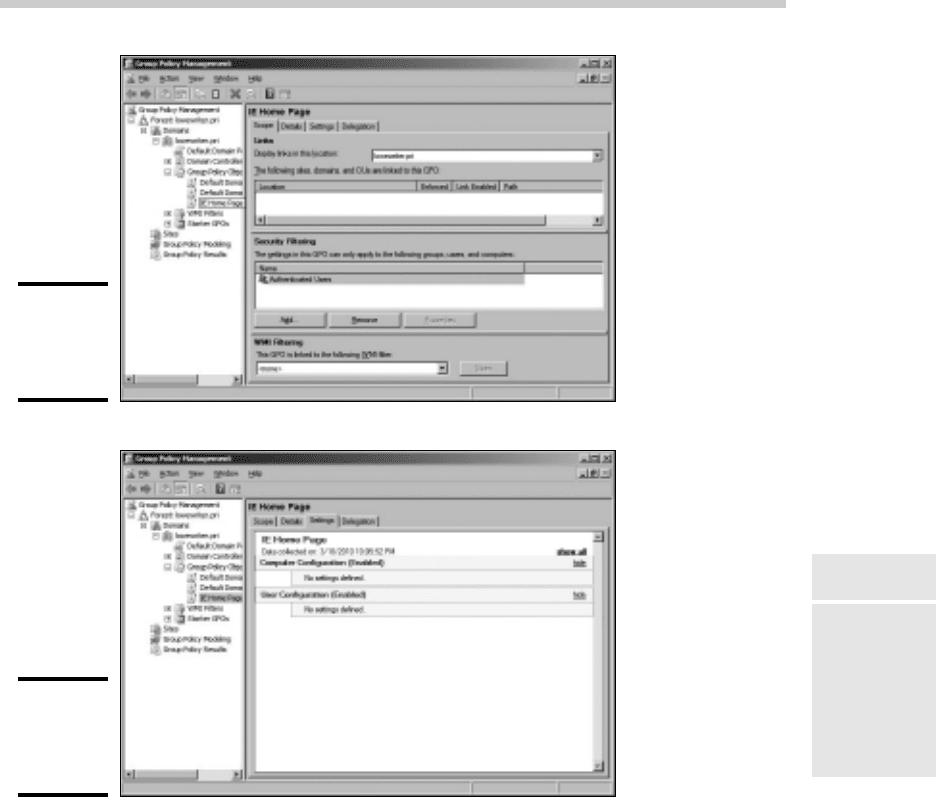
Figure 6-4:
A new
group policy
object.
Figure 6-5:
A new
group policy
object.
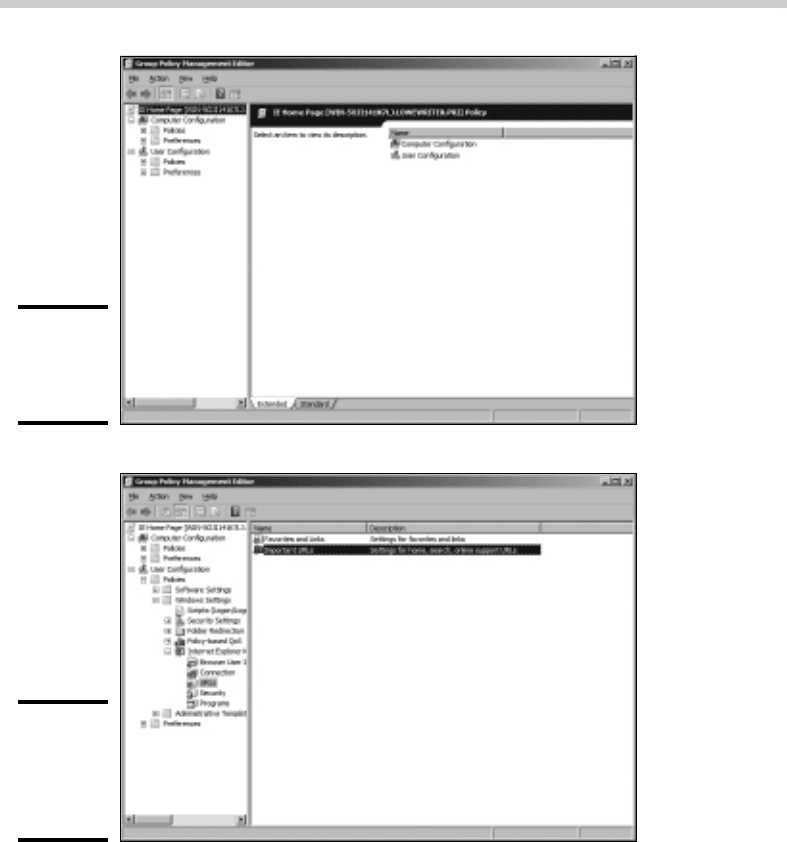
8. In the Navigation pane, navigate to User Configuration➪Policies➪
Windows Settings➪Internet Explorer Maintenance➪URLs.
This brings up the Internet Explorer URL settings, as shown in Figure 6-7.
9. Double-click Important URLs.
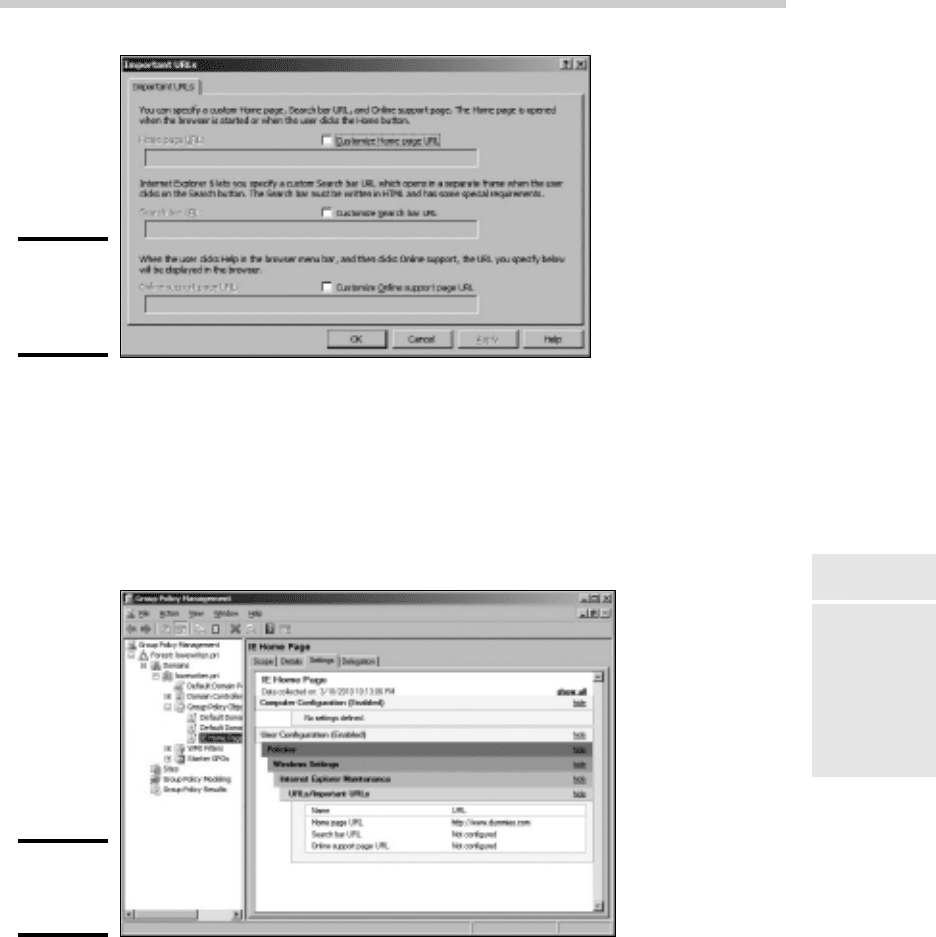
This brings up the Important URLs dialog box, as shown in Figure 6-8.
54_625873-bk07ch06.indd 55754_625873-bk07ch06.indd 557 9/21/10 10:40 PM9/21/10 10:40 PM
558
Creating Group Policy Objects
Figure 6-6:
Editing
group
policy.
Figure 6-7:
The Internet
Explorer
Settings
URLs page.
10. Select the Customize Home Page URL check box.
11. Enter the URL you want to use for the home page.
For this example, I entered http://www.dummies.com.
12. Click OK.
You are returned to the Group Policy Management Editor.
54_625873-bk07ch06.indd 55854_625873-bk07ch06.indd 558 9/21/10 10:40 PM9/21/10 10:40 PM
Book VII
Chapter 6
Using Group Policy
559
Creating Group Policy Objects
Figure 6-8:
The
Important
URLs page.
13. Close the Group Policy Management Editor window.
This returns you to the Group Policy Management settings window you
opened in Step 5.
14. Right-click User Configuration and choose Refresh.
The IE home page policy is now visible, as shown in Figure 6-9.
Figure 6-9:
The IE Home
Page policy.
15. In the navigation pane, drag the new IE Home Page object to the
top-level domain (in this case, LoweWriter.pri).
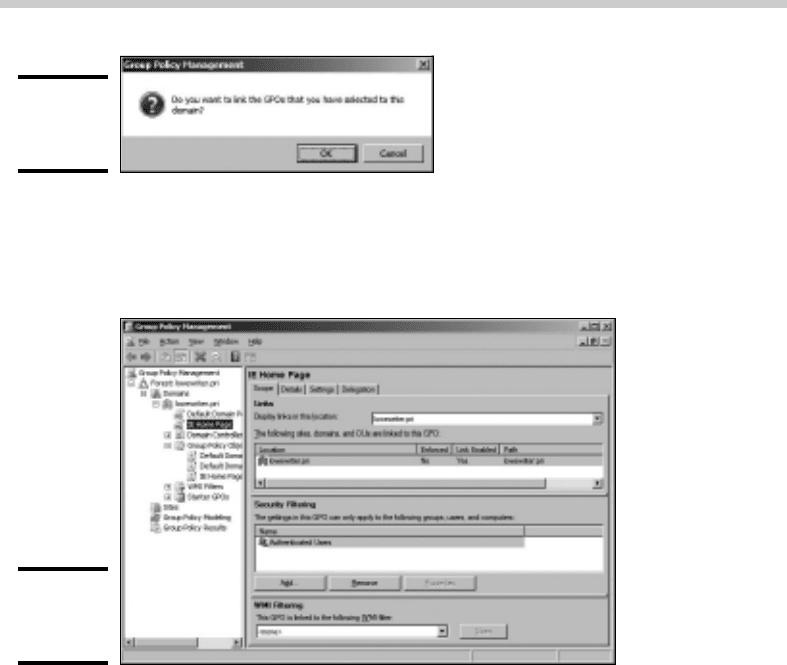
When you release the mouse button, the dialog box shown in Figure 6-10
appears.
54_625873-bk07ch06.indd 55954_625873-bk07ch06.indd 559 9/21/10 10:40 PM9/21/10 10:40 PM
560
Filtering Group Policy Objects
Figure 6-10:
Confirming
the scope.
16. Click OK.
The domain is added to the scope, as shown in Figure 6-11.
Figure 6-11:
The policy is
finished.
17. Close the Group Policy Management window.
The new group policy is now active, so the Internet Explorer home page
is now set to www.dummies.com for all users in the domain.
Filtering Group Policy Objects
One of the more confusing aspects of group policy is that even though it
applies to users and computers, you don’t associate group policy objects
with users or computers. Instead, you link them to sites, domains, or
organizational units (OUs). At first glance, this might seem to limit the
usefulness of group policy. For most simple networks, you’ll work with group
policy mostly at the domain level, and occasionally at the OU level. Site-level
group policy objects are used only for very large or complex networks.
Group policy wouldn’t be very useful if you had to assign the exact same
policy to every user or computer within a domain. And although OUs can
help break down group policy assignments, even that is limiting because a
54_625873-bk07ch06.indd 56054_625873-bk07ch06.indd 560 9/21/10 10:40 PM9/21/10 10:40 PM

Book VII
Chapter 6
Using Group Policy
561
Filtering Group Policy Objects
particular user or computer can be a member of only one OU. Fortunately,
group policy objects can have filters that further refine which users or
computers the policy applies to. Although you can filter policy objects so
they apply only to individual users or computers, you’re more likely to use
groups to apply your group policy objects.
For example, suppose you want to use group policy to set the home page
for your marketing staff to www.dummies.com, but you want the accounting
staff to go to www.beancounters.com by default. You can easily accomplish
this by creating a Marketing group and an Accounting group in Active
Directory Users and Computers and assigning the marketing and accounting
users to the appropriate groups. Then, you can create two group policy
objects: one for the marketing department’s home page, the other to assign
the accounting department’s home page. You can then link both of these
policy objects to the domain and use filters to specify which group each
policy applies to.
For the following procedure, I’ve created two group policies, named IE
Home Page Dummies and IE Home Page Beancounter, as well as two Active
Directory groups, named Marketing and Accounting. Here are the steps for
filtering these policies to link correctly to the groups:
1. Choose Start➪Administrative Tools➪Group Policy Management.
The Group Policy Management console appears. (Refer to Figure 6-2 for
a refresher on what it looks like.)
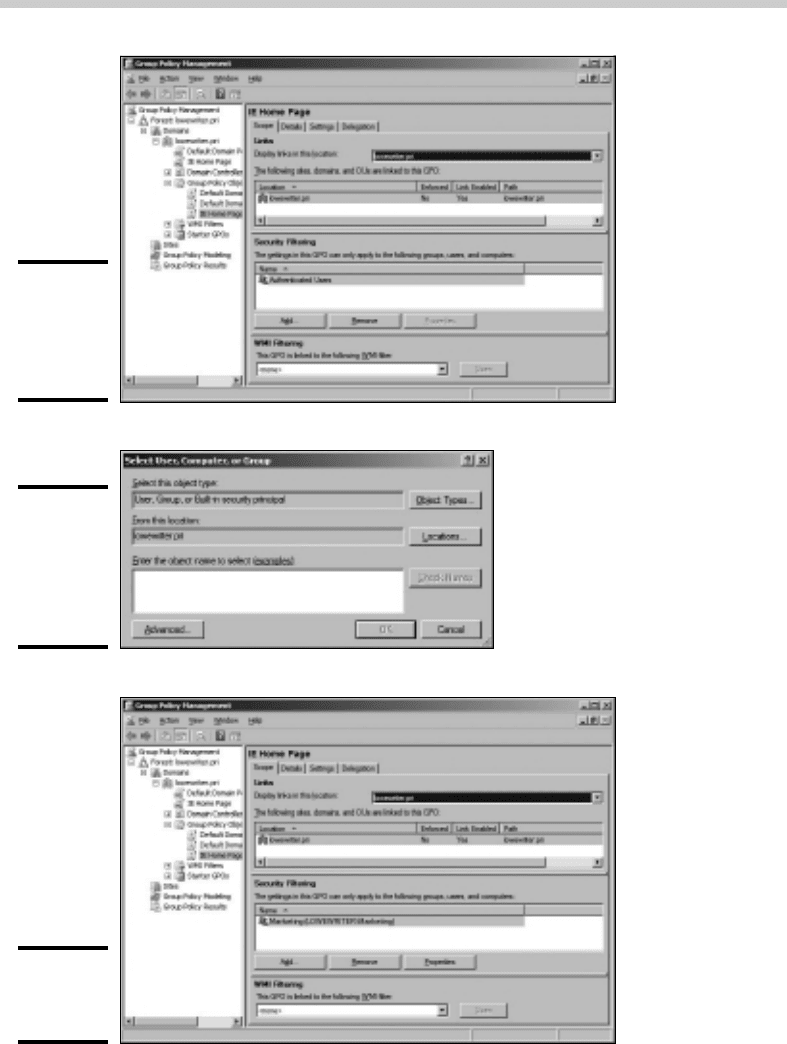
2. In the Navigation pane, navigate to the group policy object you want
to apply the filter to.
For this example, I navigated to the IE Home Page Dummies policy, as
shown in Figure 6-12.
3. In the Security Filtering section, click Authenticated Users, and then
click Remove.
This removes Authenticated Users, so the policy will not be applied to
all users.
4. Click Add.
This brings up the Select User, Computer, or Group dialog box, as shown
in Figure 6-13.
5. Type Marketing in the text box and then click OK.
The policy is updated to indicate that it applies to members of the
Marketing group, as shown in Figure 6-14.
6. Repeat Steps 2 through 5 for the IE Home Page Beancounter policy,
applying it to the Accounting group.
You’re done!
54_625873-bk07ch06.indd 56154_625873-bk07ch06.indd 561 9/21/10 10:40 PM9/21/10 10:40 PM
562
Filtering Group Policy Objects
Figure 6-12:
The IE
Home Page
Dummies
policy.
Figure 6-13:
The Select
User,
Computer,
or Group
dialog box.
Figure 6-14:
A policy that
uses a filter.
54_625873-bk07ch06.indd 56254_625873-bk07ch06.indd 562 9/21/10 10:40 PM9/21/10 10:40 PM

Chapter 7: Troubleshooting
In This Chapter
✓ Examining the Event Viewer
✓ Perusing the Performance console
✓ Checking out the Computer Management console
✓ Surveying the Services console
B
oth Windows Server 2003 and Windows Server 2008 are extremely
reliable. Get them configured right in the first place, and they’ll chug
along without incident. That is, at least until something goes wrong. Which
is inevitable.
In this chapter, I review some of the tools that Windows provides to help
you diagnose trouble. Before I start, however, I want to point you to a few
other chapters that also contain troubleshooting information. This chapter
deals only with those tools that apply specifically to Windows servers. You
can find other information in these chapters:
✦ Book II, Chapter 7 gives you some guidance on verifying that the
network is functioning.
✦ Book III, Chapter 6 gives some basic performance management tips.
✦ Book III, Chapter 7 gives some basic network troubleshooting tips.
✦ Book IV, Chapter 6 explains how to use the TCP/IP troubleshooting
tools, such as ping and ipconfig.
Working with the Event Viewer
Windows has a built-in event-tracking feature that automatically logs a
variety of interesting system events. Usually, when something goes wrong
with your server, you can find at least one and maybe dozens of events in
one of the logs. All you have to do is open the Event Viewer and check the
logs for suspicious-looking entries.
55_625873-bk07ch07.indd 56355_625873-bk07ch07.indd 563 9/21/10 10:40 PM9/21/10 10:40 PM
564
Working with the Event Viewer
Using the Event Viewer
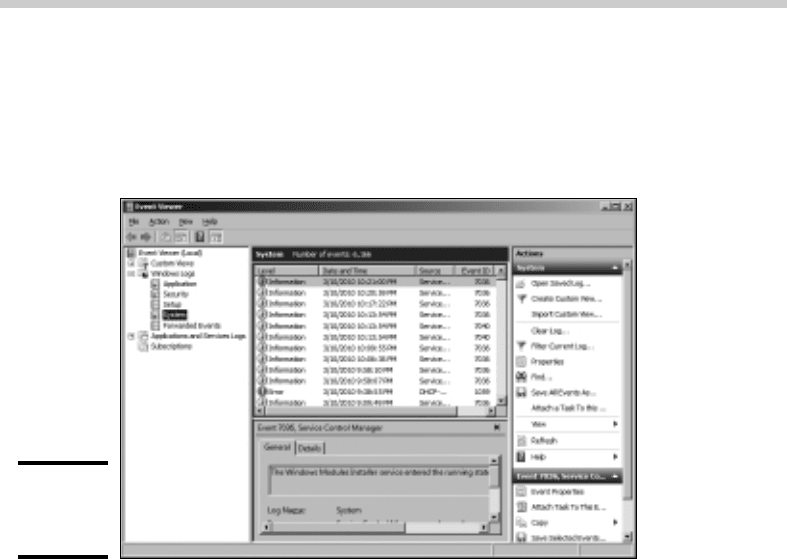
To display the event logs, choose Start➪Administrative Tools➪Event Viewer.
This brings up the Event Viewer, as shown in Figure 7-1. The tree on the left
side of the Event Viewer lists the various categories of events that are tracked:
Figure 7-1:
The Event
Viewer.
✦ Application: Lists events that were generated by application programs.
In most cases, these are events that the application’s developers
purposely wrote to the event log in order to inform you of error
conditions or developing trouble.
✦ Security: Lists security-related events, such as unsuccessful logon
attempts, changes to security policy, and so on. For information about
how to change the events that are written to the security log, see
Chapter 5 of this minibook.
✦ Setup: Lists events generated during operating system setup.
✦ System: This is where you find events related to hardware or operating
system failures. For example, if you’re having trouble with a hard drive,
you should check here for events related to the hard drive.
✦ Forwarded Events: Lists other events that were forwarded to this server.
Note that you may find other categories in this list, depending on the roles
you have configured for the server.
Select one of these options to see the log that you want to view. In Figure 7-1,
I clicked the System Events log.
Notice the cute little icons next to each item in the log. Table 7-1 summarizes
the meaning of these icons.
55_625873-bk07ch07.indd 56455_625873-bk07ch07.indd 564 9/21/10 10:40 PM9/21/10 10:40 PM
Book VII
Chapter 7
Troubleshooting
565
Working with the Event Viewer
Table 7-1 Icons Used in the Event Log
Icon Name Description
Information This message simply indicates that some
noteworthy operation completed successfully.
Warning This message indicates that an event developed
a problem that wasn’t fatal, but it may indicate a
problem looming on the horizon.
Error This message indicates that something has gone
wrong.
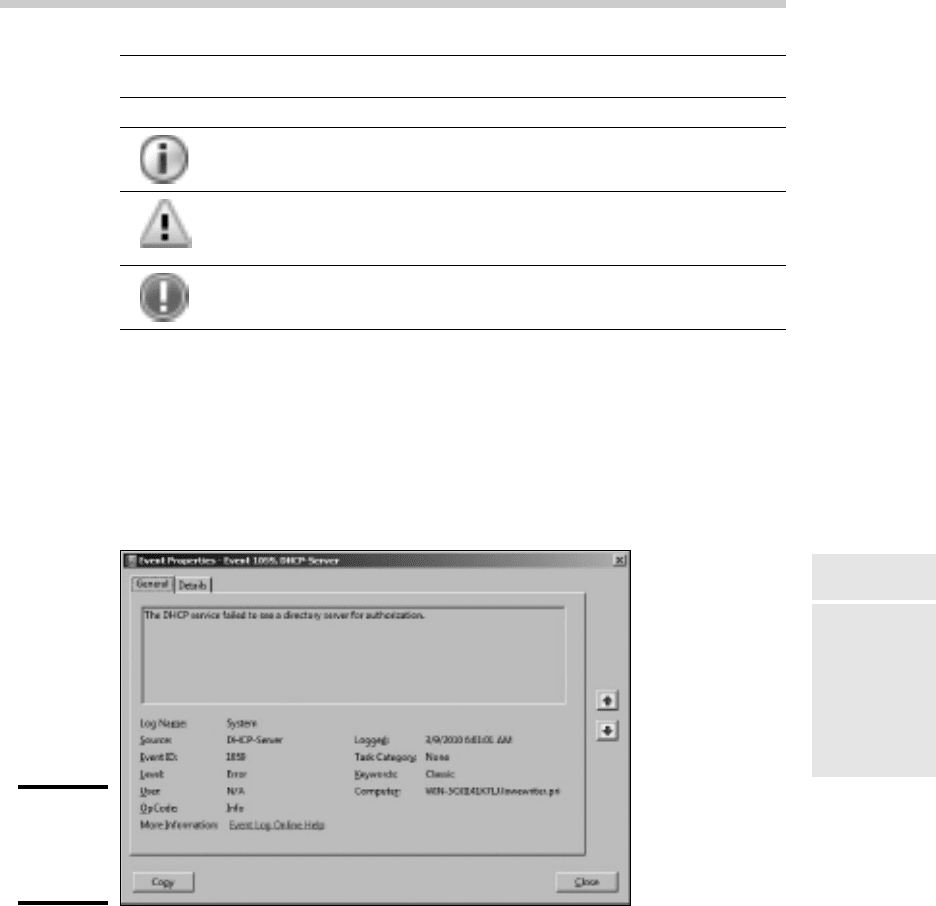
To see the details for a particular event, double-click the event to bring up
the Event Properties dialog box, shown in Figure 7-2. Here you can see the
details of the event. In some cases, you may be able to diagnose a problem
just by reading the error message displayed in this dialog box. In other
cases, this information just points you in the right direction — it tells you
what went wrong, but you still have to figure out why.
Figure 7-2:
The Event
Properties
dialog box.
Setting event log policies
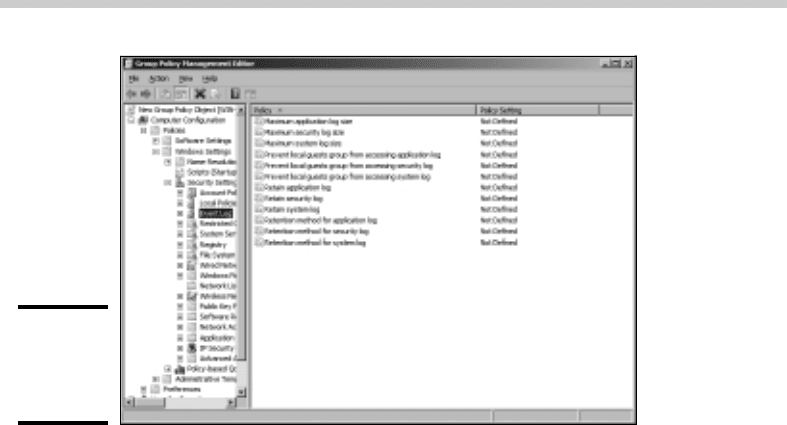
You can set default policies that affect how application, security, and system
event logs are kept by opening the Group Policy Management Editor. You
can find the event log policies under Computer Configuration, Policies,
Windows Settings, Security Settings in the tree to the left. See Figure 7-3.
55_625873-bk07ch07.indd 56555_625873-bk07ch07.indd 565 9/21/10 10:40 PM9/21/10 10:40 PM
566
Monitoring Performance
Figure 7-3:
Setting the
event log
policies.
You can use these policies to specify the following options for the
Application, Security, and System logs:
✦ Maximum Log Size: Lets you specify the maximum size of the log in KB.
✦ Prevent Local Guests from Accessing Log: Prevents users who are
logged on using a guest account from viewing the logs. This is a good
security precaution.
✦ Retain Log: This policy sounds like it may let you disable the log, but it
doesn’t. Instead, it specifies the number of days that log data should be
kept if you specify By Days as the Retention Method policy.
✦ Retention Method for Log: Specifies how log events should be
overwritten when the log becomes full. Options are By Days, As Needed,
or Do Not Overwrite.
Monitoring Performance
The Performance Monitor console is a troubleshooting tool that can help
you track down nasty and elusive problems — particularly the type that
don’t cause the server to crash but just cause it to run slowly. With the
Performance Monitor console, you can look at many different aspects of
system performance to figure out why your system is dragging.
55_625873-bk07ch07.indd 56655_625873-bk07ch07.indd 566 9/21/10 10:40 PM9/21/10 10:40 PM