
Lowe D. Networking For Dummies
Подождите немного. Документ загружается.


Book VII
Chapter 8
Windows
Commands
577
Special Command Tricks
✦ Press the right-arrow key to recall the text of the last command that you
entered, one letter at a time. When you get to the spot where the new
command should differ from the previous command, start typing.
✦ Press F3 to recall all of the previous commands, from the current cursor
position to the end of the line.
✦ If you want to repeat a command that you’ve used recently, press
the up-arrow key. This recalls up to 50 of the most recently executed
commands. You can press Enter to execute a command as is, or you
can edit the command before you execute it.
Using the Control menu
Although the command window has no menu bar, it does have a menu that
you can access via the control box at the top-left corner of the window.
Besides the commands found on this menu for all windows (such as Move,
Size, and Minimize), this menu includes three additional commands:
✦ Edit: The Edit command leads to a submenu with several choices.
Several of these commands work together so that you can copy
information from the command window to the Clipboard and vice
versa. If you choose Edit➪Mark, you’re placed in a special editing mode
that lets you highlight text in the command window with the mouse.
(Normally, the mouse doesn’t do anything in the command window.)
You can then choose Edit➪Copy or just press Enter to copy the text that
you selected to the Clipboard.
You can also use the Edit menu to paste text from the Clipboard, to
scroll the window, and to search the window for text.
✦ Default: Lets you set default properties for the command window.
✦ Properties: Displays a Properties dialog box that you can use to change
the appearance of the window. You can change the font size, choose
background colors, and make other adjustments to make the command
window look good on your computer.
Special Command Tricks
Before I get into the details of using specific commands, I want to describe
some techniques you should familiarize yourself with. In many cases, these
techniques can let you accomplish in a single command what would
otherwise take dozens of separate commands.
56_625873-bk07ch08.indd 57756_625873-bk07ch08.indd 577 9/21/10 10:41 PM9/21/10 10:41 PM

578
Special Command Tricks
Wildcards
Wildcards are one of the most compelling reasons to use the command
prompt. With wildcards, you can process all the files that match a particular
naming pattern with a single command. For example, suppose that you have
a folder containing 500 files, and you want to delete all the files that contain
the letters Y2K and end with the extension .doc, which happens to be 50
files. If you open a My Documents window, you’ll spend ten minutes picking
these files out from the list. From a command window, you can delete them
all with the single command Del *Y2K*.doc.
You can use two wildcard characters: An asterisk stands for any number
of characters, including zero, and an exclamation point stands for just one
character. Thus, !Text.doc would match files with names like aText.
doc, xText.doc, and 4Text.doc, but not abcText.doc or just Text.doc.
However, *Text.doc would match any of the names mentioned in the
previous sentence.
Wildcards work differently in Windows than they did in MS-DOS. In MS-DOS,
anything you typed after an asterisk was ignored. Thus, ab*cd.doc was the
same as ab*.doc. In Windows, the asterisk wildcard can come before static
text, so ab*cd.doc and ab*.doc are not the same.
Chaining commands
You can enter two or more commands on the same line by separating the
commands with an ampersand (&), like this:
C:\>copy *.doc a: & del *.doc
Here, the Copy command copies all the .doc files to the A: drive. Then, the
Del command deletes the .doc files.
Although that may be convenient, it’s also dangerous. What if the A: drive
fills up so that all the files can’t be copied? In that case, the Del command
executes anyway, deleting the files that didn’t get copied.
A safer alternative is to use two ampersands, which says to execute the
second command only if the first command finishes successfully. Thus:
C:\>copy *.doc a: && del *.doc
Now, the Del command will be executed only if the Copy command succeeds.
You can also use two pipe characters (the pipe is the vertical bar character
that’s above the backslash on the keyboard) to execute the second command
only if the first command fails. Thus,
C:\>copy *.doc a: || echo Oops!
56_625873-bk07ch08.indd 57856_625873-bk07ch08.indd 578 9/21/10 10:41 PM9/21/10 10:41 PM

Book VII
Chapter 8
Windows
Commands
579
Special Command Tricks
displays the message “Oops!” if the Copy command fails.
Finally, you can use parentheses to group commands. Then, you can use the
other symbols in combination. For example:
C:\>(copy *.doc a: && del *.doc) || echo Oops!
Here, the files are copied and then deleted if the copy was successful. If
either command fails, the message is displayed.
Redirection and piping
Redirection and piping are related techniques. Redirection lets you specify
an alternative destination for output that will be displayed by a command
or an alternative source for input that should be fed into a command. For
example, you can save the results of an ipconfig /all command to a file
named myconfig.txt like this:
C:\>ipconfig /all > myconfig.txt
Here, the greater-than sign (>) is used to redirect the command’s console
output.
If a command accepts input from the keyboard, you can use input redirection
to specify a file that contains the input you want to feed to the command.
For example, you can create a text file named lookup.txt with subcommands
for a command such as nslookup. Then, you can feed those scripted
subcommands to the nslookup command, like this:
C:\>nslookup < lookup.txt
Piping is a similar technique. It takes the console output from one command
and feeds it into the next command as input. Piping is often used with
special commands called filters, which are designed to read input from the
console, modify the data in some way, and then write it to the console.
For example, suppose that you want to display the contents of a file named
users.txt sorted into alphabetical order. You can use the Type command,
which displays a file on the console, and then you can pipe the output into
the Sort command, a filter that sorts its input and displays the sorted
output on the console. The resulting command would look like this:
C:\>type users.txt | sort
The vertical bar is often called the pipe character because it’s the symbol
used to indicate piping.
56_625873-bk07ch08.indd 57956_625873-bk07ch08.indd 579 9/21/10 10:41 PM9/21/10 10:41 PM

580
Special Command Tricks
Environment variables
The command shell makes several environment variables available to
commands. Environment variables all begin and end with percent signs. You
can use an environment variable anywhere in a command. For example,
C:\>echo %OS% running on a %PROCESSOR_IDENTIFIER%
displays a line such as this:
Windows_NT running on an x86 Family 15 Model 2 Stepping 8,
GenuineIntel
Interestingly, Windows NT, Windows 2000 Server, Windows Server 2003, and
Windows Server 2008 all display “Windows_NT” for the operating system
name.
If the environment variable represents a path, you may need to enclose it in
quotation marks, like this:
C:\>dir “%HOMEPATH%”
This command displays the contents of the user’s home directory. The quo-
tation marks are required here because the environment variable expands to
a pathname that may include spaces, and the command shell requires that
long filenames that include spaces must be enclosed in quotation marks.
Table 8-1 lists the environment variables that are available to you and your
commands.
Table 8-1 Environment Variables
Variable Description
%ALLUSERSPROFILE%
The location of the All Users profile
%APPDATA%
The path where applications store data
by default
%CD%
The path to the current directory
%CMDCMDLINE%
The command line that was used to start
the command shell
%CMDEXTVERSION%
The version number of the command shell
%COMPUTERNAME%
The computer’s name
%COMSPEC%
The path to the command shell executable
(cmd.exe)
%DATE%
The current date in the format generated
by the date /t command
56_625873-bk07ch08.indd 58056_625873-bk07ch08.indd 580 9/21/10 10:41 PM9/21/10 10:41 PM

Book VII
Chapter 8
Windows
Commands
581
Special Command Tricks
Variable Description
%ERRORLEVEL%
The error returned by the most recent
command
%HOMEDRIVE%
The drive letter of the user’s home directory
%HOMEPATH%
The path to the user’s home directory
%HOMESHARE%
The network path to the user’s shared
home directory
%LOGONSERVER%
The name of the domain controller the
user logged on to
%NUMBER_OF_PROCESSORS%
The number of processors on the computer
%OS%
The name of the operating system
%PATH%
The current search path
“%PATHEXT%”
A list of the extensions the operating
system treats as executable files
%PROCESSOR_ARCHITECTURE%
The chip architecture of the processor
%PROCESSOR_IDENTIFIER%
A description of the processor
%PROCESSOR_REVISION%
The revision level of the processor
%PROMPT%
The current prompt string
%RANDOM%
A random number between 1 and 32,767
%SYSTEMDRIVE%
The drive containing the operating system
%SYSTEMROOT%
The path to the operating system
%TEMP%
The path to a temporary folder for
temporary files
%TMP% Same as %TEMP%
%TIME%
The time in the format produced by the
time /t command
%USERDOMAIN%
The name of the user’s domain
%USERNAME%
The user’s account name
%USERPROFILE%
The path to the user’s profile
%WINDIR%
The path to the operating system directory
Batch files
A batch file is simply a text file that contains one or more commands. Batch
files are given the extension .bat and can be run from a command prompt
as if they were commands or programs. You can also run a batch file from
the Start menu by choosing Start➪Run, typing the name of the batch file,
and clicking OK.
56_625873-bk07ch08.indd 58156_625873-bk07ch08.indd 581 9/21/10 10:41 PM9/21/10 10:41 PM

582
The EventCreate Command
As a network administrator, you’ll find plenty of uses for batch files. Most of
them won’t be very complicated. For example, here are some examples of
very simple batch files I’ve used:
✦ I once used a one-line file to copy the entire contents of an important
shared network drive to a user’s computer every night at 10 p.m. The
user had just purchased a new Dell computer with a 100GB drive, and
the server had only a 20GB drive. The user wanted a quick-and-dirty
backup solution that would complement the regular tape backups that
ran every night.
✦ I’ve also used a pair of short batch files to stop and then restart
Exchange server before and after nightly backups for backup software
that didn’t have an Exchange plug-in that could back up the mail store
while it was open.
✦ If I frequently need to work with several related folders at once, I create
a short batch file that opens Explorer windows for each of the folders.
(You can open an Explorer window from a batch file simply by typing
the path to the folder that you want to open as a command.) Then, I
place the batch file on my desktop so I can get to it quickly.
You can also use batch files to create logon scripts that are executed
whenever a user logs on. Microsoft keeps trying to get users to use profiles
instead of logon scripts, but many networks still use logon scripts.
The EventCreate Command
The EventCreate command lets you create an event that’s added to one
of the Windows event logs. This can be useful if you want to make a note of
something unusual that’s happened. It’s often used in batch files to mark the
start or completion of a task such as a nightly backup.
Here’s the basic syntax:
eventcreate [options]
eventcreate /T type /D “description” /ID eventide
[/L logname] [/SO sourcename]
[/S system [/U username [/P password]]]
Here’s a description of the options:
✦ /T: Specifies the type. The options are Information, Warning, or
Error.
✦ /D: Provides a descriptive message that’s saved in the log. Use quotes if
the message contains more than one word.
✦ /ID: A number from 1 to 1000.
56_625873-bk07ch08.indd 58256_625873-bk07ch08.indd 582 9/21/10 10:41 PM9/21/10 10:41 PM
Book VII
Chapter 8
Windows
Commands
583
Net Commands
✦ /L: The name of the log to write the event to. The default is
Application.
✦ /SO: A string that represents the source of the event. The default is
EventCreate. If you specify this option, you must also specify the /L
option.
✦ /S: The name of the system on which the event should be recorded.
✦ /U: The user account to use when logging the event. You can specify
this option only if you also specify /S.
✦ /P: The password. You can specify this option only if you also specify /U.
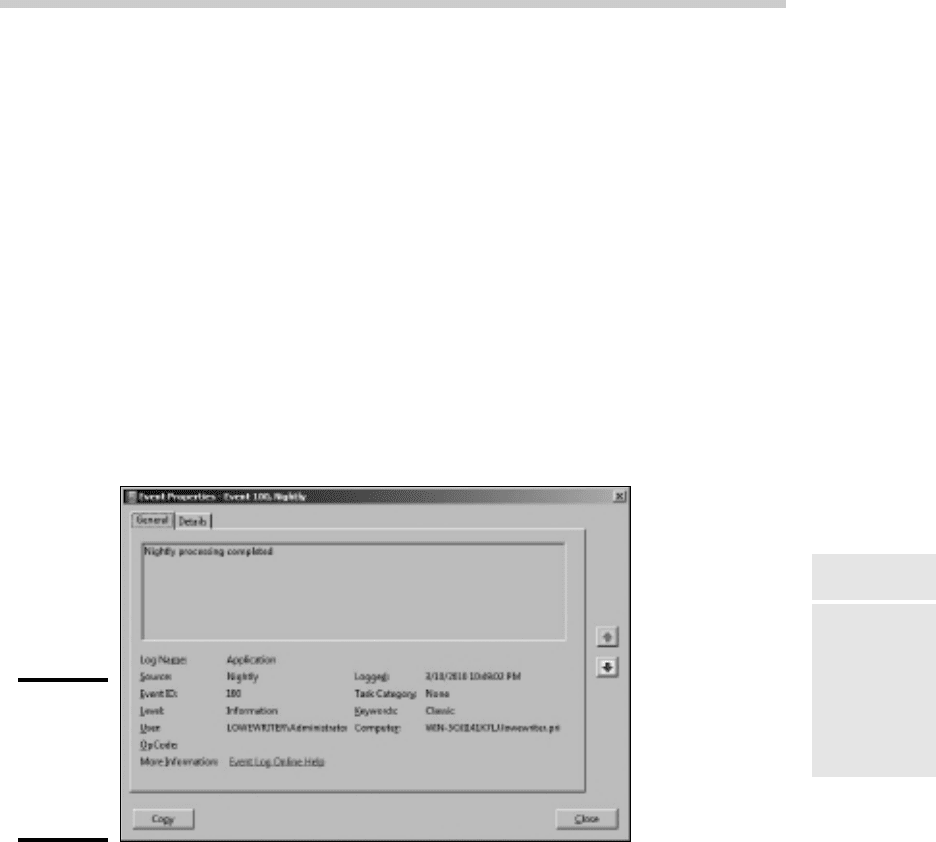
Here’s an example that writes an informational message to the Application log:
eventcreate /t information /id 100 /d “Nightly processing
completed” /L Application /SO Nightly
Figure 8-2 shows an event created by the above command.
Figure 8-2:
An event
generated
by the
EventCreate
command.
Net Commands
Among the more useful commands for network administrators are the Net
Services commands. These commands are all two-word commands,
beginning with Net — such as Net Use and Net Start. In the following
sections, I present each of the Net commands, in alphabetical order for
handy reference. First, though, I want to point out a few details about the
Net commands:
56_625873-bk07ch08.indd 58356_625873-bk07ch08.indd 583 9/21/10 10:41 PM9/21/10 10:41 PM

584
Net Commands
✦ You can get a quick list of the available Net commands by typing net /?
at a command prompt.
✦ You can get brief help for any Net command by typing net help
command. For example, to display help for the Net Use command,
type net help use. (Yes, we all could use some help.)
✦ Many of the Net commands prompt you for confirmation before
completing an operation. For these commands, you can specify /Y or /N
to bypass the confirmation prompt. You’ll want to do that if you include
these commands in a batch file that runs unattended. Note that you can
use /Y or /N on any Net command, even if it doesn’t prompt you for
confirmation. So I suggest that you place /Y on every Net command in a
batch file that you intend on running unattended.
The Net Accounts command
This command updates user account policies for password requirements.
Here’s the command syntax:
net accounts [/forcelogoff:{minutes | no}]
[/minpwlen:length] [/maxpwage:{days | unlimited}]
[/minpwage:days] [/uniquepw:number]
[/domain]
The following paragraphs describe the parameters for the Net Accounts
command:
✦ Forcelogoff: Specifies how long to wait before forcing a user off the
system when the user’s logon time expires. The default value, no,
prevents users from being forced to log off. If you specify a number, the
user will be warned a few minutes before being forcibly logged off.
✦ Minpwlen: Specifies the minimum length for the user’s password.
Length can be from 0 through 127. The default is 6.
✦ Maxpwage: Specifies the number of days a user’s password is considered
valid. Unlimited means the password will never expire. Days can be
from 1 through 49,710, which is about 135 years. The default is 90.
✦ Minpwage: Specifies the minimum number of days after a user changes
a password before the user can change it again. The default value is 0.
You should usually set this value to 1 day in order to prevent users from
bypassing the Uniquepw policy.
✦ Uniquepw: Indicates how many different passwords the user must
use before he or she is allowed to reuse the same password again. The
default setting is 5. The range is from 0 to 24.
✦ Domain: Specifies that the operation should be performed on the
primary domain controller rather than on the local computer.
56_625873-bk07ch08.indd 58456_625873-bk07ch08.indd 584 9/21/10 10:41 PM9/21/10 10:41 PM

Book VII
Chapter 8
Windows
Commands
585
Net Commands
If you enter Net Accounts without any parameters, the command simply
displays the current policy settings.
Here’s an example that sets the minimum and maximum password ages:
C:\>net accounts /minpwage:7 /maxpwage:30
The Net Computer command
This command creates or deletes a computer account. Here’s the syntax:
net computer \\computername {/add | /del}
The following paragraphs describe the parameters for the Net Computer
command:
✦ Computername: The name of the computer to add or delete.
✦ Add: Creates a computer account for the specified computer.
✦ Del: Deletes the specified computer account.
Here’s an example that adds a computer named Theodore:
C:\>net computer \\theodore /add
The Net Config command
This command lets you view or configure various network services. Here’s
the syntax:
net config [{server|workstation}]
To configure server settings, use this syntax:
net config server [/autodisconnect:time]
[/srvcomment:”text”] [/hidden:{yes | no}]
The following paragraphs describe the parameters for the Net Config
command:
✦ Server: Lets you display and configure the Server service while it’s
running.
✦ Workstation: Lets you display and configure the Workstation service
while it’s running.
✦ Autodisconnect: Specifies how long a user’s session can be inactive
before it’s disconnected. Specify –1 to never disconnect. The range is –1
to 65535 minutes, which is about 45 days. The default is 15 minutes.
56_625873-bk07ch08.indd 58556_625873-bk07ch08.indd 585 9/21/10 10:41 PM9/21/10 10:41 PM

586
Net Commands
✦ Srvcomment: Specifies a description of the server. The comment can be
up to 48 characters long and should be enclosed in quotation marks.
✦ Hidden: Specifies whether the server appears in screens that display
available servers. Hiding a server doesn’t make the server unavailable;
it just means that the user will have to know the name of the server in
order to access it. The default is No.
Here’s an example that sets a server’s descriptive comment:
C:\>net config server /srvcomment:”DHCP Server”
The Net Continue command
This command continues a service you’ve suspended with the Net Pause
command. Here’s the syntax:
net continue service
Here are some typical services that you can pause and continue.
✦ Netlogon: The Net Logon service.
✦ Schedule: The Task Scheduler service.
✦ Server: The Server service.
✦ Workstation: The Workstation service.
Here’s an example that continues the Workstation service:
C:>net continue workstation
If the service name has embedded spaces, enclose the service name in
quotation marks. For example, this command continues the NT LM Security
Support Provider service:
C:\>net continue “nt lm security support provider”
The Net File command
This command lists all open shared files and the number of file locks placed
on each file. You can also use this command to close files and remove locks,
which is a useful procedure when a user manages to accidentally leave a file
open or locked. Here’s the syntax:
C:\>net file [id [/close]]
56_625873-bk07ch08.indd 58656_625873-bk07ch08.indd 586 9/21/10 10:41 PM9/21/10 10:41 PM