
Lowe D. Networking For Dummies
Подождите немного. Документ загружается.


Book IX
Chapter 2
Getting Used
to Linux
687
Linux: It Isn’t Windows
The fundamental difference between the Linux and Windows file system is
that Linux treats everything in the entire system as a file, and it organizes
everything into one gigantic tree that begins at a single root. When I say,
“Everything is treated as a file,” I mean that hardware devices such as floppy
drives, serial ports, and Ethernet adapters are treated as files.
The root of the Linux file system is the root partition from which the operat-
ing system boots. Additional partitions, including other devices that support
file systems such as CD-ROM drives, floppy drives, or drives accessed over
the network, can be grafted into the tree as directories called mount points.
Thus, a directory in the Linux file system may actually be a separate hard
drive.
Another important aspect of the Linux file system is that the directories that
compose a Linux system are governed by a standard called the Filesystem
Hierarchy Standard (FHS). This standard spells out which directories a Linux
file system should have. Because most Linux systems conform to this stan-
dard, you can trust that key files will always be found in the same place.
Table 2-1 lists the top-level directories that are described in the FHS.
Table 2-1 Top-Level Directories in a Linux File System
Directory Description
/bin
Essential command binaries
/boot
Static files of the boot loader
/dev
Devices
/etc
Configuration files for the local computer
/home
Home directories for users
/lib
Shared libraries and kernel modules
/mnt
Mount point for file systems mounted temporarily
/opt
Add-on applications and packages
/root
Home directory for the root user
/sbin
Essential system binaries
/tmp
Temporary files
/usr
Read-only, shared files such as binaries for user commands and
libraries
/var
Variable data files
64_625873-bk09ch02.indd 68764_625873-bk09ch02.indd 687 9/21/10 10:45 PM9/21/10 10:45 PM
688
On Again, Off Again
On Again, Off Again
Any user who accesses a Linux system, whether locally or over a network,
must be authenticated by a valid user account on the system. In the follow-
ing sections, you find out how to log on and off of a Linux system and how to
shut down the system.
Logging on
When Linux boots up, it displays a series of startup messages as it starts the
various services that compose a working Linux system. Assuming that you
selected X Window when you installed Linux, you’re eventually greeted by
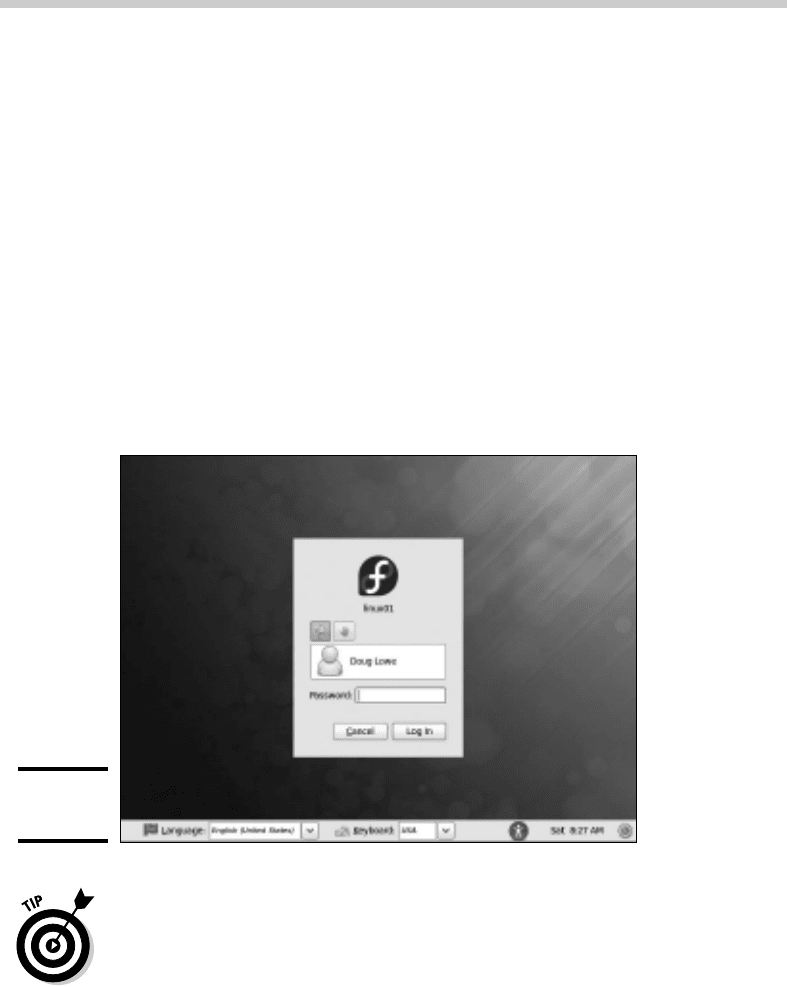
the screen shown in Figure 2-1. To log on to Linux, type your user ID on this
screen, press Enter, and then type your password and press Enter again.
(Note that this logon screen is for Fedora. Other distributions have similar
logon screens.)
Figure 2-1:
Logging on.
As a part of the installation process, the Setup Agent created a user account
for you. You should use this user account rather than the root user account
whenever possible. Use the root account only when you are making major
changes to the system’s configuration. When you’re doing routine work,
log on as an ordinary user in order to avoid accidentally corrupting your
system.
When you log on, Linux grinds its gears for a moment and then displays the
GNOME desktop, which I describe later in this chapter.
64_625873-bk09ch02.indd 68864_625873-bk09ch02.indd 688 9/21/10 10:45 PM9/21/10 10:45 PM
Book IX
Chapter 2
Getting Used
to Linux
689
Using GNOME
Logging off
After you’ve logged on, you’ll probably want to know how to log off. To do
so, choose System➪Log Out. A dialog box asks whether you’re sure that you
want to log out. Click Log Out.
Shutting down
As with any operating system, you should never turn off the power to a
Linux server without first properly shutting down the system. You can shut
down a Linux system by using one of these two techniques:
✦ Press Ctrl+Alt+Delete.
✦ Choose System➪Shut Down.
Using GNOME
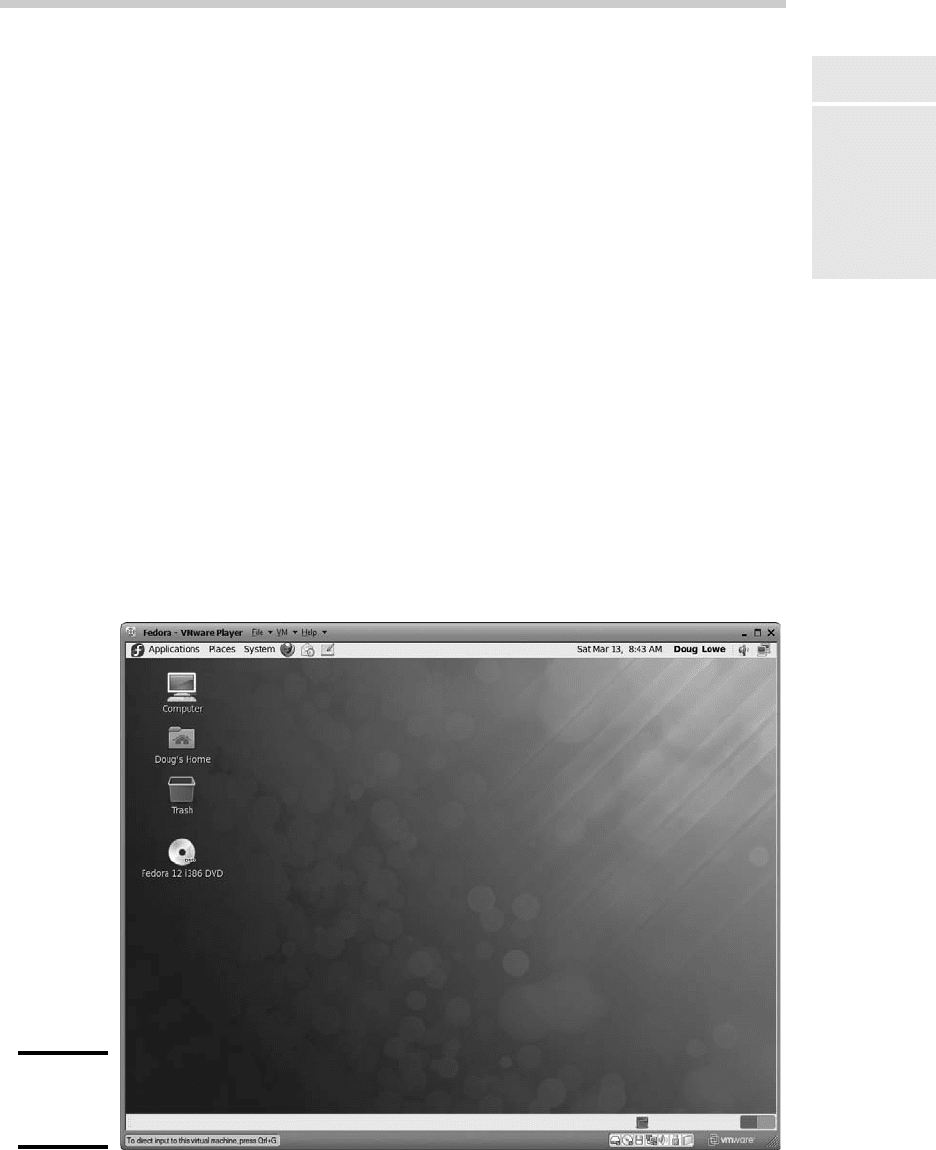
Figure 2-2 shows a typical GNOME desktop with the Text Editor application
open. As you can see, the GNOME desktop looks a lot like Microsoft Windows.
In fact, many of the basic skills used for working with Microsoft Windows — such
as moving or resizing windows, minimizing or maximizing windows, and using
drag-and-drop to move items between windows — are almost exactly the
same in GNOME. So you should feel right at home.
Figure 2-2:
The
desktop.
64_625873-bk09ch02.indd 68964_625873-bk09ch02.indd 689 9/21/10 10:45 PM9/21/10 10:45 PM
690
Getting to a Command Shell
The following paragraphs describe some of the key features of the GNOME
desktop:
✦ On the desktop, you can find several icons that let you access common
features. The Home icon lets you access your home directory. The
Computer icon is similar to the My Computer icon in Windows. And the
Trash icon is similar to the Recycle Bin in Windows.
✦ The panel at the top of the desktop area includes several menus and
icons. The Applications menu lists applications you can run, and the
Actions menu lists actions you can perform.
✦ Workspaces, you ask? A workspace is like a separate desktop where
you can keep windows open in order to reduce the clutter on your
screen. The panel beneath the desktop area contains a tool called the
Workspace Switcher, which lets you switch active workspaces by clicking
one of the rectangles in the grid.
Getting to a Command Shell
You can get to a command shell in one of two basic ways when you need to
run Linux commands directly. The first is to press Ctrl+Alt+Fx to switch to
one of the virtual consoles. (If you aren’t sure which function key to use to
open a virtual console, take a look back at the “Virtual consoles” section in
this chapter.) Then, you can log on and run commands to your heart’s con-
tent. When you’re done, press Ctrl+Alt+F7 to return to GNOME.
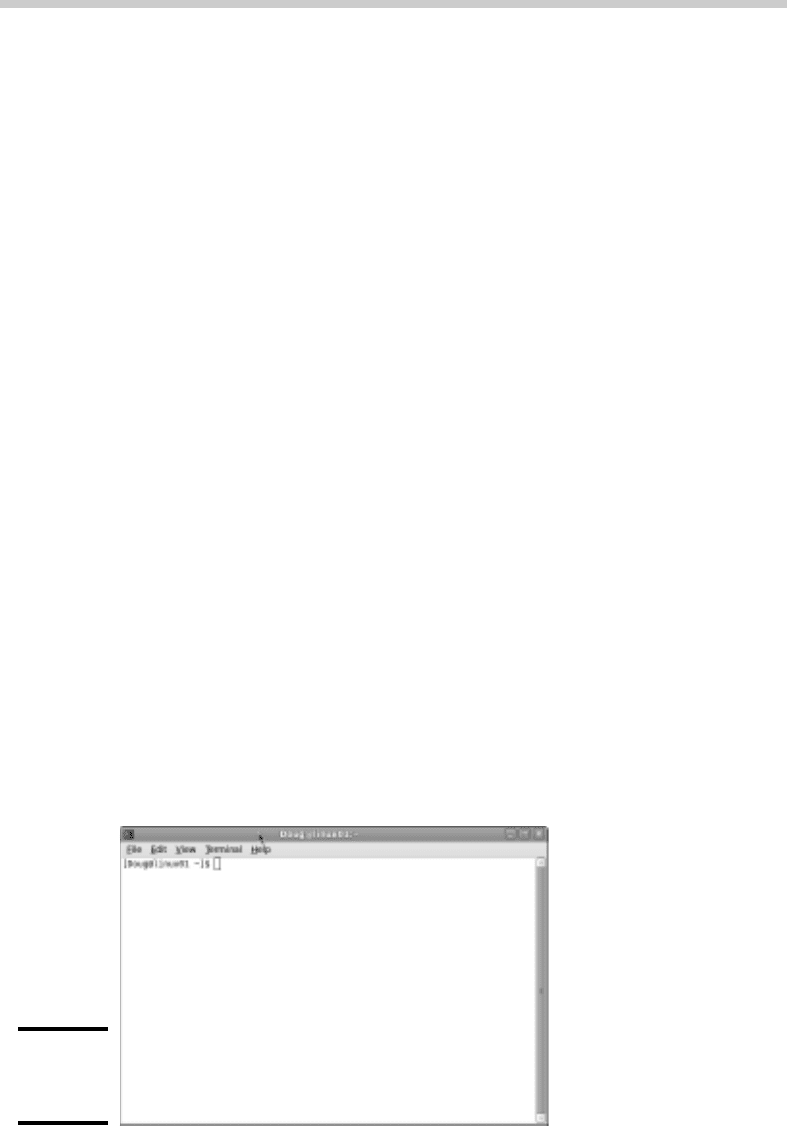
Alternatively, you can open a command shell directly in GNOME by choos-
ing Applications➪System Tools➪Terminal. This opens a command shell in
a window right on the GNOME desktop, as shown in Figure 2-3. Because this
shell runs within the user account that GNOME is logged on as, you don’t
have to log on. You can just start typing commands. When you’re done, type
Exit to close the window.
Figure 2-3:
A terminal
window.
64_625873-bk09ch02.indd 69064_625873-bk09ch02.indd 690 9/21/10 10:45 PM9/21/10 10:45 PM

Book IX
Chapter 2
Getting Used
to Linux
691
Managing User Accounts
Managing User Accounts
One of the most common network administration tasks is adding a user
account. The Setup Agent prompts you to create a user account the first
time you start Linux after installing it. However, you’ll probably need to
create additional accounts.
Each Linux user account has the following information associated with it:
✦ Username: The name the user types to log on to the Linux system.
✦ Full name: The user’s full name.
✦ Home directory: The directory that the user is placed in when he or she
logs on. In Fedora, the default home directory is /home/username. For
example, if the username is blowe, the home directory will be /home/
blowe.
✦ Shell: The program used to process Linux commands. Several shell
programs are available. In most distributions, the default shell is /bin/
bash.
✦ Group: You can create group accounts, which make it easy to apply
identical access rights to groups of users.
✦ User ID: The internal identifier for the user.
You can add a new user by using the useradd command. For example,
to create a user account named slowe, using default values for the other
account information, open a Terminal window or switch to a virtual console
and type this command:
# useradd slowe
The useradd command has many optional parameters that you can use to
set account information, such as the user’s home directory and shell.
Fortunately, most Linux distributions come with special programs that sim-
plify routine system management tasks. Fedora is no exception. It comes
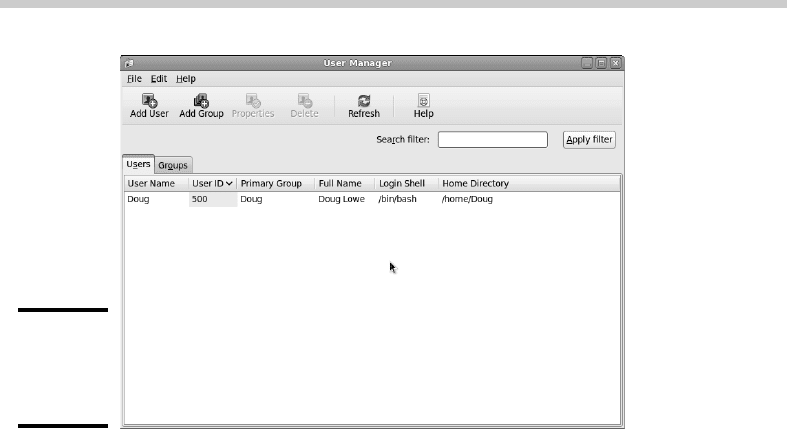
with a program called User Manager, shown in Figure 2-4. To start this pro-
gram, choose System➪Administration➪User and Groups.
To create a user with User Manager, click the Add User button. This brings
up a dialog box that asks for the user’s name, password, and other informa-
tion. Fill out this dialog box and then click OK.
The User Manager also lets you create groups. You can simplify the task of
administering users by applying access rights to groups rather than indi-
vidual users. Then, when a user needs access to a resource, you can add the
user to the group that has the needed access.
64_625873-bk09ch02.indd 69164_625873-bk09ch02.indd 691 9/21/10 10:45 PM9/21/10 10:45 PM
692
Managing User Accounts
Figure 2-4:
Managing
users and
groups.
To create a group, click the Add Group button. A dialog box appears, asking
for the name of the new group. Type the name you want and then click OK.
To add a user to a group, click the Groups tab in the User Manager. Then,
double-click the group to which you want to add users. This brings up the
Group Properties dialog box. Click the Group Users tab and then select the
users that you want to belong to the group.
64_625873-bk09ch02.indd 69264_625873-bk09ch02.indd 692 9/21/10 10:45 PM9/21/10 10:45 PM

Chapter 3: Basic Linux Network
Configuration
In This Chapter
✓ Configuring network interfaces
✓ Looking directly at network configuration files
✓ Using the ifconfig command to display network status
I
n many cases, configuring a Linux server for networking is a snap. When
you install Linux, the installation program automatically detects your net-
work adapters and installs the appropriate drivers. Then, you’re prompted
for basic network configuration information, such as the computer’s IP
address, host name, and so on.
However, you may need to manually change your network settings after
installation. You may also need to configure advanced networking features
that aren’t configured during installation. In this chapter, you discover the
basic procedures for configuring Linux networking services.
Using the Network Configuration Program
Before you can use a network interface to access a network, you have to
configure the interface’s basic TCP/IP options, such as its IP address, host
name, Domain Name System (DNS) servers, and so on. In this section, I show
you how to do that by using Fedora’s Network Configuration program. You
can access this program by choosing System➪Administration➪Network.
If you prefer a more masochistic approach to configuring your network, see
the section “Working with Network Configuration Files,” later in this chapter.
The Network Configuration program lets you configure the basic TCP/IP
settings for a network interface by pointing and clicking your way through
tabbed windows. Here are the steps:
65_625873-bk09ch03.indd 69365_625873-bk09ch03.indd 693 9/21/10 10:45 PM9/21/10 10:45 PM
694
Using the Network Configuration Program
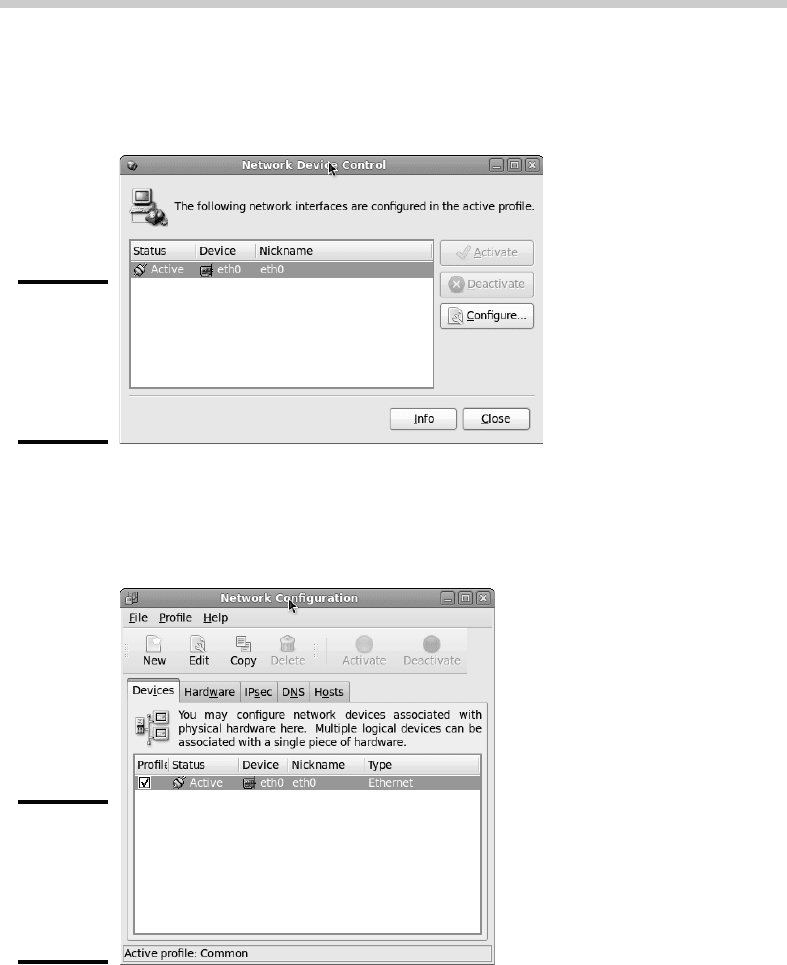
1. Choose System➪Administration➪Network.
The Network Device Control window appears, as shown in Figure 3-1.
Figure 3-1:
The
Network
Device
Control
program.
2. Click Configure.
This summons the Network Configuration window, shown in Figure 3-2.
Figure 3-2:
The
Network
Config-
uration
program.
3. Select the adapter that you want to configure and then click Edit.
The main window of the Network Configuration lists all the network inter-
faces installed in your computer. If your computer has more than one
interface, make sure that you select the correct one before proceeding.
65_625873-bk09ch03.indd 69465_625873-bk09ch03.indd 694 9/21/10 10:45 PM9/21/10 10:45 PM
Book IX
Chapter 3
Basic Linux
Network
Configuration
695
Using the Network Configuration Program
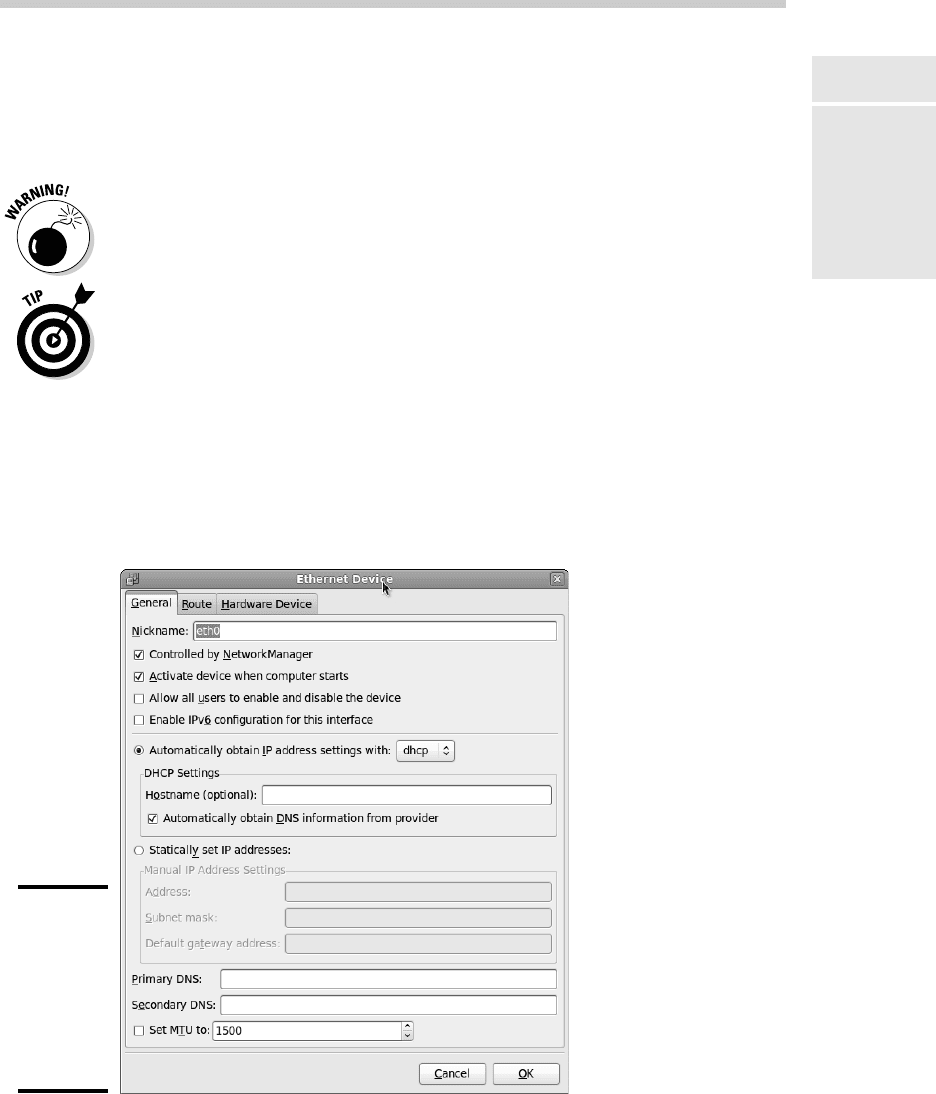
When you click Edit, the Ethernet Device window appears, as shown in
Figure 3-3.
4. To configure the device to use DHCP, select the Automatically Obtain
IP Address Settings with DHCP radio button, type the computer’s
name in the Hostname text box, and select the Automatically Obtain
DNS Information from Provider option.
If you plan on setting up this computer to be your network’s DHCP or
DNS server, you shouldn’t select this check box. Instead, you should
assign a static IP address as described in Step 5.
Some DHCP servers can’t provide DNS information. In that case, you
shouldn’t select the Automatically Obtain DNS Information from
Provider option. Instead, you should manually configure your DNS infor-
mation, as described in Steps 7 and 8.
5. To configure the device with a static IP address, select the Statically
Set IP Addresses option and then enter the IP address, subnet mask,
and Default Gateway that you want the adapter to use.
The IP address is most likely located on one of the standard private
subnets. You should almost always use a private address in the form
192.168.x.x.
Figure 3-3:
Configure
basic TCP/
IP settings
in the
Ethernet
Device
window.
65_625873-bk09ch03.indd 69565_625873-bk09ch03.indd 695 9/21/10 10:45 PM9/21/10 10:45 PM
696
Using the Network Configuration Program
If you’re setting up this computer to be the gateway router that will
manage traffic between your local network and the Internet, use a static
address that is easy to remember, such as 192.168.1.1.
The subnet mask should be the mask that’s appropriate for the IP
address you choose. For a 192.168.x.x address, use 255.255.255.0.
The default gateway address should be the address of the gateway
router that links your network to the Internet. If this computer is the
gateway router, specify the gateway address provided to you by your
Internet service provider (ISP).
6. Click OK.
You’re returned to the Network Configuration window.
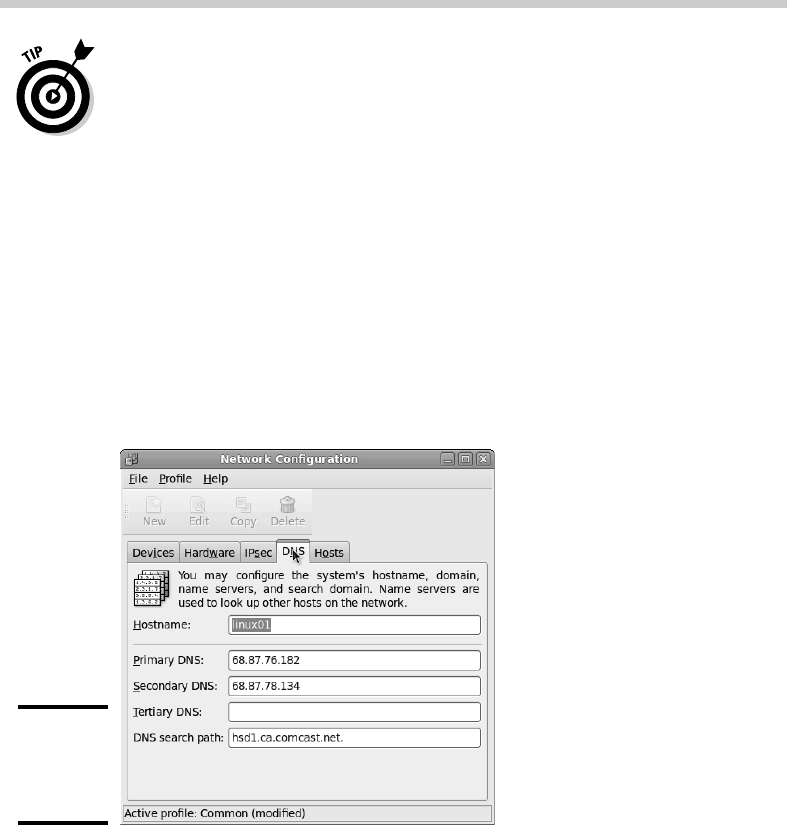
7. Click the DNS tab.
The DNS configuration settings appear, as shown in Figure 3-4.
Figure 3-4:
Configuring
DNS
settings.
8. Enter the IP addresses for the DNS servers that you want to use.
If your network runs its own DNS server, you can specify its address
here. Otherwise, you have to get the DNS server addresses from your
ISP.
9. Choose File➪Save.
Any changes that you’ve made to the network configuration are saved.
Then, an informative dialog box appears with the following message:
65_625873-bk09ch03.indd 69665_625873-bk09ch03.indd 696 9/21/10 10:45 PM9/21/10 10:45 PM