
Schmuller J. Statistical Analysis with Excel For Dummies
Подождите немного. Документ загружается.


409
Appendix A: When Your Worksheet Is a Database
3. In the Insert Function dialog box, select a function to open its
Function Arguments dialog box.
From the Database category, I selected DCOUNT and that’s the dialog
box in Figure A-2.
4. In the Function Arguments dialog box, enter the appropriate values
for the arguments.
For the Database, I entered Satellites in the Database box. For the Field,
I entered Average_Distance_X_1000_km in the Field box. This isn’t as
keyboard intensive as it sounds. As I type along, a pop-up appears with
the full name of the field name. Double-clicking the name puts it into the
Field box. For the Range, I entered C1:C2 in the Range box.
The answer, 9, appears in the dialog box.
5. Click OK to put the answer into the selected cell.
All the database functions follow the same format, you access them all the
same way, and you fill in the same type of information in their dialog boxes.
So I’m going to skip over that sequence of steps as I describe each function,
and just discuss the equivalent worksheet formula.
Counting and Retrieving
One essential database capability is to let you know how many records meet a
particular criterion. Another is to retrieve records. Here are the Excel versions.
DCOUNT and DCOUNTA
As I just showed you, DCOUNT counts records. The restriction is that the field
you specify has to contain numbers. If it doesn’t, the answer is zero, as in
=DCOUNT(Satellites,Name,C1:C2)
because no records in the Name field contain numbers.
DCOUNTA counts records in a different way. This one works with any field. It
counts the number of non-blank records in the field that satisfy the criterion.
So this formula returns 9:
=DCOUNTA(Satellites,Name,C1:C2)
29 454060-bapp01.indd 40929 454060-bapp01.indd 409 4/21/09 7:39:36 PM4/21/09 7:39:36 PM

410
Statistical Analysis with Excel For Dummies, 2nd Edition
Getting to “or”
Here’s a tally that involves “or”:
=DCOUNTA(Satellites,Name,D1:D3)
The criterion D1:D3 specifies satellites whose orbital period is 1.26 days or
greater than 20 days — as I mention before, multiple rows mean “or.” Five sat-
ellites meet that criterion: Deimos, Hyperion, Iapetus, our Moon, and Nereid.
Wildcards
Look closely at Figure A-1 and you see the cryptic entry *io in Cell B2. I did
that so you’d know that Excel database functions can deal with wildcard
characters. The formula
=DCOUNTA(Satellites,Name,B1:B2)
returns 3, the number of satellites with the letter-string “io” anywhere in their
names (Dione, Io, and Hyperion).
DGET
DGET retrieves exactly one record. If the criteria you specify result in more
than one record (or in no records), DGET returns an error message.
This formula
=DGET(Satellites,Name,D1:D2)
retrieves “Deimos,” the name of the satellite whose orbital period is 1.26 days.
This one
=DGET(Satellites,Name,E1:E2)
results in an error message because the criterion specifies more than one
record.
Arithmetic
Excel wouldn’t be Excel without calculation capabilities. Here are the ones it
offers for its databases.
29 454060-bapp01.indd 41029 454060-bapp01.indd 410 4/21/09 7:39:36 PM4/21/09 7:39:36 PM

411
Appendix A: When Your Worksheet Is a Database
DMAX and DMIN
As their names suggest, these provide the maximum value and the minimum
value according to your specifications. The formula
=DMAX(Satellites,Orbital_Period__Days,E1:E2)
returns 360.14. This is the maximum orbital period for any satellite that’s far-
ther than 150,000 km from its planet.
For the minimum value that meets this criterion,
=DMIN(Satellites,Orbital_Period__Days,E1:E2)
gives you –550.48. That’s Phoebe, a satellite that revolves in the opposite
direction to its planet’s rotation.
DSUM
This one adds up the values in a field. To add all the orbital periods in the
satellites discovered by Galileo or by Cassini, use this formula:
=DSUM(Satellites,Orbital_Period__Days,G1:G3)
That sum is 117.64.
Want to total up all the orbital periods? (I know, I know . . . =SUM(B11:B35).
Just work with me here.)
This formula gets it done:
=DSUM(Satellites,Orbital_Period__Days,C1:C3)
Why? It’s all in the criterion. C1:C3 means that Planet = Saturn or . . . anything
else, because C3 is empty. The sum, by the way, is 35.457. Bottom line: Be
careful whenever you include an empty cell in your criteria.
DPRODUCT
Here’s a function that’s probably here only because Excel’s designers could
create it. You specify the data values, and DPRODUCT multiplies them.
29 454060-bapp01.indd 41129 454060-bapp01.indd 411 4/21/09 7:39:36 PM4/21/09 7:39:36 PM

412
Statistical Analysis with Excel For Dummies, 2nd Edition
The formula
=DPRODUCT(Satellites,Orbital_Period__Days,G1:G2)
returns the product (749.832) of the orbital periods of the satellites Galileo
discovered — a calculation I’m pretty sure Galileo never thought about.
Statistics
Which brings me to the statistical database functions. These work just like
the similarly named worksheet functions.
DAVERAGE
Here’s the formula for the average of the orbital periods of satellites discov-
ered after 1887:
=DAVERAGE(Satellites,Orbital_Period__Days,F1:F2)
The average is negative (-36.4086) because the specification includes those
two satellites with the negative orbital periods.
DVAR and DVARP
DVAR is the database counterpart of VAR, which divides the sum of N
squared deviations by N-1. This is called sample variance.
DVARP is the database counterpart of VARP, which divides the sum of N
squared deviations by N. This is the population variance. (For details on VAR
and VARP, sample variance and population variance, and the implications of
N and N-1, see Chapter 5.)
Here’s the sample variance for the orbital period of satellites farther than
150,000 km from their planets and discovered after 1877:
=DVAR(Satellites,Orbital_Period__Days,E1:F2)
That turns out to be 210,358.1.
The population variance for that same subset of satellites is
=DVARP(Satellites,Orbital_Period__Days,E1:F2)
which is 140,238.7.
29 454060-bapp01.indd 41229 454060-bapp01.indd 412 4/21/09 7:39:36 PM4/21/09 7:39:36 PM

413
Appendix A: When Your Worksheet Is a Database
Once again, if you have multiple columns in the criteria, you’re dealing
with “and.”
DSTDEV and DSTDEVP
These two return standard deviations. The standard deviation is the square
root of the variance. (See Chapter 5.) DSTDEV returns the sample standard
deviation, which is the square root of DVAR’s returned value. DSTDEVP
returns the population standard deviation, the square root of DVARP’s
returned value.
For the specifications in the preceding example, the sample standard devia-
tion is
=DSTDEV(Satellites,Orbital_Period__Days,E1:F2)
which is 458.6481.
The population standard deviation is
=DSTDEVP(Satellites,Orbital_Period__Days,E1:F2)
This result is 374.4846.
According to Form
Excel provides a Data Form to help you work with databases. Unfortunately,
Excel 2007 didn’t put a button for this form on the Ribbon. To access this
button, you have to put it on the Quick Access toolbar.
Here’s how to do it:
1. Click the down arrow on the right of the Quick Access toolbar to open
the Customize Quick Access Toolbar menu.
2. From this menu, select More Commands to open the Excel Options
dialog box.
3. In the Choose Commands From drop-down menu, select Commands
Not in the Ribbon.
4. In the list box on the left, scroll down and select Form.
5. Click the Add button to put Form into the list box on the right.
6. Click OK to close the Excel Options dialog box.
The Data Form button is now on the Quick Access toolbar.
29 454060-bapp01.indd 41329 454060-bapp01.indd 413 4/21/09 7:39:36 PM4/21/09 7:39:36 PM
414
Statistical Analysis with Excel For Dummies, 2nd Edition
To use the Data Form, highlight the entire cell range of the database, includ-
ing the column headers. Then click the Data Form button.
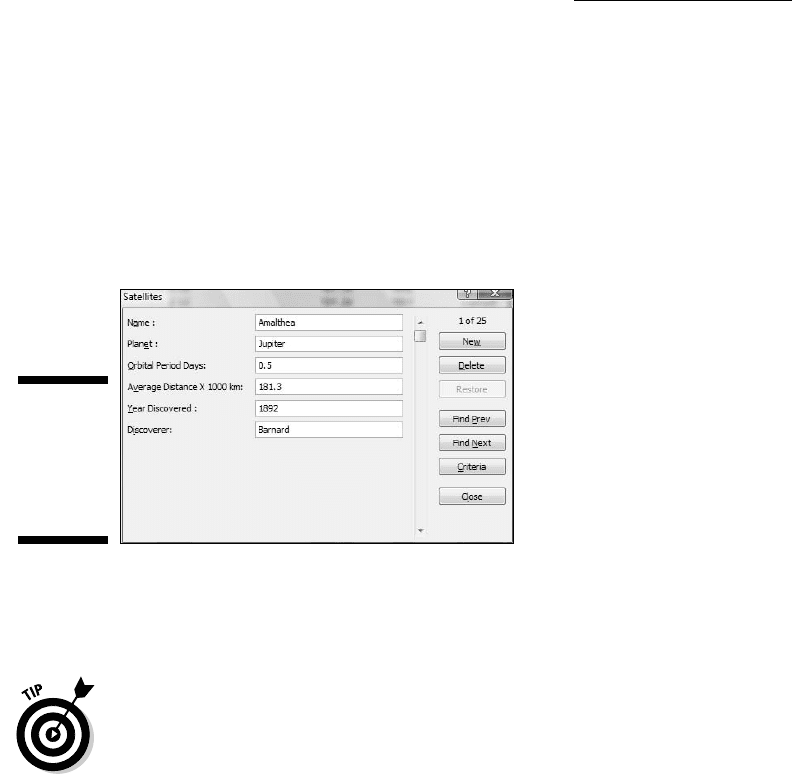
Figure A-3 shows the appearance of the Data Form when you open it with the
whole database selected. Excel fills in the field names automatically, and the
fields populate with the values from the first record. You can use the form to
navigate through the database, and you can use it to add a record. You can
start with one record and use the New button to enter all the rest, but for me
it’s easier to just type each record.
Figure A-3:
The Data
Form for
working
with Excel
databases.
Whenever you add records (and whichever way you add them), be sure to
click Formulas | Manage Names and increase the cell range attached to the
database name.
The title on the Data Form is the same as the name on the bottom tab of the
worksheet. So it’s a good idea to put the name of the database on the tab. It’s
clearer what the Form shows when something like “Satellites” is in its title
rather than “Sheet 1.”
Pivot Tables
A pivot table is a cross-tabulation — another way of looking at the data. You
can reorganize the database, and turn it (literally) on its side and inside out.
And you can do it in any number of ways.
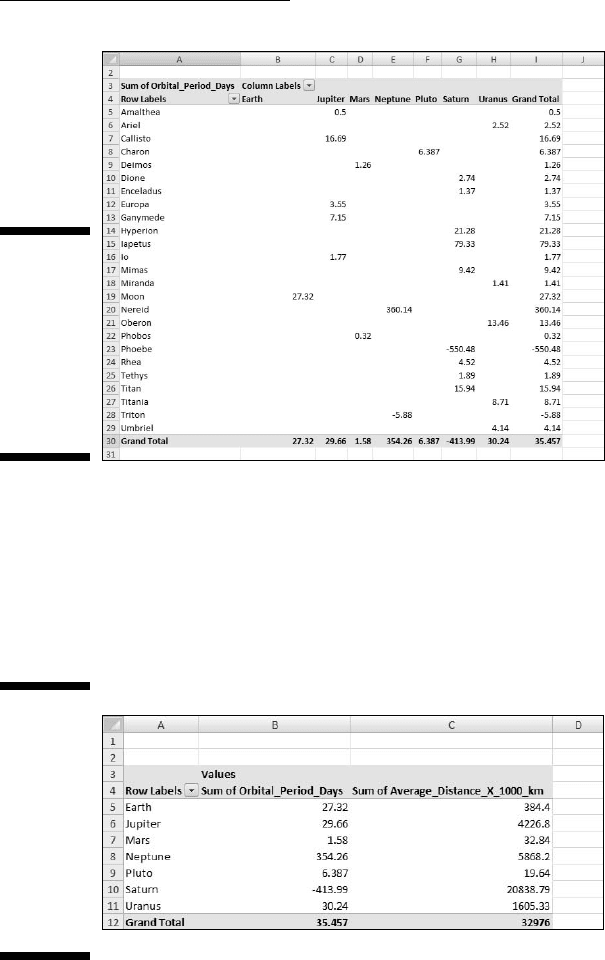
For example, you can set up a pivot table that has the satellites in the rows
and a planet in each column, and has the data for orbital period inside the
cells. Figure A-4 shows what I mean.
29 454060-bapp01.indd 41429 454060-bapp01.indd 414 4/21/09 7:39:36 PM4/21/09 7:39:36 PM
415
Appendix A: When Your Worksheet Is a Database
Figure A-4:
A pivot table
of the satel-
lites data
showing
satellites,
planets,
and orbital
period.
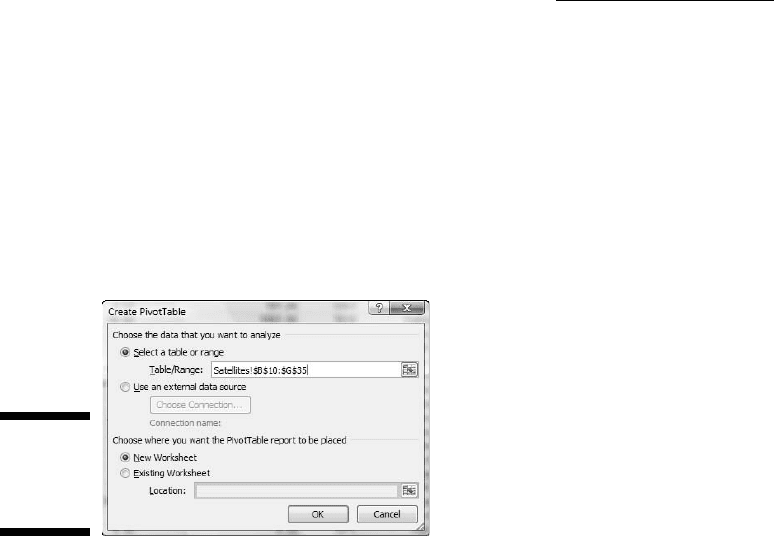
Figure A-5 shows a pivot table that presents another view of the data. This
one takes the spotlight off the individual satellites and puts it on the planets.
Each planet’s row is divided into two rows — one for the Orbital Period and
one for the Average Distance. The numbers are the sums across each planet’s
satellites. Adding up the Orbital Period for all of Jupiter’s satellites gives you
29.66, for instance.
Figure A-5:
Another
pivot table
of the satel-
lites data,
showing
planets,
orbital
period, and
average
distance.
This example focuses on creating the pivot table in Figure A-4. Creating pivot
tables in Excel 2007 is easier than in earlier versions. Before, you
29 454060-bapp01.indd 41529 454060-bapp01.indd 415 4/21/09 7:39:36 PM4/21/09 7:39:36 PM
416
Statistical Analysis with Excel For Dummies, 2nd Edition
went through a number of steps as you worked via a wizard. Now, here’s
what you do:
1. Open the worksheet that holds the database.
In this case, it’s Satellites.
2. Select any cell in the range of the database.
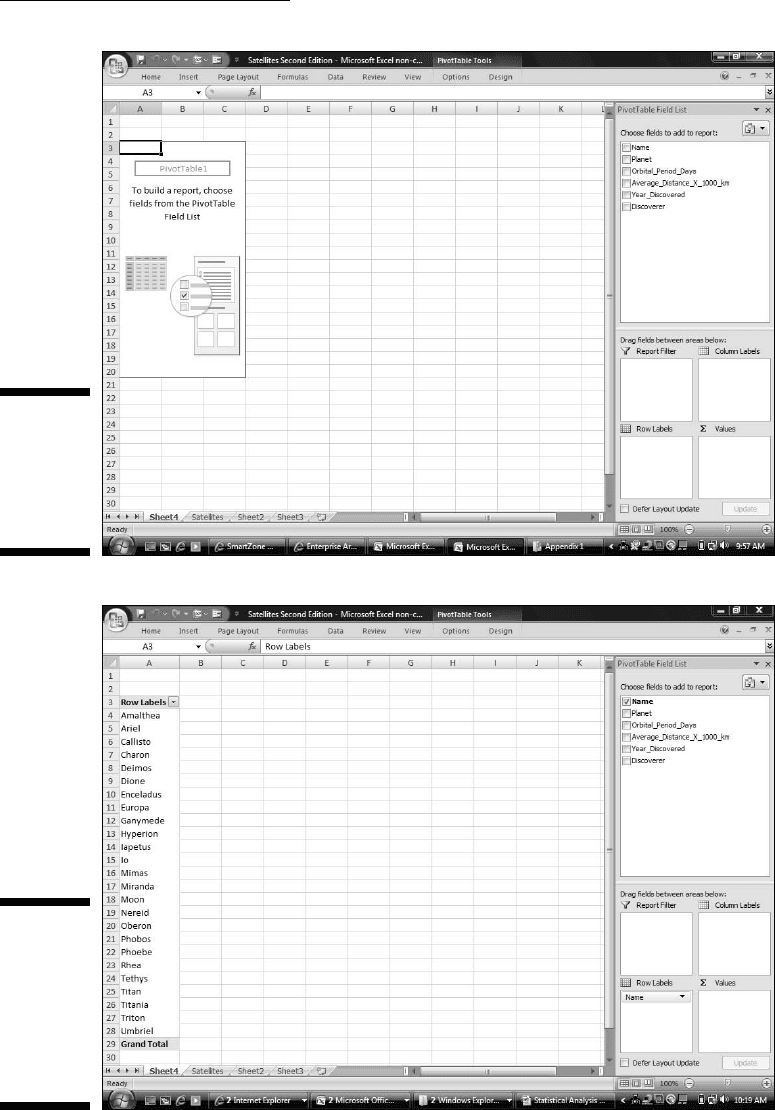
3. Select Insert | Pivot Table to open the Create Pivot Table dialog box
(See Figure A-6).
Figure A-6:
The Create
Pivot Table
dialog box.
4. Make your entries within this dialog box.
Because I selected a cell within the database before I opened this dialog
box, the first radio button is selected and the Range box is filled in.
I selected the radio button next to New Worksheet to put the pivot table
on a new worksheet.
5. Click OK.
The result is the Pivot Table Layout on a new worksheet. (See
Figure A-7.)
6. Populate the Pivot Table Layout.
To populate the PivotTable Layout, you select a field from the
PivotTable Field List, drag it into the appropriate box below, and drop it.
I begin with the rows. To make the names of the satellites appear in the
rows, I selected Name and dropped it into the Row Labels box. Figure
A-8 shows the result. In addition to the satellite names in the rows, the
checkbox next to Name is bold and checked, to indicate it’s in the table.
Unchecking the checkbox removes Name from the table.
29 454060-bapp01.indd 41629 454060-bapp01.indd 416 4/21/09 7:39:37 PM4/21/09 7:39:37 PM
417
Appendix A: When Your Worksheet Is a Database
Figure A-7:
A new
worksheet
containing
the pivot
table layout.
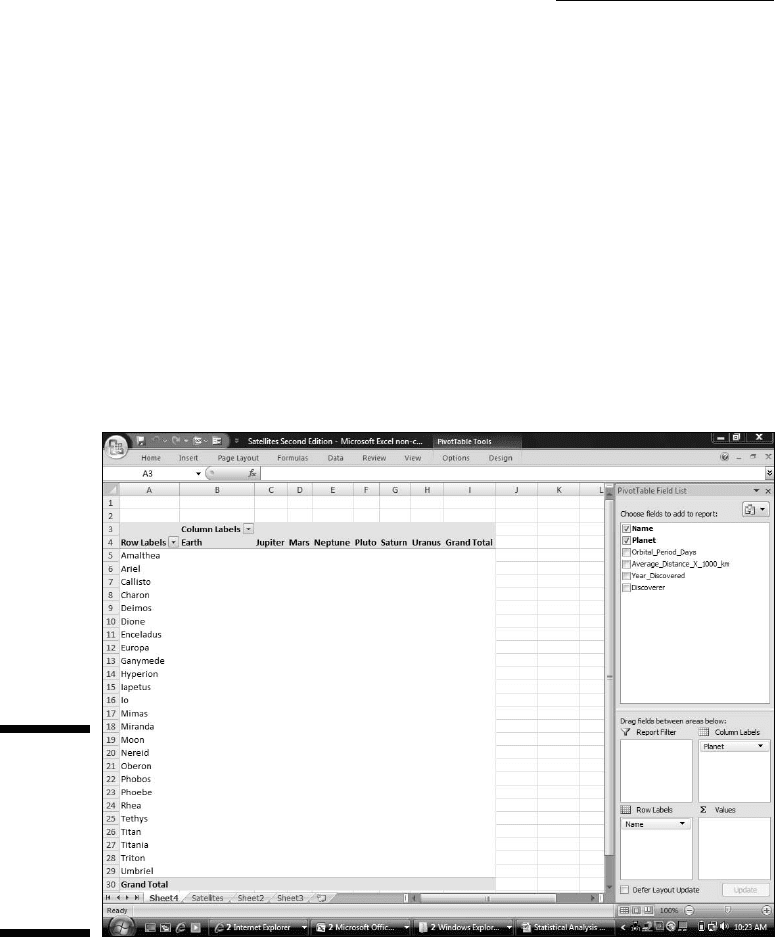
Figure A-8:
The
PivotTable
Layout after
dropping the
Name Field
into the Row
Labels box.
29 454060-bapp01.indd 41729 454060-bapp01.indd 417 4/21/09 7:39:37 PM4/21/09 7:39:37 PM
418
Statistical Analysis with Excel For Dummies, 2nd Edition
Next, I dropped Planet into the Column Labels box. (Figure A-9.)
Dragging Orbital Period (Days) from the Field List and dropping it into
the Σ Values box results in the table shown in Figure A-4.
Dropping a field into the Report Filter box creates something like a
multipage version of the table. For example, putting Discoverer in the
Report Filter box creates a drop-down that allows you to see just the
data for each Discoverer.
The down arrow next to a field opens a menu of options for sorting and
filtering that field.
The importance of pivot tables is that they allow you to get your hands dirty
with the data. By dropping fields into and out of the table, you might see rela-
tionships and carry out analyses that might not occur to you if you just look
at the original database.
Figure A-9:
The
PivotTable
Layout after
dropping the
Planet Field
into Column
Labels Box.
29 454060-bapp01.indd 41829 454060-bapp01.indd 418 4/21/09 7:39:38 PM4/21/09 7:39:38 PM